
Partner fee monthly process
The month end process is as follows:
1. IMPORTS
Upload the 4 input files:
- Import Silica Market Values
- Import Silica Rebates
- Import Maitland Performance Fees
- Import Maitland Service Fees

These imports creates a monthly fee row for each instrument. Default fee values are copied from each instrument to the monthly row and can be edited without effecting the default value.
2. UPDATES
- Make any specific Partner updates to specific monthly rows of instruments
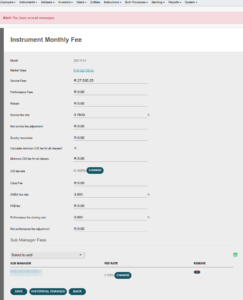
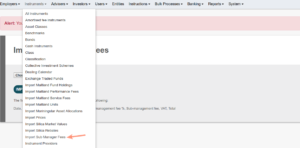
- Import fixed amount sub manager fees via the Import Sub Manager Fees function.
3. CHECKS
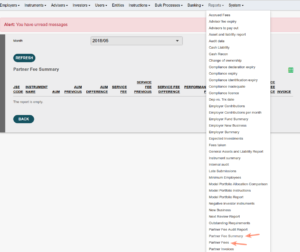
- Do your checks on the Partner fee summary and Partner fee reports.
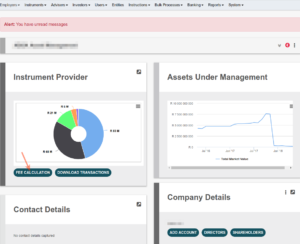
There is also a FEE CALCULATION button on a Partner that will give the same result as the two reports.
- Run the Service Fee Checks report

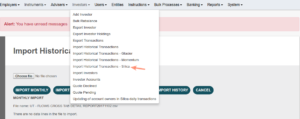
4. IMPORT CLIENT HISTORY
Import the historical transactions of Silica so that the partner can download the client list. This process runs in the background and can take a while depending on the number of transactions.
5. CREATE INVOICES
The partner does not see the fees until INVOICES are created. They only see invoices. An invoice takes a snapshot of the values for the Monthly Rows of each instrument and stores these values on the invoice. Do this:
-
- In bulk – Partner fee summary report -> Create Invoices button (this button will not display if you already created invoices)
- Individual – On a partner go -> Fee Calculation -> Create Invoice
6. NOTIFY PARTNERS
Once an invoice is created the partners can see them. Add a message on the user messages to notify partners.
7. FIXING MISTAKES
If you decide to change any value on the Monthly row of an instrument AFTER you created the invoices it will NOT automatically pull through to the invoice already created. To “force” this you need to go -> Regenerate Invoice (a button on a invoice)
The Partner Fee Summary, Partner Fee and Partner Invoices Report will show the line item in RED so that you can see if the underlying values of the calculation changed after you created the invoice. i.e Fee Calculation <> Invoice
8. PAY INVOICES
Invoices are created with a R0 paid amount. This implies you are still waiting to make payment.
You can see this by going to the Invoice LIST of a partner. There are columns for the Total invoice amount, Paid Amount and Balance.
You can also view this for all Partners from the Partner Invoice report.
Balance brought forward on an invoice = All previous invoice amounts – all PREVIOUS paid amounts.
9. MARK INVOICES PAID
Once an invoice is paid you can enter the paid amount on the Partners invoice. This will clear the balance.
Alternatively you can Mark all positive invoices paid -> Partner Invoices Report -> Mark Invoices as Paid, that will mark all invoices for a specific month paid, except those where the invoice total is negative or where you manually added an amount (i.e. the amount paid <> 0)
Last Updated on 3 years ago by Tinus Burger