
Styling changes to Capital Gains Tax Certificate
Go to the relevant Product (System -> Products -> select the relevant product) -> more actions -> Document Templates -> select the relevant Document Template -> Capital Gains Tax Certificate:
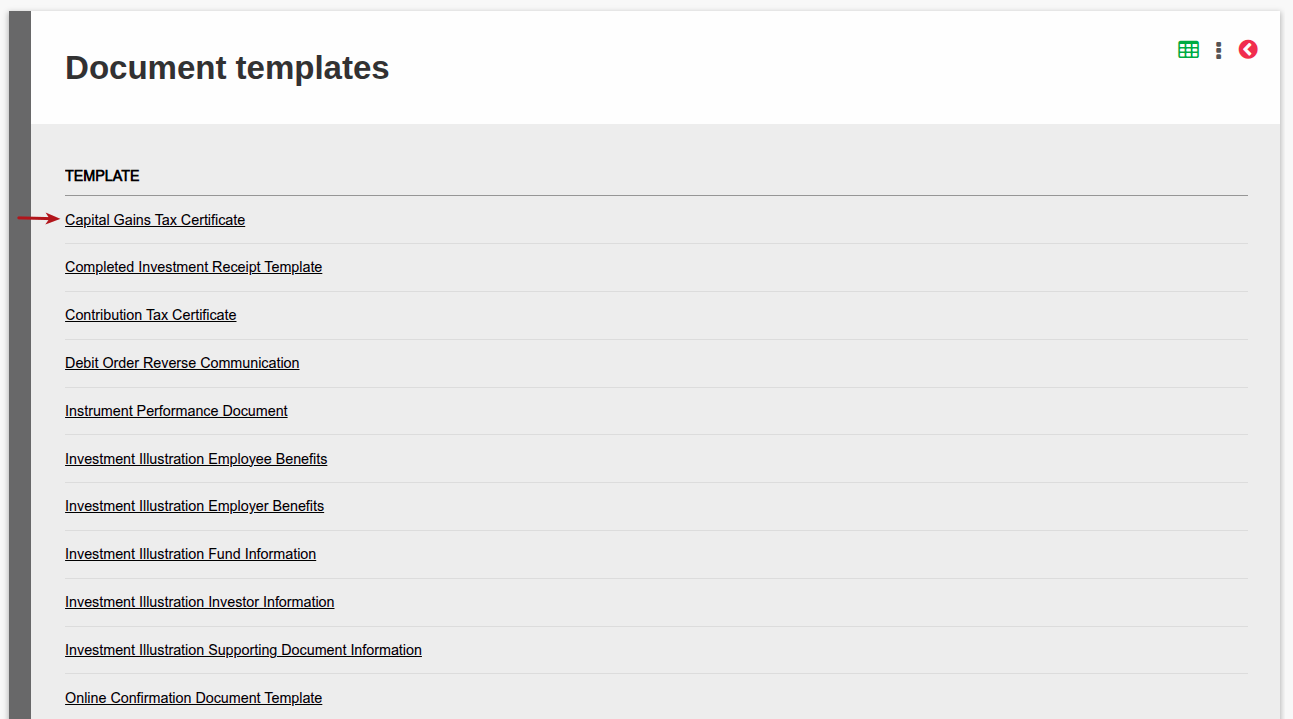
You can control various styling as well as content from this page, more detail explained below:
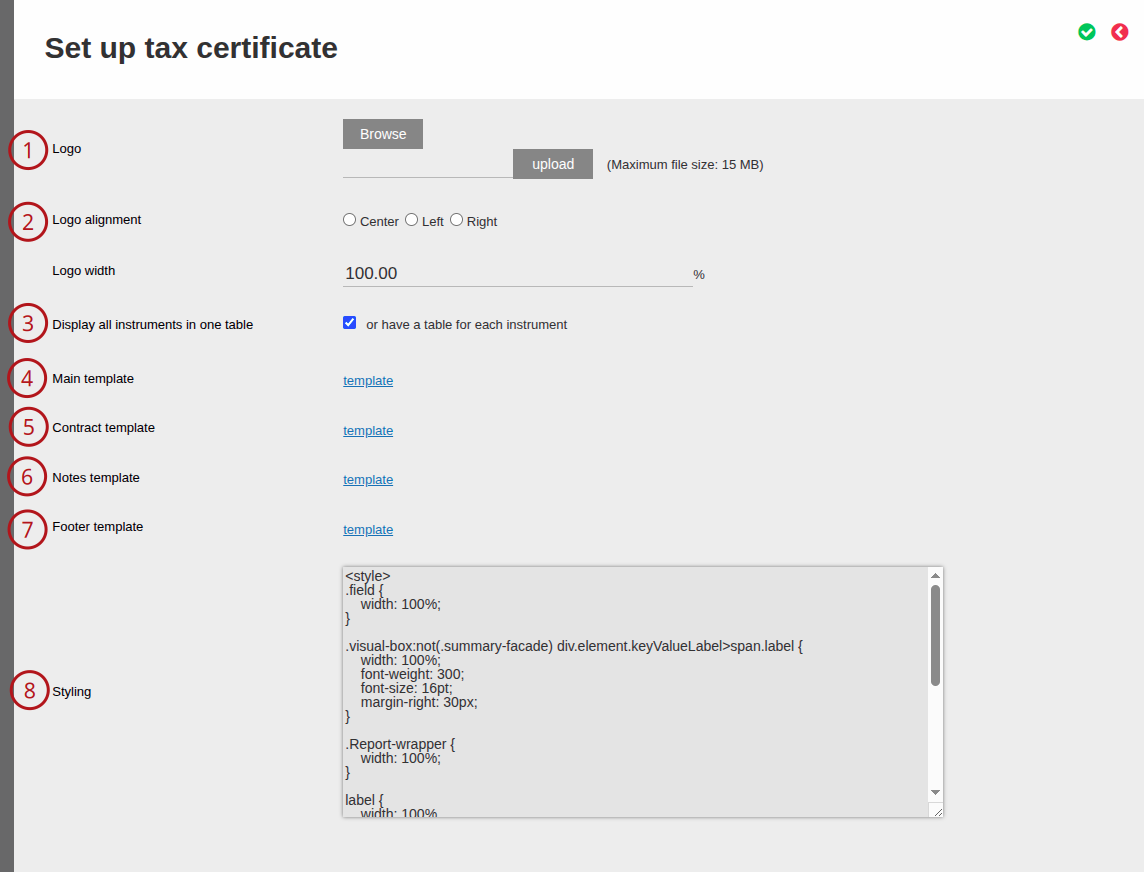
- You can upload the image to use for the logo by clicking on Browse and Upload.
- Choose alignment of the logo and the % width across the page.
- Display all instruments in one table will display only one table with all the instruments listed when checked. If unchecked, we will generate a table per instrument.
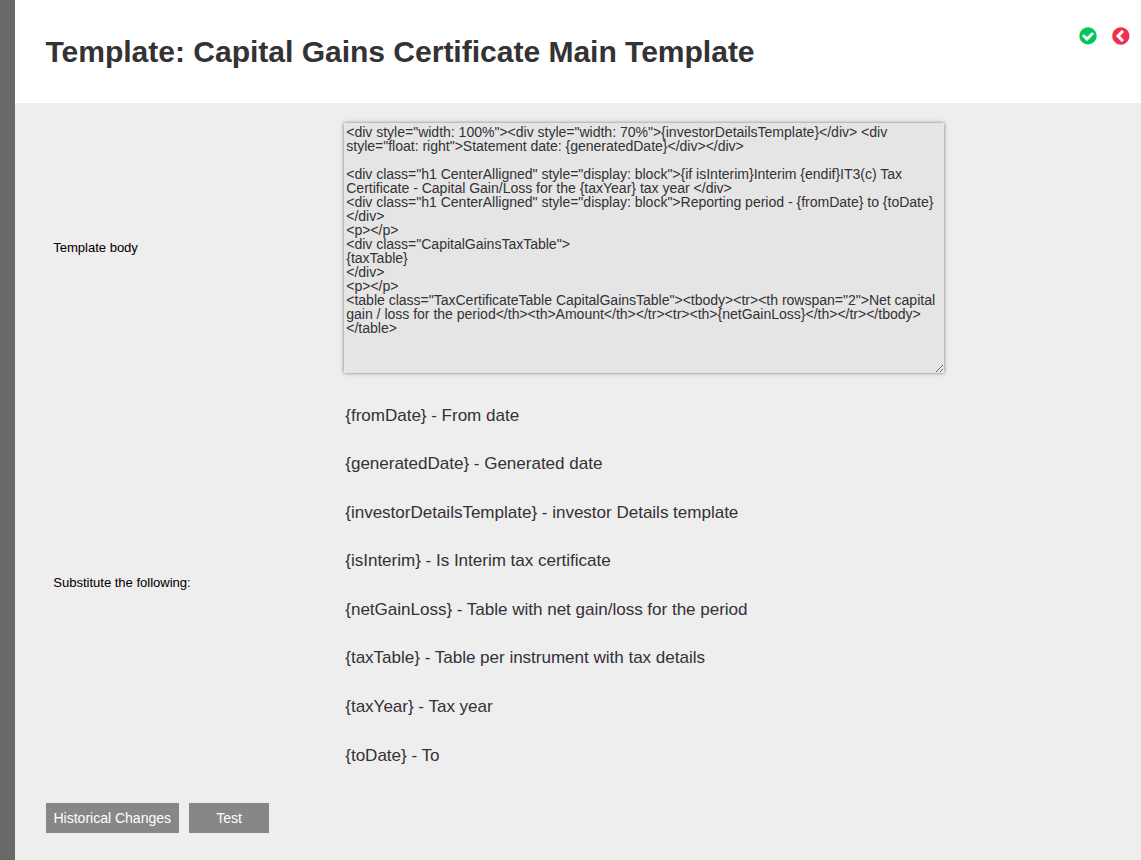
- If you click on the template hyperlink for Main Template, you can control variables that could be included or not, and where they are positioned on the document, such as Generated date, where the Investor Details must be positioned, where the tax table must be positioned, whether you show the Net Gain/Loss or not etc. See all possible variables below, which can be included/excluded in the Template body.
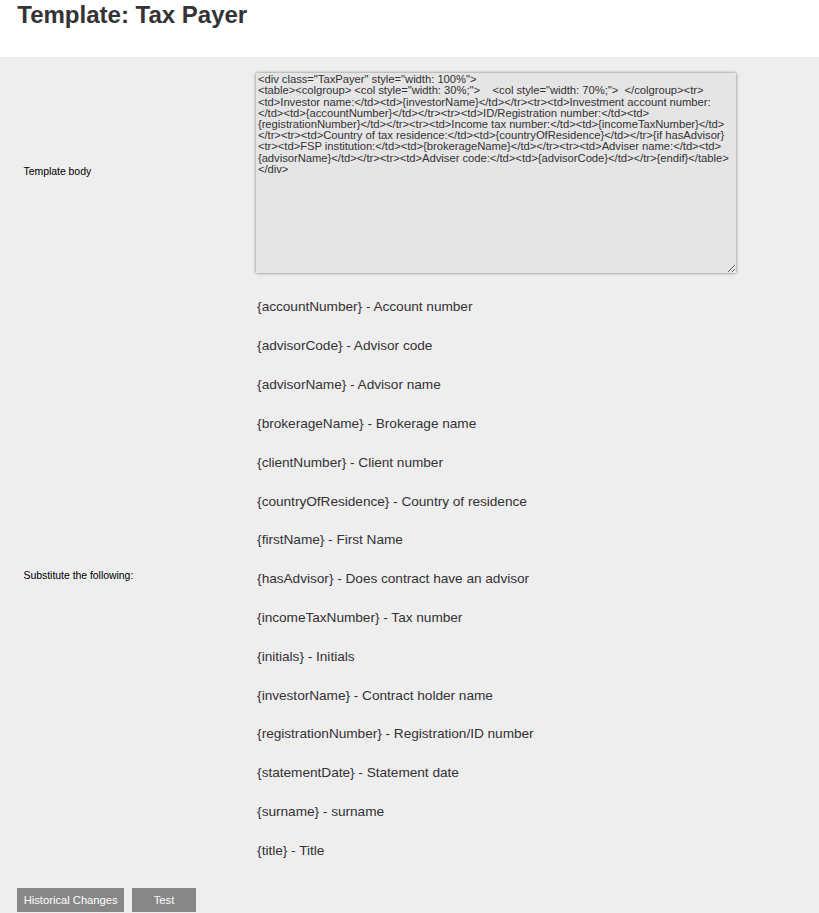
- If you click on the template hyperlink for Contract Template you can control which variables are included in the {investorDetailsTemplate} that is in the Main template, i.e. which fields do you want to include pertaining to the Contract/Advisor/Investor details in the certificate. (screen shot below). By default, this is one table with field name and values below one another.
- If you click on the template hyperlink for Notes template you can control the notes that appear just below the Tax Table in the certificate.
- If you click on the template hyperlink for Footer template you can control the footer that appears at the bottom of the page.
- The Styling box enables you to specify css styling for the entire document, including font, font size, font colour or any other styling detail you can define using css; referring to the html classes used in any of the templates explained above.
As per point 5 above, here are variables you can include/exclude in the investor details table:
Last Updated on 8 months ago by Adrienne Dill