
Adding New Members
Newly added members will reflect in the next contribution that is created. If new members are required to form part of a contribution instruction that has already been created, a contribution in submitted status can be rejected (contribution instruction screen -> menu -> reject), and then submitted to update the instruction to include the newly added members.
Add new member to existing scheme: Employers -> active employers -> select employer group -> new and existing members card -> select ‘add employee’

The following screen will appear

Capture the member’s details in Capital Letters and click “save” or “save and send email”
1. Title
2. Surname
3. First name(s)
4. Initials
5. Identification document type
6. ID number
7. Date of birth
8. Email
9. Product (select from drop down menu)
10. Investment amount
Once captured, click the “Save And Send Email Request” button to trigger the online application process if the member does not exist on the system and is being created for the first time.
If the member already exists on the system as an employee of another employer group, the option to move the existing contract to another employer group will be indicated on the screen. When moving an existing member’s contract with an active recurring investment instruction to a new employer group, the following outcomes are available:
If the product selection is the same between the employer from which the member is exiting, and the new employer group:
- The contract and its existing recurring debit order instruction will be moved to the new employer group. The instruction’s status will be updated to ‘rejected’ to allow for the instruction amount and fund selection to be reviewed on the new employer group.
- If the existing instruction’s fund selection includes funds which are not available on the new employer group, a warning will be displayed and the instruction’s status will be updated to ‘rejected’ on the new employer group. The required fund/s can be made available on the employer group, or the instruction can be cancelled and a new instruction created with the appropriate fund/s selected.
OR
If the product selection differs between the employer from which the member is exiting, and the new employer group:
- A new contract and instruction will be created in ‘new’ status, with the ‘Investment Amount’ as per the value completed on the ‘Add New Member Account’ screen.
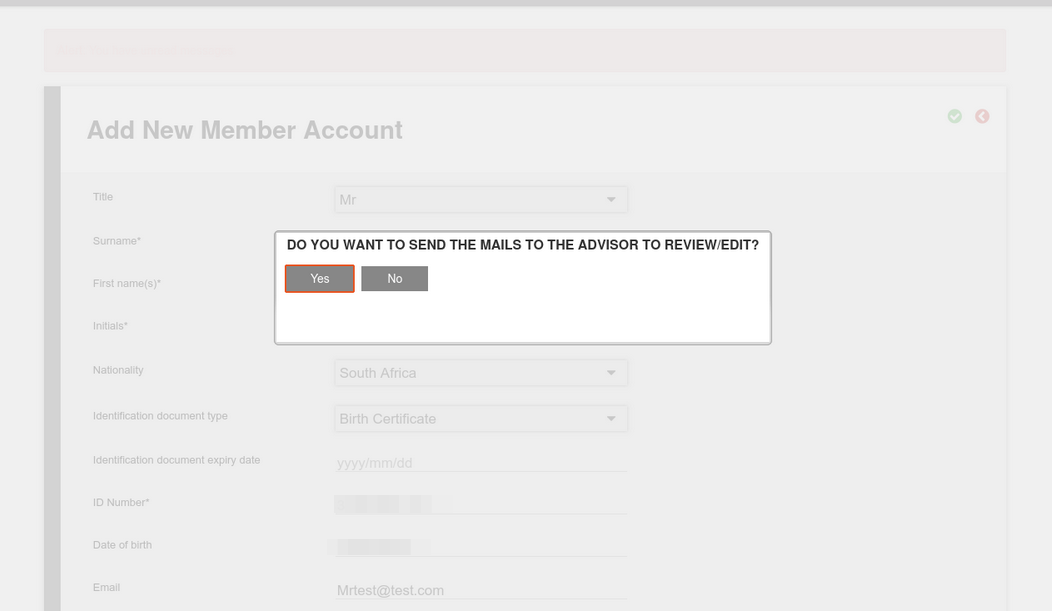
The functionalities listed below, when enabled, will direct the online application to be emailed to the (1) Adviser or (2) Adviser Assistant, or to the (3) employee, employer or helper.
- If an Adviser has been linked to the employer group, and the setting to have online applications sent to the Adviser has been enabled, the application will be sent to the Adviser (Enable Setting for Sending Online Applications to Adviser on Employer Groups).
- If Adviser Assistant has been linked to the Adviser on the employer group, and sending online applications to the Adviser Assistant card (view more -> send online application process email to assistant’) has been enabled, following the above steps will result in the online application review request being emailed to the Adviser Assistant.
- If this function has not been enabled, or if ‘no’ is selected on the option box below, the online application may sent to the employee, employer or helper. If no email address is captured for the employee, the online application will be sent to the “Helper” email address, if applicable. (to setup a helper email).
If you wish to print the application form and investment overview, click “Save” and follow the steps here.
The Adviser will receive a link to review the member’s online application via email. Once accessed, the initial screen may require a password before the member’s online application may be reviewed. Once the Adviser code, fees or fund selection and allocation have been completed, the application may be sent to the member using the ‘send request to member’. The ability to select the ‘VAT included in Amount or Percentage’ checkbox on the initial Adviser fee ‘Override Rate’ screen is read-only depending on the system’s configuration.
OR
If the online application is not sent to the appointed Adviser first, selecting ‘save and send email request’ on the Add New Member screen will share the online application for review with the member or employer. The employee will receive the following email and must click on the link to start the online application process:

Once the employee has clicked on the link, the following screen will appear:
The employee enters his/her ID number and clicks “Next”

The employee confirms / amends fund selection and clicks “Next”

The employee completes personal and beneficiary details and clicks “Next”


The Employee:
- Checks all details
- Ticks the box that he/she has read and understood the terms and conditions
- Clicks “Submit”


The employee prints the RA confirmation page, sign it and return it to the employer

The employee will receive a confirmation email with the following attachments:
1. Confirmation of application (sample of confirmation)
2. Investment Overview
3. Conditions of Membership

Last Updated on 8 months ago by Hayley Jerram