
Authorisation will be required when a change is made to a client’s Risk Assessment scoring
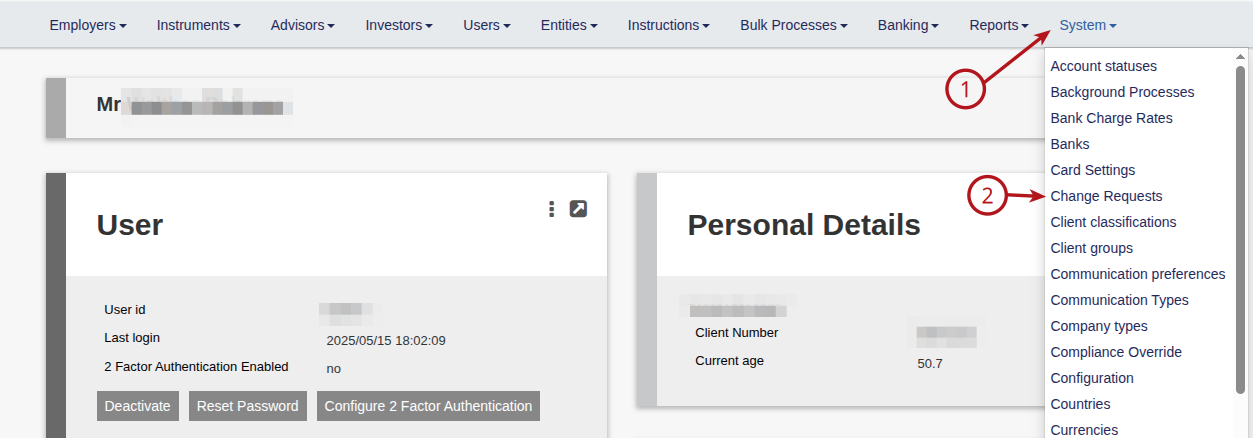
To activate the functionality for authorization on risk assessment scoring, navigate to System -> Change Requests
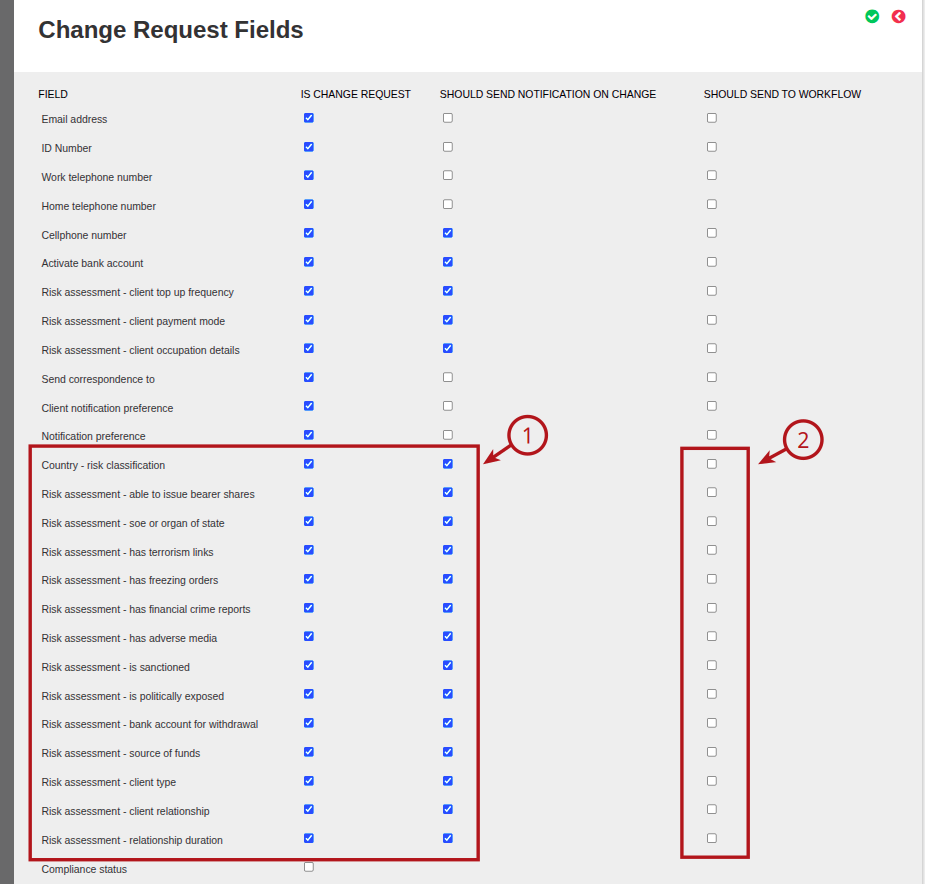
Select the fields you wish to have generate a change request when edited and if it should send a notification.
You also have the option to select if the change request should be sent to workflow.
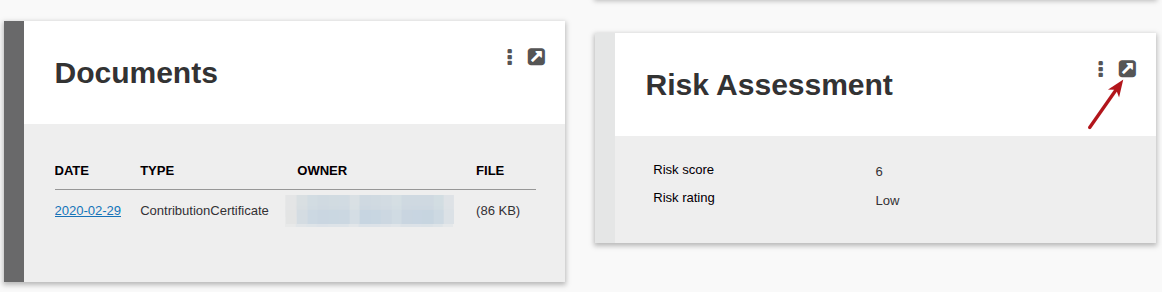
From the clients user profile navigate to the Risk Assessment card and expand it to enter the wizard.
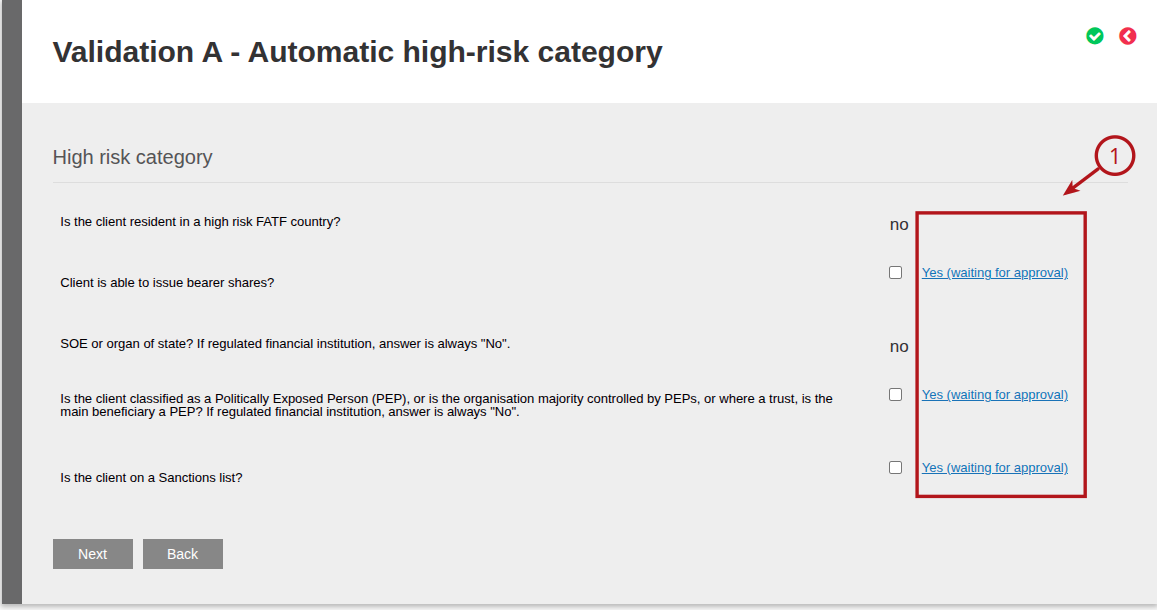
Select the risk change/s to apply to the user, if selecting any of the available tickboxes, a”Yes (waiting approval) link will appear next to it.
Click on “Yes (waiting approval)” to navigate to the the authorization screen.
Depending on the selection in step one , a notification or workflow will be created for approval.
Status of approval is displayed when link is followed from user profile.
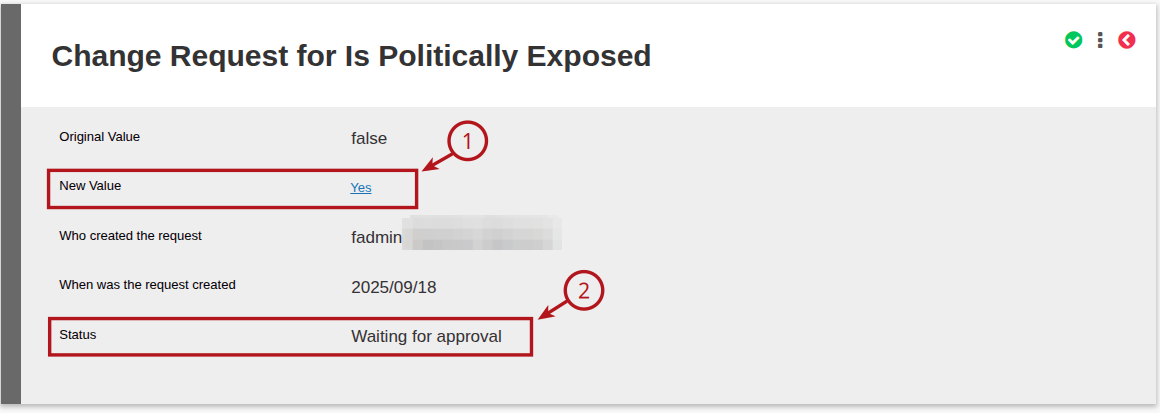
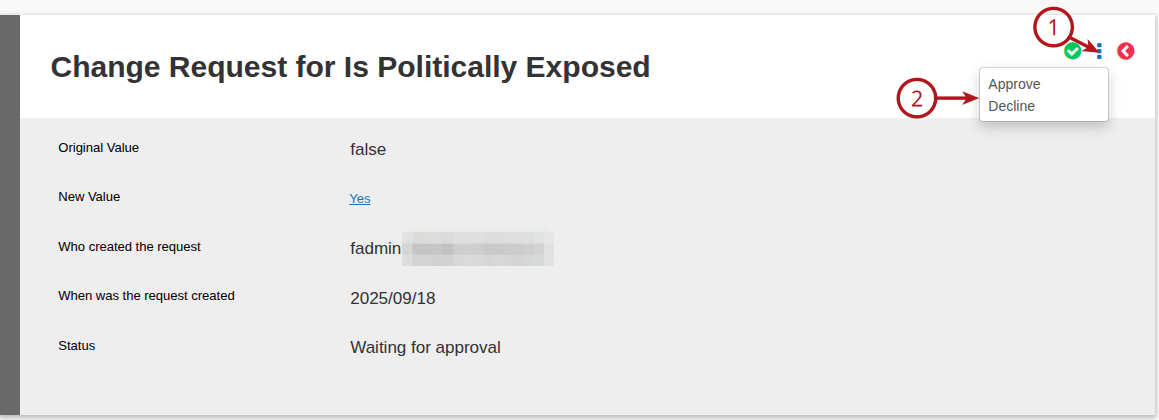
To action click on more actions and either Approve or Decline the change.
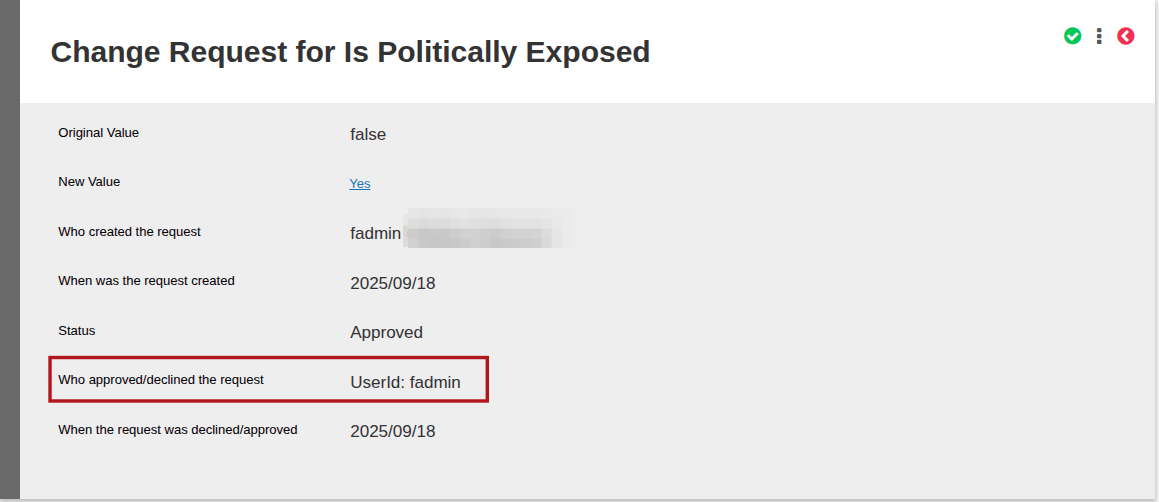
Once approved/declined the status will be updated and will display the User that Approved/Declined the request.
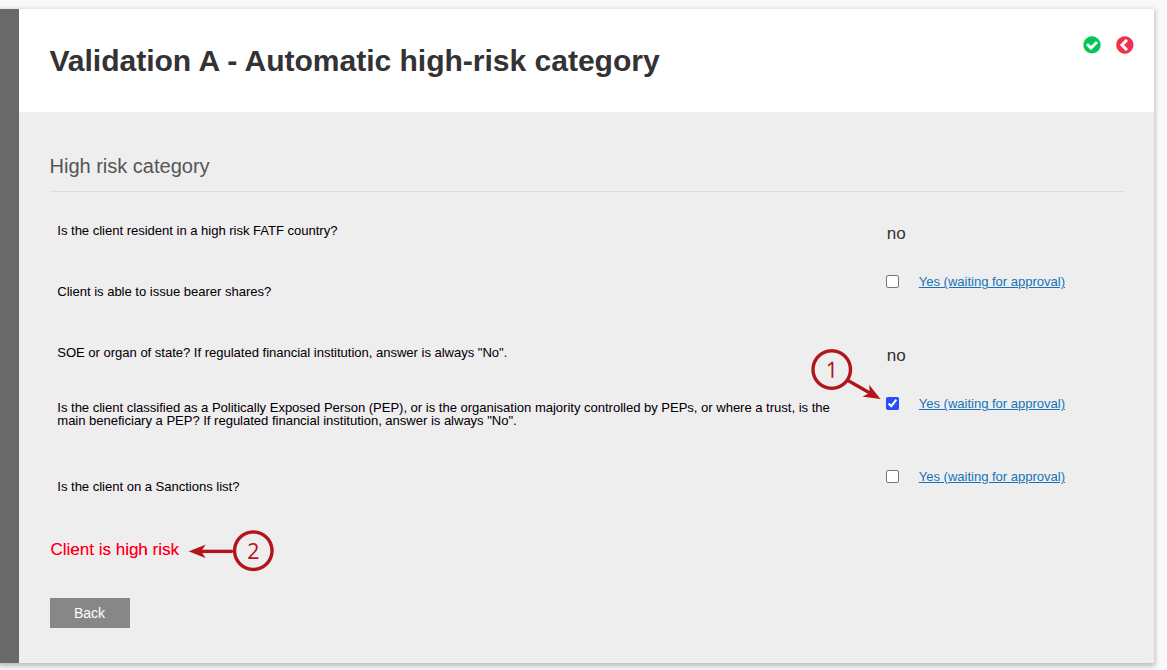
Only after the approval has been done, a tick (1) will be shown in the box on the risk wizard. If any of the Automatic High-risk category questions have been marked as Yes, the Risk Score will update to High Risk (2)
When navigating back to the client Risk Assessment card the rating and score will be updated.

Last Updated on 1 year ago by Debra Hart