
Brokerage Logo on Review Letter
The Review Letter Template can be set to display a Brokerage Logo on a Product level
To activate this functionality a Brokerage logo needs to linked to the Brokerage and the Document Templates on the Product needs to be updated
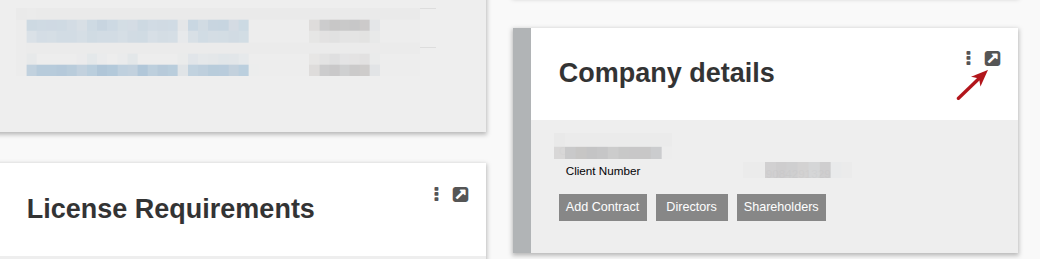
Go to the applicable Brokerage, then on the Company Card, select View Details
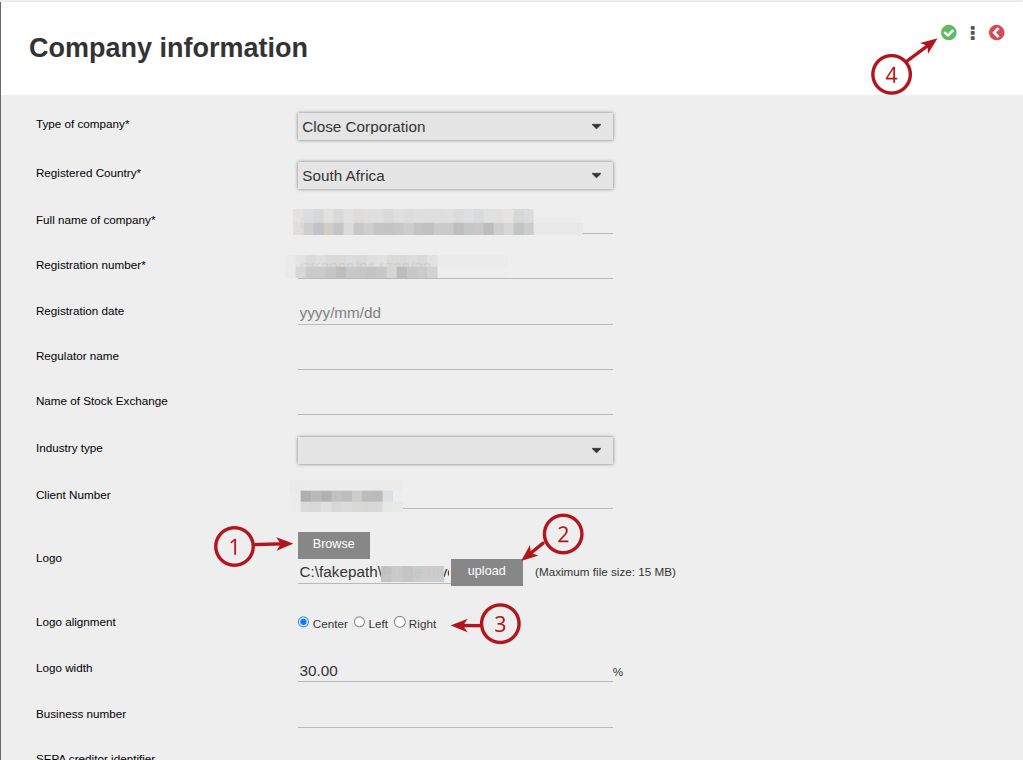
Ensure you have a saved image of the logo in order to upload the Brokerage Logo on the system, Select (1) Browse, then select the required Brokerage Logo, (2) Select upload, (3) Select the Logo alignment, (4) Save
This functionality then needs to be activated on the product that the Review Letters generate on.
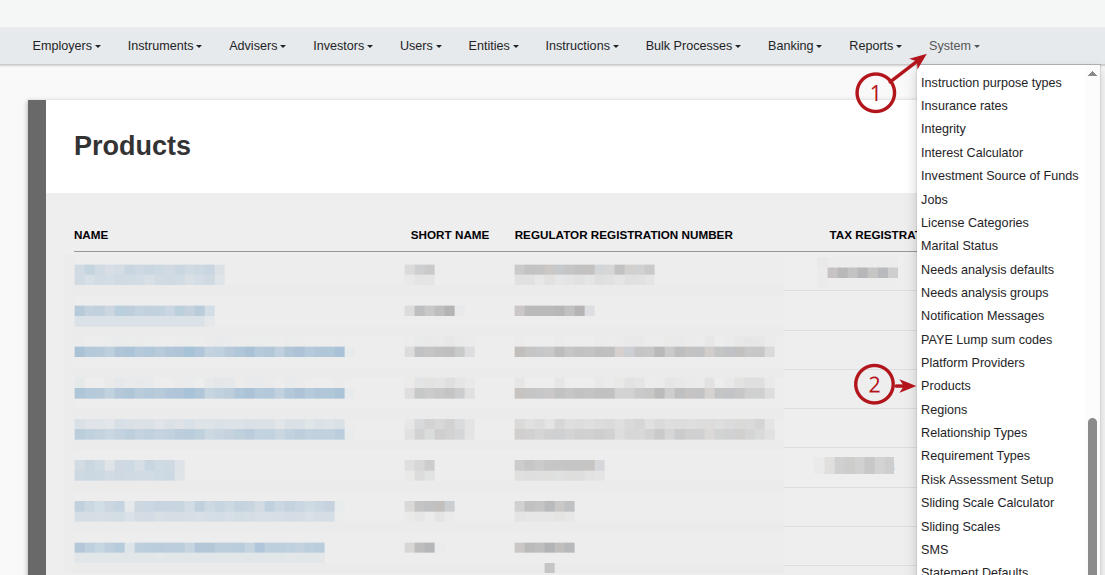
Go to (1) System and (2) Products
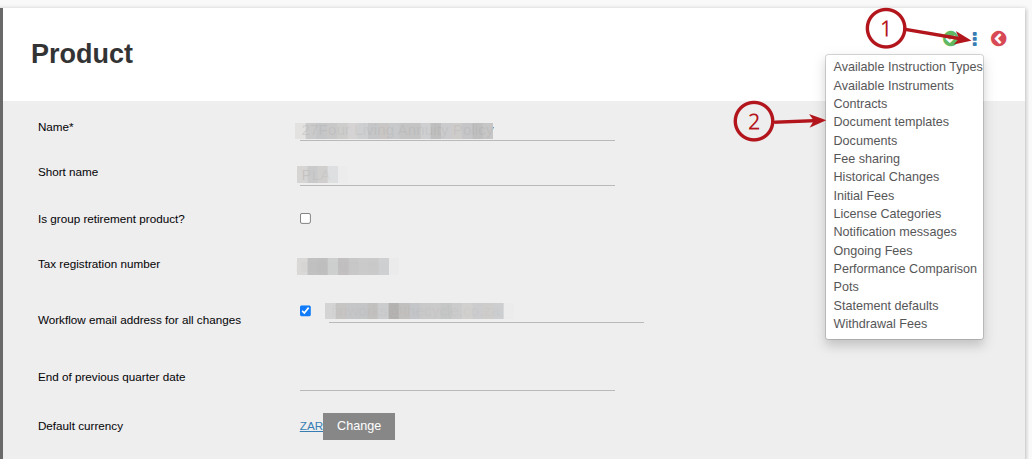
Select the required product then (1) More Details and (2) Document Templates
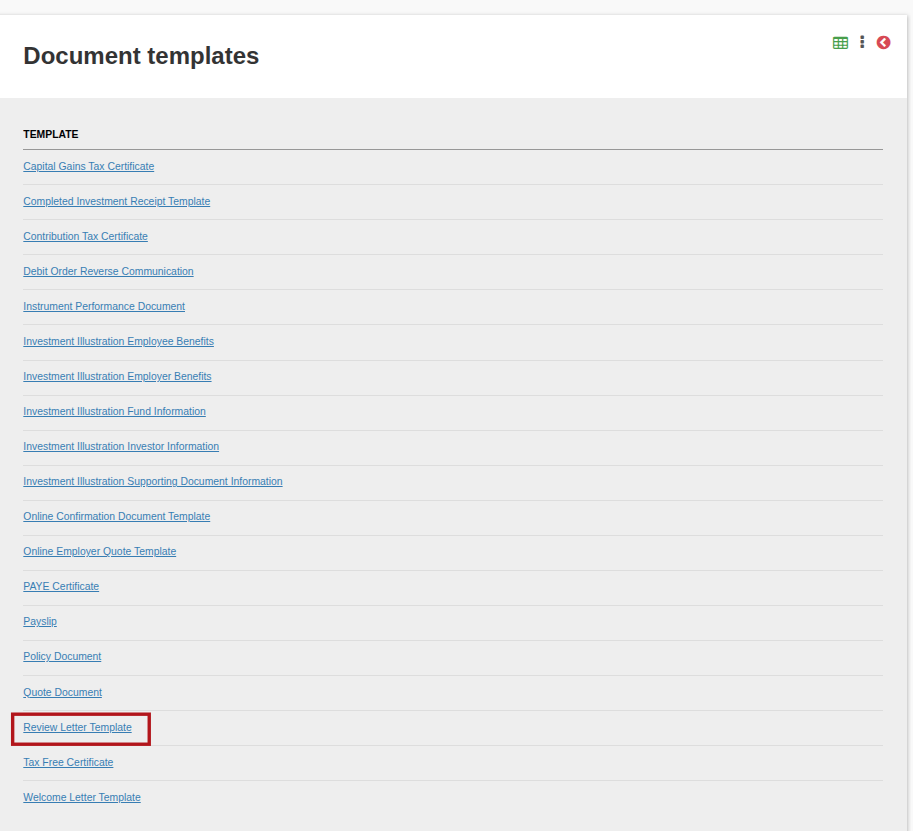
On the document template, select Review Letter Template
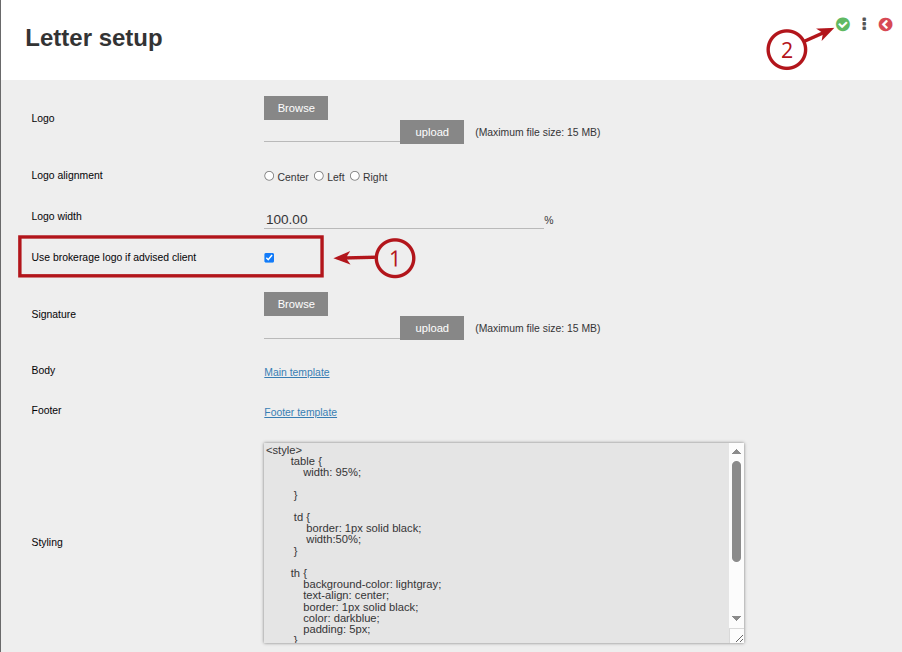
(1) Select the “Use brokerage logo if advised client” tickbox, then (2) Save
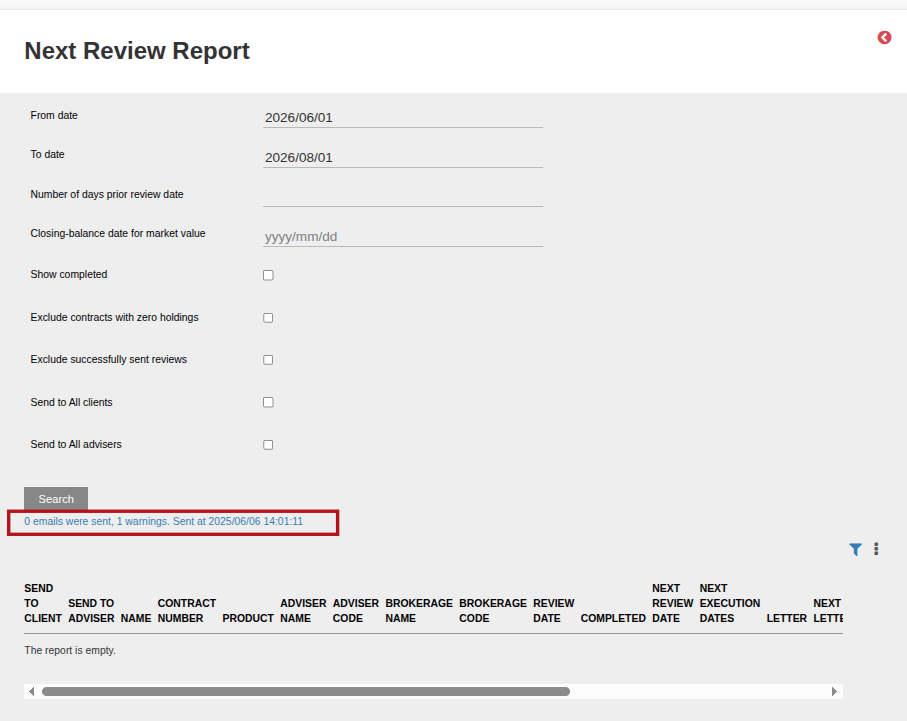
Generate the Next Review Report see link Sending Review Letters
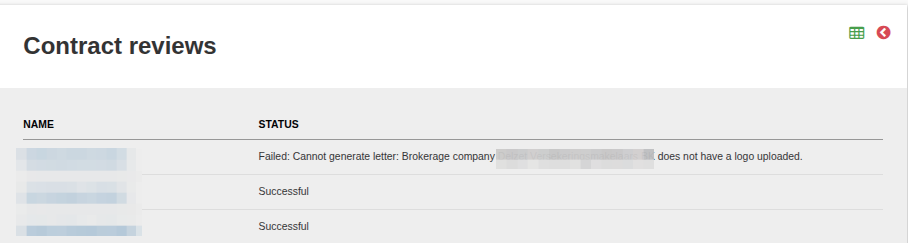
Please note: If “Use Brokerage Logo” is activated on the product and the Brokerage Logo is missing a warning will be displayed on the Next Review Report. This will result in the letter not generating. The logo can be uploaded and the Next Review Report can be re-run.
Example of Error on Next Review Report, if you select the link it will provide the Contract details of the failed Review Letter
Last Updated on 1 year ago by Debra Hart