
Buying through a Trading account
This will apply to Instruments that have been setup to deal through a Trading Account.
When the money for the buy is in the Transacting account, buy into the Trading Account by doing a cash instrument transfer from the Transacting account to the Trading account and create the Dealer Instruction.
Import the Trading account Statement.
On the Buy Contract Note you can either immediately confirm the dealer instruction, which will put the instruction into an Allocated not Paid state. Or you can first match the payment by clicking on the amount hyperlink next to “Payment”
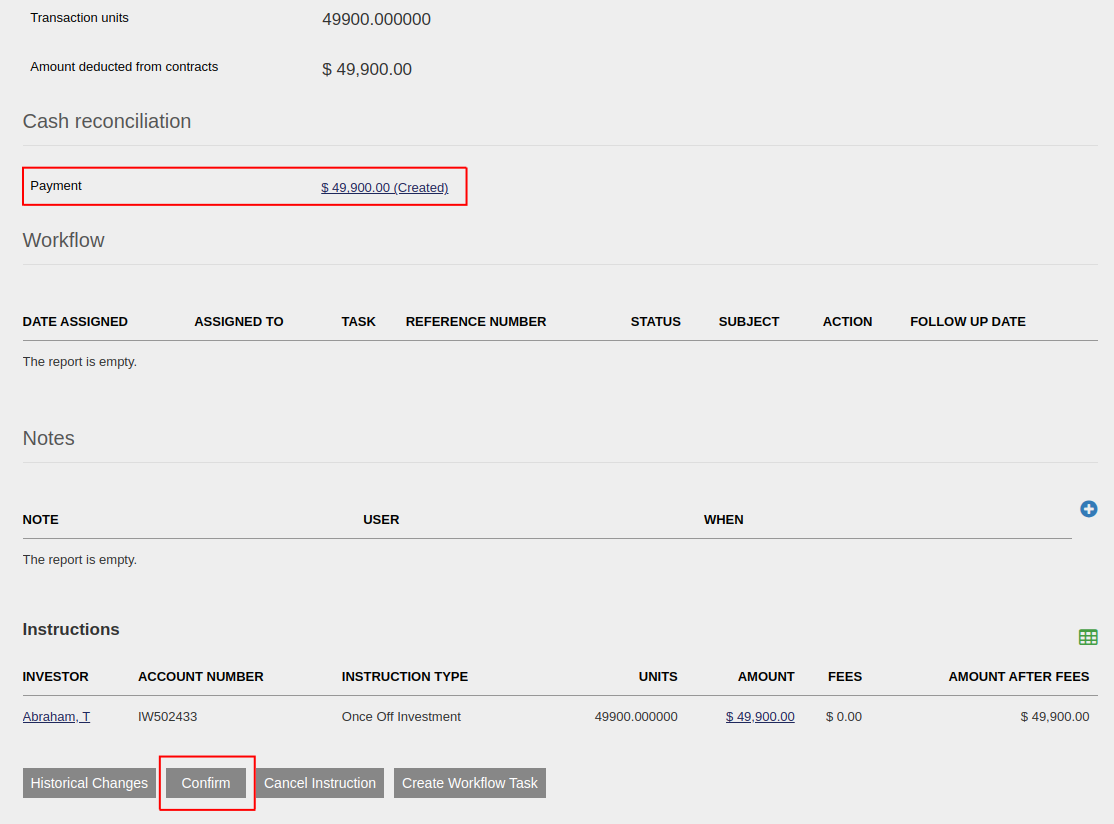
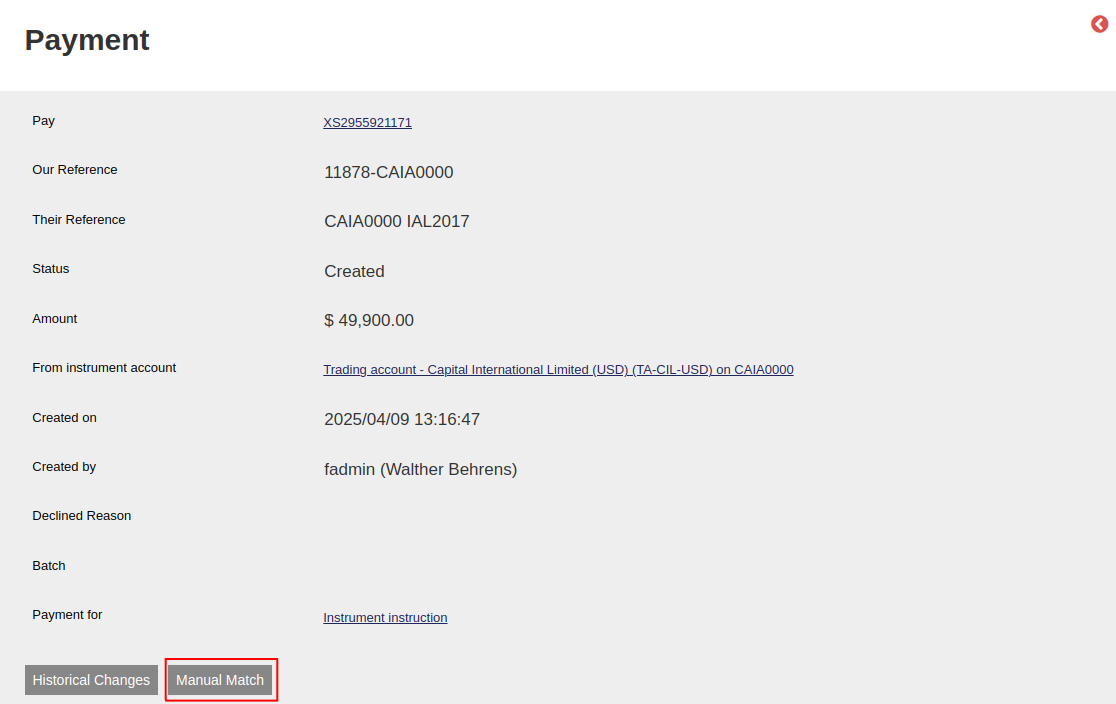
This will take you to a Payment screen, where if already matched, you will see the matched corresponding payment here. If not matched yet, click on Manual Match.
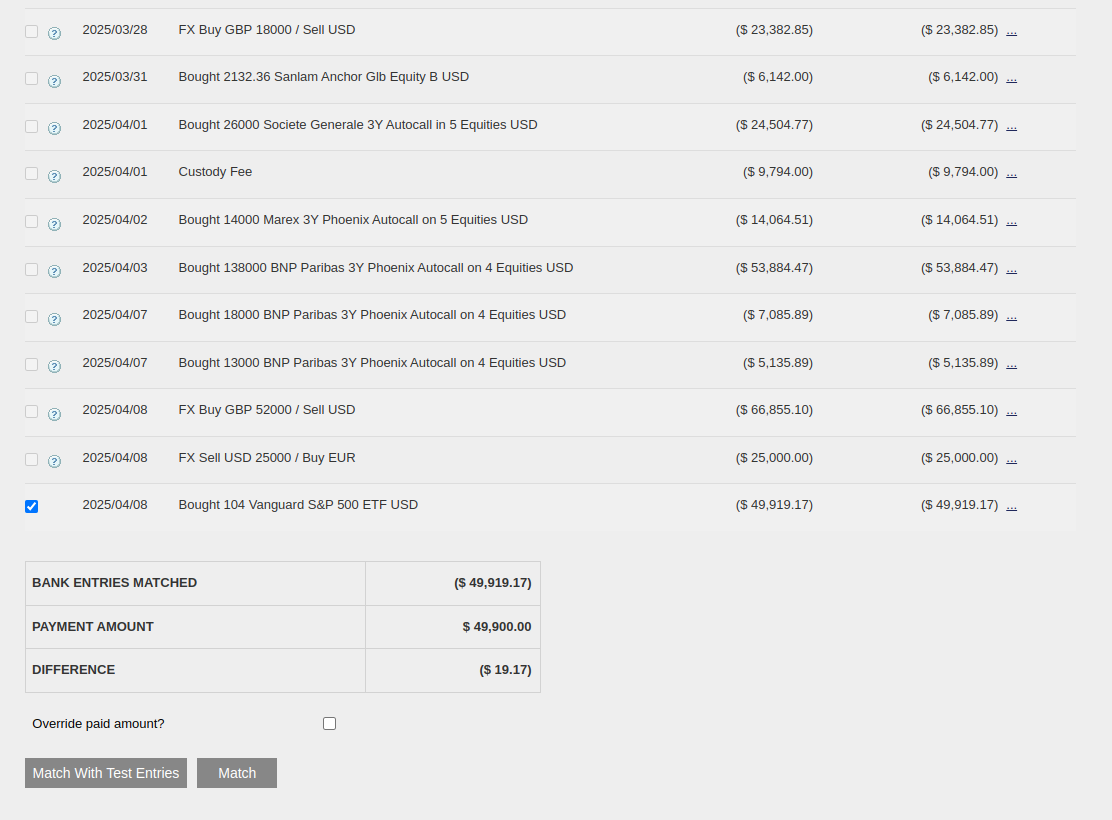
The entries from the Trading Account Statement will pull through to enable matching the relevant entry. At the bottom you can see the total amount matched, and what the difference is to the payment amount.
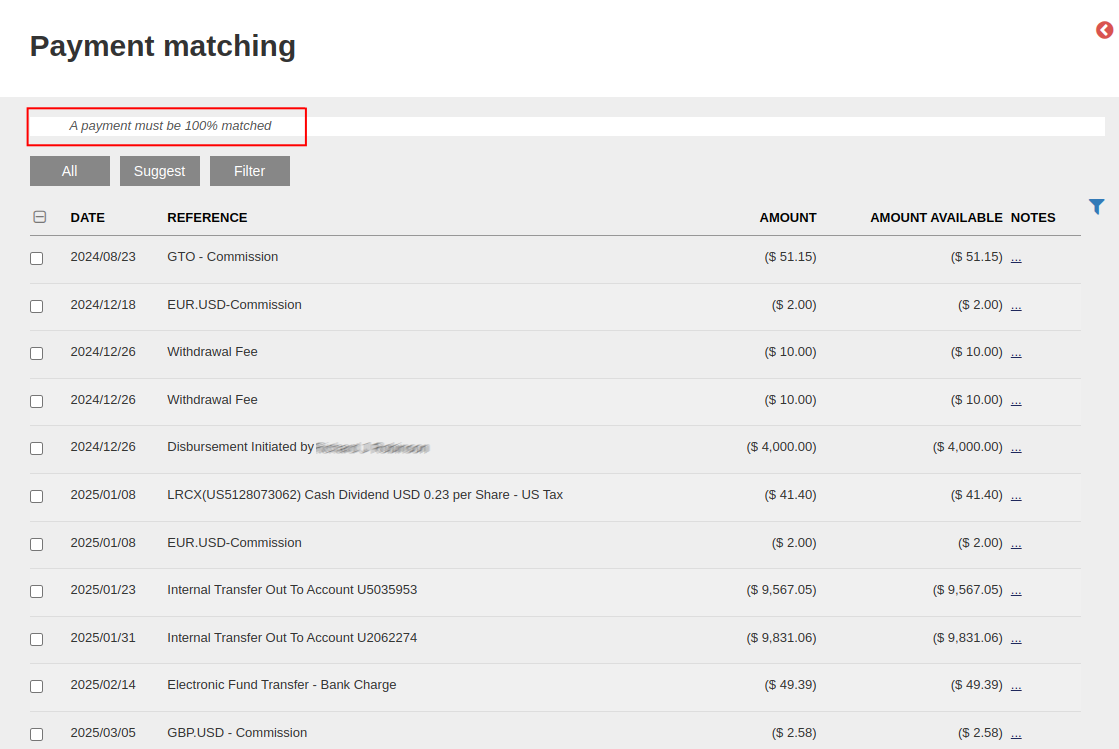
If you match before confirming, and the payment doesn’t match 100% to the investment amount, you will get this error and you won’t be able to match the payment. At this stage you can either split the deposit so that you match it to an amount that matches exactly (by clicking on the 3 dots next to the statement amount) or you can un-match and cancel the dealer instruction, depending on what the scenario is.
Else, if you match first and you use the “override paid amount” checkbox, which means you were able to match to an amount that doesn’t completely match as below:
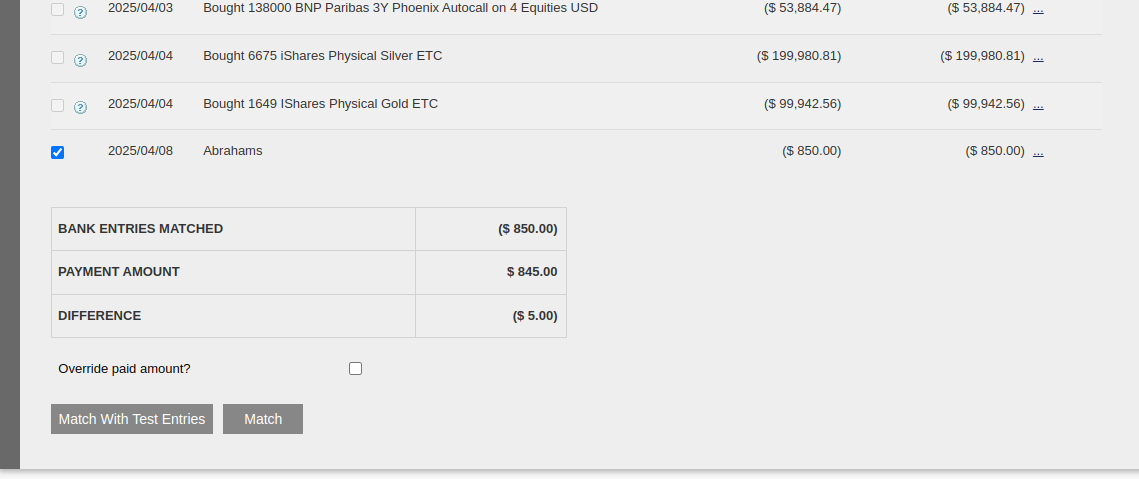
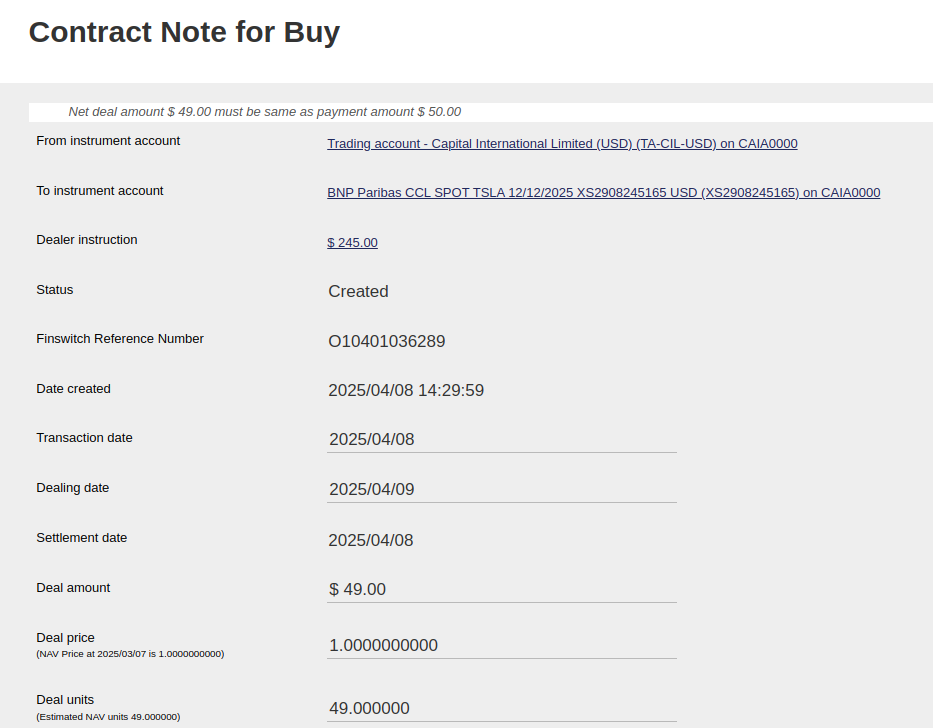
Then you’ll get this error when you try to confirm the Dealer Instruction. Actions to rectify this, will be the same as mentioned above.
Last Updated on 2 years ago by Adrienne Dill