
Contribution Certificates
Contribution Certificates can only be generated if ‘Contribution Certificates’ has been ticked on the relevant Product
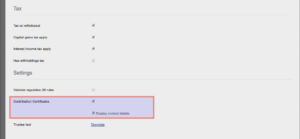
1. Bulk ContributionCertificates can be generated, per product, for a selected financial year
2. Individual Contribution Certificates can be generated on individual investment accounts
1.Bulk Contribution Certificates
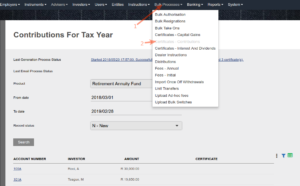
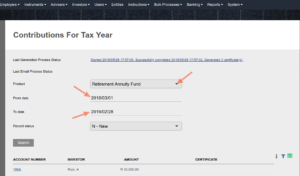
Use the product filter to select the required product and specify the date range of the tax year for which certificates must be generated.
Click on the “Search” button to generate the list of investors.
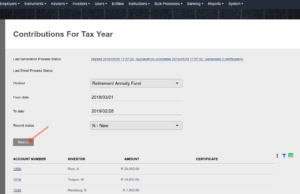
A ‘preview document ‘option will appear under certificates to enable the user to ensure that the certificate content is displayed as intended prior to generating the certificates.
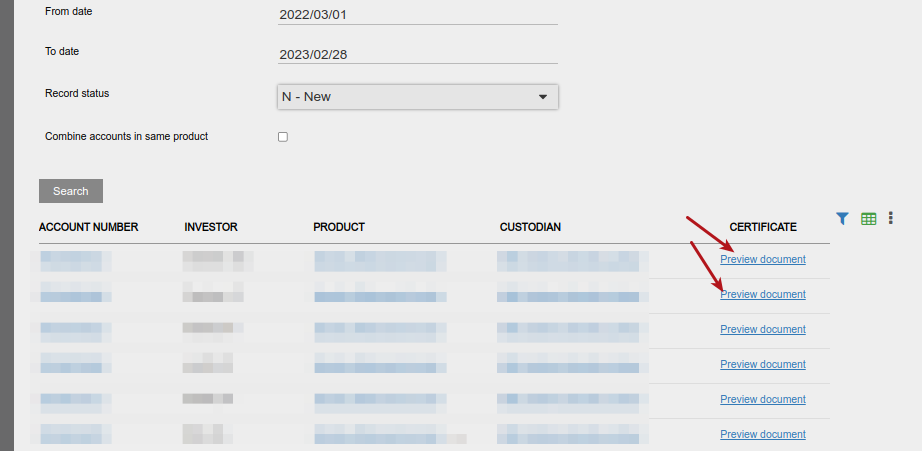
Select the “Create Certificates” button to start the background process to generate the certificates.
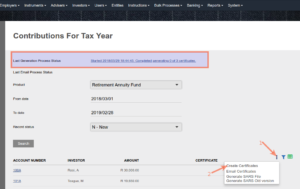
The certificates will start to generate in the background, which means the user may navigate away and work from other menu items, while the process is busy.
The progress will be updated, as the batch completes and the progress notification can be refreshed by clicking again on the “Certificates-Contributions” menu item.
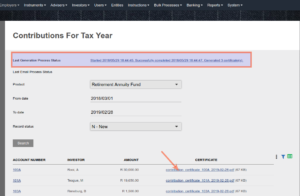
On completion, the process status will display the number of certificates generated.
In the “Certificate” column, the download links will be available for the PDF files, with the investment number and financial year in the file name.
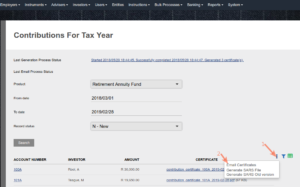
The generated Contribution Certificates can be emailed to the individual investors. The certificates will start to be emailed in the background, which means the user may navigate away and work from other menu items, while the process is busy.
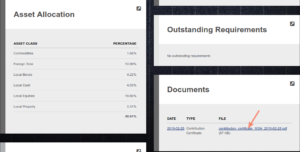
The download link for the Contribution Certificate PDF file will also be available on the Document card of the individual Investor Accounts
The SARS file that must be submitted can be generated and will download as a .txt file
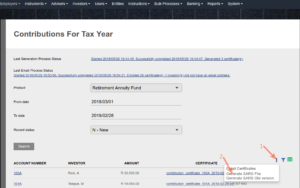
If the Record status selected was N-New, the status included in the SARS file will be N for New. If D-Delete was selected, the status included in the SARS file will be D for Delete. D as status needs to be used when an incorrect submission needs to be deleted.
2. Temporary Contribution Certificates
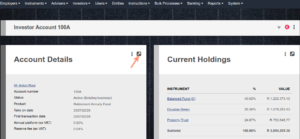
Select “View Details” from the Account Details Card on an Investor account
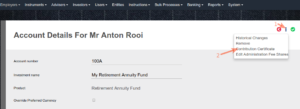
The Contribution Certificate generated will not be saved
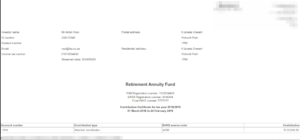
Sample of Contribution Certificate layout
See also Add Fund PAYE – and Tax number to Custodian, Add Trustee text on Contribution Certificates, Delete Certificates to Regenerate and Logo on statements and certificates
Last Updated on 3 years ago by Antoinette Van Meyeren