
Create investments automatically when importing a matching deposit
This can be setup in two ways , first being on system level on the product and secondly being on client level on the contract.
The following needs to be done regardless of what level you intend on setting up the default transaction configuration.
Navigate to System -> Configuration and then click the checkbox : ‘Should create investments automatically when importing a matching deposit’
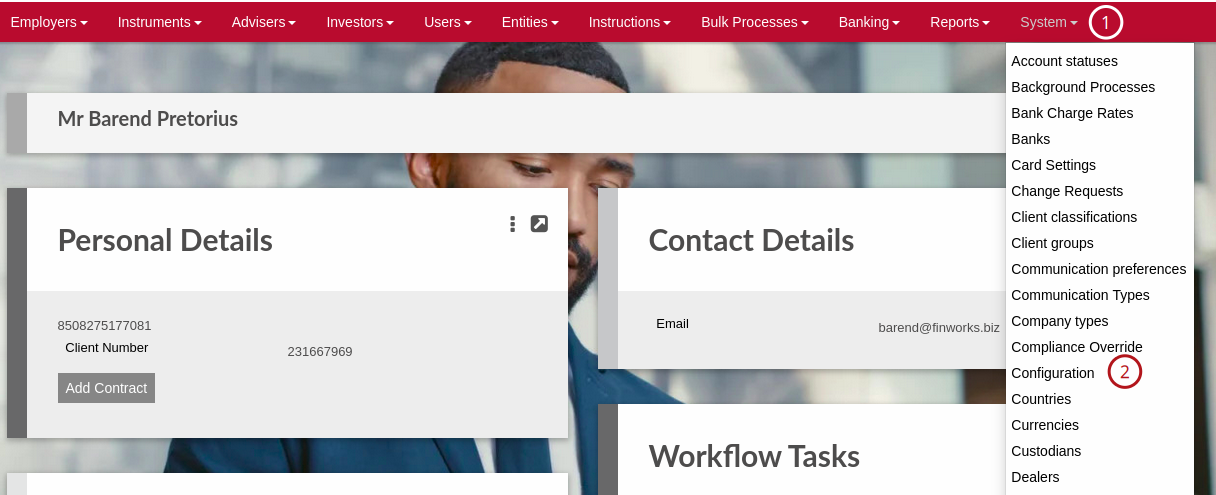
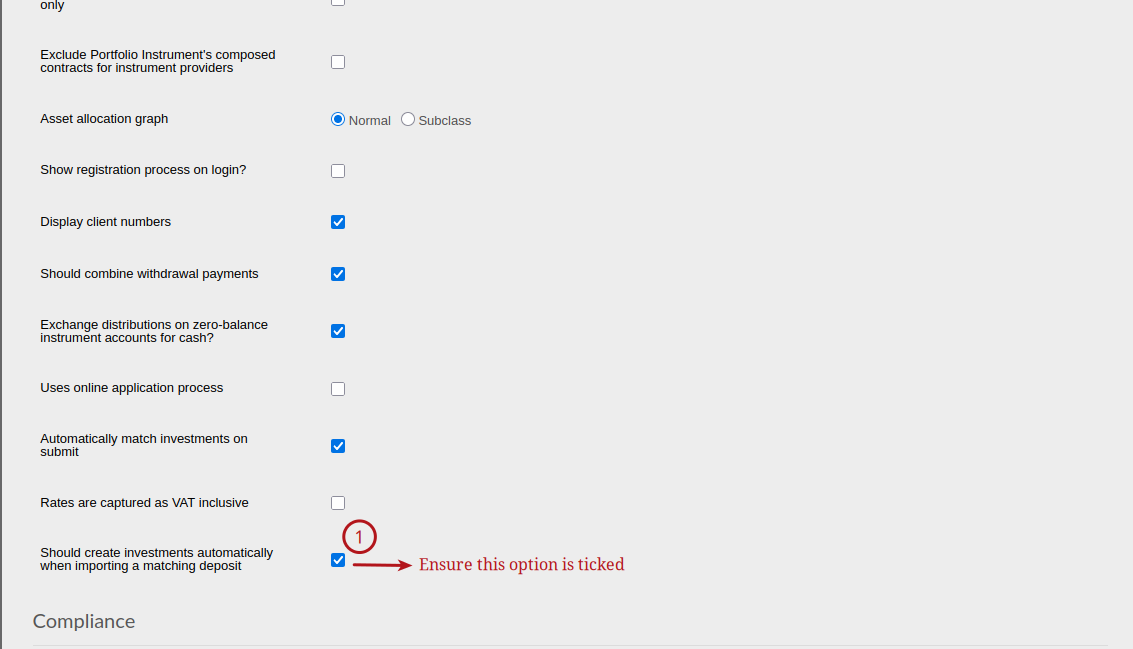
Here after you can continue to setup your instruction defaults, remember if no default is setup under the contract the system default will be used to create the instruction.
First we navigate to “System” -> “Product” and you select your product you wish to setup the template on.
After selecting the product scroll down until you find “Template Account” and click on “Change”.
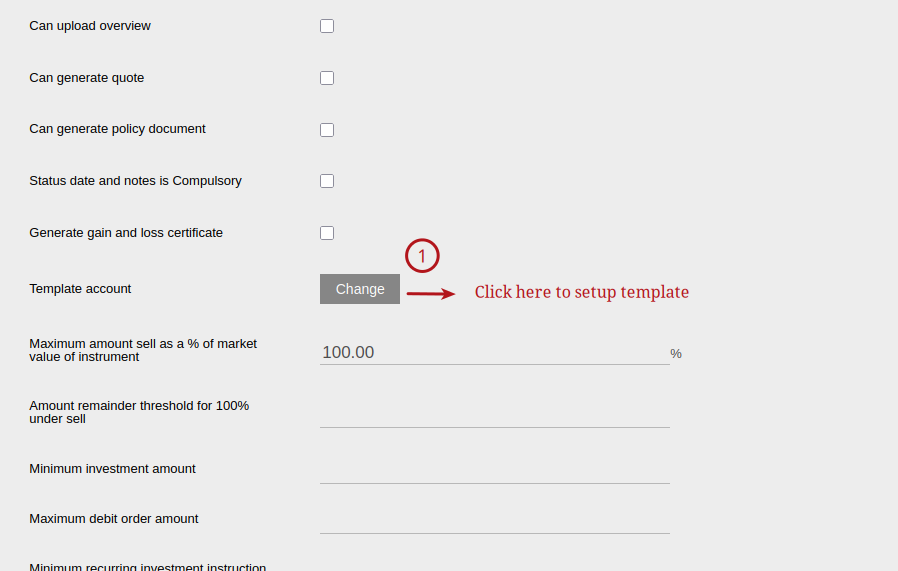
You will be presented with a search screen, it’s advisable to search for the “Working Portfolio” and select this contract to create your template on.
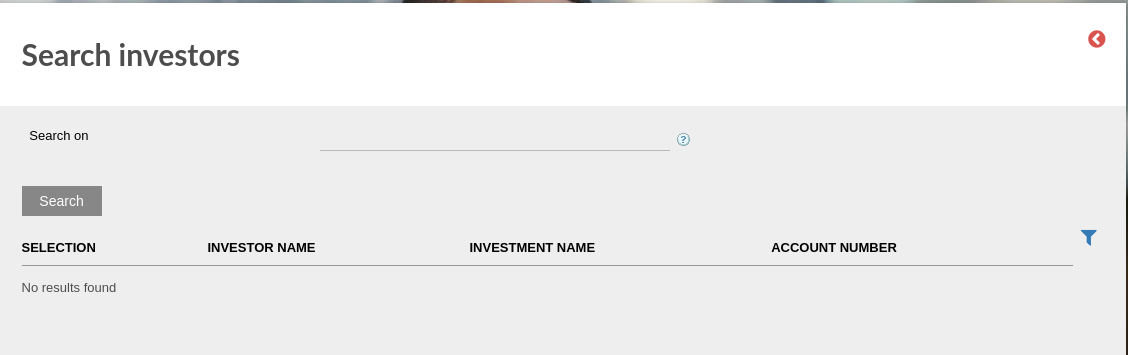
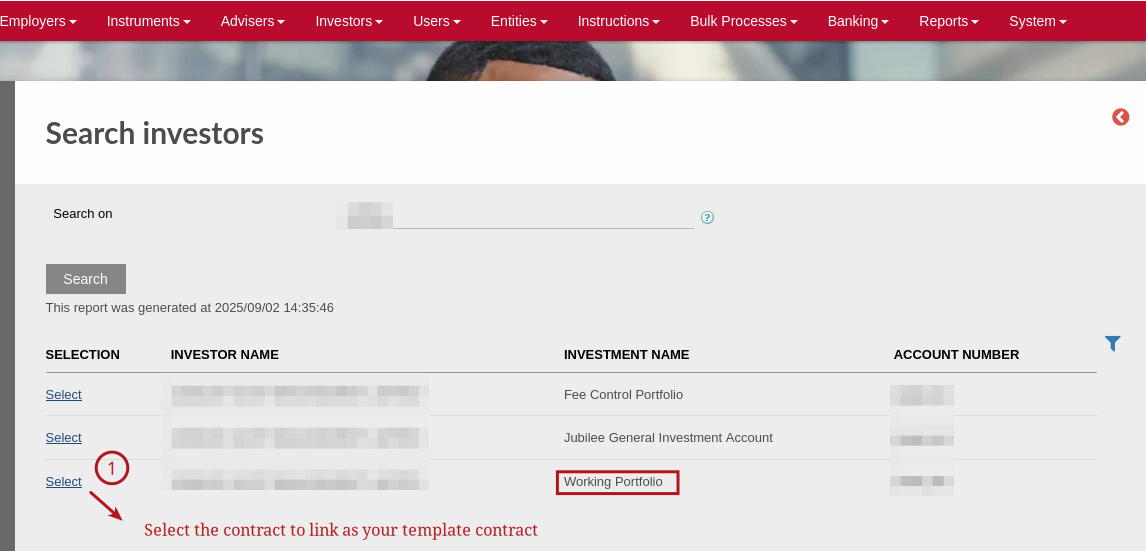
Once this is done click into the contract shown next to “Template Account”
Create a new instruction for “Investment” and leave the value as ZERO , do not submit the instruction only save it.
Then on the “Active Instructions” card select more actions and then select “Instruction Group”.
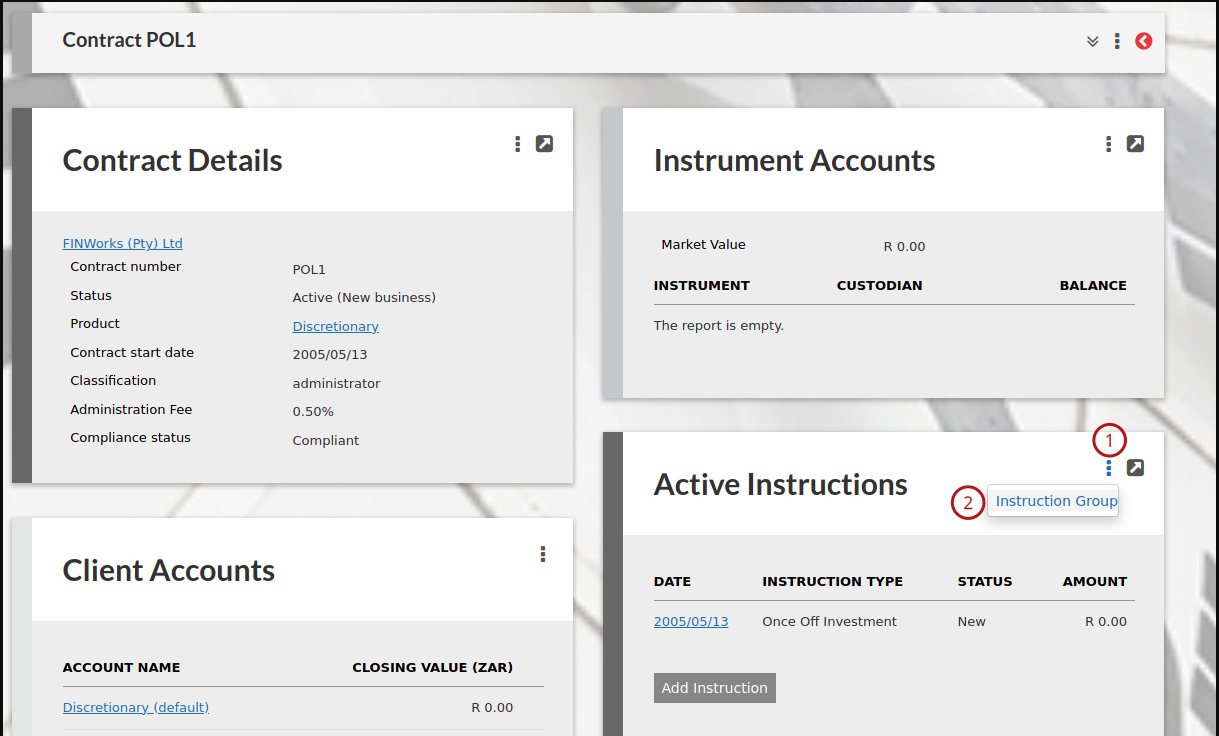
You will be presented with the list of instructions that are active on the contract, select the newly created one with the ZERO value.
Note that the contribution percentage setup in the instruction will be used as the default , so if 100% is allocated to a instrument in the template instruction it will be the same on the client instruction created.
If your client has a specific split they wish to invest to each time it’s advised to setup a template on the client contract itself.
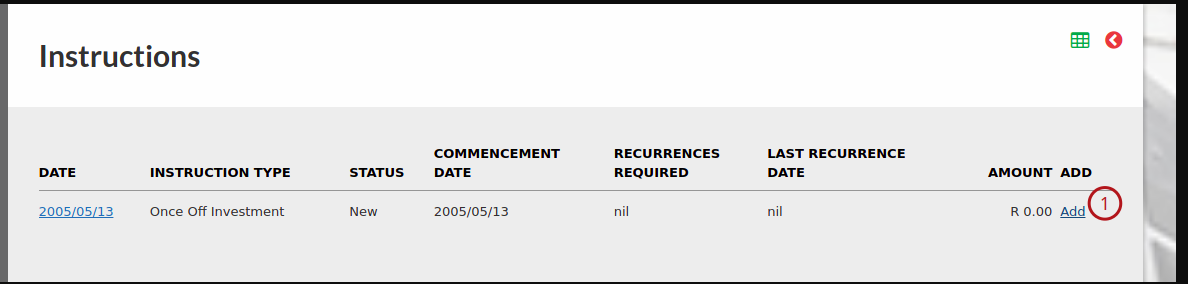
Now you have completed the system level default template setup, on the “Active Instructions” card you can delete the newly created instruction, it will remain on the “Instructions Group”.
To setup a specific action for a client one needs to navigate to the client contract and once on the client contract select more actions from the the “Active Instructions” card and then select “Instructions Group” and from here one of the existing instructions to be added as a template.
Alternatively you can create a new instruction on the client contract and specify the instrument investment percentage split and leave the value ZERO.
There after follow the same steps “Active Instructions” -> More actions -> “Instruction Group” and select the newly created instruction.
After the above configuration steps when a bank statement is imported that contains the contract number OR investor ID number (individual) OR company registration number (legal entity) in the deposit reference, the system will either auto match it against an existing instruction if there is one, else if no instruction exists, one will be created in accordance with the template. Note that the system also considers the Minimum Investment Amount on the Product before automatically creating an instruction. If the minimum is not met, the instruction will not be automatically created and the deposit will remain unmatched.
Last Updated on 11 months ago by Adrienne Dill