
Document Expiry
Overview
The Document Expiry Report is used to identify documents on the system that have expiry dates and are either nearing expiry or have already expired. This allows users to proactively follow up and ensure that up-to-date documentation is always on file.
Important: This report generates expiry dates based on the expiry date specified on the document itself (as uploaded to the system), not any manually entered or externally recorded dates.
Where to find this report:
System > Documents > More Actions > Document Expiry Report
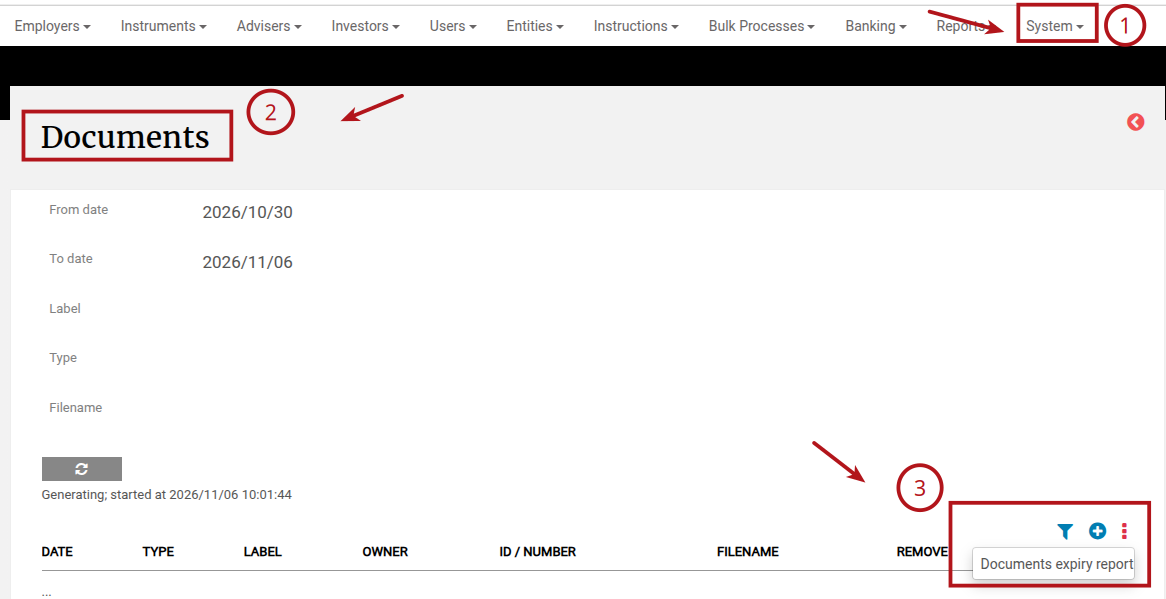
The report provides expiry date information about all documents on the system that have expiry dates set
| Level | Example |
|---|---|
| Entity | ID documents, proof of address |
| Investor Account | Account-level compliance documents |
| Instruction | Supporting instruction documents |
| Instrument | Instrument-related documents |
| Product | Product-level documents |
Key Options & Filters
- Include older expired documents: An option exists to include documents that have already expired (not just those nearing expiry), giving a full picture of outstanding document renewals.
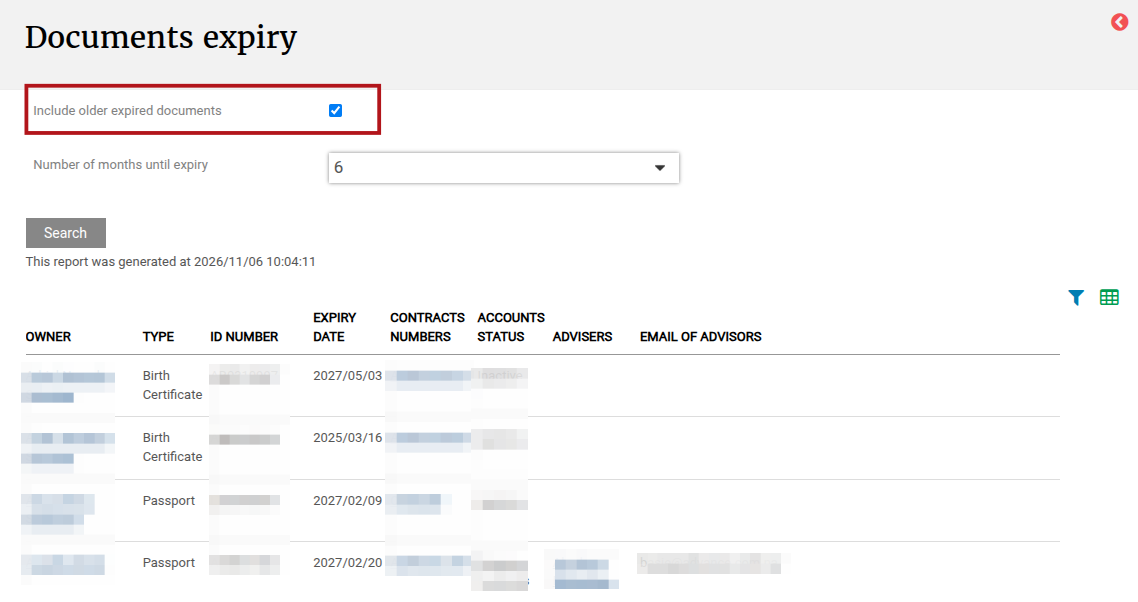
- Expiry Date: Each document record on the system has an expiry date that is set when the document is uploaded.Documents marked as “This document never expires” will not appear on this report.
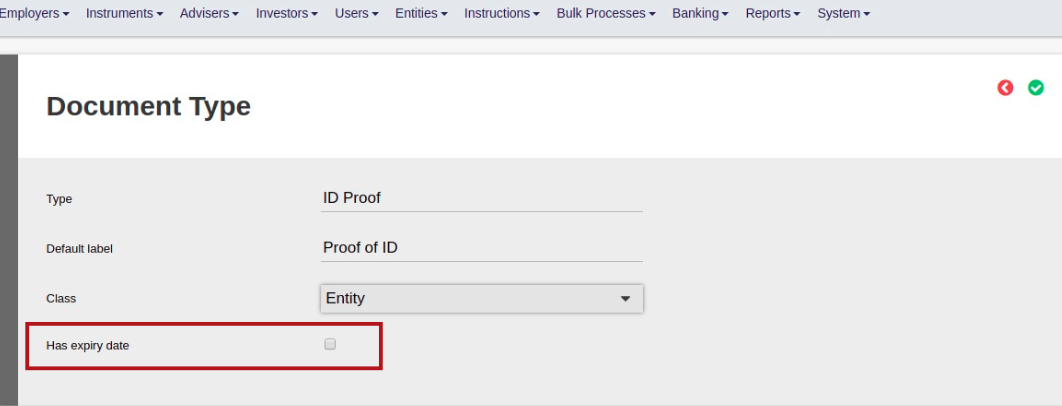
How Expiry Dates Are Set on Documents
Important: The Document Expiry Report reads the “Expiry Date” field recorded on each uploaded document. It does not use any dates manually entered elsewhere in the system (e.g., on an entity record or in a notes field). Only the expiry date set at the time of document upload is used.
When a document is uploaded, the expiry date can be set in one of the following ways
- Manually: The user sets a specific expiry date on the document upload screen.
- Default: If the document type has “Has expiry date” enabled, the expiry date will automatically default to the date of upload + the number of years configured under System ? Configuration ? Default compliance validity period in years.
- Never expires: If “This document never expires” is ticked on the document, no expiry date is recorded and the document will not appear in the expiry report.
Recommendations:
- Use this report regularly to stay ahead of expiring documents and avoid compliance issues caused by outdated records.
- If a document expires and is linked to a requirement type with a Document Expired Rule, the compliance status of the entity will automatically change to non-compliant until a new, valid document is uploaded.
- Uploading a new document with a future expiry date will automatically restore the compliance status.
- Archived documents will only be visible to users with the “View archived documents” global permission and will appear in the report accordingly.
Last Updated on 6 days ago by Liezel