16 Feb The currency symbols does not display right when I open a csv export in excel
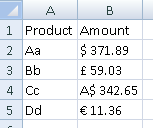
If your currencies look like this when you open the csv file, excel is set to use a character set that is not UTF-8
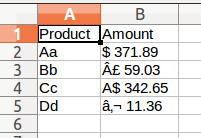
Don’t just open the file by double clicking on it, which would open it by default in Excel, but bypassing the Import Wizard.
Don’t open the file from the Download shortcut options, which appear at the bottom of the screen, after downloading a file.
Here is how to open your csv file via the Import Wizard, so that you can change the Character set to UTF-8:
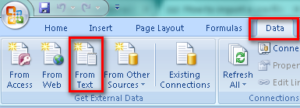
First open Excel (as a blank document) and then from the Data Tab, select ‘From Text’ and browse to the file to be imported. On selecting ‘Import’ the Import Wizard will be initiated.
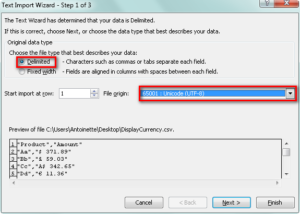
From the Import Wizard on Step 1, select ‘UTF-8’ from the dropdown next to ‘File origin’, ensure the ‘Delimited’ option is selected and click Next.
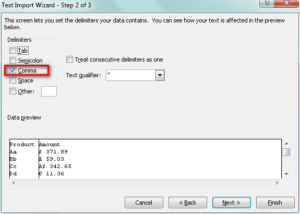
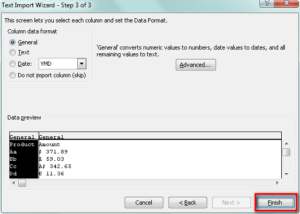
On Step 2, select the option for Comma delimited and click Next.