
Generate Finswitch confirmation file
We built the functionality to generate a Finswitch confirmation file. Generating this file and uploading this file on Finswicth will give you the ability to confirm trades/instructions on Finswitch for bulk accounts/bulk dealers.
How this process will work:
You will receive instructions via Finswitch via an automated job or you will download the Finswitch instruction file, and upload it into Finworks.
Once you process the instruction, you can generate the Finswitch confirmation file. The confirmation file will pull through the relevant details that was imported with the Finswitch instruction file, and the details that were setup on the Custodian, and client contract.
Custodian setup:
Go to System >- Custodians, click on the relevant Custodian, and View Details on the Custodian Card.
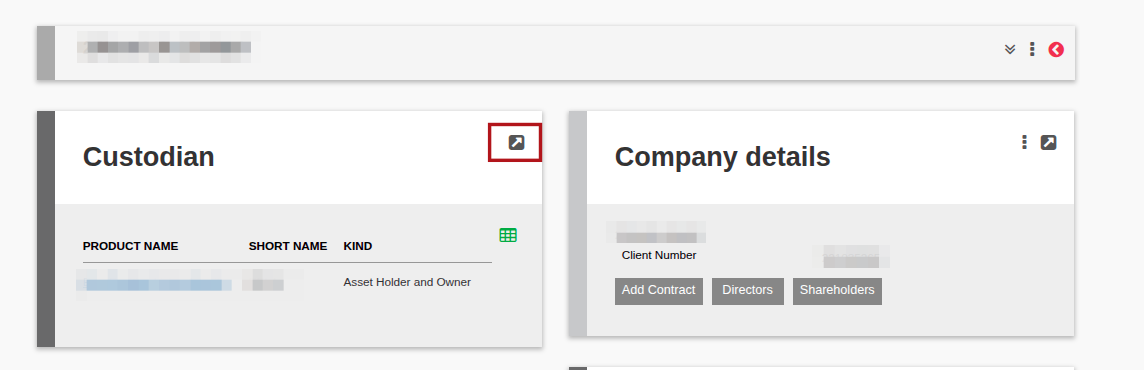
Enter the relevant Finswitch information of your Finswitch profile. Please note the info should match between Finworks and Finswitch.

Contract setup:
Go to the applicable bulk accounts contract. Click on View Details on the Contract Details Card.
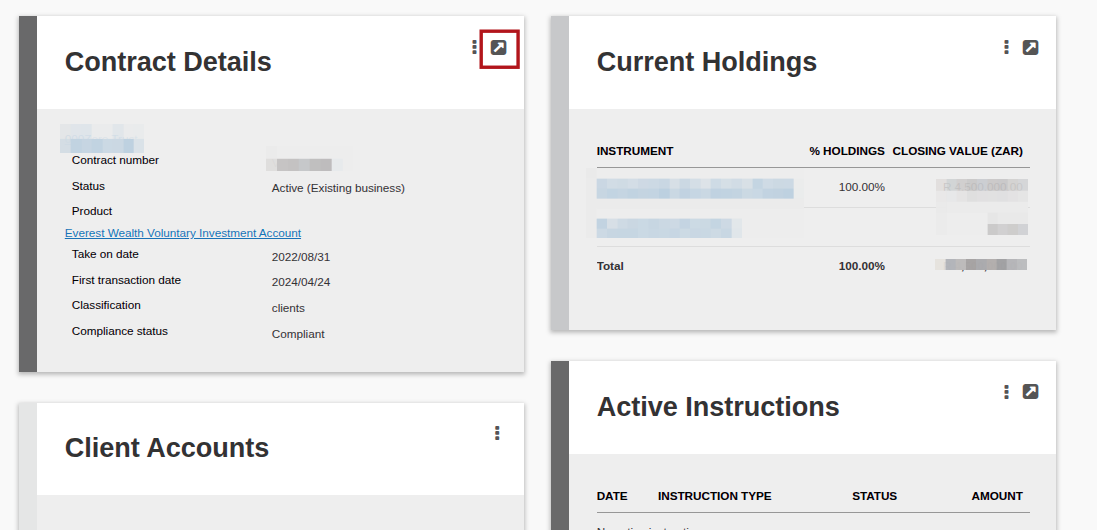
Click on More Actions >- Bulk account setup

Tick the is bulk account box and complete the bulk account’s information below. Only the Bulk investor code and Bulk product code is mandatory for Finswitch. All the information can be completed and should match the bulk account’s Finswitch profile’s information.

The setup is complete.
To generate the Finswitch confirmation file:
Instructions can be captured, submitted, authorized and confirmed as usual. Once confirmed, do the following:
Go to Bulk processes >- Dealer instructions >- More actions >- Instrument instructions.

Complete the transaction date, custodian, transaction status, and search. You can then generate the Finswitch confirmation file under More actions.

The confirmation file can now be uploaded onto Finswitch.
NOTE: The Finswitch confirmation file will exclude instrument holdings that have a zero opening balance and no instructions on a contract for the selected period.
Last Updated on 4 months ago by Antoinette Van Meyeren