
This functionality allows for changing the new recurring instructions, for investors currently in a specific fund (instrument class) to another.
eg. Prudential Inflation Plus Fund (Class A) to another instrument class eg. Prudential Inflation Plus Fund (Class X).
1. Only users with the permission “Allow bulk rebalance”, will have access to this feature.
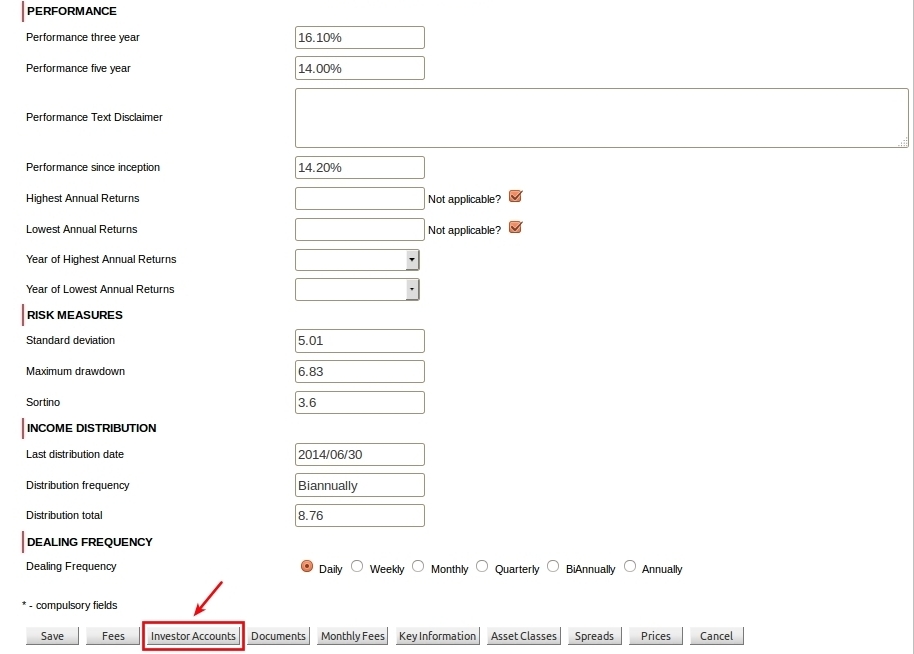
2. From the instrument view, there is an “Investor Accounts” button, which displays the list of investors currently invested in that instrument. So, to start with the fund merger process, search for and open the instrument and select the “Investor Accounts” button.
Prudential Inflation Plus Fund (Class A) in our example.
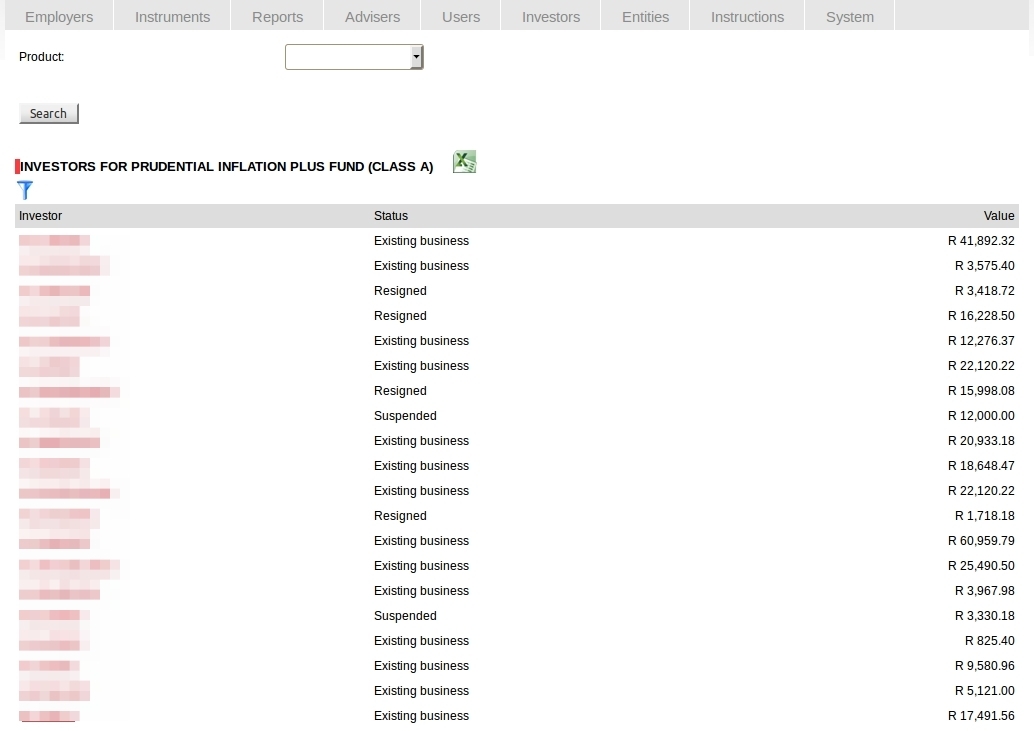
3. This will list all the investors with holdings (invested instructions) in the instrument.
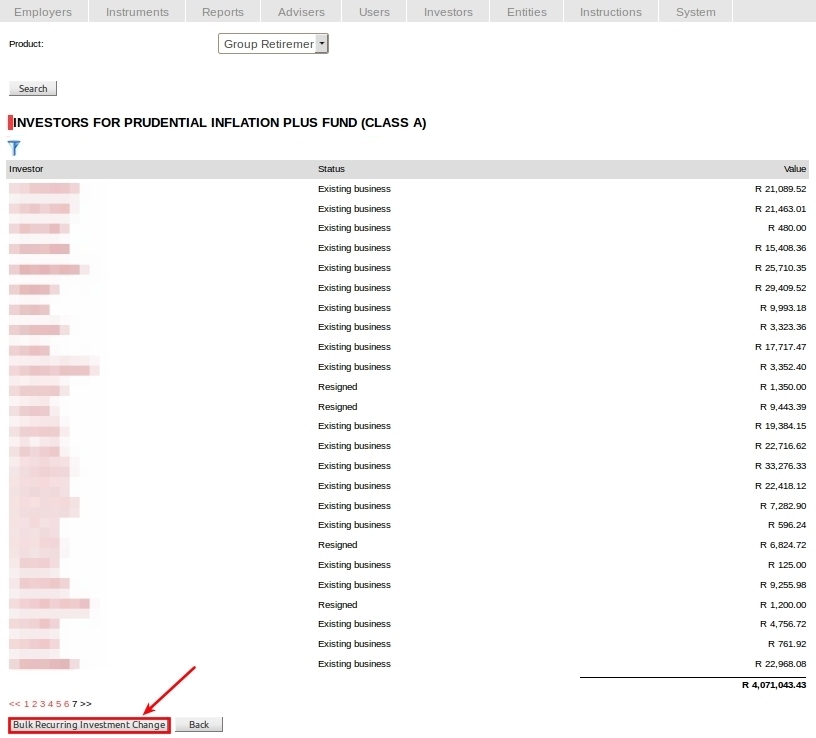
4. Select the “Bulk Recurring Investment Change” button at the bottom of the list of investors view.
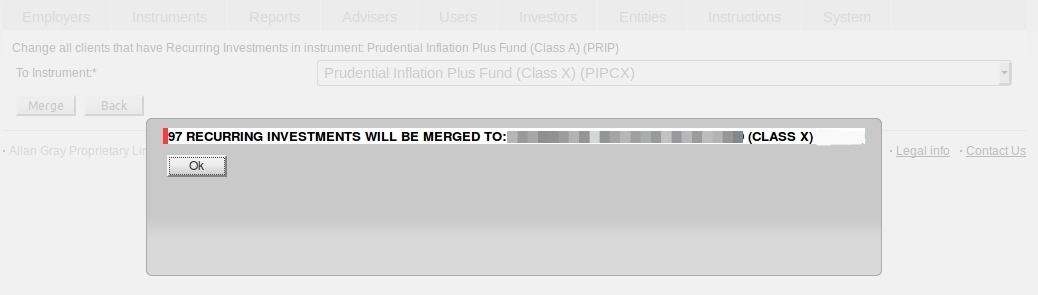
5. A view will be opened, confirming the name of the instrument from which the recurring instructions should be changed (Class A). Use the drop-down arrow and select the new instrument to which the recurring instructions should be changed and select the “Merge” button.

6. At this point a validation is done by the system, to check if the selected instrument is available on the groups of the members with recurring instructions. If there are any instances where the selected instrument is not available, the instructions will be listed, with a message: “The following investments cannot be changed because xxxxx (Class X) is not available for the investor accounts: “. The user then need to link to these member group’s and add the instrument (Class X) to the list of available instruments.
When the validation passes, a confirmation message will be displayed indicating how many recurring instructions were changed to the new instrument.
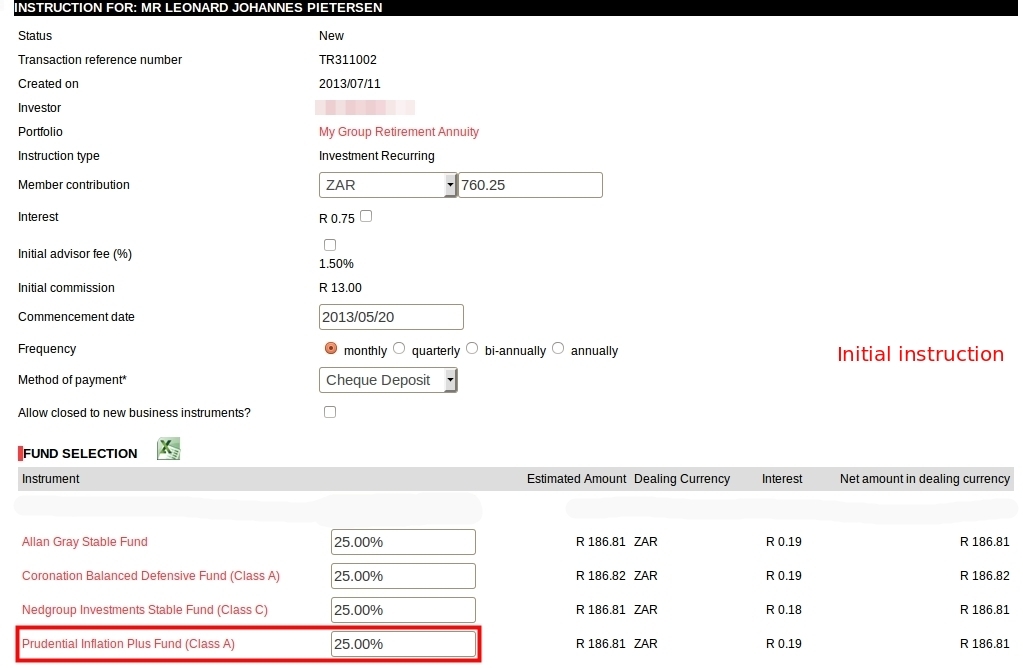
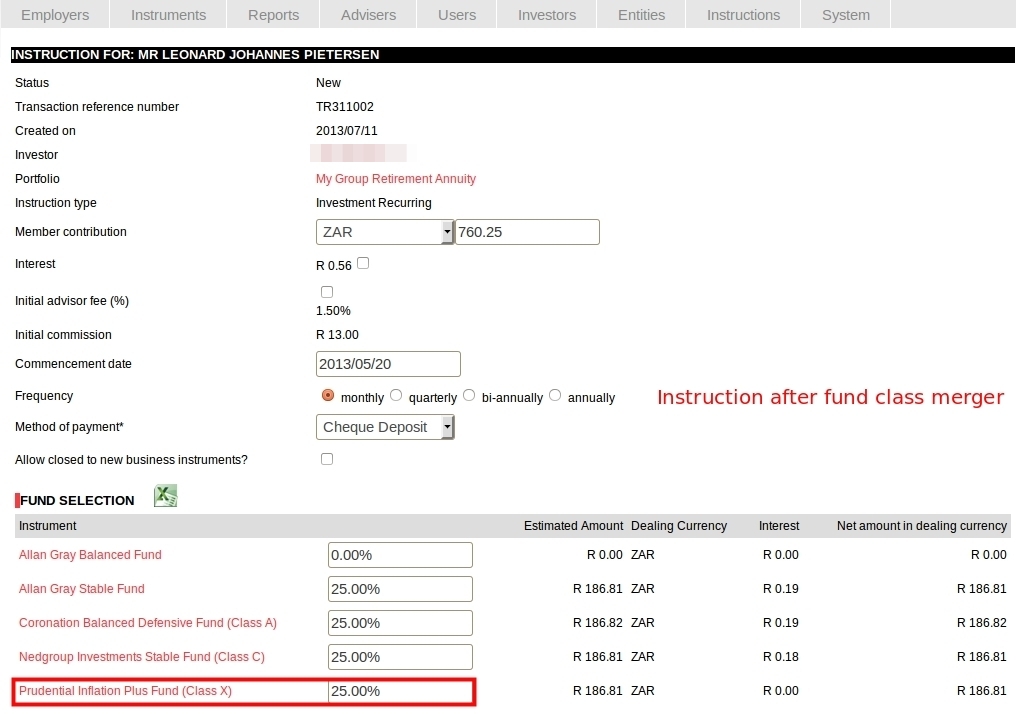
7. On each of the recurring instructions, the instrument will now have changed (from Class A to Class X), with the same percentage allocation as in the original instruction.
Initial Instruction
Instruction after fund class merger
Additional Notes:
On creating a new instrument, the user is prompted on whether the instrument should be made available on all advisers and also for which products it should be made available. Be sure to confirm “Yes” for all the advisers and also select the applicable product/s, otherwise the above process will take very long, as the user will be stopped by the validation that the instrument is not available, upon which the instrument will first need to be made available on the relevant groups.
Last Updated on 9 years ago by Antoinette Van Meyeren