
Contribution Certificates
1. Bulk Contribution Certificates can be generated, per product, for a selected financial year
2. Individual Contribution Certificates can also be generated on individual investment accounts
1. Bulk Contribution Certificates
To be able to generate bulk Contribution Certificates, the functionality must be activated on the relevant Custodian. To activate select the “Contribution Certificates” checkbox on the Custodian
(System -> Custodians -> Select Relevant Custodian -> View Details on the Custodian Card

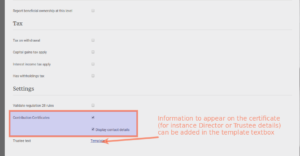
More details can be found here with regards to the Template (Contribution Certificate Notes)
When ‘Display contact Details’ is also ticked, the Investor’s Contact details will appear on the Contribution Certificate
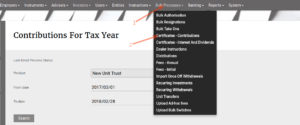
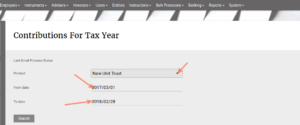
Use the product filter to select the required product (only products of Custodians with check box “Contribution Certificates” selected, will be available in the drop-down list) and specify the date range of the tax year for which certificates must be generated.
Click on the “Search” button to generate the list of investors, with investments in the selected financial year.
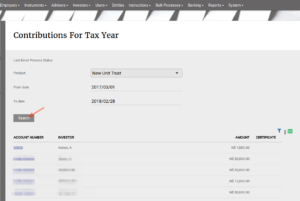
Select the “Create Certificates” button to start the background process to generate the certificates.
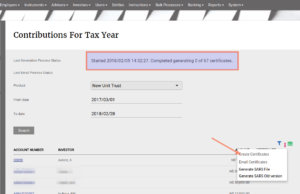
The certificates will start to generate in the background, which means the user may navigate away and work from other menu items, while the process is busy.
The progress will be updated, as the batch completes and the progress notification can be refreshed by clicking again on the “Certificates-Contributions” menu item.
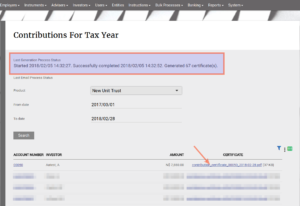
On completion, the process status will display the number of certificates generated.
In the “Certificate” column, the download links will be available for the PDF files, with the investment number and financial year in the file name.
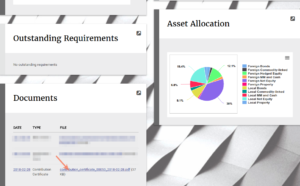
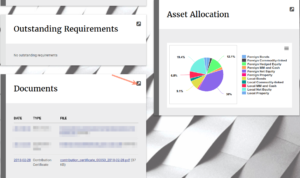
The download link for the PDF file will be available on the Document card of the individual Investor Accounts
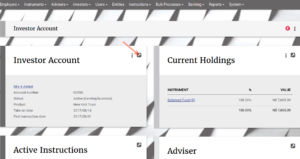
2. Individual Contribution Certificates
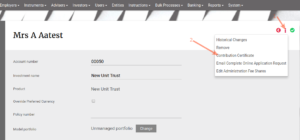
Select the “View Details” button from the Investor Account Card on an Investor account
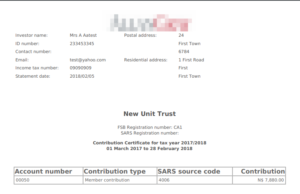
Sample of contribution certificate layout
ADDITIONAL NOTES:
1. Administrators can choose to generate certificates for a financial year. The system defaults the year to end of February. So you cannot generate certificates for 29 February 2018 or 20 February 2018 for instance.
2. The administrators can only generate a certificate on an account once. If a certificate is incorrect e.g due to unidentified deposits in the relevant financial year that was not matched or incorrectly matched, it must be considered very carefully before the already generated certificate is removed so that it can be re-generated. The reason for this is to ensure that the correct process is followed to re-generate certificates. In short, one cannot just re-generate a certificate that was already sent to SARS or the client, especially on an online system where the client has access to the “old” certificate.
3. Only users with the following permissions will be able to remove a contribution certificate: Company administration, Investor Admin, Investment portfolios, User administration.
4. Only after the administrator has generated a certificate can an Investor see the certificate. Before generating the certificate we show the amounts that will appear on the certificate so that the administrator can do some checks.
5. The system only looks at instructions (once-off and recurring investment) that are Authorised, Processing or Invested. These instructions will have matched money. It is thus important to make sure that you have dealt with all the cash in the previous financial year.
6. The system uses the bank entry date to determine if the amount should be included in the financial year. If the instruction is created outside (before or after) the financial year or the actual investment is done after the financial year, but the bank entry date is in the relevant financial year, then the amount will be included in the certificate. As long as the instruction is Authorised before the certificate is generated.
ADDING MANUAL CERTIFICATES
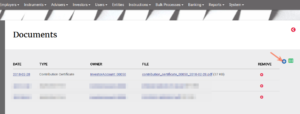
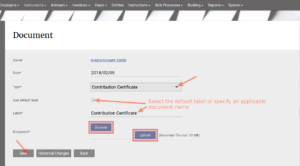
The system allows for attaching a manual tax certificate. This will be very helpful if the certificate was not generated from the Finworks system, that the certificate can still be attached on the investor’s account, in the same place from where the system-generated certificates can be downloaded.
In some cases it might be necessary to manually create a certificate, if the system-generated one is not correct, due to adjustments that need to be made to the total of the taxable amount. The system does not take into account any refunds done manually OR any reversals done AFTER the tax certificate has been generated. These need to be dealt with individually and manually.
Please be attentive to the suggestions below, to ensure that the taxable amount on the investments are calculated correctly. For example:
Interest:
Add interest in a separate transaction (and not as part of the contribution certificate) . It might be better to just move cash from Reserve to the client manually. Then load a switch from cash to units.
When generating tax certificates, look at the Reports -> Cash Recon -> for financial year, and click on the “Refund” category. Do these certificates manually and attach it on the investor’s account.
To attach tax certificates to an investor’s account:
Last Updated on 4 years ago by Tinus Burger