
Import Historical Transactions
Historical transactions are those that did not originate within our system. These are typically imported from another system to establish a “Take-on” or “Opening Balance.” You can import these transactions via the Investors > Import Historical Transactions menu.
For specific imports refer to Specific Import Historical Transactions
Things to take note of when importing historical transactions:
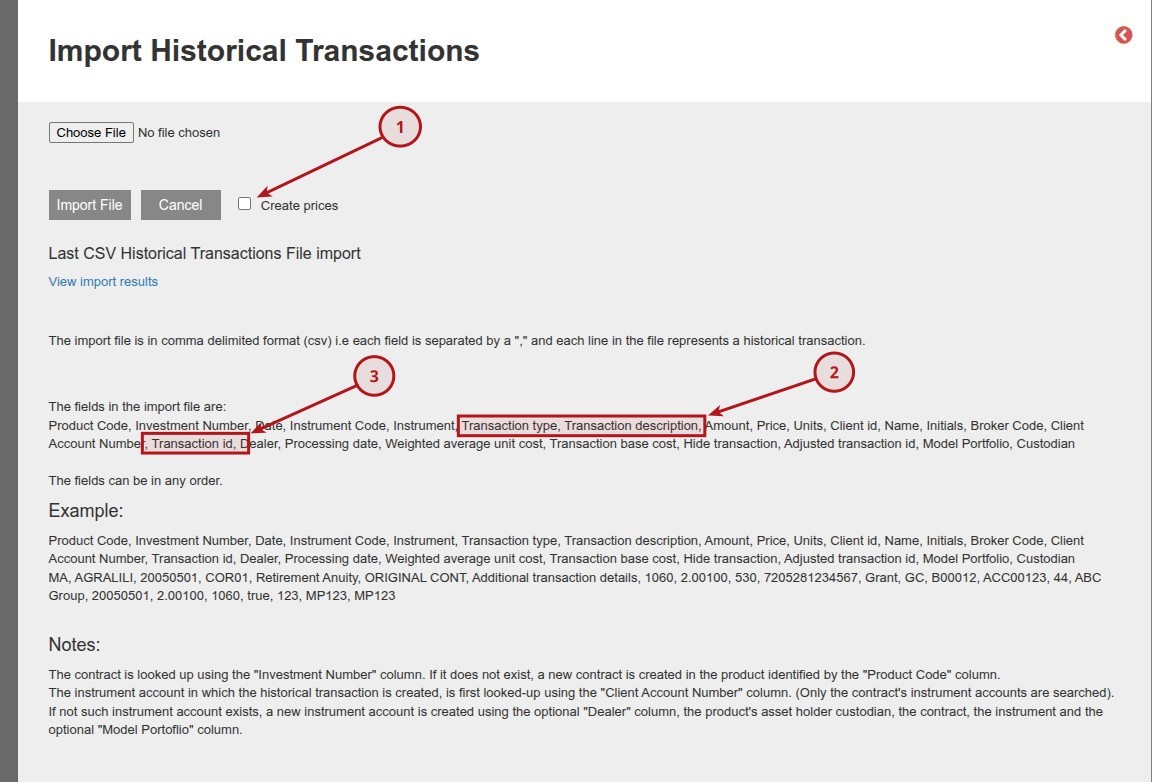
Transaction ID
- Create unique Transaction IDs for the transactions in the import file.
- When importing, successful transactions are imported. Failures, due to validation, are not imported, and a message is given on the screen.
- If you re-import the file, the system will not create duplicate transactions if the Transaction IDs were already imported. BUT the system will create duplicates if you leave the transaction ID blank and import the same file again.
- Refer to the Errors and Warnings for examples and or details.
Transaction Type
- The “Transaction type” must correspond to one of the predefined options listed under System -> Transaction Types.
- For more details on setting up Transaction Type refer to setting Setting up Transaction types.
- For more details refer to Setting up Transaction types.
Transaction Descriptions
- If no Transaction Descriptions is left blank the system will use the “Display name” as set on the Transaction Type.
- Transaction Descriptions is the description that will be reflected on the system and statements.
Instrument account number
- Specify the Instrument account number to be used when importing the transaction.
- If not populated the Instrument account number will not be set.
- If the instrument account does not yet exist, it will be created automatically.
- If an investor has multiple instrument accounts for the same instrument + dealer + custodian and the instrument account number has not been specified in the import, you will get an error “We expect onlyOne element in a collection that has 2”.
Creating Prices
- If “Create prices” on the import screen is ticked, the system will add a price to the instrument on the date of the transaction that is equal to the price on the transaction.
- It will override existing prices loaded. So, do not tick this if the instrument already exists.
- It is good to tick this option if instruments are new and do not yet have prices.
Errors and Warnings
-
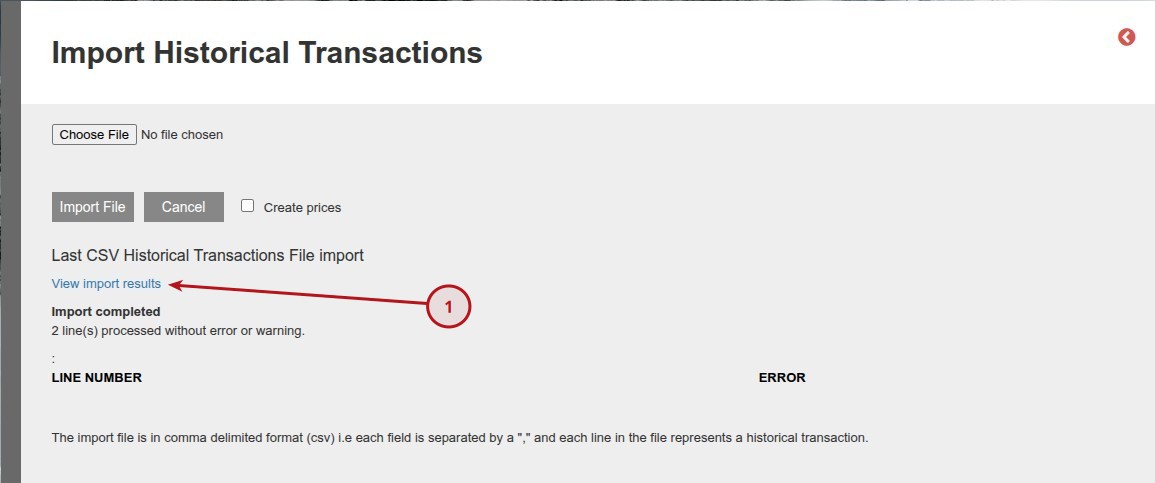
- After the import click on “View import results” to view the Errors and or warnings.
-
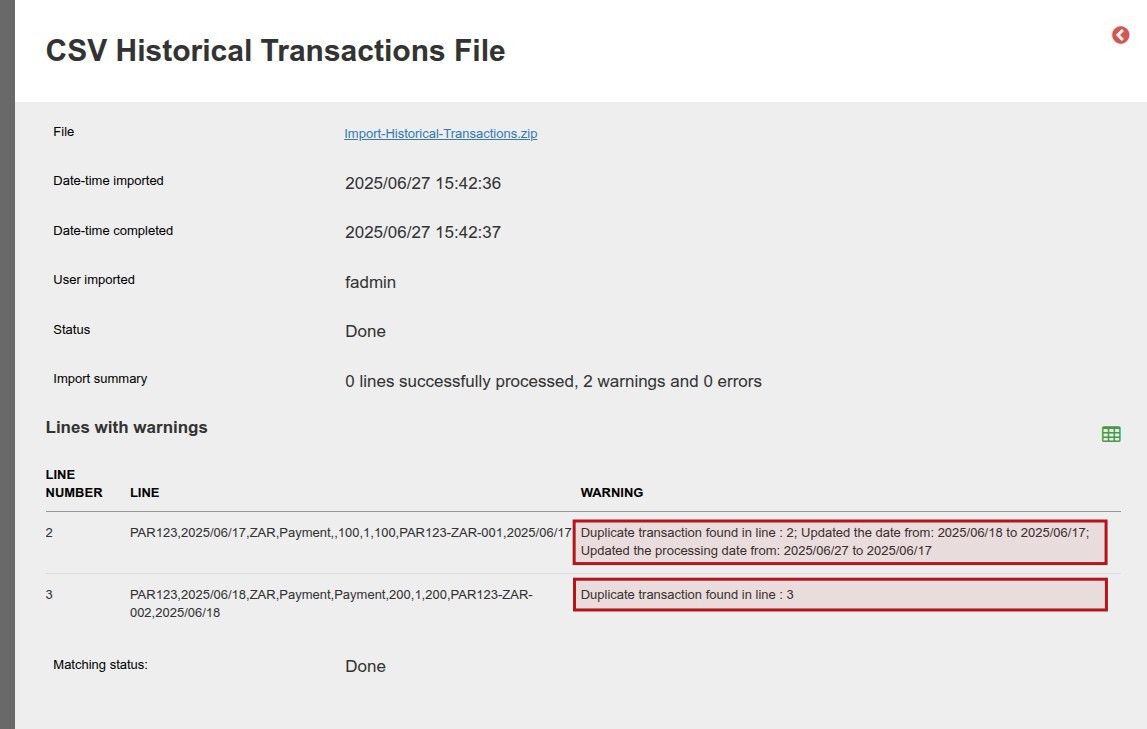
- The warnings will be shown on the screen, if lines have changed refer to the details in the warning section.
-
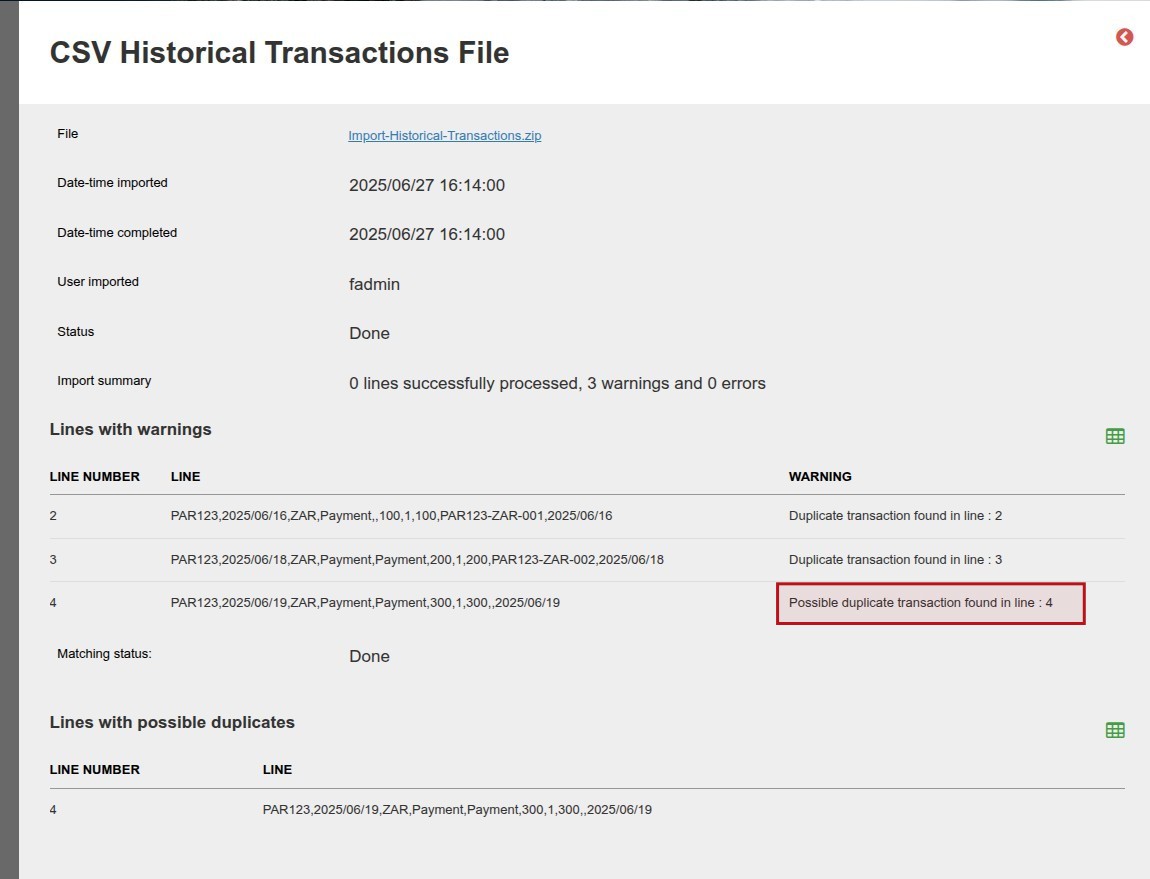
- If the file does not have a transaction ID the system will also give a warning if there might be a potential duplicate transaction. Note, the transaction will be imported if flagged a possible duplicate transaction.
Base Cost for Historical Transactions
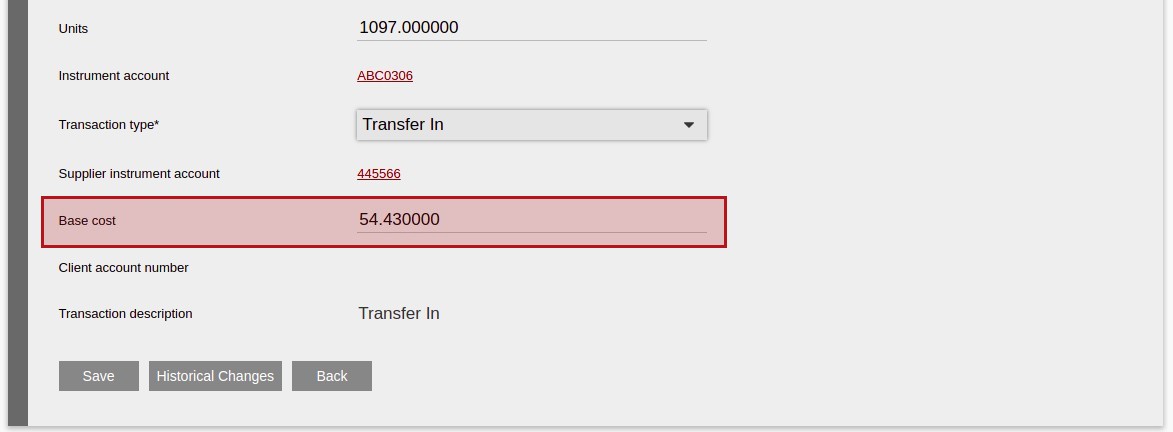
To be able to capture Base Cost on historical transactions, the following needs to be set:
-
- The Transaction Type of the historical transaction must be designated as “Has base cost for CGT” (refer to System -> Transaction Types).

-
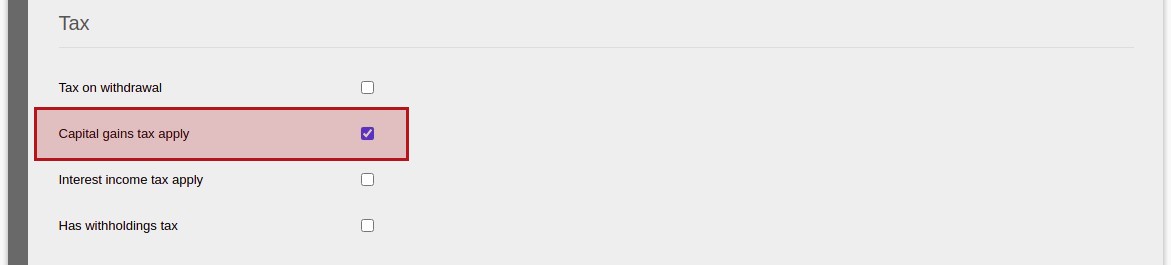
- The “Capital gains tax apply” setting must be enabled on the associated Custodian.
Specific Import Historical Transactions
We currently have the following imports:
- Allan Gray: Investors -> Import Historical Transactions – Allan Gray
- Glacier: Investors -> Import Historical Transactions – Glacier
- Momentum: Investors -> Import Historical Transactions – Momentum
- Momentum International: Investors -> Import Historical Transactions – Momentum International
- Ninety One: Investors -> Import Historical Transactions – Ninety One
- Stanlib: Investors -> Import Historical Transactions – Stanlib
The functionality of the imports are the same the file contents differs, on the screens we have the following buttons and or selections:
Import Historical Button
- This button is used to import the transaction file
- The “Create prices” option will also update the price on the instrument from the transaction file
Import Holdings Summary Button
- Use this button is used to upload your balance or holdings file.
- Update Pricing tick: Enable the “Create prices” option to automatically update instrument pricing based on the imported file.
- Create balancing transactions tick: The “Create balancing transactions” option generates an “Import Adjustment” to align system totals with the file.
- Note: To account for timing differences (like delayed transactions), each new import will zero out the previous adjustment before creating a new one, ensuring the current month’s unit balance remains accurate.
Historical Import History Button
- This is the history of the transaction files imported
Holdings Summary Import History Button
- This is the history of the balance/holding files imported
Cancel Button
- Cancel the import process
Last Updated on 1 month ago by Adrienne Dill