
Import Instruments
Bonds, Exchange Traded Funds, Money Market, Portfolio, Shares and Unitised Instrument can be imported using the import functionality.
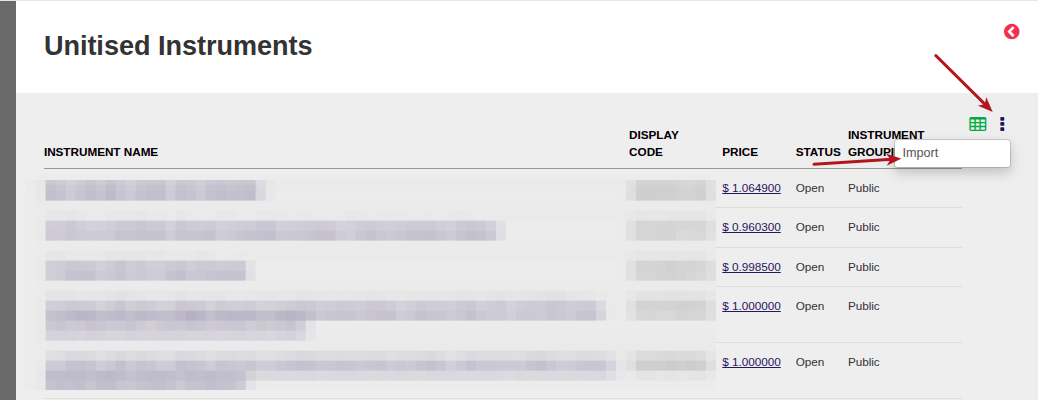
From the main menu, go to Instruments->Select the required Instrument -> More options-> Import
To assist with creating an Import File, a Download sample file as well as the Import File Fields with Import guidelines is available per Instrument Type.
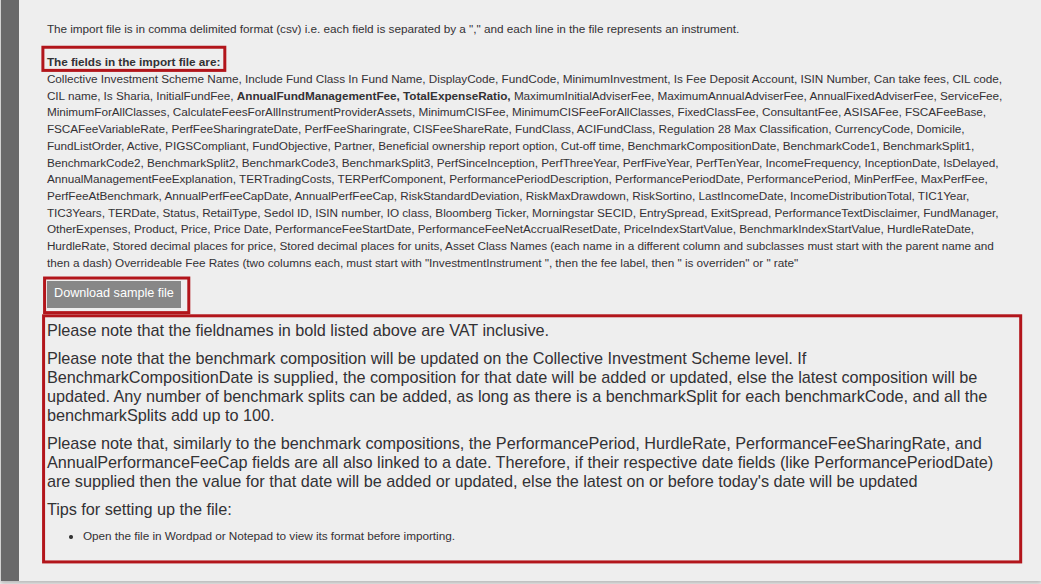
The ‘Retail Type’ – and ‘Product’ columns, in the import file, can be used to determine which Available instrument lists will be updated:
1. If the Retail Type column is not ‘Limited Access’ and the Product column is empty, the instrument will be added to the Available instrument lists of,
- All Advisers
- All Brokerages
- All Products
- All Employers
2. If the Retail Type is not ‘Limited Access’ and the Product field contains a Product, the instrument will be added to the Available Instrument lists of,
- All Advisers
- All Brokerages
- Only the Product in the Product field
- All Employers
3. If the Retail Type is ‘Limited Access’ and the Product field is empty, the instrument will be added to the Available Instrument lists of,
- All products
4. If the Retail Type is ‘Limited Access’ and the Product field contains a Product, the instrument will be added to the Available Instrument list of,
- Only the Product in the Product field

Once the Import File has been created, it can be uploaded
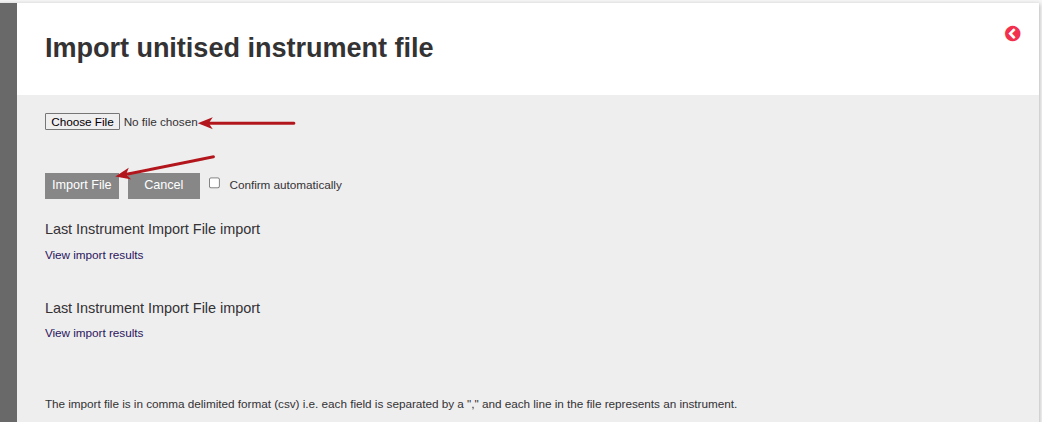
Choose File-> Select the created file-> Import File (select Confirm automatically if required)
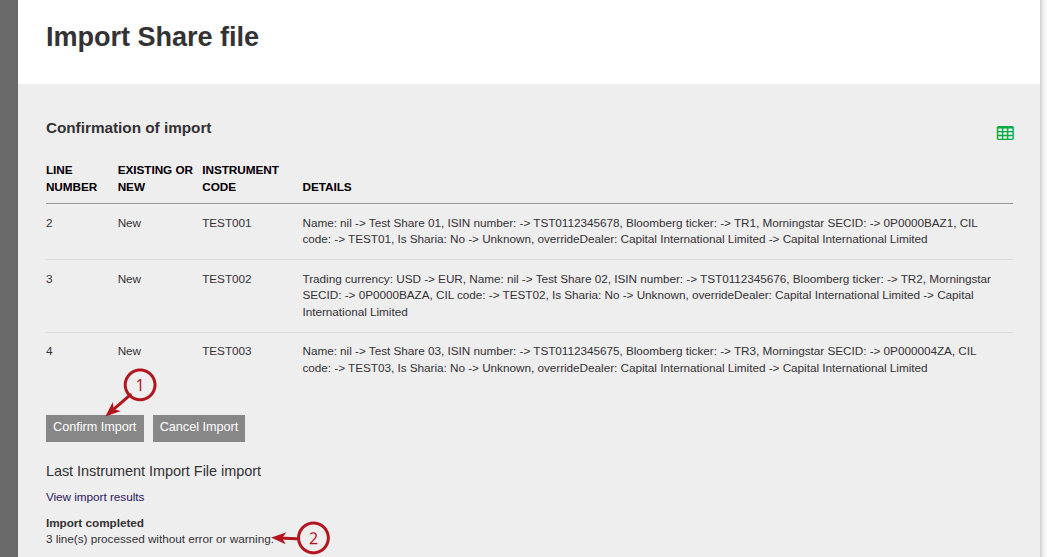
Once imported, a Confirmation of import screen will be displayed which will display the results of the import (which includes the successful and error lines). Once satisfied with the Import, select ->Confirm Import
Last Updated on 3 months ago by Debra Hart