
Instrument Selection on a new investment
For any new money coming into an investment, you have to choose instruments from the list of available instruments.
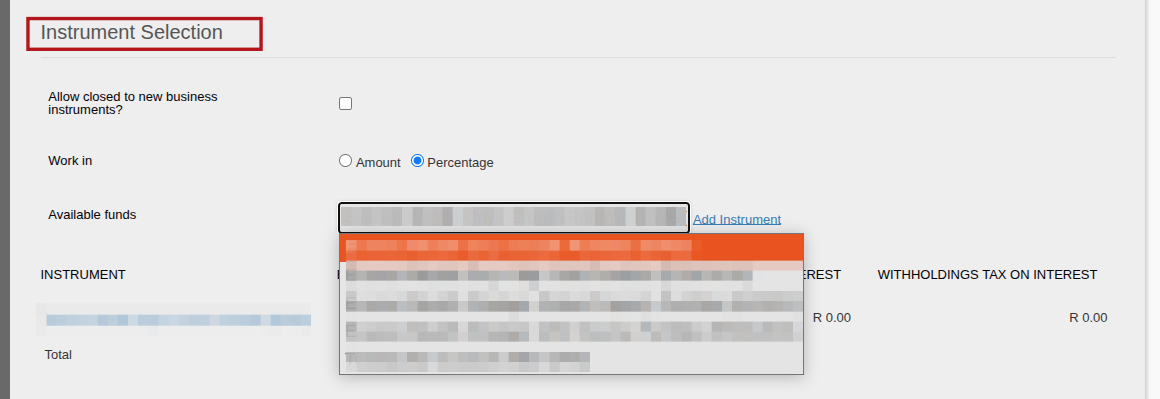
If there are only a few instruments available for selection, there will be a drop-down in the Instrument Selection section. Once you’ve selected the drop-down, you can type the first words of the fund you’re looking for and the selection will move to a matching fund. Once you’ve selected the appropriate instrument you can click on Add Instrument next to the drop-down to add the instrument.
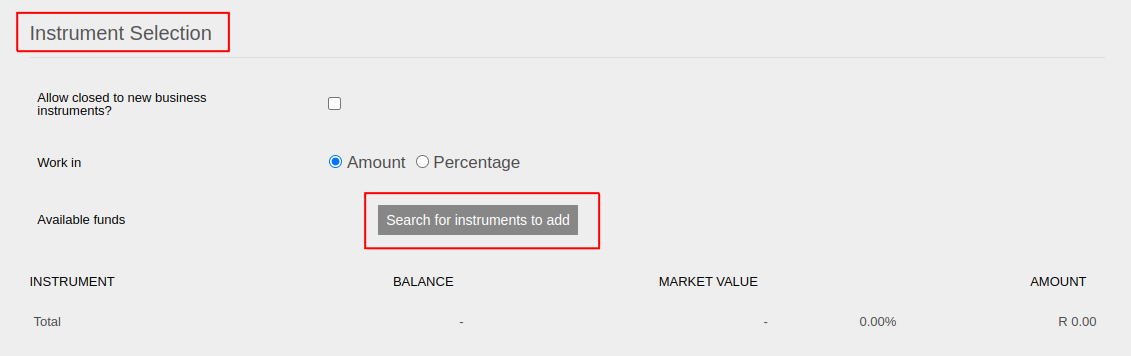
If you have a longer list of available funds, you will see a button called Search for instruments to add:
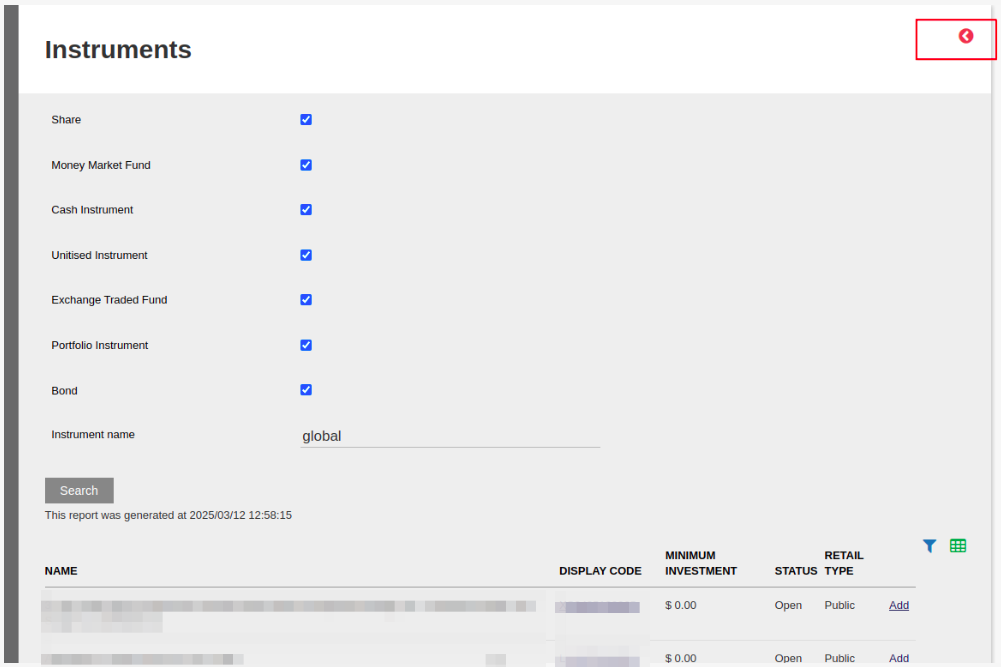
When you click on that button you will see this page. Here you can select the types of instruments you want to search on (all will be selected by default).
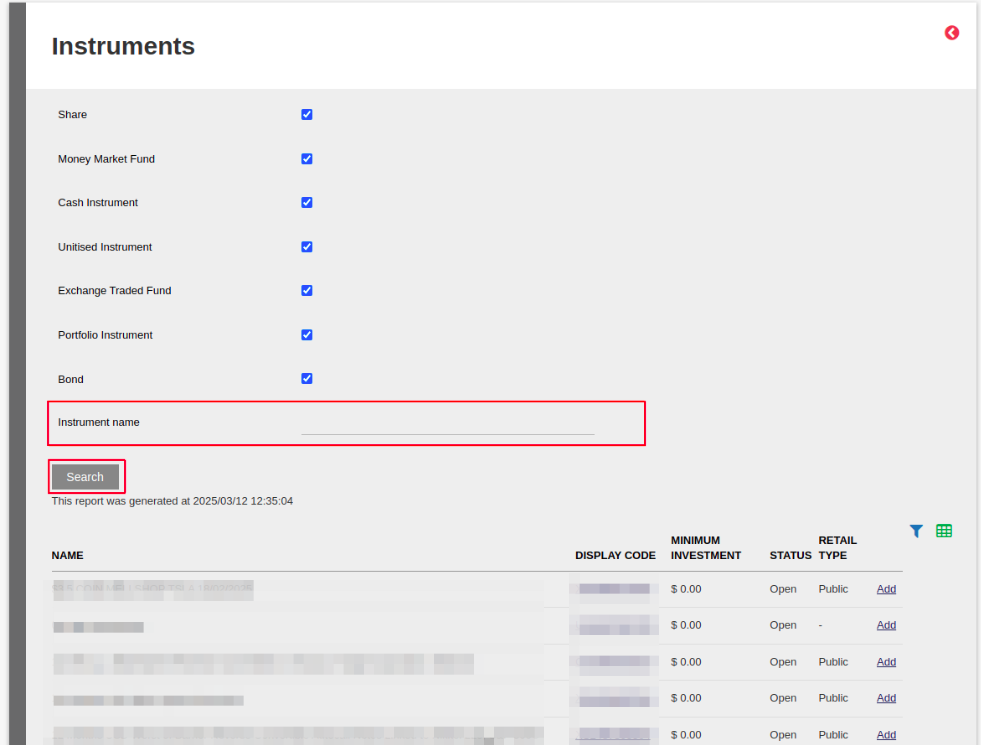
You can use the Instrument Name field to type the instrument name you’re looking for and then click the Search button, which will reduce the available list of instruments based on the instrument name provided.
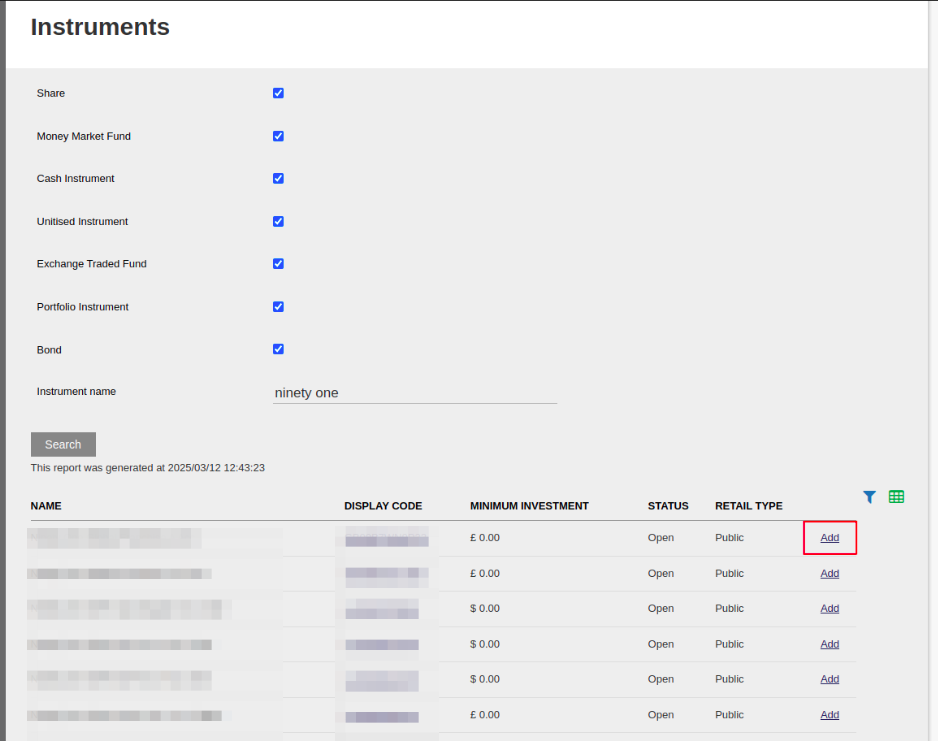
Then click on the Add button. You will then stay on this page, from where you can add all the instruments needed and when you’re done you can click the red back arrow in the top right hand corner to return to the capturing of the instruction.
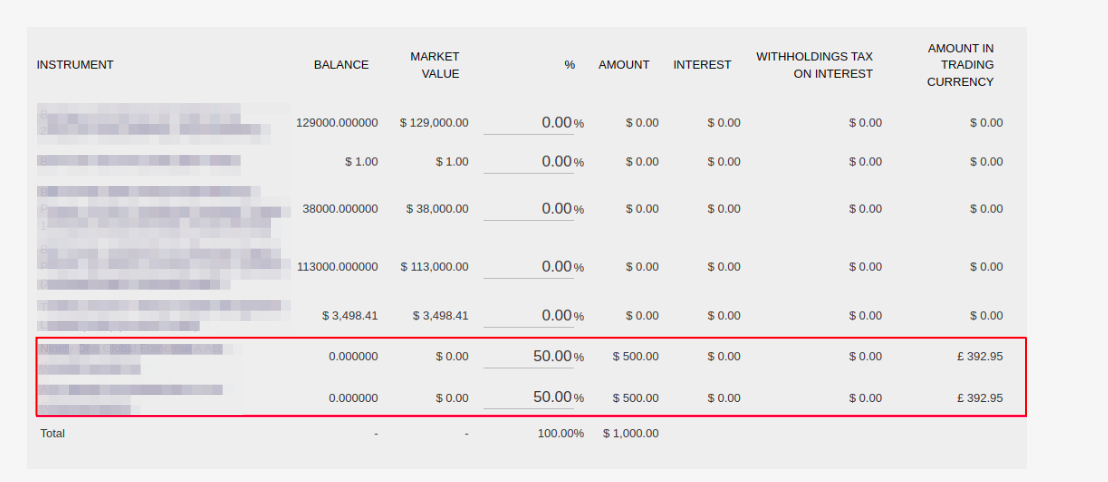
Then you will return to the capturing of the instruction, instrument selection where you will see the funds you selected to Add. If it’s an existing investor with an existing portfolio, those instruments are added to the instrument list by default. If the instruction is to only invest in new instruments, then you leave the other instruments as 0% (if you also added them by mistake) then you just add the percentage allocation to the instrument you do want to invest in and click Submit Instruction. Then the instruments with zero percentage allocation will not be included in the instruction.
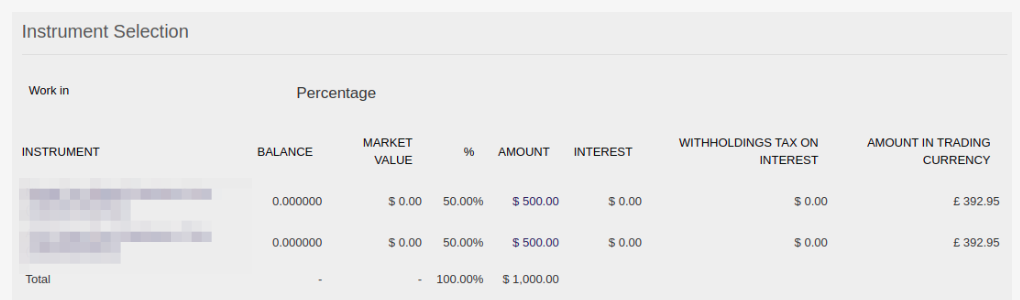
After submitting the above selection, it will look like this:
Last Updated on 1 year ago by Debra Hart