
Portfolio Rebalancing
There are 4 different ways in which a portfolio can be rebalanced, depending on the required scenario the most effective one should be chosen.
- Individual client account linked to a model
- Need to rebalance a group of investment portfolios eg. An adviser’s group of clients
- Rebalancing a model eg. for market movement correction
- Rebalancing a model after changing the template setup of the model
Also see Notes displayed on Portfolio rebalance
1. Individual client account linked to a model
From Investor Account > link a model portfolio > Add a Switch Instruction


As soon as an individual portfolio is linked to a model portfolio:
-
new instructions will be validated to conform to the model’s split
-
existing instructions – NEW or SUBMITTED or REJECTED instructions will change to conform to the model
-
Transaction/s in progress – warning message on rebalance
The client’s existing holdings, before linking the model, will need to be rebalanced by doing a manual switch instruction on the portfolio. In which case the switch instruction will default to a rebalance to the model.
Please note that this step wouldn’t necessarily need to be done, if the model itself is rebalanced periodically (see points 3 & 4).
2. Need to rebalance a group of investment portfolios eg. An adviser’s group of clients
Investors > Bulk Rebalance > Add

Select model portfolio from the dropdown list or select Add to add instruments
The splits must add up to 100%

Add investments to rebalance

To add investments, search for Investor name, investment portfolio name or investment portfolio number.
From the search results, select the relevant investment/s by ticking the relevant check-boxes and click the “Select Investments” button.
If a checkbox is disabled, see the reason in the Notes column for details.


Selecting Submit automatically create a submitted Bulk rebalance switch instruction on the selected investment accounts.
Please note that this step wouldn’t necessarily need to be done, if a model was selected and the model itself is rebalanced periodically (see points 3 & 4).
3. Rebalancing a model eg. for market movement correction
The “Rebalance” function on a model simply rebalances the CURRENT HOLDINGS at the point when you click on the button. It does not rebalance future instructions OR instructions in progress.
Instruments > Model Portfolios > select a model portfolio
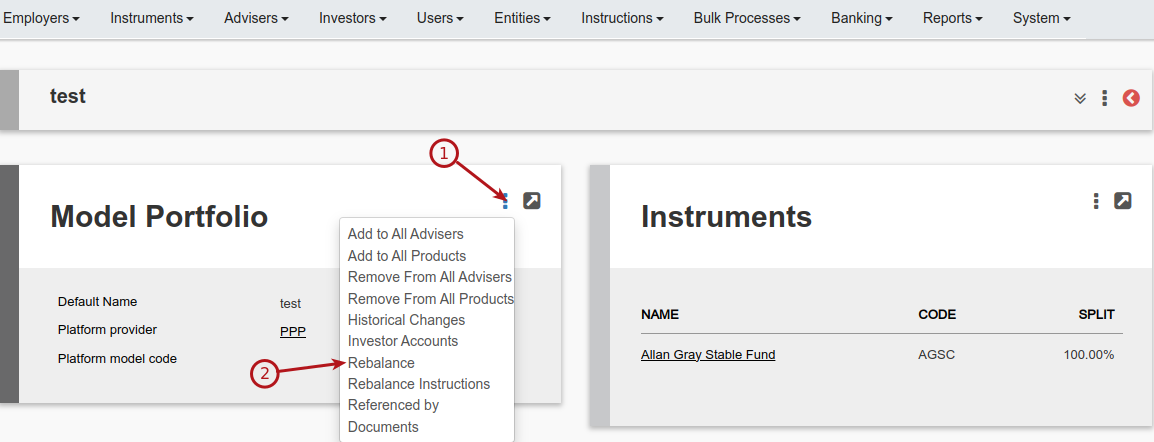
Before you remove portfolios, download the summary so that you have a record of what was removed. Select remove next to portfolios that need to be exclude from a bulk rebalance > Next (Displays the summary view) > Submit (Will automatically create a submitted Bulk rebalance instruction on each of the selected investment portfolios)

This will apply to the rebalance of:
-
newly linked investment portfolios – eg. The current holdings do not comply with the model, as the instructions were done before linking the model
Eg. Model: Fund A 60% Fund B 40%
Investment holdings: Fund C 20% Fund D 80%
-
investment portfolios that were linked to the model before, so instructions were validated to comply with model, but now ‘out of sync’ with the model, because of market movements
Eg. Model: Fund A 60% Fund B 40%
Investment holdings: Fund A 60.5 % Fund B 39.5%
4. Rebalancing a model after changing the template setup of the model
Instruments > Model Portfolios > select a model portfolio > change the instruments and/or splits
On the Model Portfolio card > More Actions > Rebalance Instructions This will update debit orders into the new model split, so that future debit orders also invest into the new model split. It will also update the annuity payments/recurring withdrawals that are loaded as proportionate sells.
Select the Rebalance button > click on remove to exclude a portfolio from a bulk rebalance > Next (Displays the summary view) > Submit (Will automatically create a submitted Bulk rebalance instruction on each of the selected investment portfolios)
Eg. Model: Fund A 60% Fund B 40%
Model changes: Fund A 30% Fund E 70%
Last Updated on 5 months ago by Beryl Braak