
Monthly Contribution Submission
On the “Employer” screen click on “New Contribution”
If you want to view previous contributions click on the 3 dots and select All contributions

Capture the following information
1. Deposit date
2. Deposit amount
N.B The “Submission month” will default to the next submission month

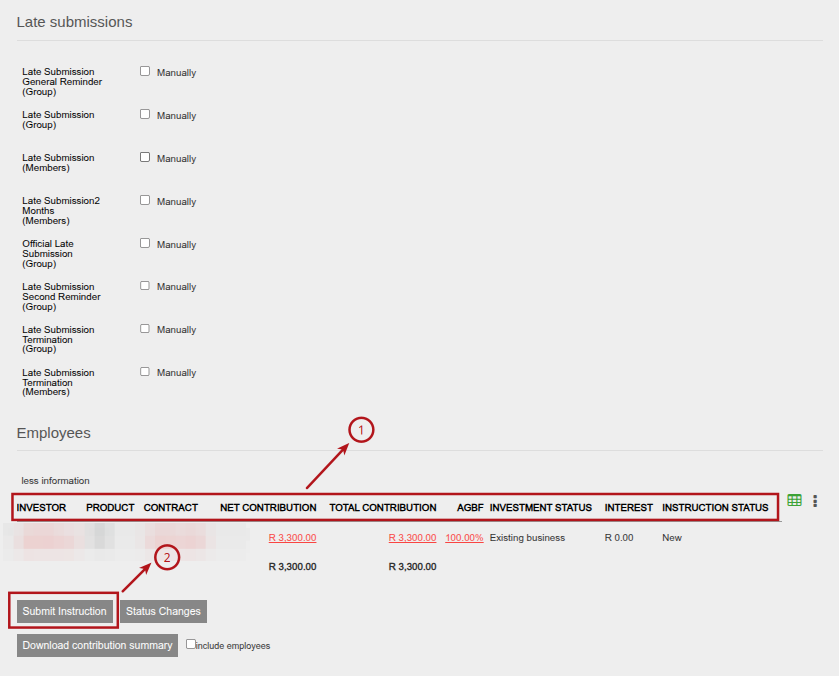
The Contribution Instruction screen includes the ‘Employees’ section (1) which details the investor, product, contract, net contribution (contribution less initial fees), total contribution, allocation per instrument (fund), investment status, interest and instruction status. The contribution can also be submitted by selecting the ‘submit’ button at the bottom of the screen (2).
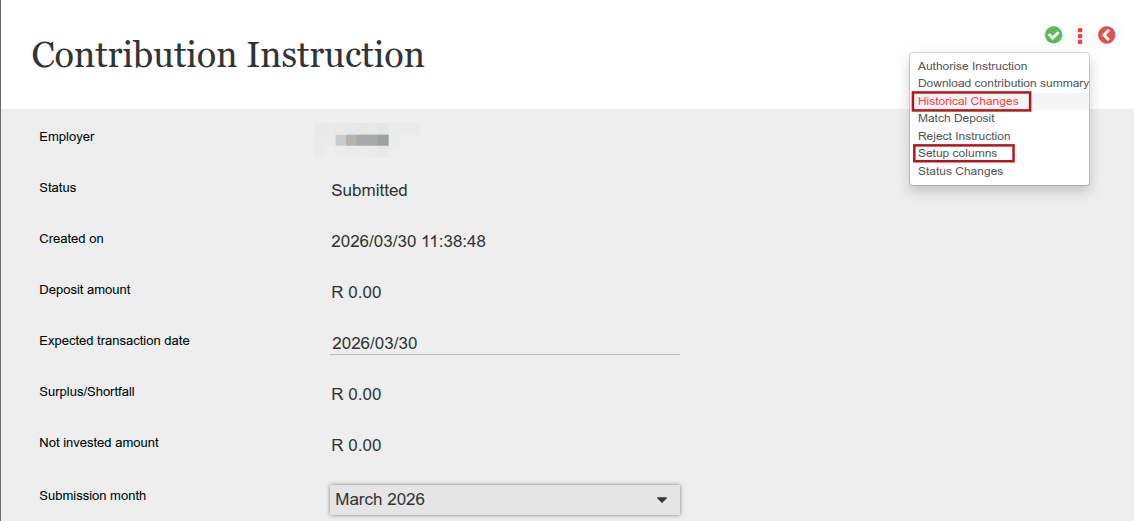
The columns on display in the ‘Employees’ section of Contribution Instruction screen can be customized from the same page. Select the menu: ‘Setup columns’, also note that the Historical Changes can be accessed from the on screen menu.
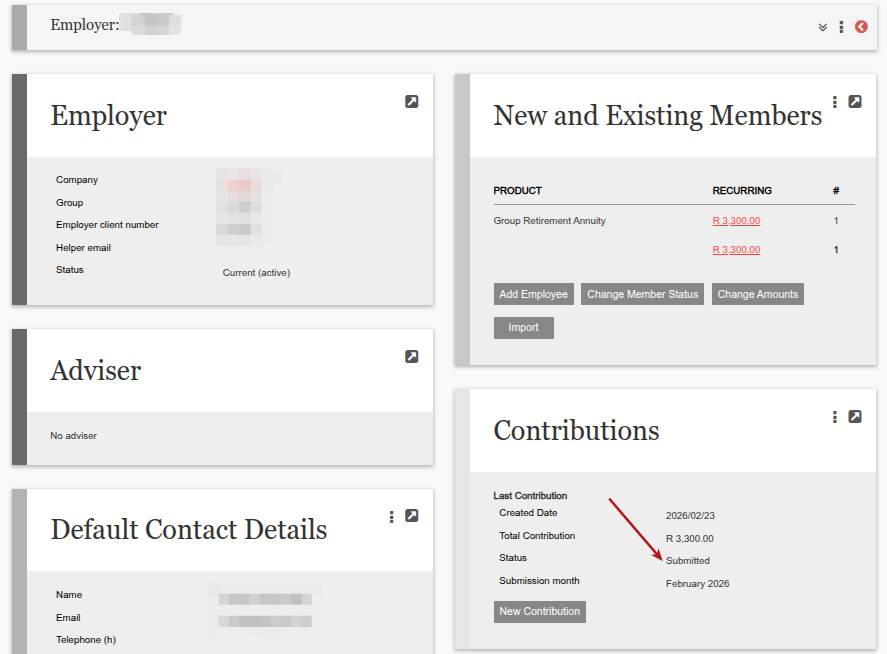
Once the contribution has been submitted from the Contribution Instruction screen, the previous screen will appear and the status will reflect as ‘submitted’ as seen below on the Contributions card:
Last Updated on 7 months ago by Hayley Jerram