Public Holiday System Logic
Adding of a public holiday and how the system manages the holiday will be explained here.
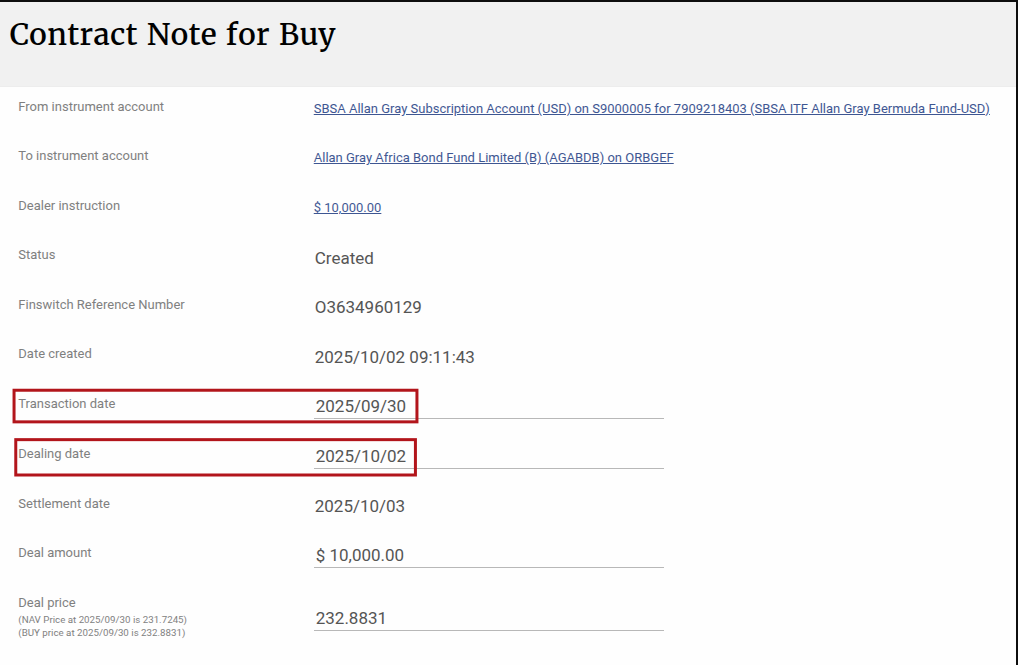
If an instruction is captured on Day 1 (T), with the next day being a public holiday (Day 2), then the system displays the transaction date as T when processing it on Day 3 (T+2)
The dealing date will be set to the first working day after the public holiday on the instrument instruction as well as in the Fundamental file.
With this the system not only looks at the default country but also the country of the custodian of the instrument when applying the logic.
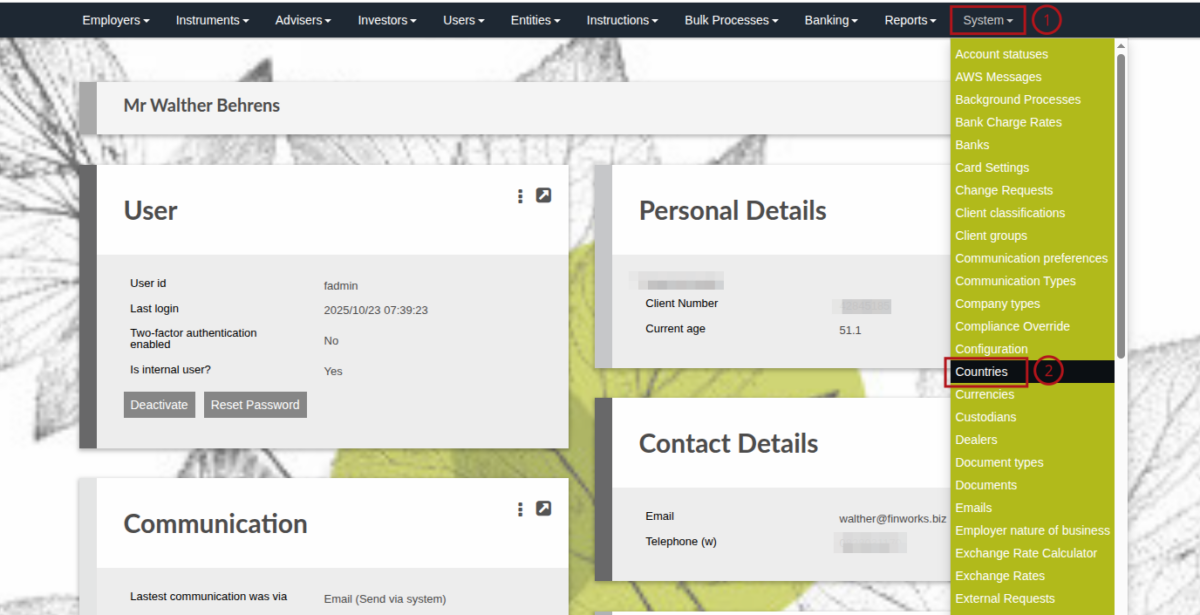
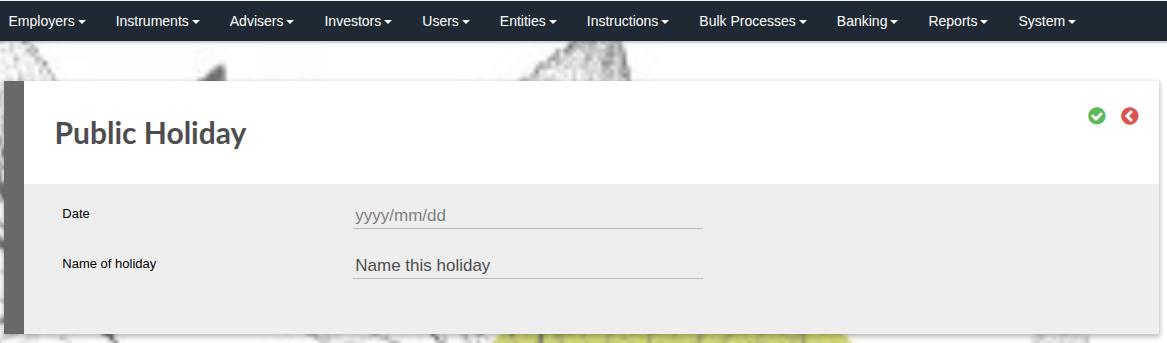
From the main menu select “System” -> “Countries”
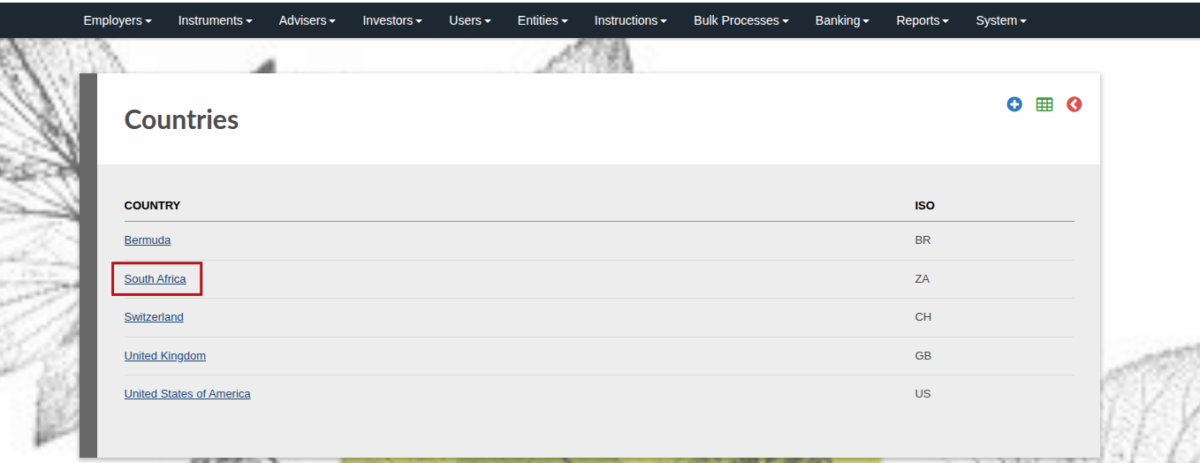
Select the country you wish to add the public holiday to.
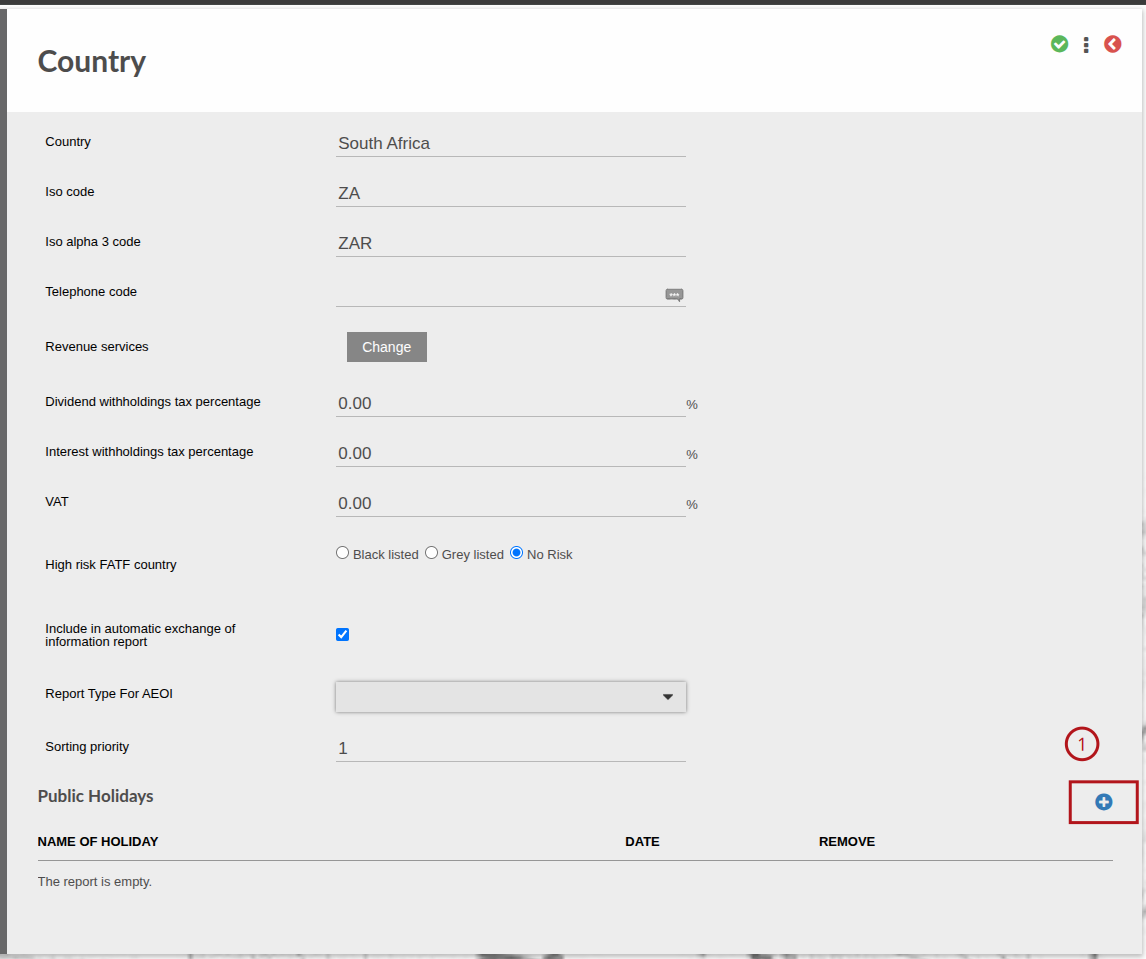
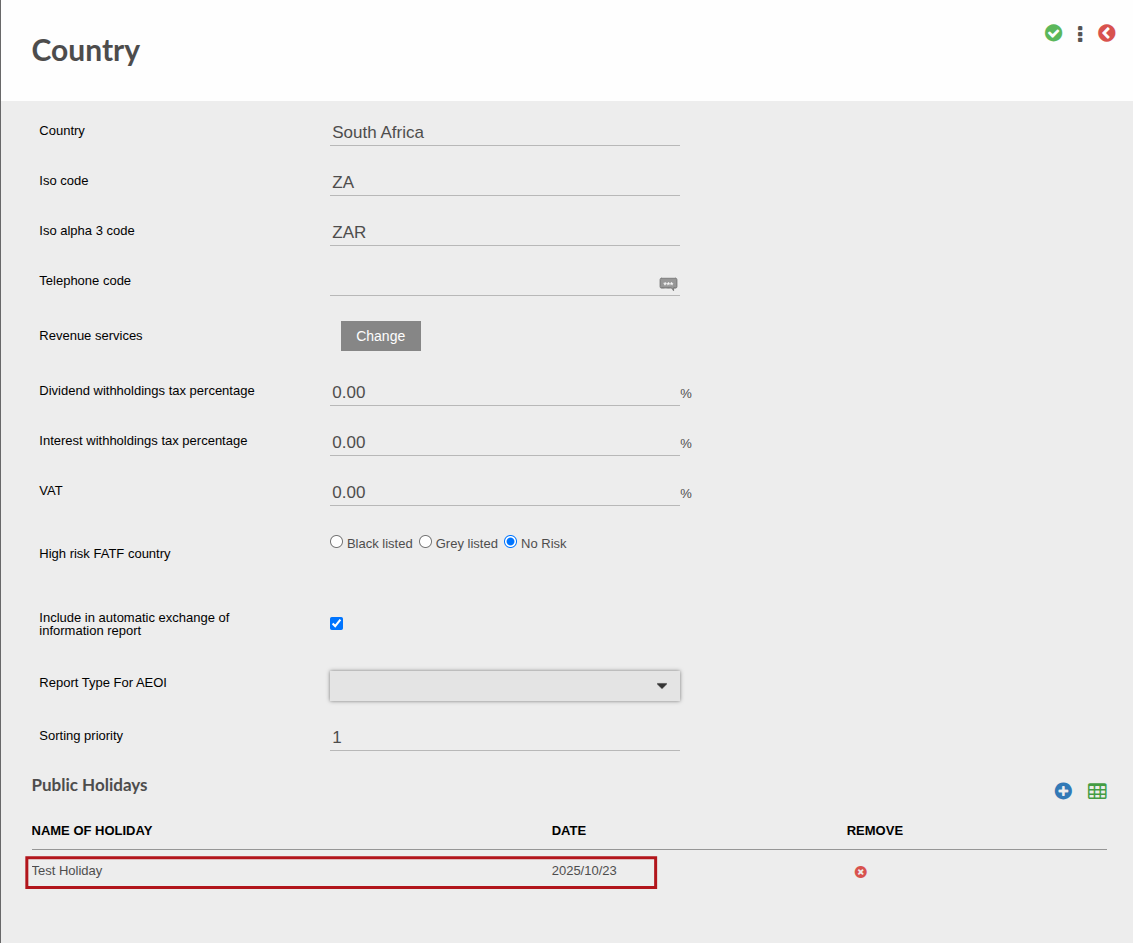
On the country screen navigate to the bottom and click on the blue plus icon to capture the public holiday.
Select the date of the public holiday and enter a name or description for the holiday, once done click the green check icon to save.
On the country screen the public holiday will now be listed at the bottom of the screen.
When looking at the instrument instruction the dealing date will show as the next working day after the public holiday that has been captured on the system.
As per the below example the public holiday was captured at 2025/10/01 thus making the dealing date the 2025/10/02 the next working day.