
Reviewing Members on Employer Quotes in Bulk by Adviser
Background
All members on an Employer quote may be reviewed by the Adviser on record via the available function of sending all online applications via a singular email to the Adviser.
Emailing online application process
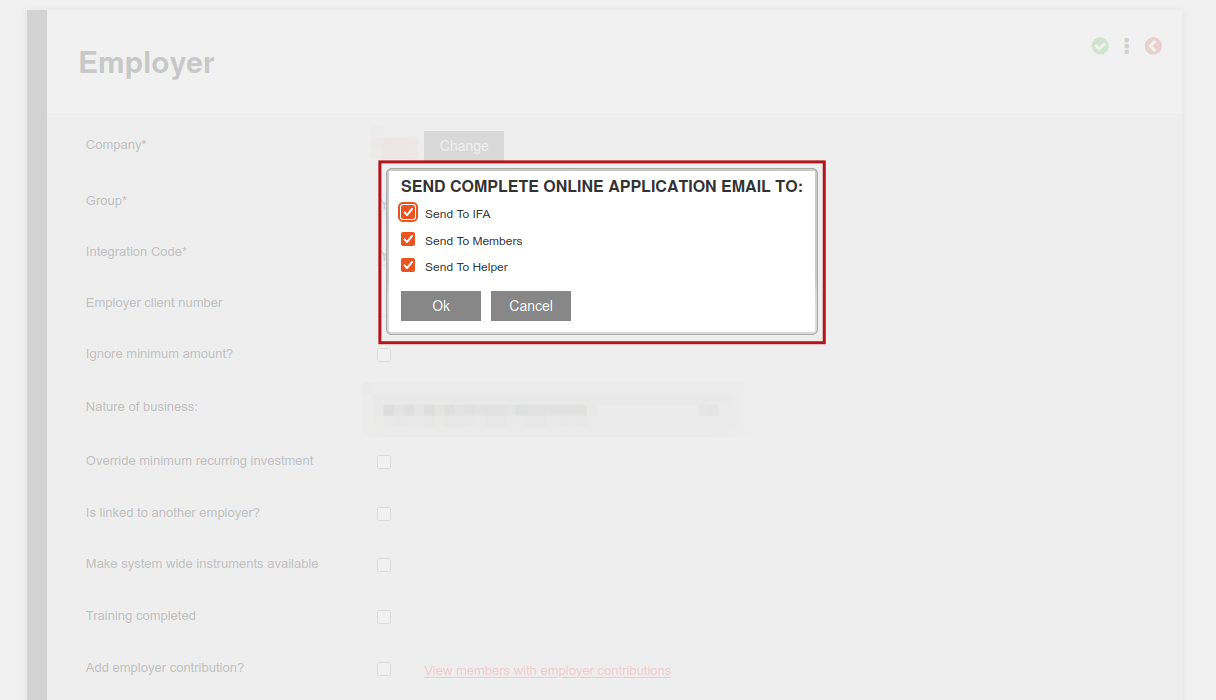
The online applications for all members added to the employer quote can be sent via a single spreadsheet to the Adviser, please refer to this help file to enable online communications to be sent to the Adviser automatically (see Image A). If this function has not been enabled, following the steps below will result in the option to send the bulk online application sheet to the Adviser, the members or the helper linked to the Employer group (see Image B).
Bulk online application emailed to Adviser via single spreadsheet is triggered with these steps: Employers -> Quotes -> select Employer -> Employer card -> more details -> options: email online application process
Image A:
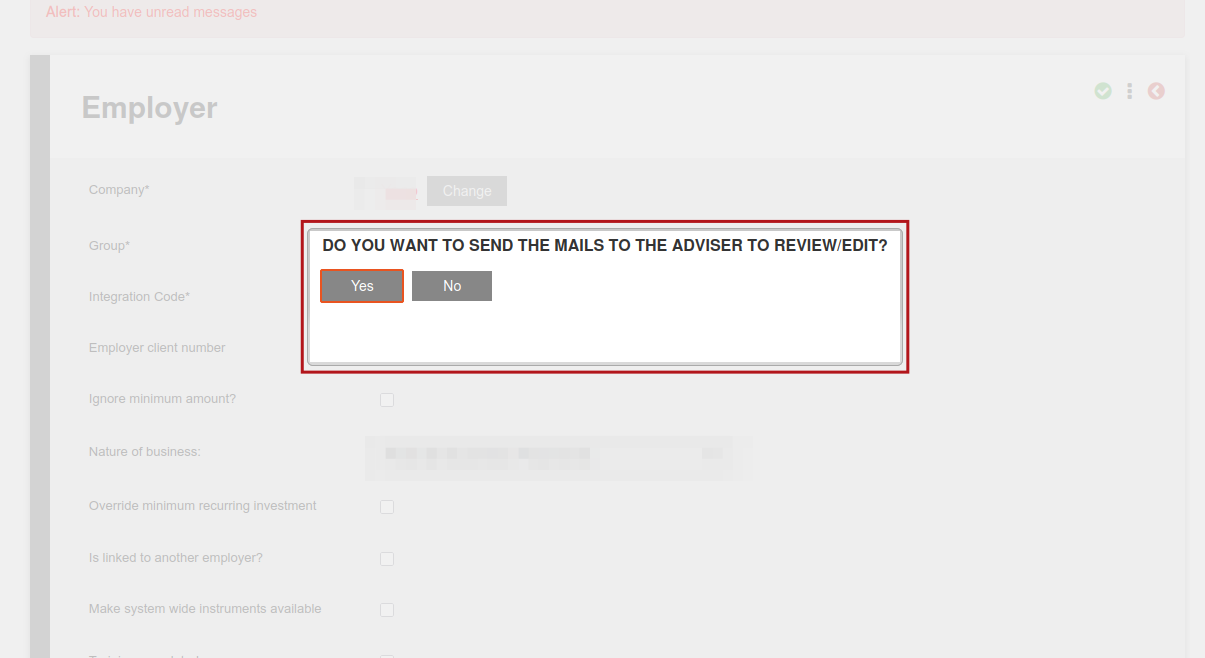
Image B:
Accessing the bulk online member applications spreadsheet
The bulk online member applications spreadsheet is password protected, please refer to the email received regarding the password hint which can be used to access the ZIP folder attachment. Each member’s application link will be listed on the attached spreadsheet, as well as the member’s name, ID number, email address, member contribution amount, Adviser code, initial investment fee (%), ongoing Adviser fee(%), employer and percentage allocation per fund selected on application.
Accessing the ‘Review new member, fund selection and IFA fees’ screen
The Adviser can access each member’s online application link by clicking on the link displayed next to each member on the bulk online member applications spreadsheet. Accessing the application link will direct the Adviser to the ‘Review new member, fund selection and IFA fees’ screen where the following fields can be reviewed, amended and approved:
- Adviser code
- Adviser fees
- Fund selection for the member (please note that Advisers may only select funds that have been made available to them by the administrator)
Once each online application link has been accessed and reviewed or edited, the updated application can be emailed to the member by selecting the ‘send request to member’ button, or exit the process using the ‘exit’ button.
Last Updated on 1 year ago by Hayley Jerram