
SARS file for Dividend Withholding Tax (DWT)
Before the SARS DWT file is generated, it is important to ensure that the relevant contact person is linked to the service provider company:
System -> Configuration -> FSP company -> “View details” on the Company -> link the relevant contact person -> Save
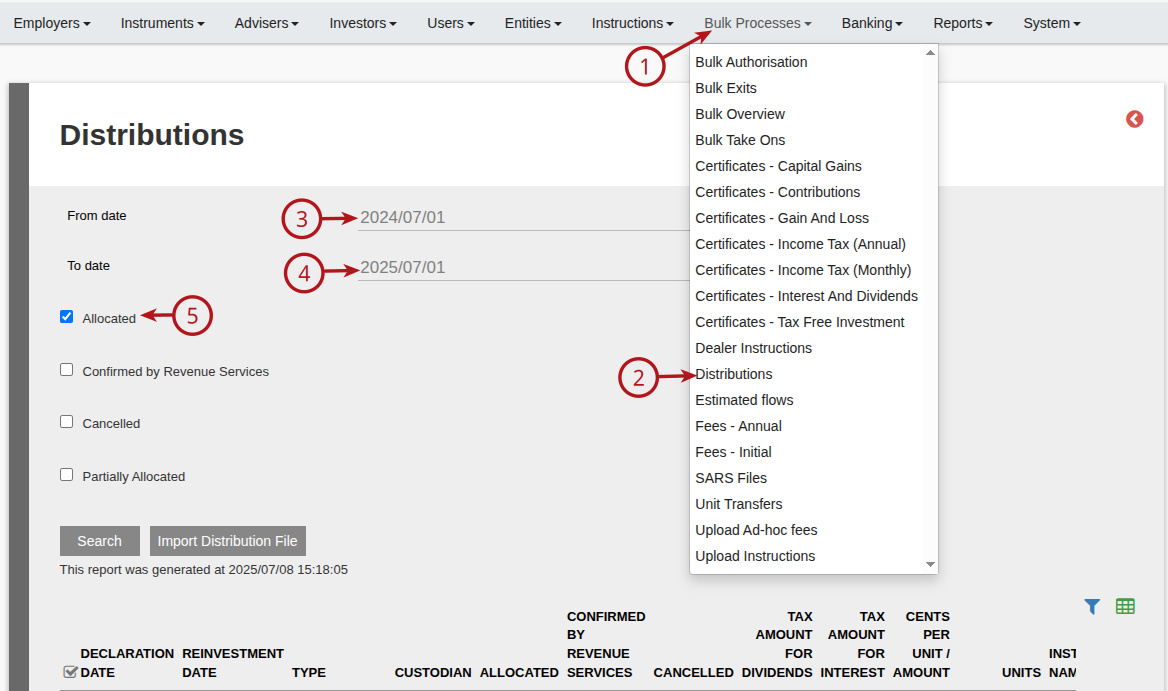
To generate the SARS DWT file, select the Distributions sub-menu from the Bulk Processes menu
Enter the date range and Tick the “Allocated” filter
Leave “Confirmed by Revenue Services” un-ticked
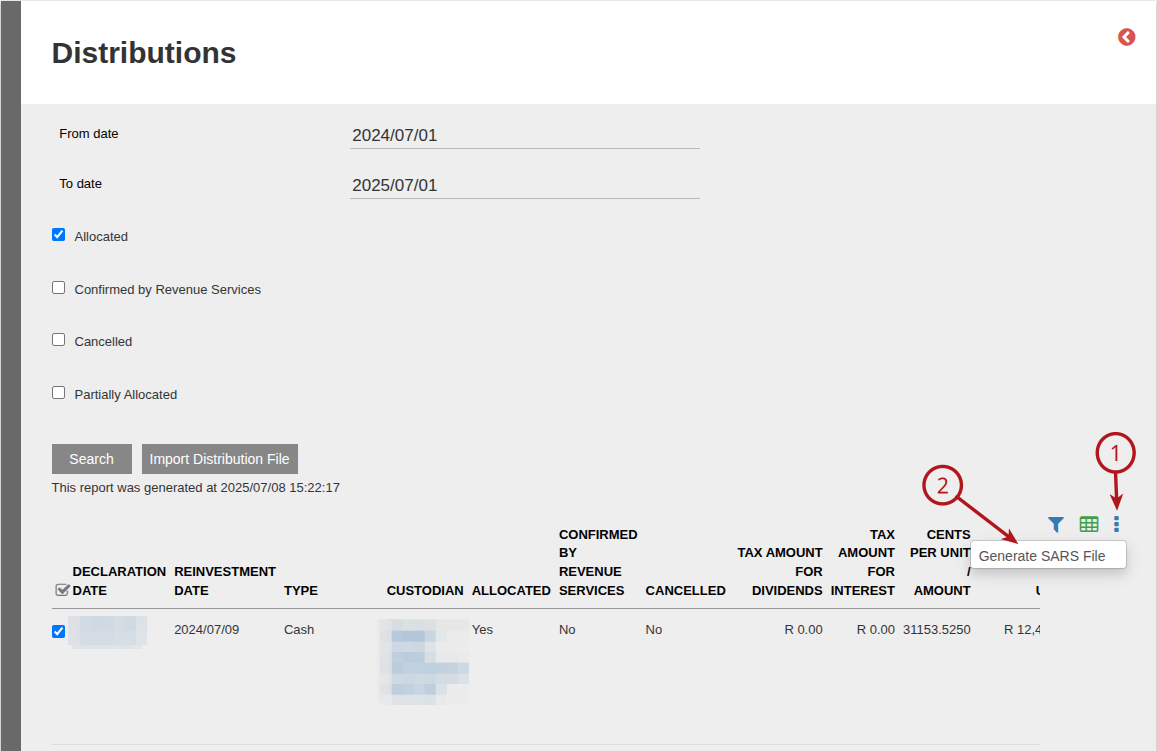
Select the relevant distribution/s and click on “Generate SARS File”
Confirmed by SARS
Once a distribution is confirmed by SARS, it should be indicated on the distribution itself:
From Bulk Processes -> Distributions – select the relevant distribution
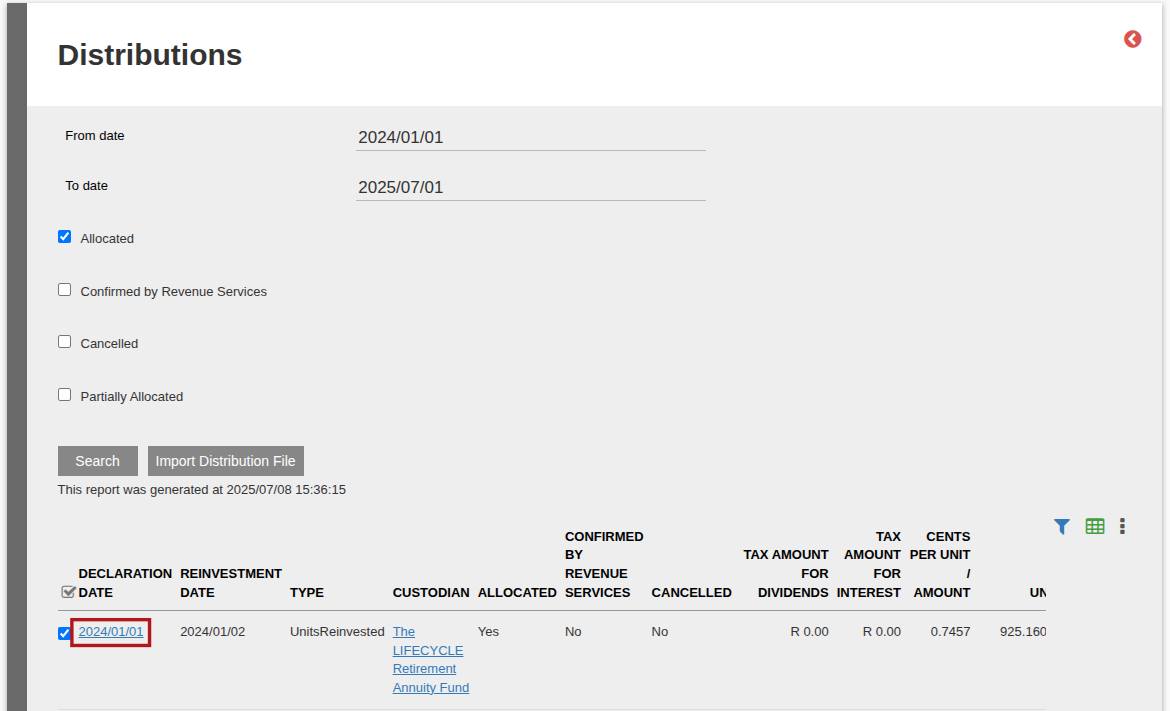
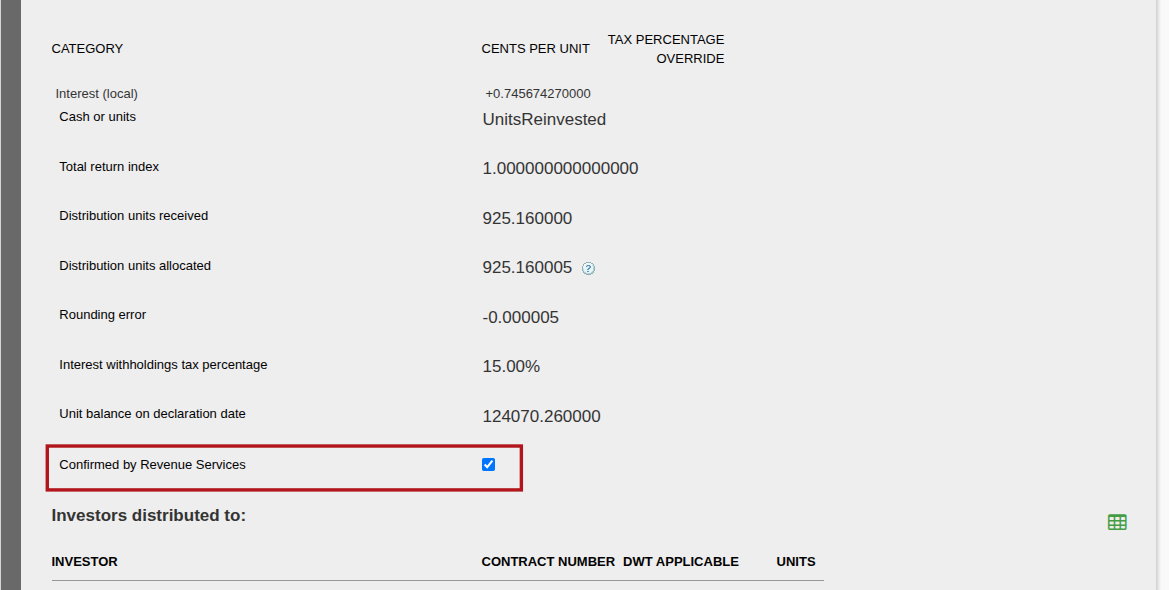
On the detail view of the Distribution -> tick the “Confirmed by SARS” checkbox.
Field Mappings
See list of the FieldMappings for all the the fields in the SARS DWT file.
Last Updated on 1 year ago by Debra Hart