
Set up for SARS files for IT3s’, Contributions and PAYE Recon and applicable variables
Many of the fields used for the SARS files were hard coded and no longer meets the requirements as there are variations that need to be catered for depending on the submitting entities on the SARS files.
The set up of the SARS files IT3b, IT3c and IT3s as well as Contributions happens on the Asset Holder Custodian (Bulking Entity).
If there are many Asset Holder Custodians (Bulking Entities) go to System -> Products and then into a product. Scroll down to the Asset Holder Custodian (Bulking Entity) and click on the Asset Holder Custodian (Bulking Entity).
Now scroll down to SARS Certificate section
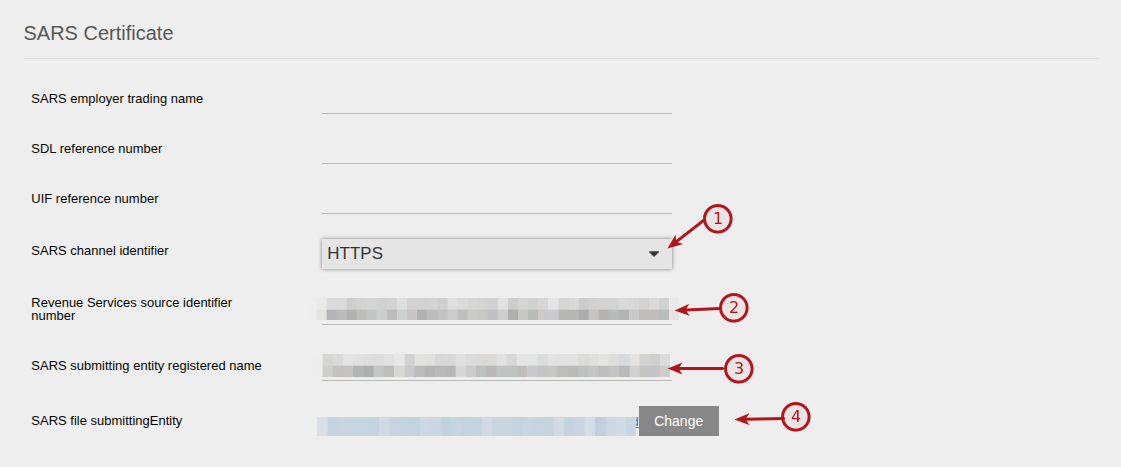
- Choose SARS channel identifier: either CD or HTTP (SARS submitting format).
- Insert the test or live Revenue Services source identifier number provided to you by SARS. When testing on the test site, make sure you have set up the test Revenue Services source identifier number before you submit your test files to the SARS test site.
- Complete SARS submitting entity registered name you wish to use in your SARS file. Save these change before proceeding to step 4
- Use the Change button to find the Company contract for the Submitting entity you wish to use:
- Search for the company used for the submitting entity
- On the Contact Details Card add the contact person and the relevant details for the contact person to be used in the SARS files under More Actions -> Contact person ( Telephone number and email address). Also mark this person as the default contact.
- On Company card ensure the tax number is added, More Actions -> Tax Details, Tax number. Also ensure on Company card, view details, that the Registration number is completed.
The set up of the SARS file PAYE Recon happens on the Owner Custodian.
If there are many Owner Custodians go to System -> Products and then into a product. Scroll down to the Owner Custodian and click on the Owner Custodian
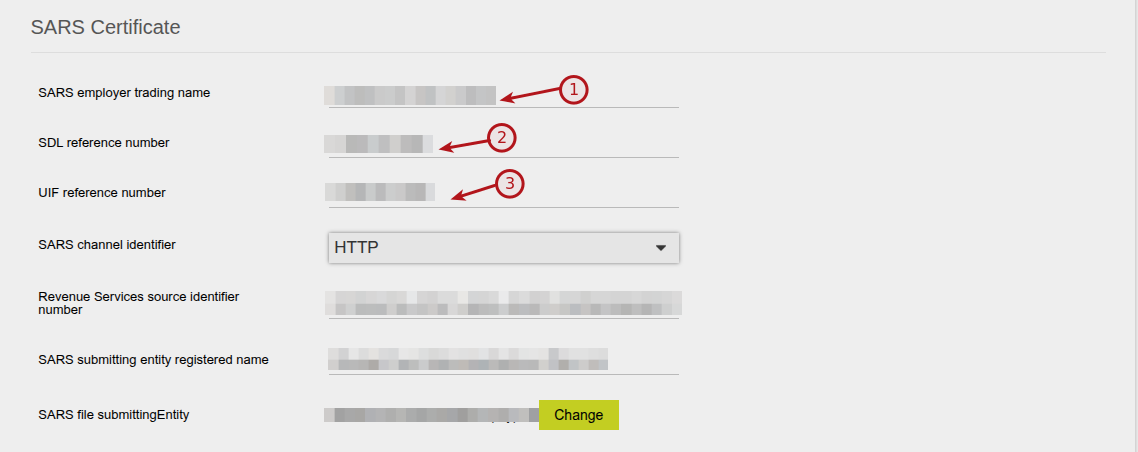
- Complete the employer trading name.
- If applicable, complete the SDL reference number.
- If applicable, complete the UIF reference number.
Last Updated on 7 months ago by Beryl Braak