
Steps to download a Statement in FNB online
Step 1 – Login

Step 2 – Click ‘’My Bank Accounts’’

Step 3 – Click on your bank account
Step 4 – Click on ‘’Transaction History Menu’ on the left side of your screen

Step 5 – Click on ‘’Transaction History Menu’ on the left side of your screen

Step 6 – Click on “Search” then ‘’Custom’’
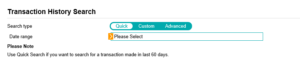
Step 7 – Search for:
Activate debit and credit
Change search date criteria

Step 8 – Click on ‘’Search’’ bottom right

Step 9 – Select ‘’Download’’ and select the CSV format.

Transaction History
Use this function to view a history of the transactions on an account.
- Click on the My Bank Accountstab.
- Click on Menu for more options and select Transaction History.
- Select an account by clicking on the account Name hyperlink.
or
Simply click on the Quick links button next to the Account you want to view, then select Transaction History.
This can be printed or downloaded in a PDF, CSV, QIF, OFC and OFX format.
Note! You can access additional history on your credit card by selecting the More button provided at the bottom of your transaction history.
Last Updated on 4 years ago by Tinus Burger