
Two Factor Authentication (2FA)
When accessing the Finworks application through the front-end, a user can be forced to use 2 factor authentication when logging in. This is done through third party applications that generate a unique code and then you must capture the code for your user each time you login in. The third party application generates a new code every 30 seconds for example, so it ensures that the person who is logging in, has access to the authentication app for that specific user and is thus another authentication layer.
As a user who needs to use our two-factor authentication, install an authenticator application from the App Store or Google Play on your mobile device.
Example applications: 2FAS, Aegis Autenticator, Google Authenticator or Microsoft Authenticator.
Download links to Google Authenticator:
Android
Apple
Once you have downloaded and installed the application of your choice on your mobile device, continue to configure 2FA on your user profile within Finworks.
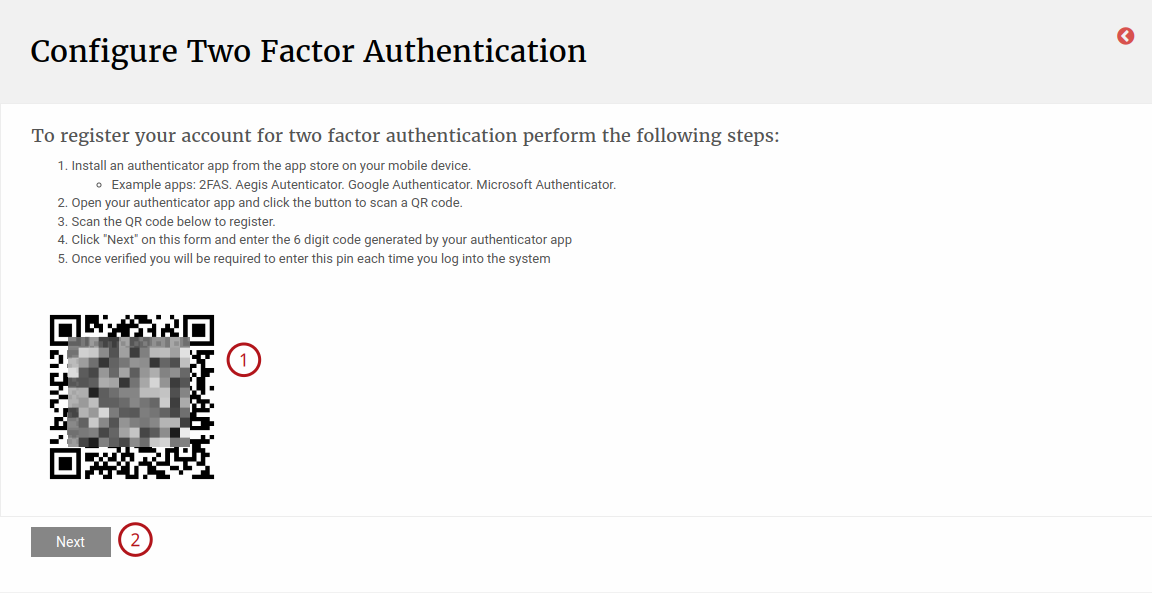
On your user profile navigate to the user card and then click on more actions and select “Configure 2FA Authentication”.

You will be presented with a QR Code and detailed instructions of steps to follow once the QR code has been scanned.
Click “Next”.
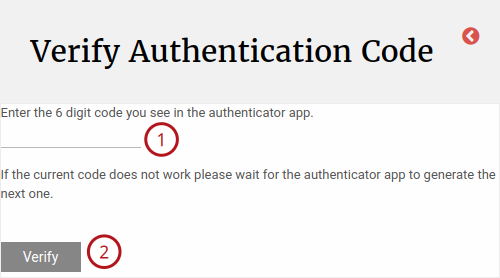
Here you will be presented with a screen to enter the 6-digit code as displayed on your mobile authenticator application.
Capture the code and click “Verify”.
You will be presented with a confirmation message indicating that 2FA has been activated on the user profile.
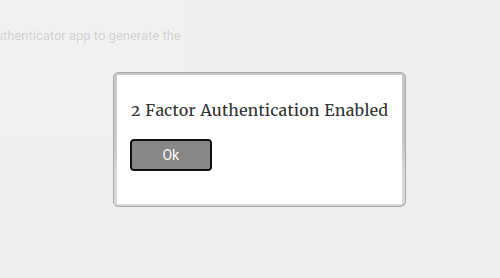
By clicking on the “Ok” button you will be returned to your profile where on the user card “2 Factor Authentication Enabled” will now display “Yes”.

If at any point you wish to disable 2FA on your account, click “Configure 2 Factor Authentication” on the user card.
From the next screen that displays click “Disable” and your account won’t require the 2FA for access again.

NOTE: Users with the permission ‘User administrator who can disable 2FA’ can Deactivate / Disable the two factor authentication on a user.
Trouble shooting:
If the authentication fails despite the user inputting the correct authentication code, the user’s mobile phone’s clock may be out of sync which conflicts with authentication apps (for example: Google, Microsoft, Authy) which generate codes based on the current time. If your phone’s time is out of sync even if only by a few seconds, the codes will be rejected.
To resolve this:
- Android: Go to Settings > General Management > Date and Time and ensure “Automatic date and time” is enabled.
- iOS (iPhone): Go to Settings > General > Date & Time and ensure “Set Automatically” is turned on.
- App-Specific Sync: In the Google Authenticator app, go to Settings > Time correction for codes > Sync now.
Enforce 2FA in Bulk:
Two Factor Authentication can be enforced on all Users, navigate to Users>- Users>-, then on More Options select Enforce 2FA, this will force all users on the system to use two factor authentication.

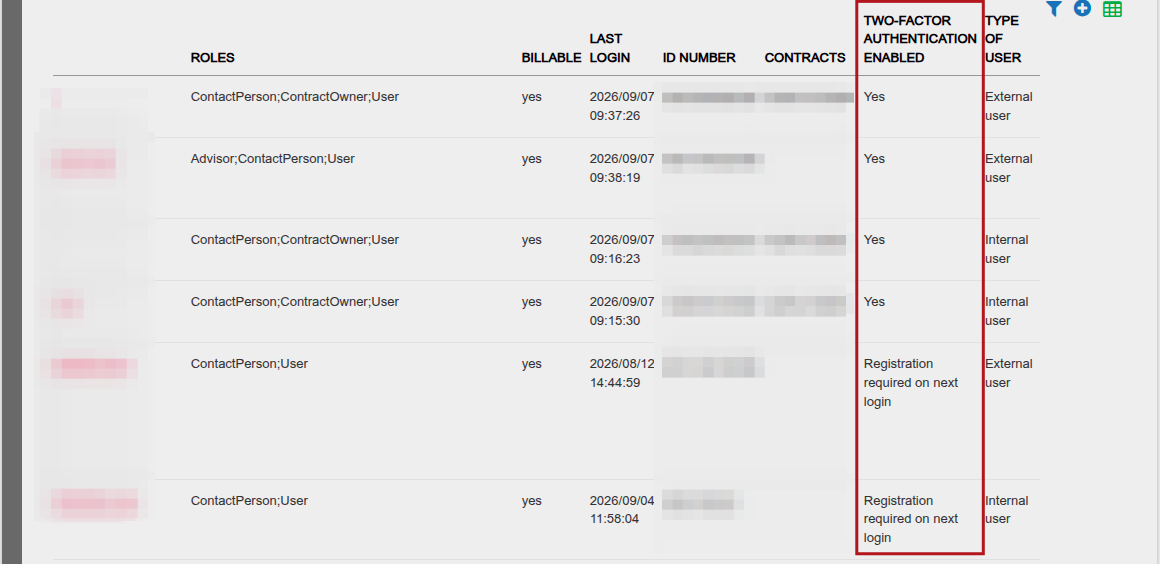
On the Users>- Users, a downloadable Report is available to view all users Two Factor Authentication status
- Registration required on next login = Two Factor Authentication has been enabled but the User still needs to set up the authentication process
- No = Two Factor Authentication has not been enabled on the User
- Yes = Two Factor Authentication has been enabled and the User has successfully finalised the authentication process
Last Updated on 2 months ago by Adrienne Dill