
Uploading Contract Notes using the JSE format
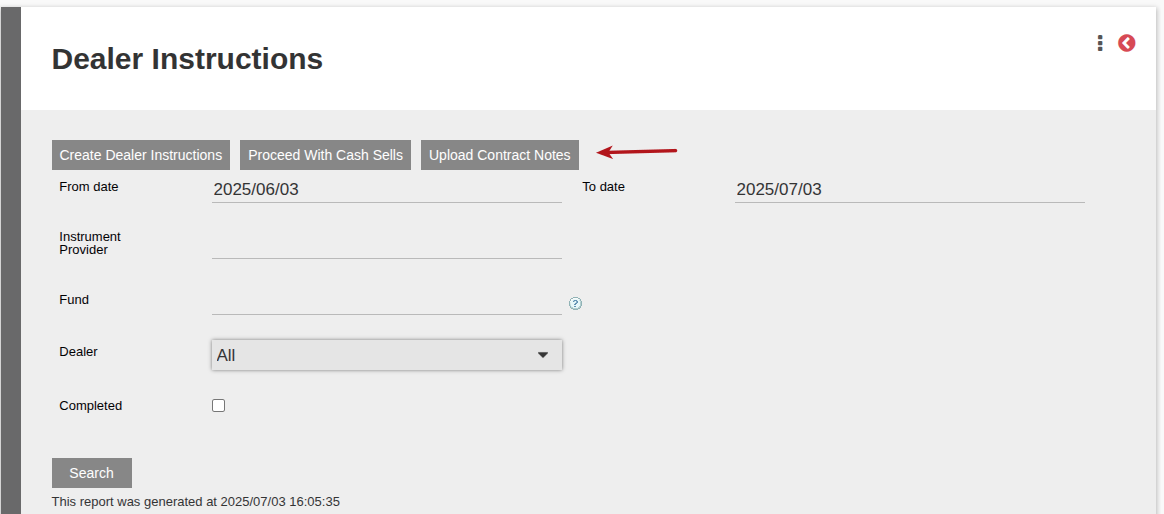
To import JSE Contract Notes, go to Bulk Processes -> Dealer Instructions -> Search
Once table is populated -> Upload Contract Notes
Choose file and then Import JSE
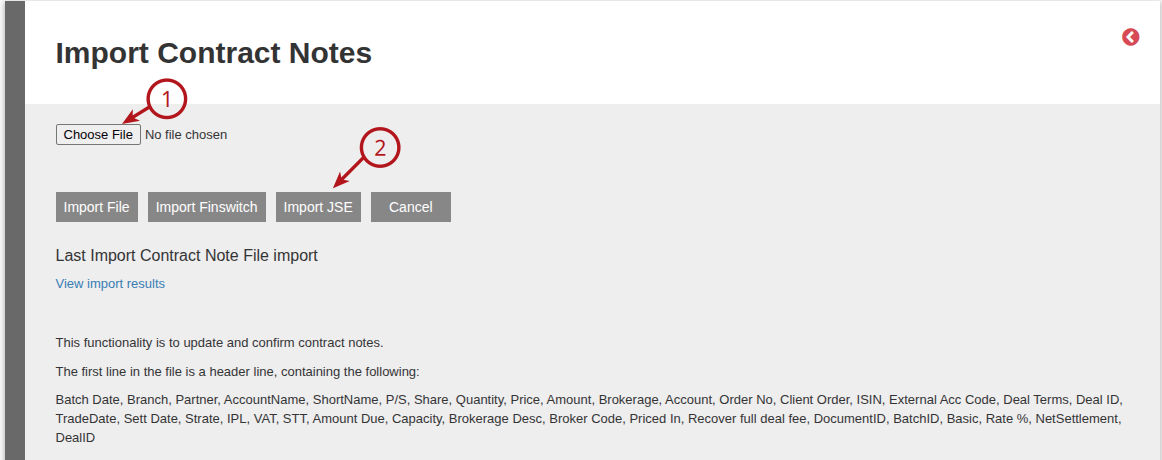
The Import Contract Notes screen will show the following information if applicable:
- Unit and Amount Sell combined instructions. If there is a rounding due to Average Price that will need to be split off when matching the settlement, the rounding value will appear here under the Amount column. All other Unit and Amount Sells combined instructs that do not have a rounding will also appear here with a R0.00 amount

- Instrument Instructions to confirm. This shows all the instrument instructions that will be confirmed.
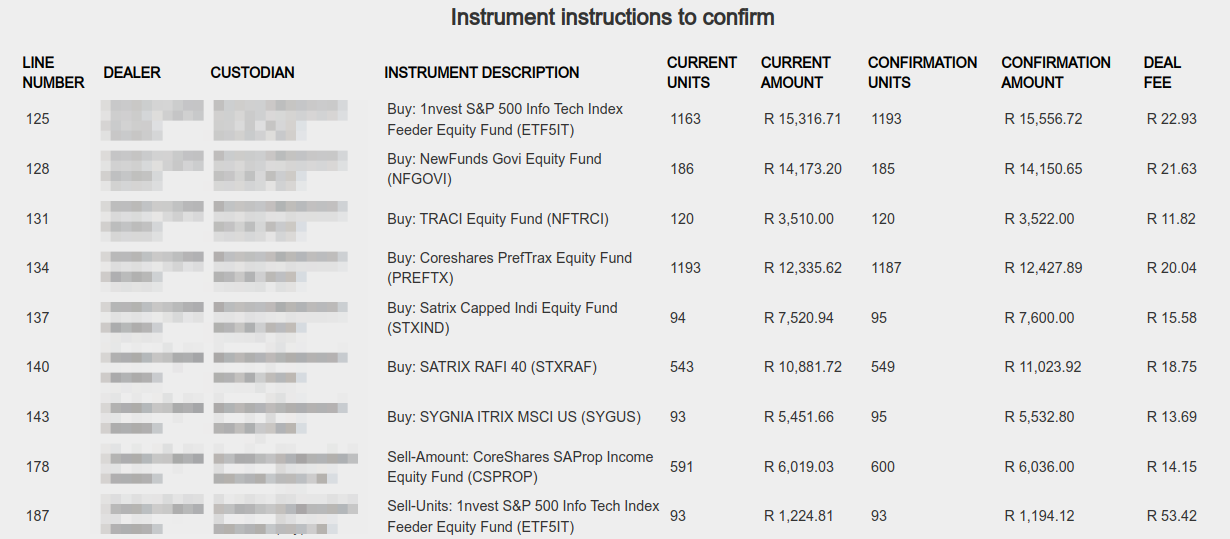
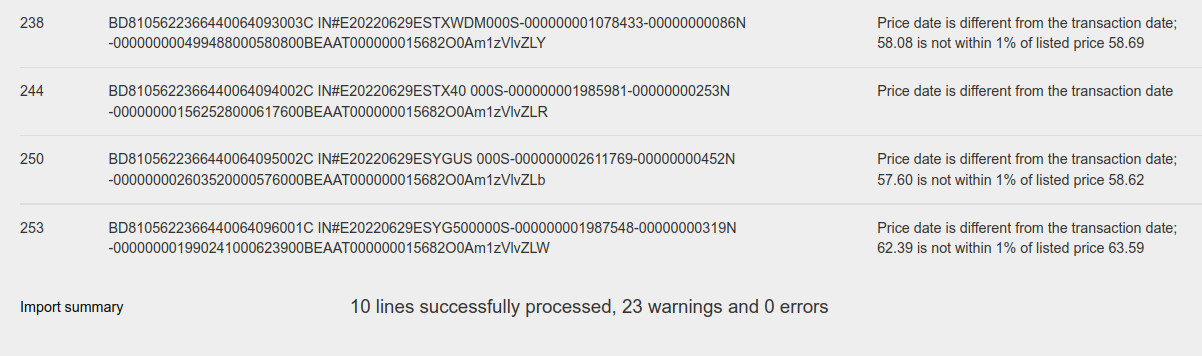
- Instructions with prices that exceed tolerance on system configuration (these will not be confirmed)

- Compare the current prices with the confirmation prices. If you think the changes are valid and logical due to market conditions and want to continue you need to first cancel the import
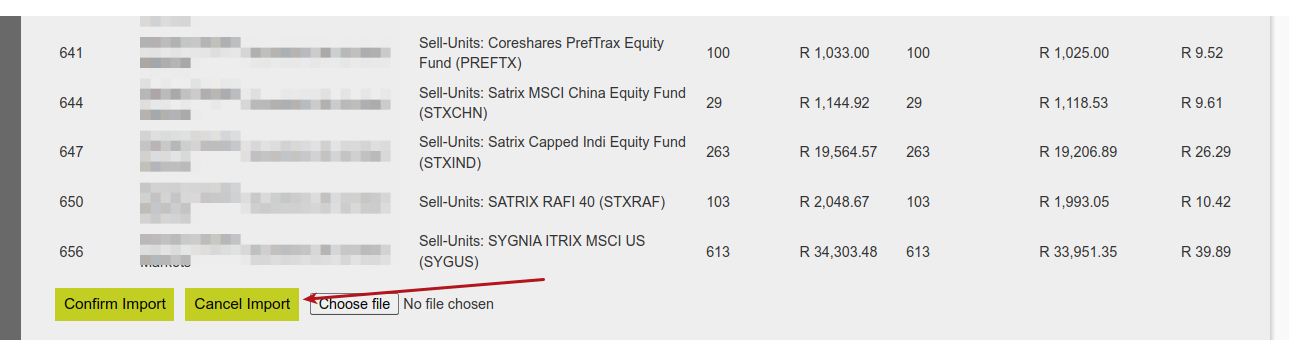
- Now go to System -> Configuration Scroll to Allowed price tolerance on JSE import and change the percentage to accommodate the highest confirmation price percentage increase/decrease

- Now you can re-import the JSE file
- Now Confirm Import

Once confirmed the following screen will appear
 1 indicates instrument instructions contract notes imported with no warnings or error
2 indicates instrument instructions contract notes imported with warnings
3 indicates any contract note that could not be imported and needs to be investigated and then confirmed manually
4 click here and the warnings indicated in 2 will be shown
Last Updated on 1 year ago by Debra Hart