
Using GitLab
Background
We use GitLab as our project management tool, to track all work done by our development team, and for our clients to use to request new features and approve work that’s been done. This is also a view of everything that a client must test during each release cycle. We also keep track of all Support time spent in GitLab.
Creating an item
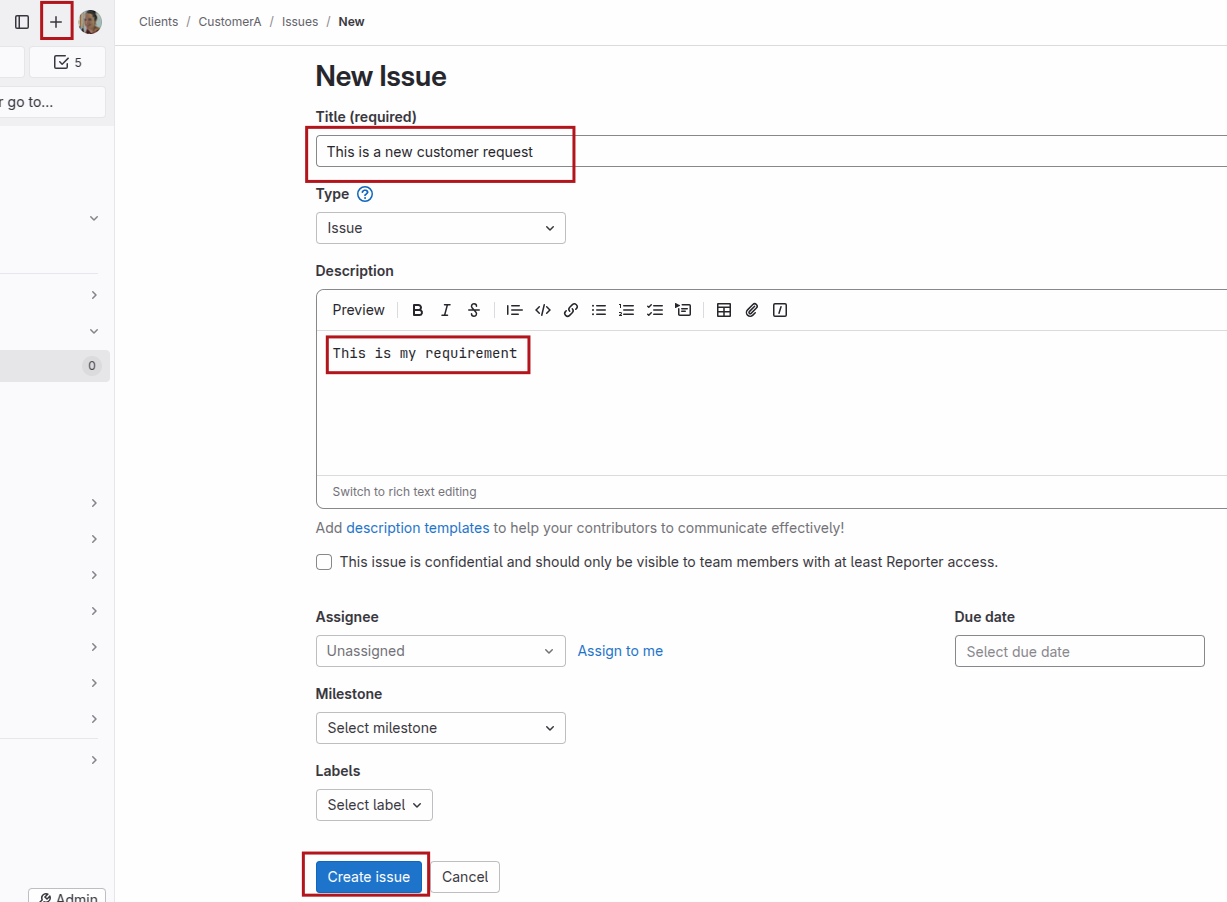
Click on the plus sign in the top left corner, add a title, description and click Create issue.
Viewing Existing items
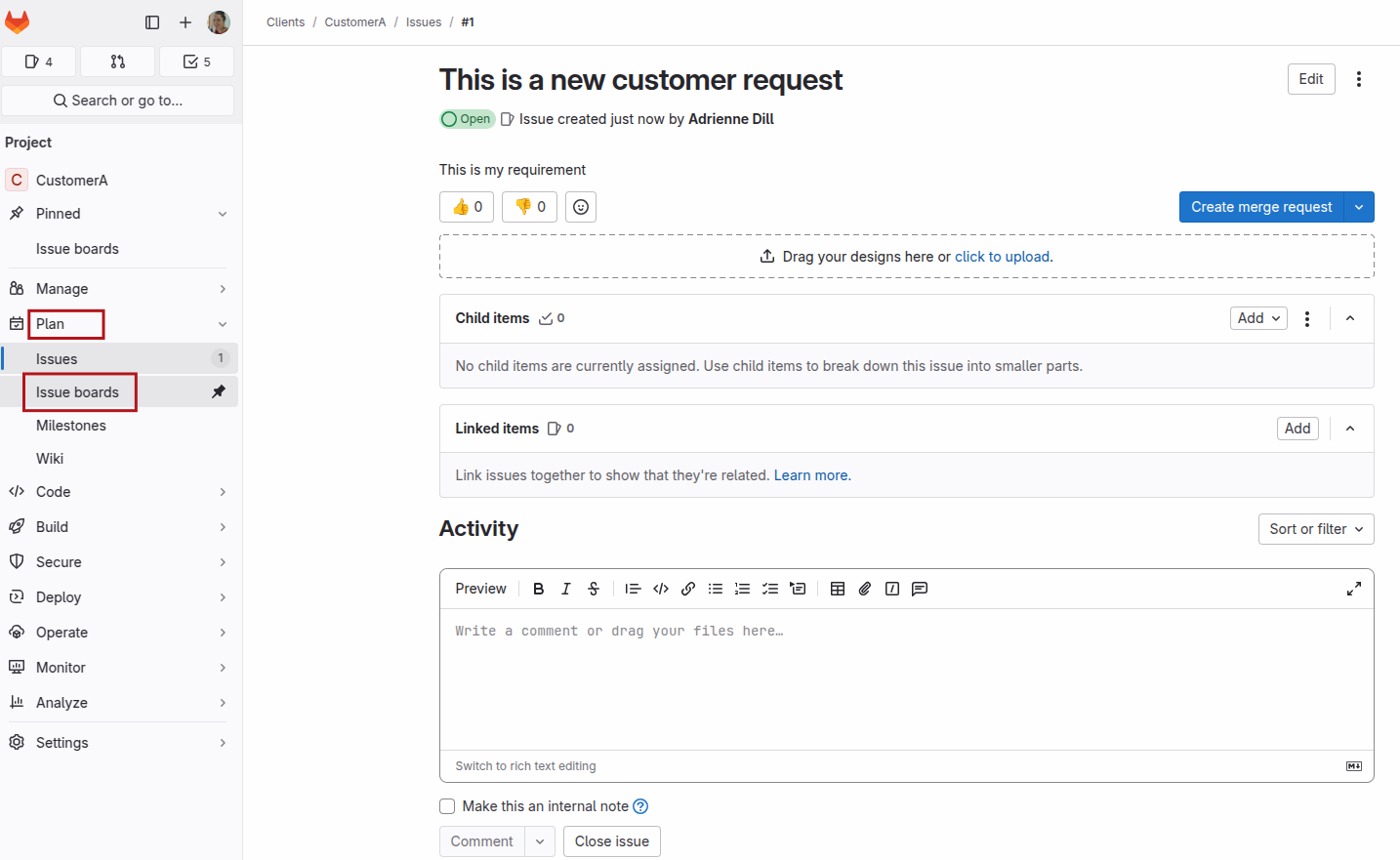
After creating the issue, navigate to Plan -> Issue boards (on the left side panel of the screen)
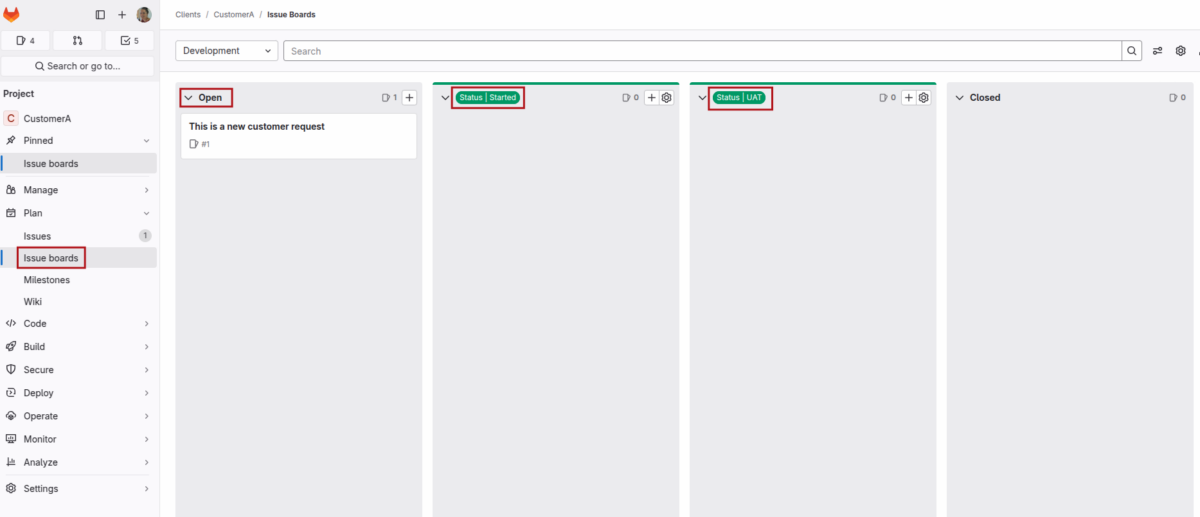
Then you’ll see the newly created issue under the Open column. Drag it up or down in the Open column, to indicate the priority of the item. We will pick up items from the top of your open list to work on. Once we start working on it, it will be under Status | Started.
When ready for you to test, it will be under Status | UAT. New features, bug fixes, data fixes will all be visible on Status UAT when it’s ready to be reviewed by you.
If you’re happy with the testing, you can drag the item to Closed.
Rejecting an item
If you identify any issues while testing for the release, add the Rejected label. Click on the item (not on the name) and click Edit next to Labels, and type reject and the Rejected label will appear. Click on it for the label to be added. 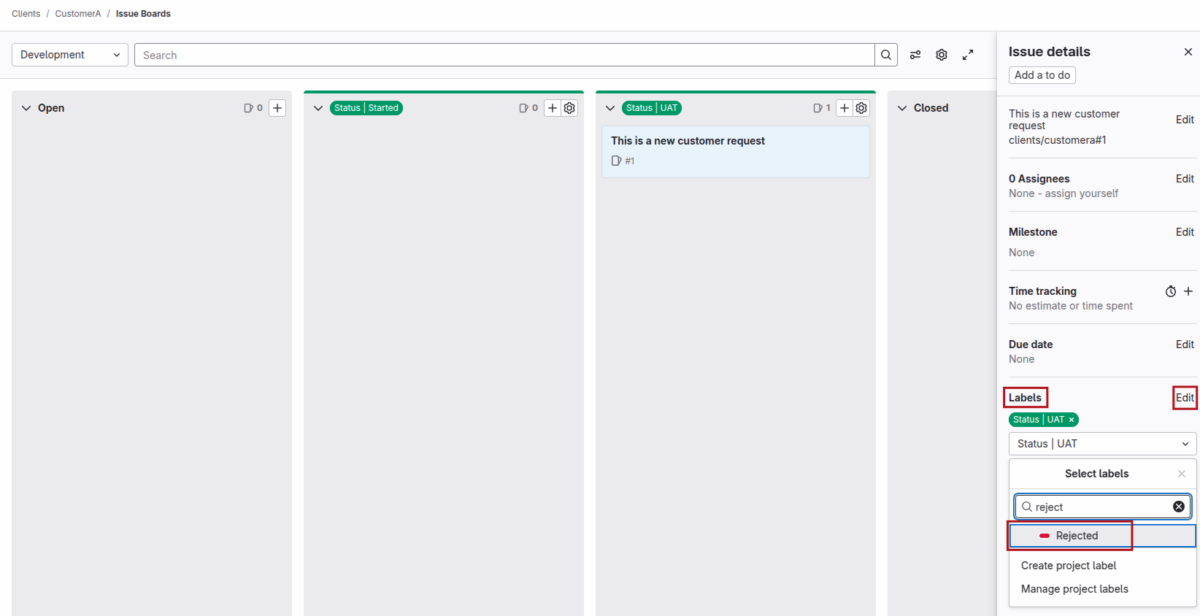
If an item was released into production outside of the normal release cycle since it was an urgent production issue, then it will contain the label Fix Release.
Viewing items for a release
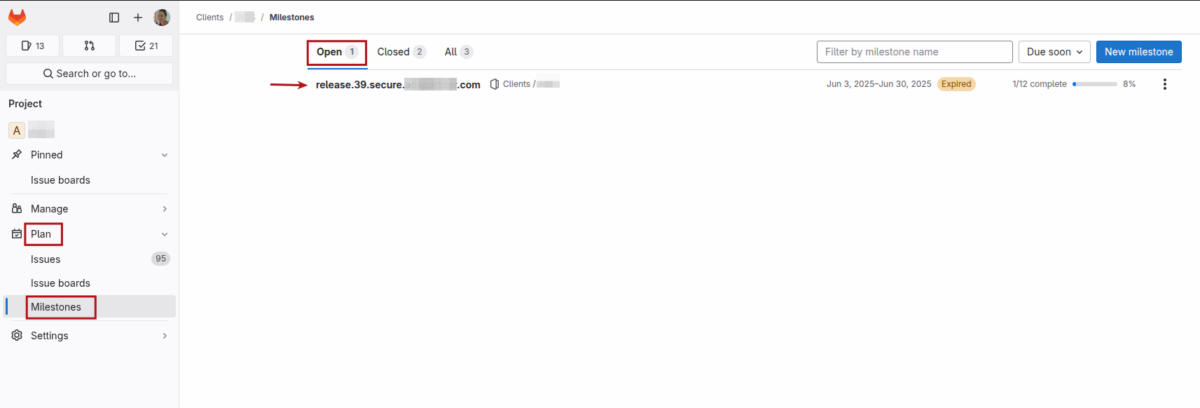
You can view all items pertaining to a specific release by navigating to Plan -> Milestones and under Open you should see all open Milestones. If you click on the milestone, you will see all items related to that specific release.
Last Updated on 1 year ago by Adrienne Dill