
Manage group contributions
Navigating from the employer screen
When logged in as a group’s administrator, the list of members and group contributions can all be accessed from the employer -> View Details screen
First select the group’s link from the list of Active Employers
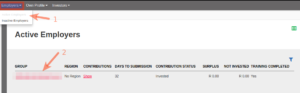
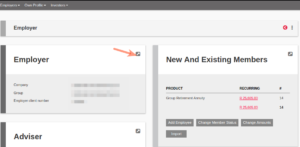
The employer’s detail view is displayed, listing the summary totals for each type of instruction, per product. There are also sections to distinguish between Existing Business and New Business.
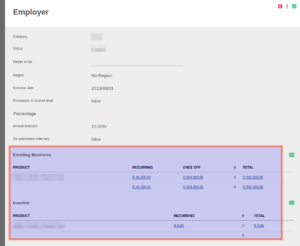
To access the list of members, select the relevant amount link, for example, if you want to list all the members with existing recurring investments in the product, select the amount link under recurring in the Existing Business section

The members will be listed, with links available to the person (Surname) or the investor account (Investor Account Number) or the last active instruction (Amount).

Selecting the investor account link, will display the Active Instructions Card from where New instructions can be edited for the current month’s contribution. For more information on individual instructions, see Adding, Editing and Cancelling Instructions.
Recurring Instructions
On submitting an Investment Recurring instruction (by submitting the group contribution or the individual member instruction), a new instruction is created automatically, which is a copy of the submitted instruction. In other words the new instruction will be created with the same fund splits and amount. An instruction can only be edited in NEW or REJECTED status. Once the instruction has been submitted, it can not be edited anymore (although it can be cancelled or rejected).
For more details on the flow process of recurring investment instructions, see the diagram: Recurring Investment Process
Group Contributions
On creating a new group contribution, all the NEW instructions of all the ACTIVE members (New and Existing investor accounts) will be included in the contribution, see Monthly Contribution Submission. For more information on the different statuses of an investor account, see Statuses of investor accounts.
A new group contribution can only be created, when the previous month’s contribution has been invested (completed).
To view a list of a group’s historical contributions:
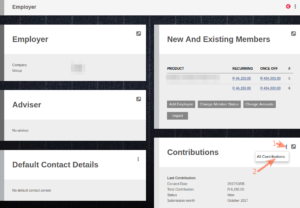
The historical changes for each contribution instruction can be accessed from the menu on the Contribution Instruction screen.
Last Updated on 7 months ago by Hayley Jerram