
Dealer Instruction Options
With the dealer instruction, the user has some options that can be set i.e. Add Buy and Sell prices to a Unitised Instrument. Listed below is the process to follow.
Step one would be to set the Unitised Instrument to have Buy and Sell prices and to add Buy and Sell prices to a Unitised Instrument. The next step would then be to select the required options on the Dealer Instruction Document.
- Add Buy and Sell prices in addition to the NAV Price for Unitised Instruments
Set Dealer Instruction Document Options
- Include price on the instruction document
- Include transfer date on the instruction document
- Include remarks on the instruction document
- Change Name for a Buys and a Sells
UNITISED INSTRUMENTS
Ability to add Buy and Sell price to a Unitised Instruments
Enable “Has different Buy and Sell prices” on the Dealing Card on the Instruments
From the (1)View Details on the Dealing Card on the Instruments
For more information refer to the Instrument Card settings

Select the option (1)Has different Buy and Sell prices and save changes
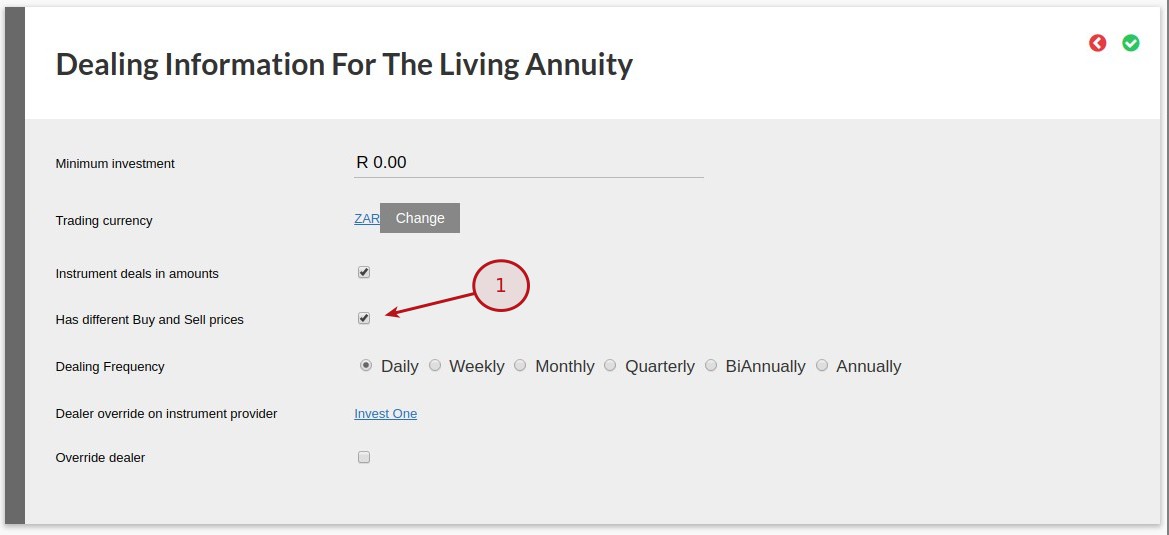
Enter separate Buy and Sell prices on the Instruments Card
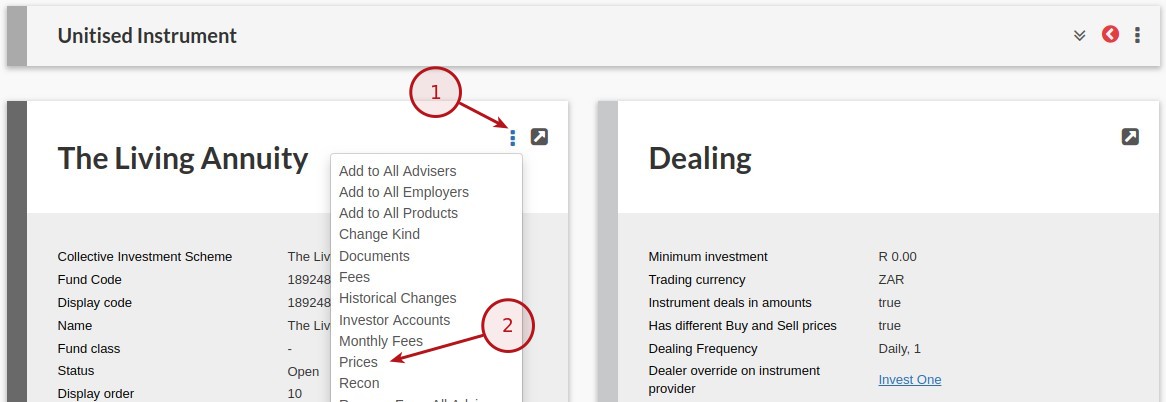
Select (1)More Actions, (2)Price on the Instrument Card
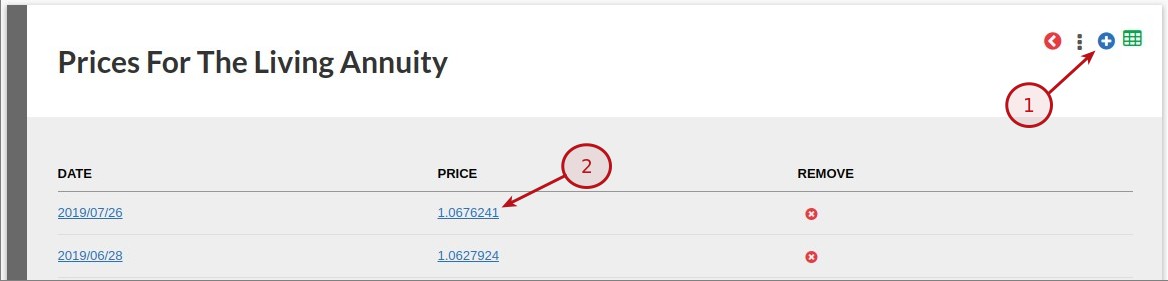
From the (1)Add or (2)Edit link
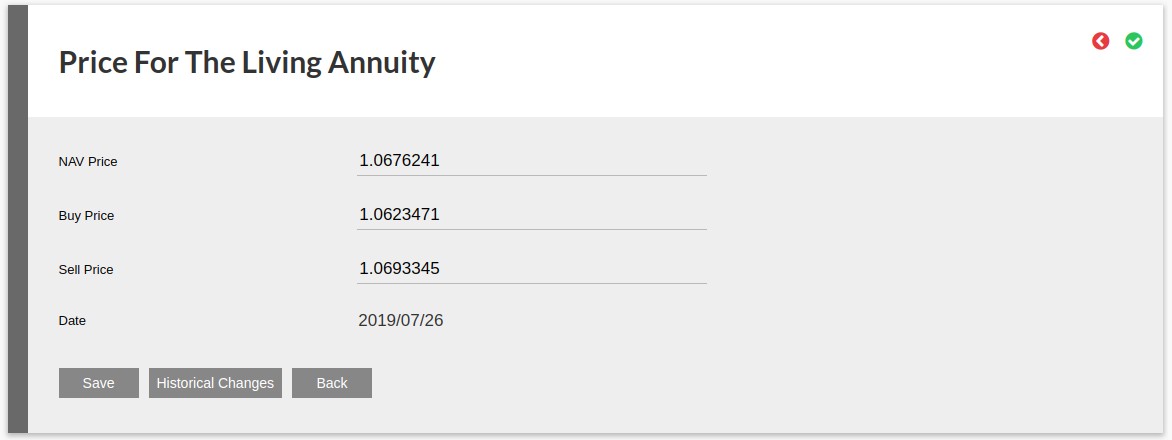
Add or Edit the individual prices and save changes
DEALER INSTRUCTION DOCUMENT
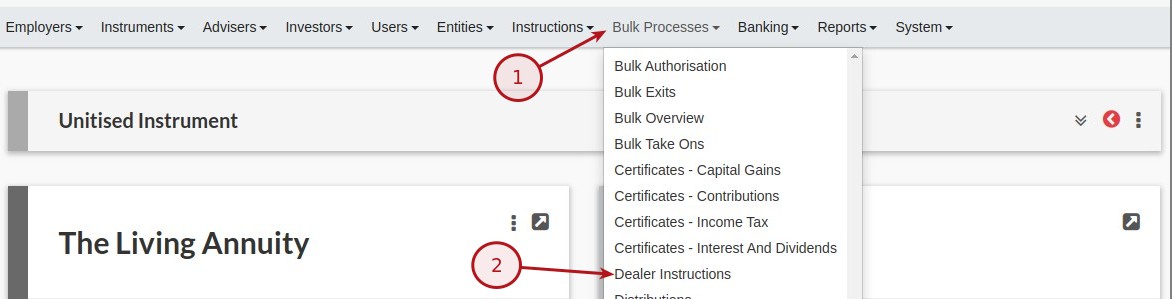
From the main menu (1)Bulk Processes, (2)Dealer Instruction
Select (1)More Actions, (2)Settings

Make the required selection and changes and save changes
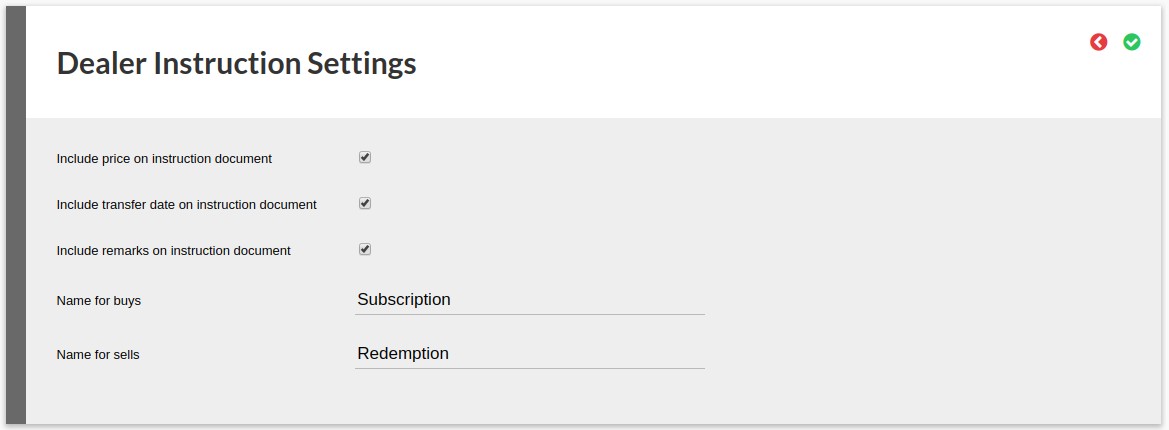
Available Dealer Instruction Settings
- Include price on instruction document
- Include transfer date on instruction document
- Include remarks on instruction document
- Name for buys
- Name for sells
Select the requested Dealer Instruction from the list

Select (1)More Actions, (2)Instruction Document

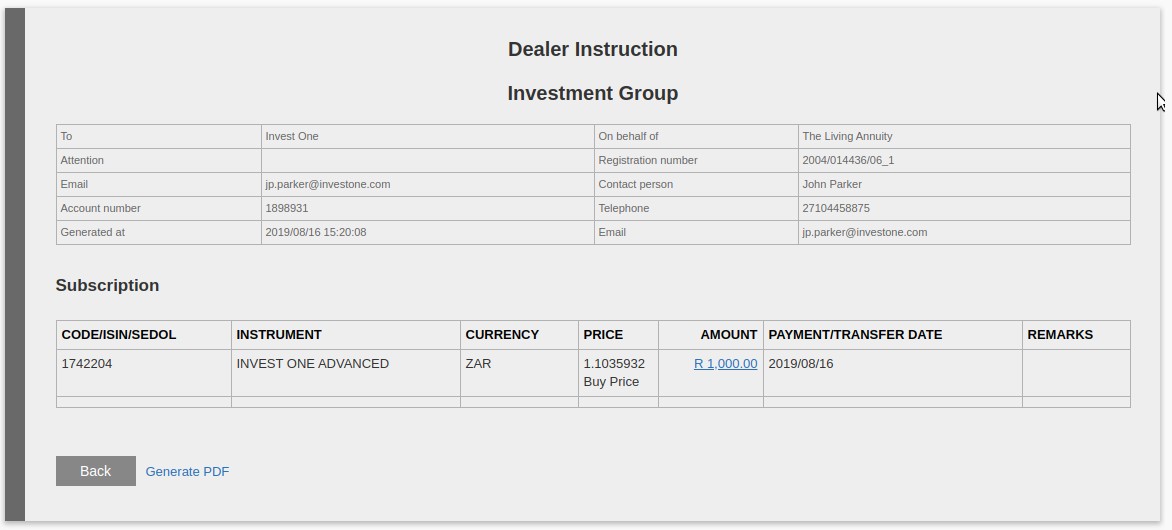
Example of the Dealer Instruction Document, that can also be exported to a pdf by selecting the Generate PDF link
Detail Instruction File
Functionality has been added to use a Dealer number and not the Account number when generating the Detail Instruction File, this allow instructions to be grouped per Dealer number
- On the Product set “Show dealer number on instruction”, this will make the field visible when capturing an Instruction
- When creating a new Instruction the “Dealer number” field will be available to enter a dealer number
- When creating the Detail Instruction File and the “Dealer number” has been set the Detail Instruction File will use the “Dealer number” and not the “Account Number” in the Account Number field
NOTE: The “Dealer number” can be edited on existing instruction
Last Updated on 6 years ago by Tinus Burger