
Brokerage / Adviser Client Management
The functionality is available for both the Brokerage and the Adviser, on the Brokerage all the client will be displayed for all the Advisers
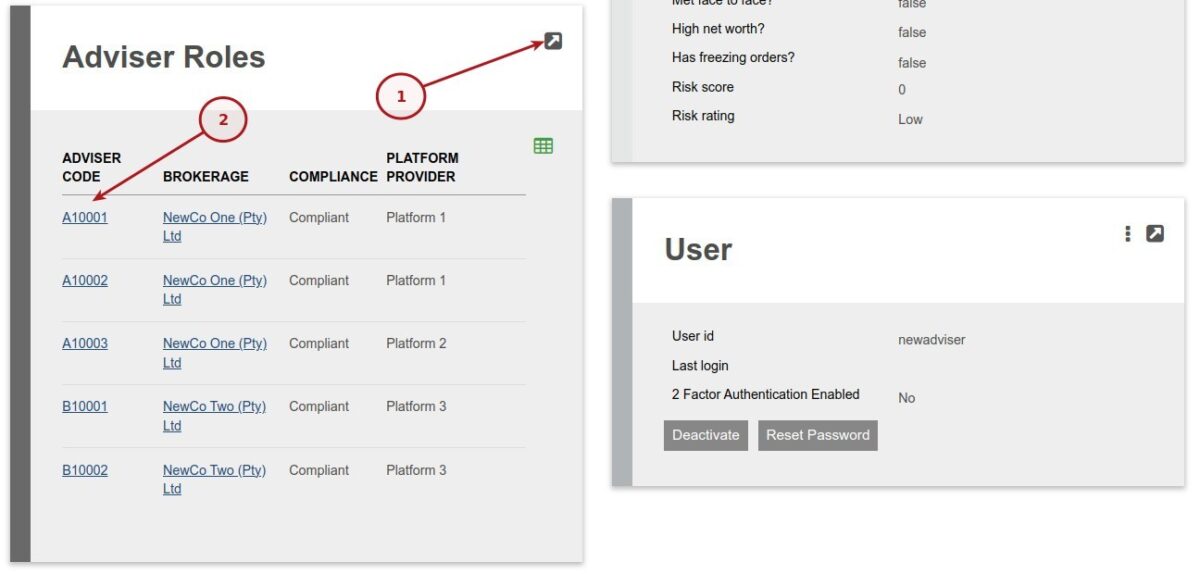
The Adviser Role card display a list of adviser codes linked to the adviser
When selecting View Details (1) on the Adviser Role card the combined cards for the adviser will be shown for example Combined Fees and Combined Clients
For details on the individual adviser code select the adviser code link (2) on the Adviser Role card
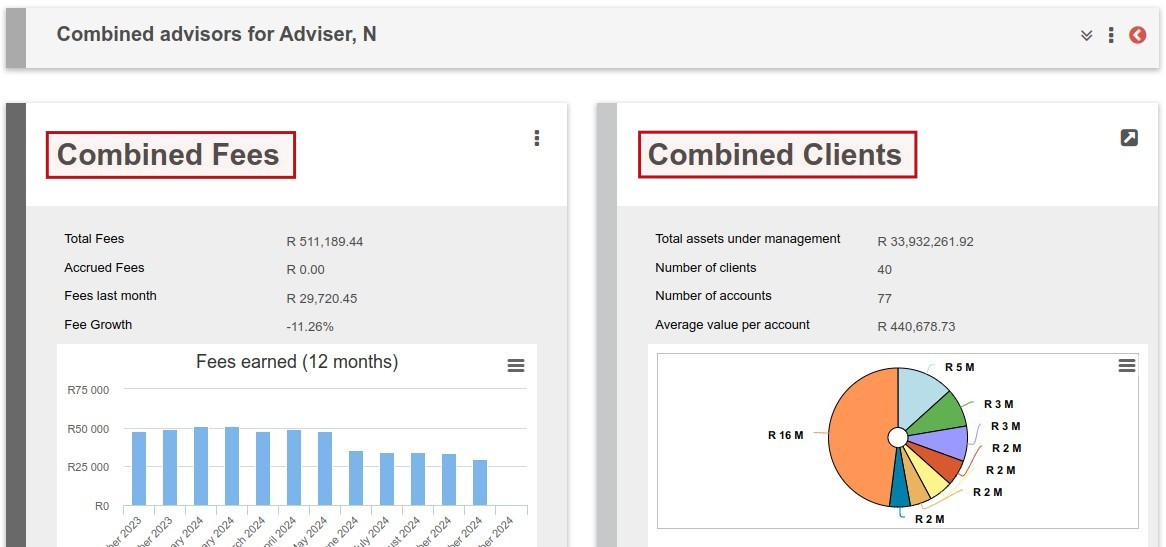
The Brokerage and Advisers role opens up to a full facade with, among other, cards for:
- Also refer to Card settings on adviser and brokerage
- Adviser details
- Fees – including Fee Portfolios and Fee Report
- On the Fees summary card we only show the last two months Accrued Fees
- For details refer to More Actions -> Accrued Fees
- Client Birthdays
- Clients Card – display clients with highest holdings value and facility to import customer
- Total Assets Under Management (AUM)
- Number of clients
- Number of accounts
- Average value per account
- Client proportionate market value graph
- Assets Under Management (AUM) Graph
- Client Compliance Status
- Client Next Review
- Flows
- Instruments – display top 7 instruments in which the adviser’s clients have the highest investments
- Compliance License – Available products, instruments and Model portfolios
- Personal Details
- Contact Details

Client Birthdays Card
Only 10 line are displayed on the Client Birthdays summary Card
For a complete list of Client Birthdays click on the View Details button on the Client Birthdays Card
A drop down filter is available to limit the list

Clients Card
The Total Assets Under Management exclude Accrued Interest, Fees And Taxes
For more client details click on the View Details button on the Clients Card
The quantity of clients to to be displayed on the graph can be set on the System Configuration screen

In instances where the adviser have many clients and ‘Others’ would constitute most of the graph, the average of the ‘Other clients’ will be displayed with (avg) behind.
If (total market value of the top investors) / (total market value of the other investors) > 0.5, total market value is used
If (total market value of the top investors) / (total market value of the other investors) =< 0.5, average is used
The average is calculated as: Total holdings value of all other clients/number of other clients
Clients Card -> Assets Under Management (AUM) (graph)
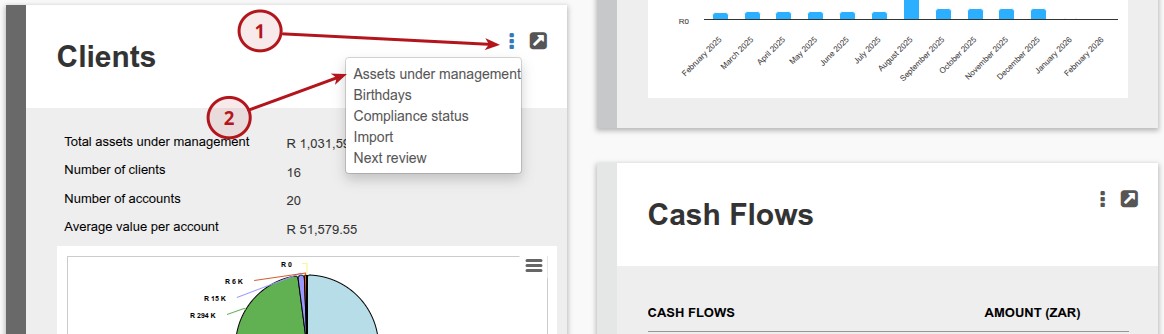
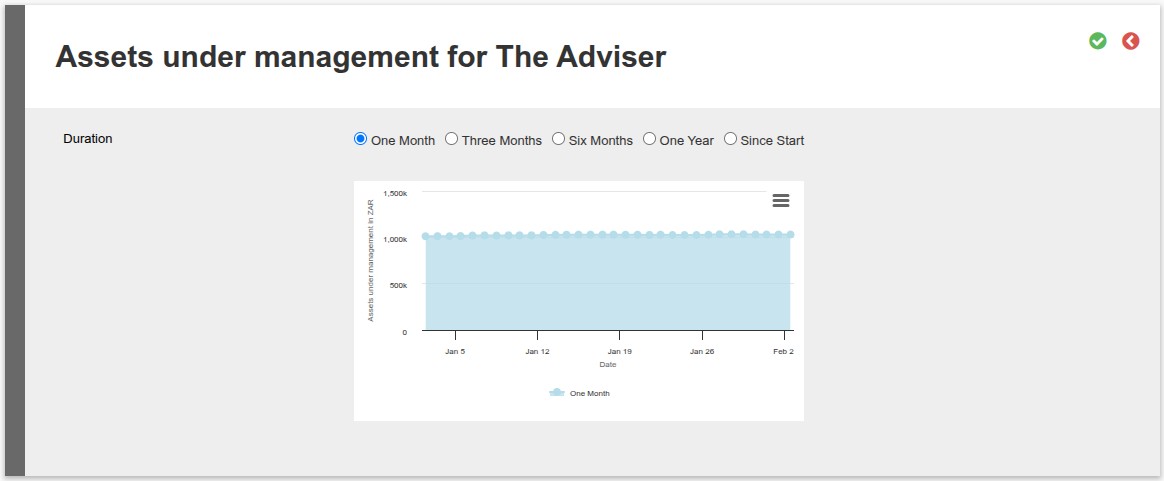
To access the Assets Under Management graph navigate from the Clients card -> More Action -> Assets under management
The user has the option to display the graph for One Month, Three Months, Six Months, One Year or Since Start
Client Compliance Status Card
Only 10 line are displayed on the Client Compliance Status summary Card
For a complete list of Client Compliance Statuses click on the View Details button on the Client Compliance Status Card
For more information refer to Compliance Requirements
Client Next Review Card
Only 10 line are displayed on the Client Next Review summary Card
For a complete list of Client Next Reviews click on the View Details button on the Client Next Review Card

The following is required to display the Reviews Card
- Set System -> Product (Settings section)-> Show review dates
- Set System -> Product (Card Settings section)-> Display Reviews Card
- Set Investor Account -> More Actions -> Card Settings -> Reviews Card (If set on the product the product default will be set)
Client Reviews are created on the Review Card on the individual Investor Accounts
Next Review Report is available under the main menu Entities -> Entities -> More Actions -> Next Review Report
Last Updated on 8 months ago by Adrienne Dill