
Compliance Requirement
Compliance requirements take the Requirements on an Entity, Investor Account, Instruction and or Role into account to set the compliance status.
Refer to Setup Compliance Requirement Types for more information
Compliance Status (1) uses the items in the Requirements list to derive the compliance status:
- An entity is non-compliant if the entity and any accounts or instructions owned by the entity is non-compliant.
- An account is non-compliant if the account is non-compliant or any instructions is non-compliant.
- An instruction may not be authorised if the account owner (entity) is non-compliant (including all accounts/instructions)
Requirements Card
The FROM (2) column indicates if the requirement is related to the Entity, Investor Account or Instruction
By selecting the REQUIREMENT link you will be vavigated to the Entity, Investor Account or Instruction Requirement Card

The following are listed for the Entity and Investor Accounts Requirement cards
- Requirement where the STATUS/CHECKED = not ticked or flase (false is where the file has not been uploaded yet)
- Requirements that has been set as Outstanding
Requirements Details Card
The process is the same for an Entity and Investor Account, for an Instruction refer to the link below.
- Entity – List all the Entity requirements
- Investor Account – List all the Investor Account requirements
- Instruction – List all the Instruction requirements
Requirements Card -> View Details (Entity view)

Documents
If the current holdings or an investment is above a set threshold on the Product the system will enforce that original documents will be required for compliance.
More information on Uploading Documents
Overrides
Compliance requirements on an Entity, Investor Account and Instruction can be overridden on a Product or on the Brokerage.
Reports
The following report are available:
Compliance Status report
Navigate to: Entities -> More Actions -> Compliance Status Report
Requirements report
Navigate to: Reports -> Requirements
Outstanding Requirements report
Navigate to: Reports -> Requirements
Compliance Expiry Report
Navigate to: Reports -> Compliance Expiry
Advisor Compliance
Refer to Requirement Class: Person-Advisor
Compliance Status on an Advisor uses the items in the Requirements list to derive the compliance status for the Advisor.
NOTE: Instruction can be submitted if a Advisor is not compliant but not authorised
Product
- Navigate to the product via the system menu; System -> Products and select the product on the list of product
- Scroll down to the Settings section and enable the Can authorise instructions for non compliant entities (2)
- If Can authorise instructions for non compliant entities (2) is selected/ticked on the Product the Compliance Status will not be applicable/applied, instructions can be authorised despite of non compliance
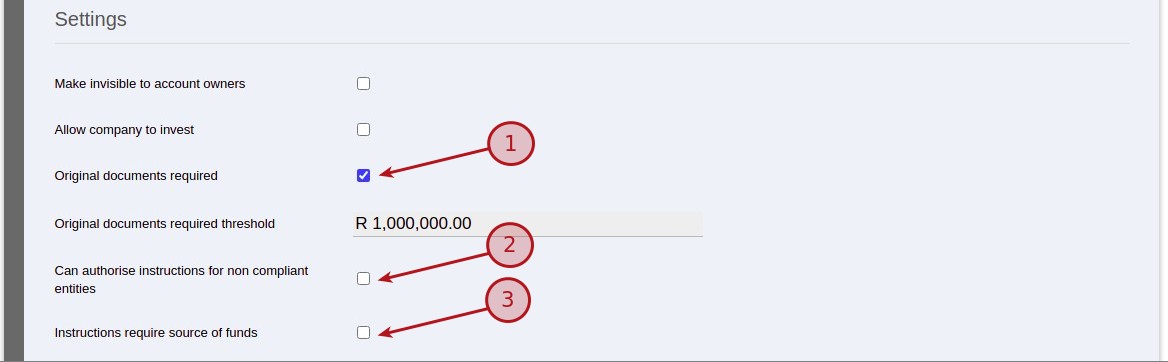
- Original documents required (1) – If set the “Original documents required threshold” must be entered, this will force Original documents to be set (refer to the Documents section above)
- Instructions require source of funds (3) – If set the user will be forced to enter a source of funds before Authorising an instruction, for more information refer to Source of Funds
Brokerage
For more information refer to Brokerage does own investor compliance
- Refer to Requirement Class: Company-Brokerage
- Compliance Status on an Brokerage uses the items in the Requirements list to derive the compliance status for the Brokerage.
- If “Declaration: does own compliance” is selected/ticked on the Brokerage the Compliance Status will not be applicable/applied, instructions can be authorised despite non compliance.
- The Compliance status on the requirements card will be shown as “Declaration”.
Step 1 – Brokerage
- Navigate to the Brokerage via the system menu; Advisors -> Brokerages and select the brokerage on the list of brokerages
- From the Brokerage Card select View Details
- Set the Declaration to “does own compliance”
- Enter a date up to when the declaration will be valid, this date will be taken into consideration on the Compliance Declaration Expiry report
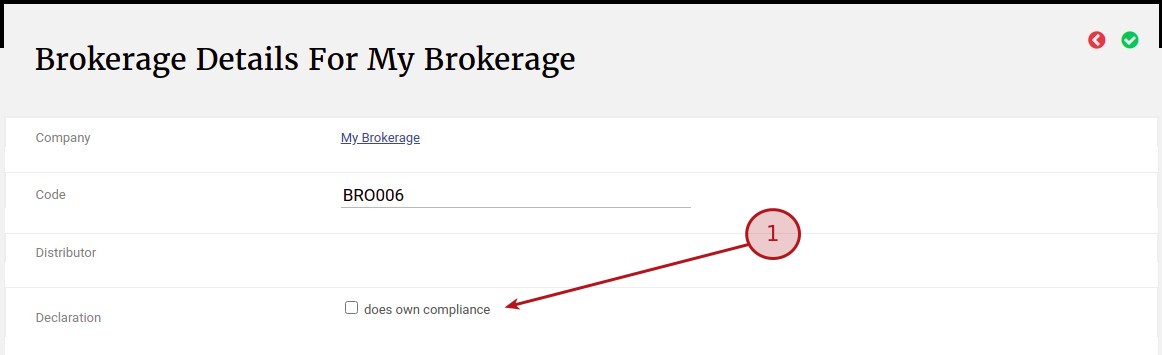
Step 2 – Investor Account
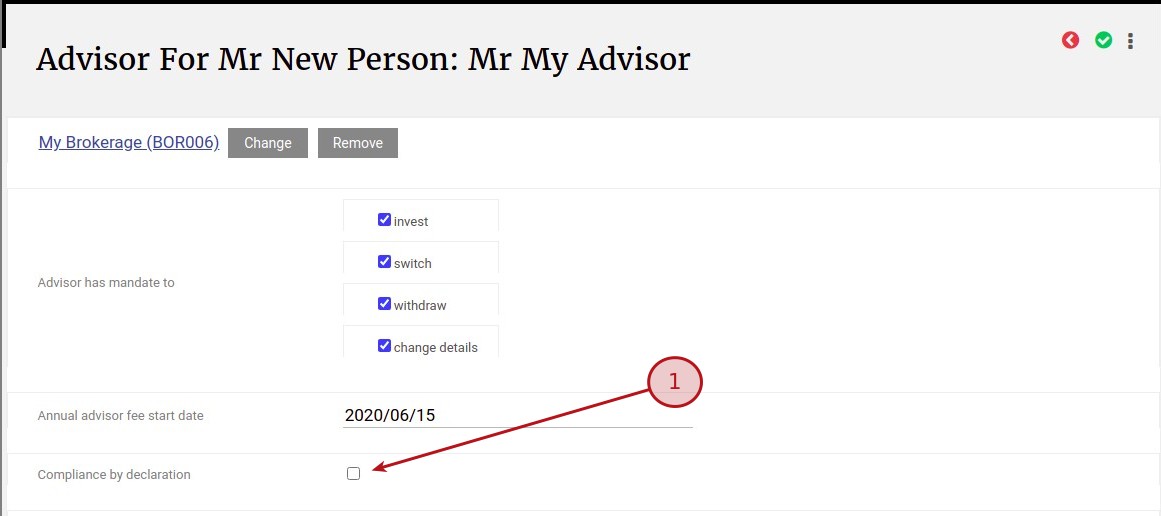
The Brokerage then need to set each Investor Account to “Compliance by declaration”
- Navigate to the Investor Account, on the Advisor Card select More Details
- Select “Compliance by declaration”
- If not set the Compliance status on the requirements card shows Not compliant
Related Parties
Last Updated on 6 years ago by Tinus Burger