
Generate Automatic Exchange of Information reports
Also see Setup for Automatic Exchange of Information Reports
- Generate Automatic Exchange of Information reports
- Setting to include contracts in report
- XML formats and validations
- Important notes
Generate Automatic Exchange of Information reports
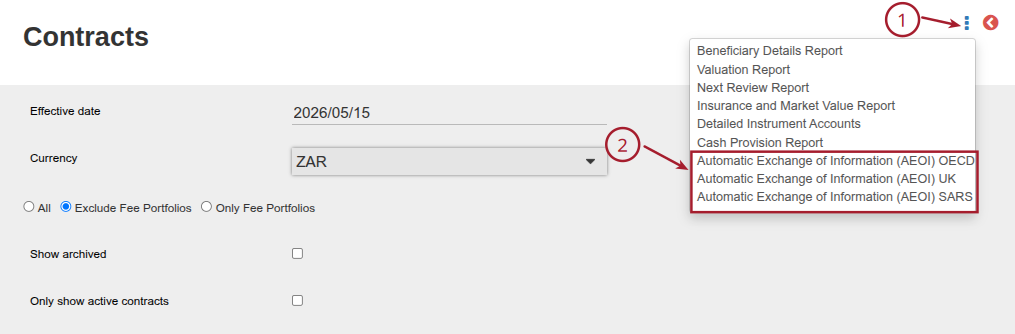
- Investors menu: Contracts
- Contracts screen -> menu
- Select one of the three reports which can be generated:
- Automatic Exchange of Information (AEOI) UK – xml format
- Automatic Exchange of Information (AEOI) OECD – xml format
- Automatic Exchange of Information (AEOI) SARS – pipe delimited text file
- The AEOI (SARS) file can be generated per product by selecting the product from the drop down menu, the reporting entity information will be populated using the Owner Custodian’s information. If the option ‘All’ is selected from the drop down, this implies that all products should be included in the generated file, the reporting entity information will be populated using the FSP’s information (system -> configuration -> FSP).
Setting to include contracts in report
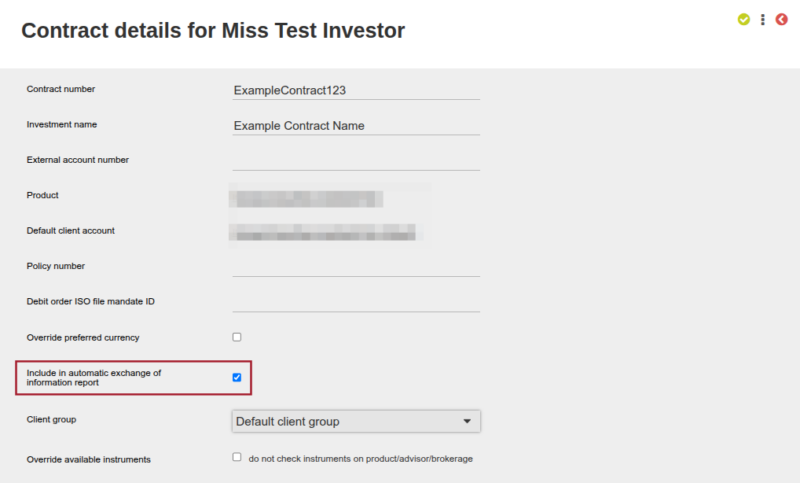
Contracts that should be included in the report can be included by updating the setting below on the contract. On an investor’s ‘Contract Details’ card, press the ‘view details’ arrow on the top right corner of the card.
From the Contract details screen, the checkbox labelled ‘Include in automatic exchange of information report’ can be selected/deselected:
XML formats and validations
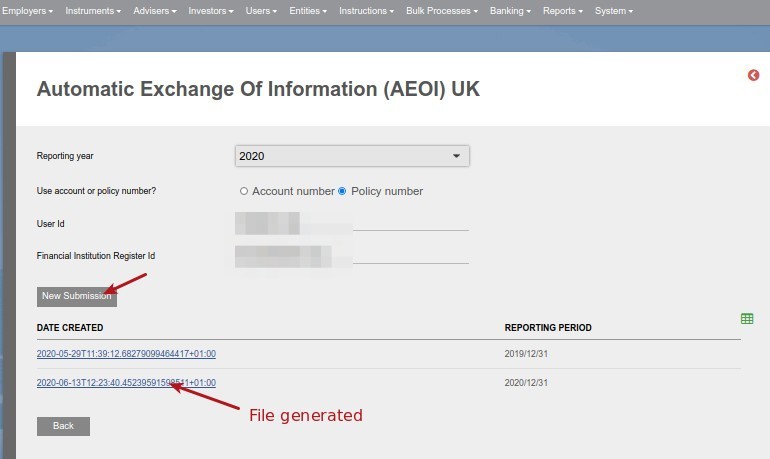
For the xml formats, on selection “New submission’ an xml file will be generated, which can be downloaded
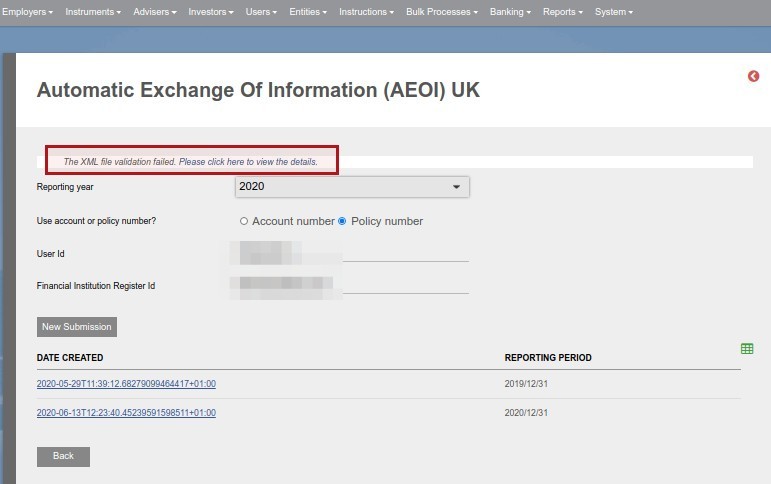
During the generation validations are performed on the file. In instances where the validation fails and changes need to be applied before the file can be generated an error message will appear on the screen. Select ‘Please click here to view the details’ to view the validation errors, which will have to be corrected before the file can be generated.
Important notes
The report requires a Tax number and a Country for tax purposes (2 digit ISO code)
The system will populate these fields from the Tax Details as setup on the Company/Person Details Card on the account holder
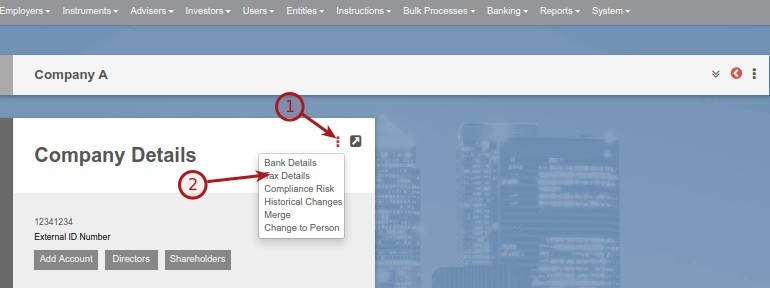
If no tax number is updated under tax details, the system will use the ‘Registration number’ as setup on the company or the ‘ID number’ as setup on the person
If no Country for tax purposes is updated under tax details, the system will use the ‘Registered Country’ as setup on the company or the ‘Residential address country’ as setup on the person
As the reports make use of 2 digit ISO country codes, it is essential that the 2 digit ISO country codes must be updated under System->Countries


Last Updated on 3 months ago by Hayley Jerram