
Changing the ‘First system fee date’ on a Contract
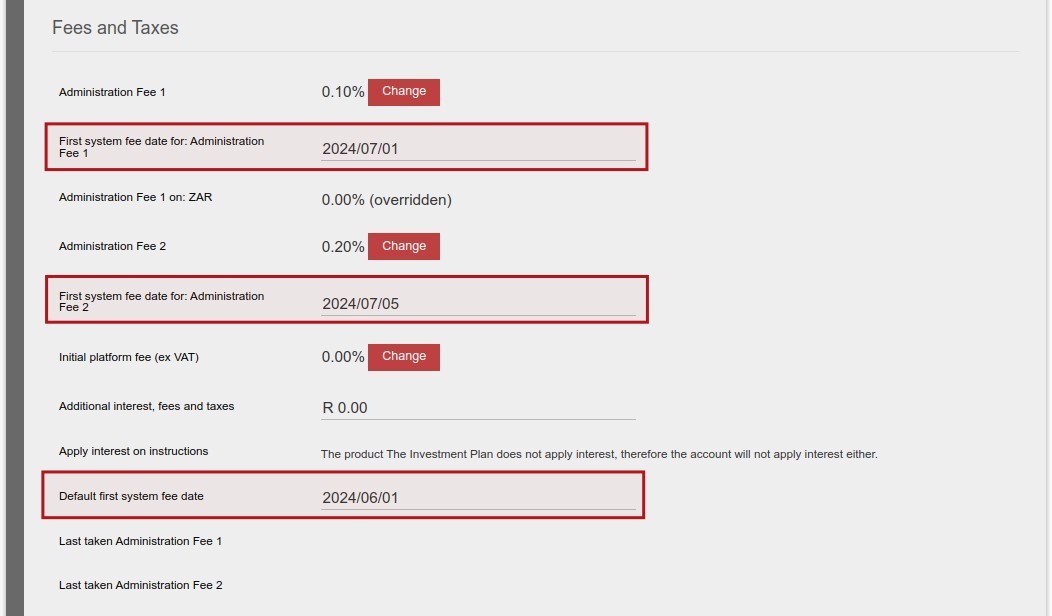
- Should a new ongoing fee type be added to an account, the intention might not be to take the new fee from the default first system fee date as was set on the account for other existing fee types. In such an instance the “First system fee date” on the account can be changed to apply to only the new fee type.
- The Default first system fee date will be set depending on the Product setup refer to Default first system fee date on a Product
- All the ongoing fee type linked to the product will be listed, to add fee type on a product refer to Add Fee Types on a Product
- The Annual adviser fee start date is set on the Adviser Card (on the Contract) -> View Details-> Annual adviser fee start date
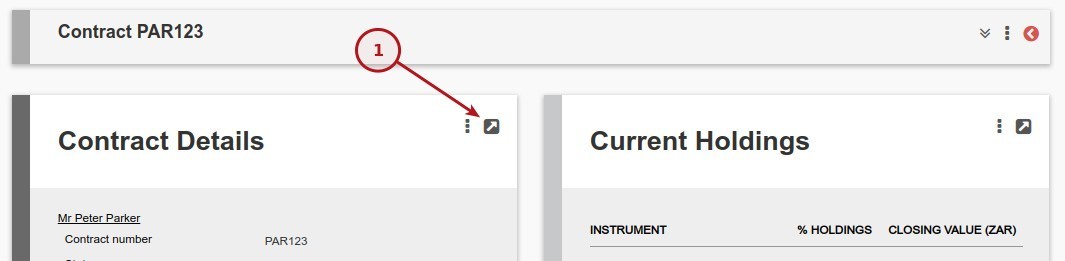
- Navigate to: Contract Details Card -> View Details
- Scroll down to the Fees and Taxes Section, for a new contract the fields will not be set.
- When the first instruction is authorised the default first system fee date will be set as per the setup on the product.
- If the individual first system fee dates are not set the default first system fee date will be used for all ongoing fee types.
- If needed set the different ongoing first system fee dates as required.
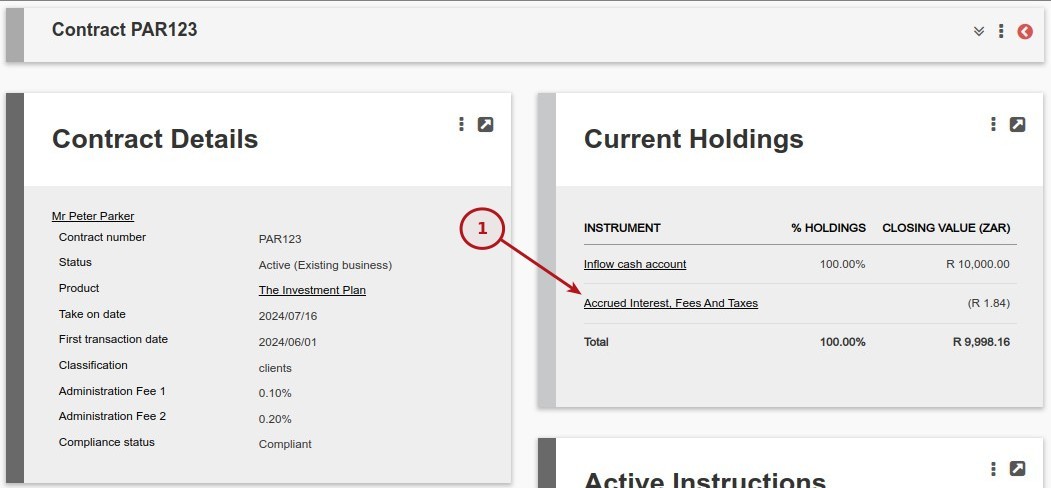
- Navigate to the Currecnt Holdings Card -> Accrued Interest, Fees And Taxes.
- The FROM DATES will be listed as set for the Accrued Interest, Fees And Taxes.
- The fields can also be set with the Import Contract, refer to Import Contract. Sample file can be found here.
- The first system fee dates will also form part of the Export Contract (Investors -> Export Contract) and if not set the field will be blank in the export.


Last Updated on 2 years ago by Tinus Burger