
Communication preferences
-
-
- The default communication preferences are set on the system configuration, refer to System Communication Preferences
- Entity communication preferences can be overridden on the entity, refer to Entity Communication Preferences
- Contract communication preferences can be overridden on the contract, refer to Contract Communication Preferences
- Adviser communication preferences can be overridden on the adviser, refer to Adviser Communication Preferences
See this help file for more information regarding the Send AWS Message Communication preference.
System Communication Preferences (Defaults)
- Communication preferences can be set on system level and all communication preferences, if not overridden, will use these settings as the default
- Navigate to System -> Communication preferences

- Statement generation Section
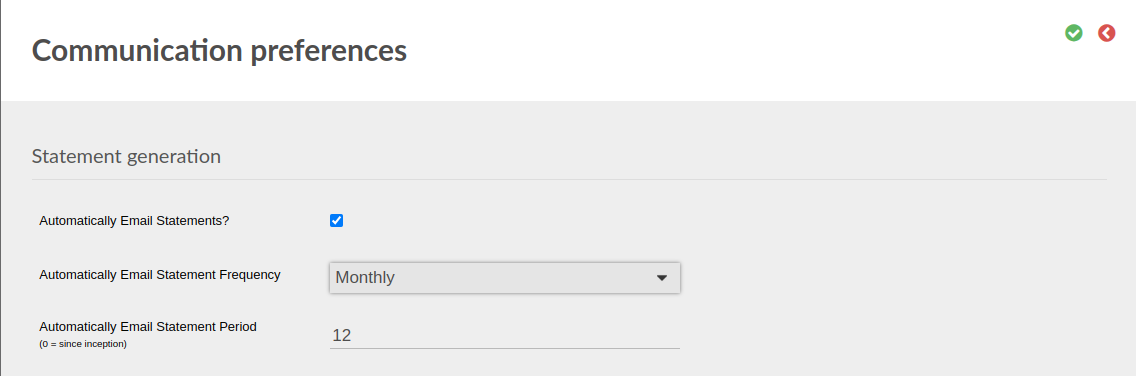
- Set the defaults to be used on a system level
- For new Entities/Contracts these settings will be used by default
- Note: These settings can be overridden on Entity / Advisor or Contract / Advisor level
- Available fields
- Automatically Email Statements? – If set statement will be sent
- Automatically Email Statement Frequency -> Select the frequency at which the statements should be sent
- Automatically Email Statement Period -> This is used to define the period for which the statement should be sent for. 0 = Since inception, 1 = 1 Month, 2 = 2 Months etc.
- Statement Frequency First Period End Date -> Only applicable for Annually, Half Yearly and Quarterly. This is to specify the month that statements should be sent.
- Notification preferences Section
- Set the defaults to be used on a system level
- The user have the option to set the Receiver, Send email and/or Send SMS per Event type
- For new Entities/Contracts these settings will be used by default
- Note: These settings can be overridden on Entity / Advisor or Contract / Advisor level
- Statement generation Section
Entity Communication Preferences
- Navigate to Communication card on the entity -> More Actions -> Preferences
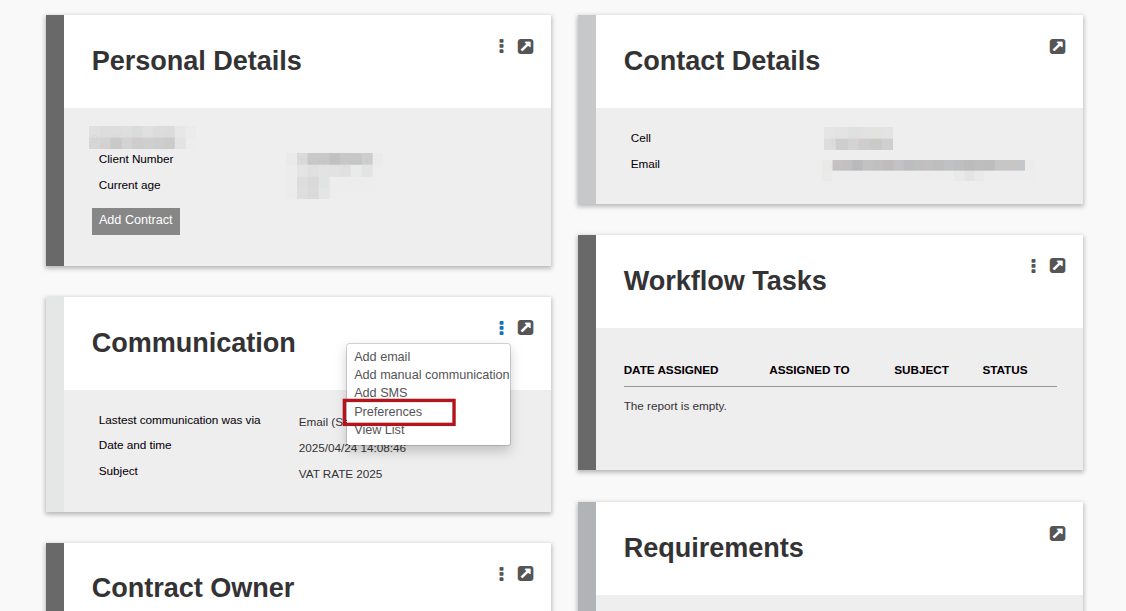
- Notification preferences Section
- Set the overrides as needed
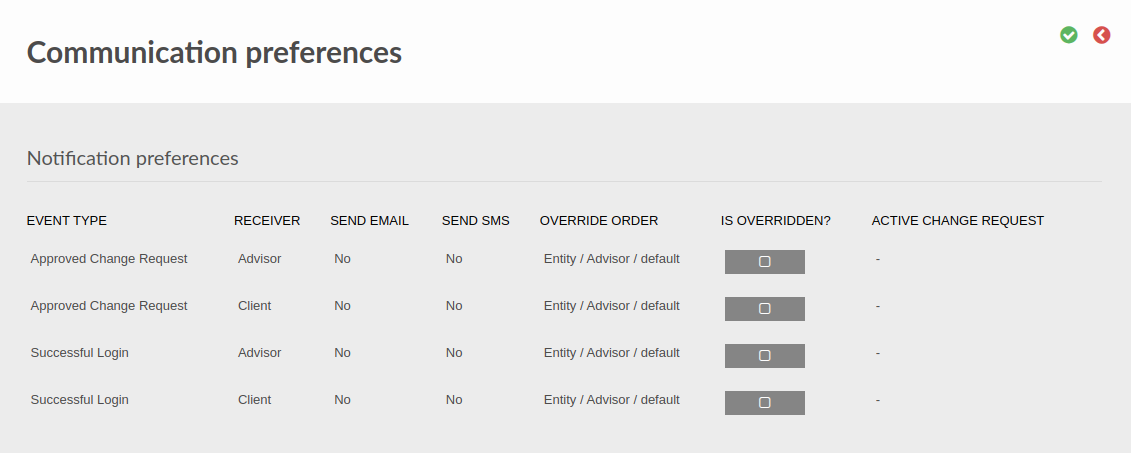
- Note: The settings for the Advisor can be overridden on Advisor level
- If “Is overridden?” is not set, select “Is overridden?”. The user will be prompted to select either Send email, Send SMS, both options or none
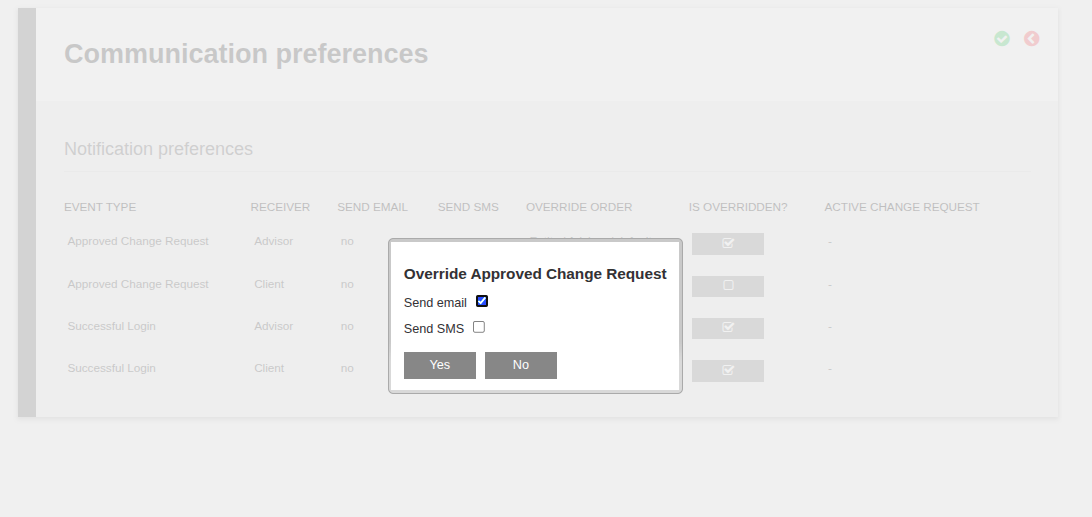
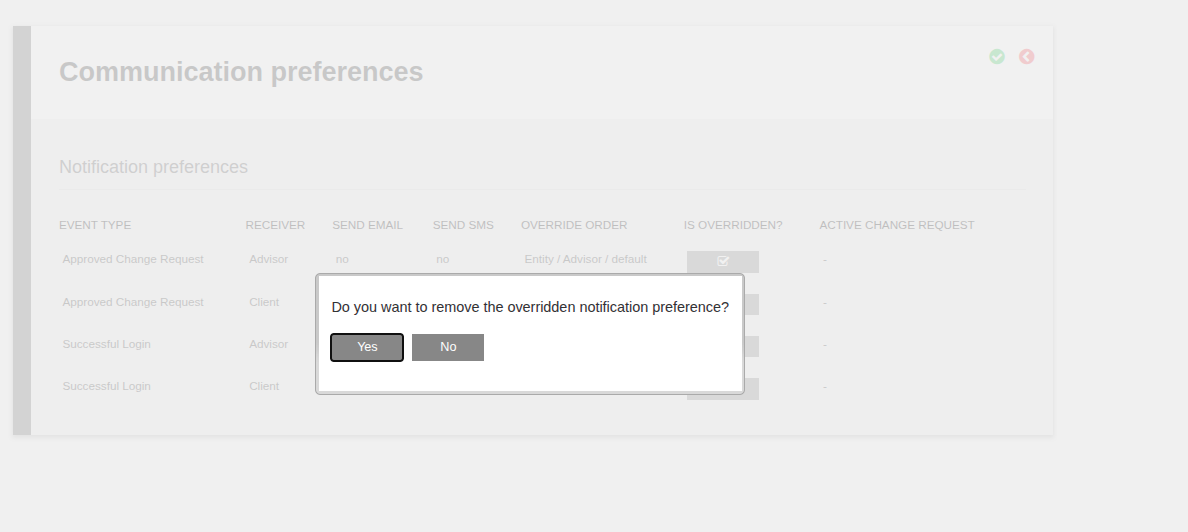
- If “Is overridden?” was set, select “Is overridden?”. The user will be prompted: “Do you want to remove the overridden notification preference?” if Yes is selected the Override will be removed
- Set the overrides as needed
- Notification preferences Section
Contract Communication Preferences
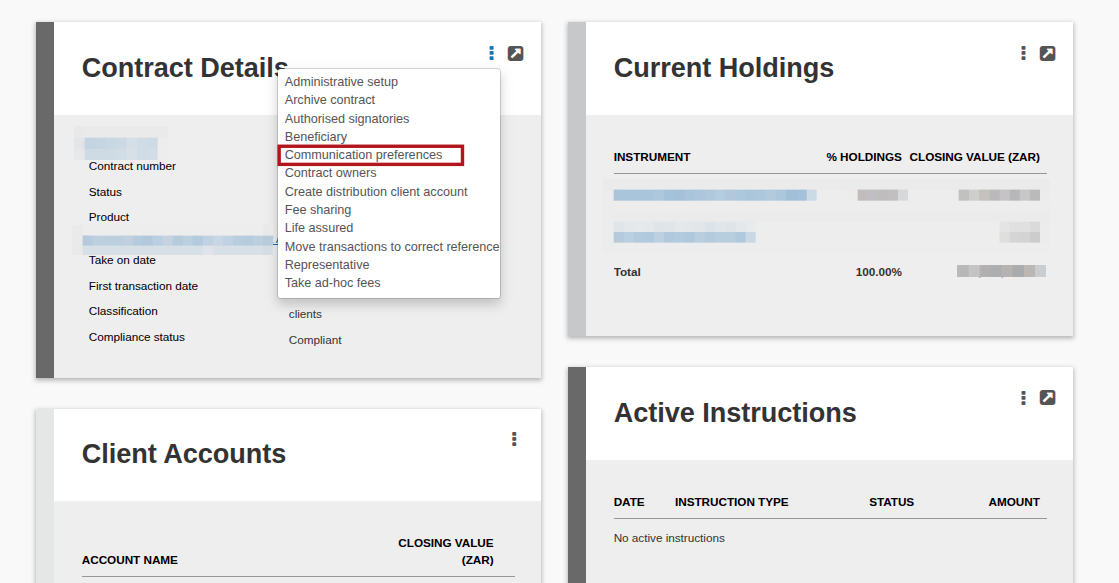
- Navigate to Contract Details card -> More Actions -> Communication preferences
-
- Statement generation Section
- If not overridden the settings as per the System -> Communication preferences will be used
- To override select More Actions (3 dots)
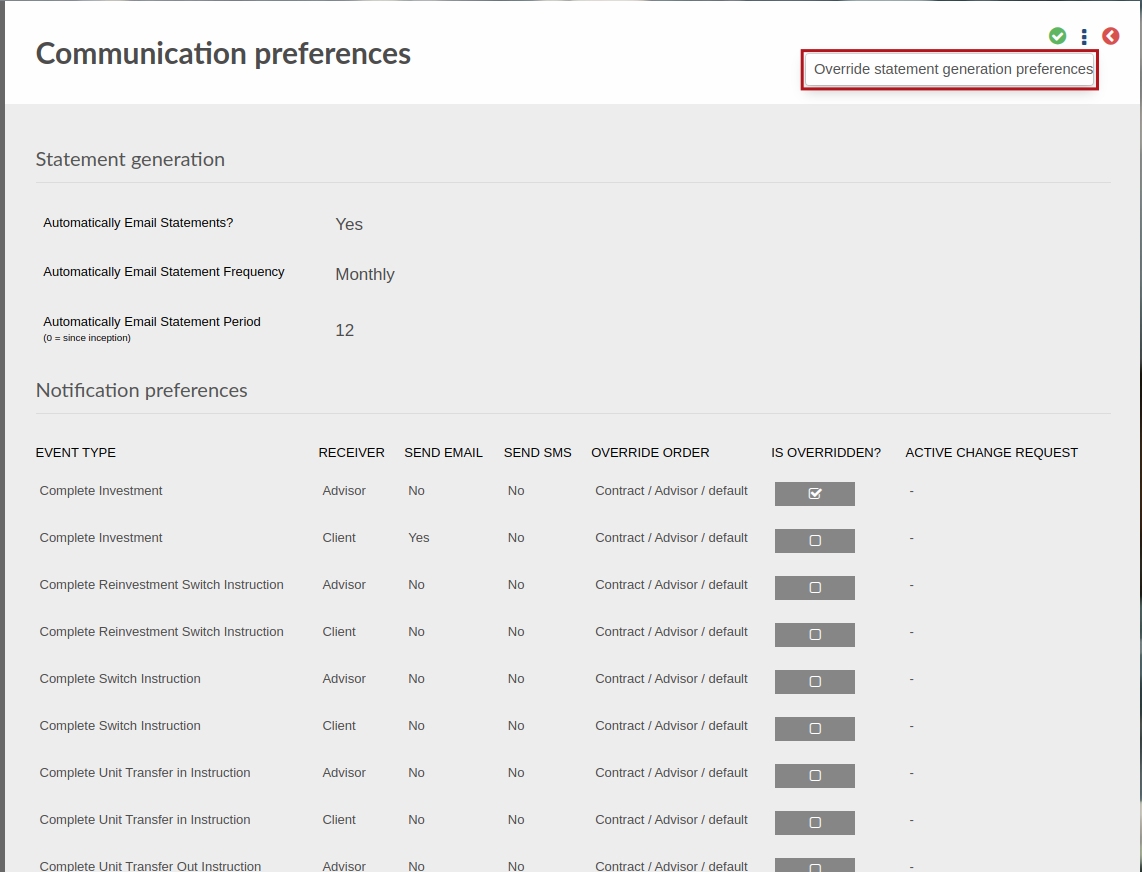
- The following option will be available:
- If Overridden: Remove statement generation preferences override
- If not Overridden: Override statement generation preferences
- When selected the defaults can be Overridden
- Notification preferences Section
- The user have the option to override the Receiver, Send email and/or Send SMS per Event type
- Only the Event type that has been overridden will have an override, the ones not overridden will still use the System -> Communication preferences
- When selecting Is overridden? The user will be prompted to select either Send email, Send SMS, both options or none.
- Statement generation Section
-
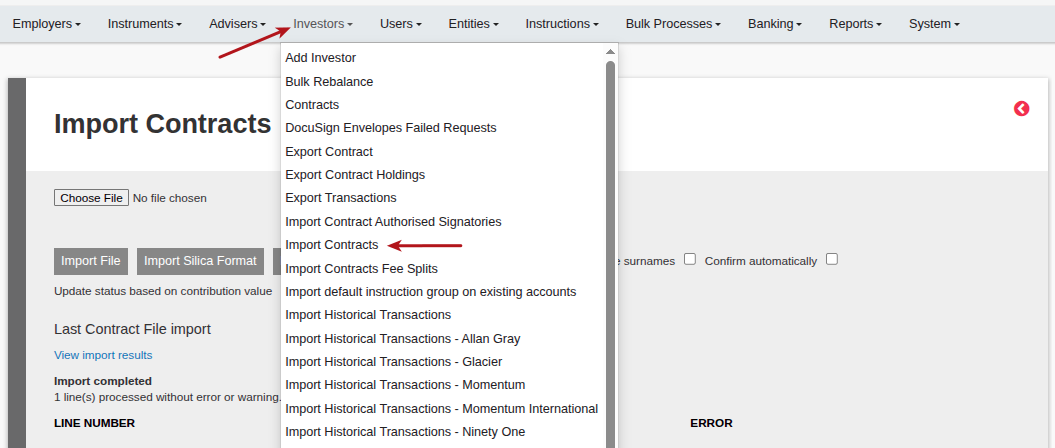
Communication preference can also be updated in bulk at a contract level via the Investors-> Import Contracts functionality
-
To create a Communication Preference import file, see attached Sample file: Please note you will need to specify the following communication methods:
- None (System default communication preference will apply)
- SMS
- Emal
- AWS
- Both (Email & SMS will apply)
SampleImportCommunicationpreference
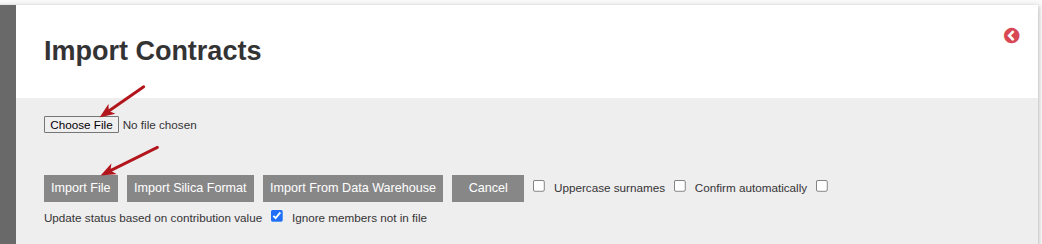
Then import the file, Choose File-> then ->Import File
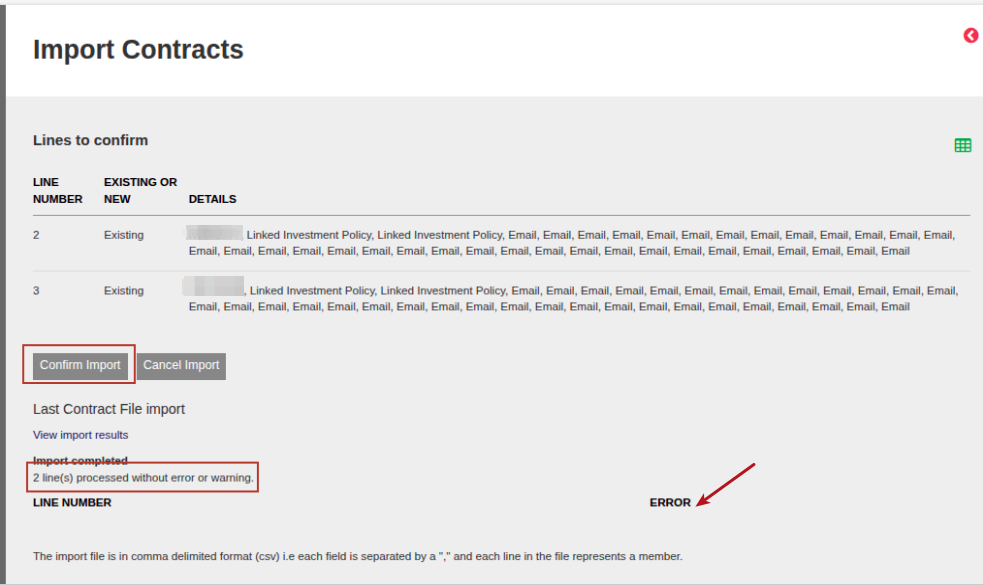
Once imported, an Import Confirmation screen will be provided to confirm the import (select Confirm Import) and will provide confirmation of lines that successfully imported.
If there are any details under the ERROR section, select Cancel Import and investigate/correct the error lines, then on the file can be re-imported.
-
Adviser Communication Preferences
- Under the Advisor profile additional communication preferences can be set.
- Navigate to Advisor card -> More Actions -> Communication preferences
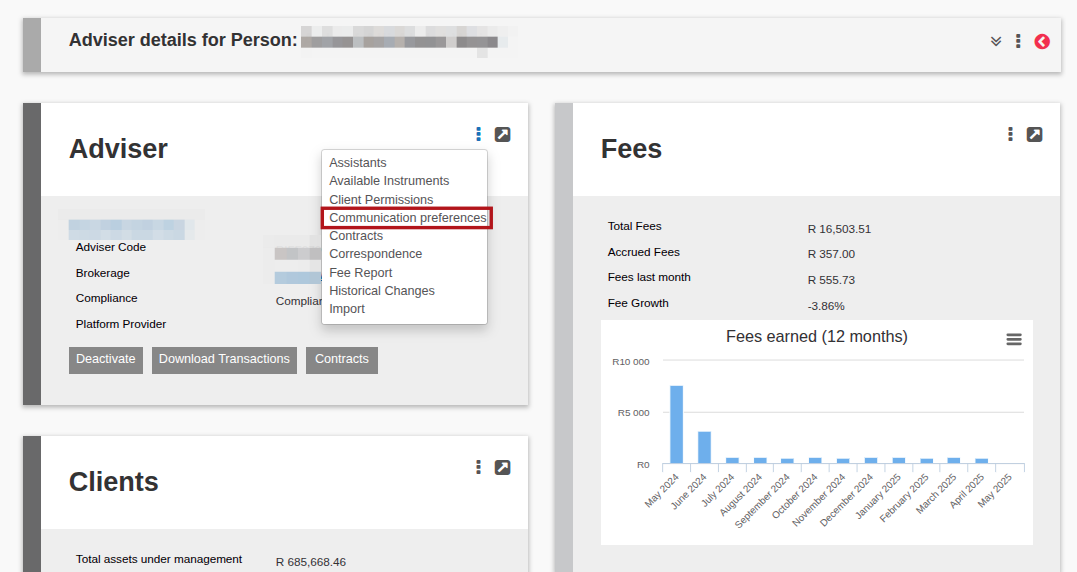
- Changes made to the communication preferences from this will override the default preferences setup on system level.
Last Updated on 4 months ago by Debra Hart