
11 Jun How to save csv files in the correct format
When opening a file in Excel, it would generally open it in GENERAL format, which changes the format of long numbers to a truncated 15 digit number in scientific notation and also drops the leading zeroes.
Eg. A number like 01234567890123456789 will be changed to 1.23457E+18
Once it is in this format, you CANNOT format it to make it display the numbers correctly no matter what. So, the important thing is to open the file in the correct format via the Import Wizard, to ensure that numbers, which would not be used in calculations, would be formatted to TEXT (Eg. ID numbers, VAT numbers, Postal codes).
Don’t just open the file by double clicking on it, which would open it by default in Excel, but bypassing the Import Wizard.
Don’t open the file from the Download shortcut options, which appear at the bottom of the screen, after downloading a file.
So the VERY simple solution is…
First open Excel (as a blank document) and then from the Data Tab, select ‘From Text’ and browse to the file to be imported. On selecting ‘Import’ the Import Wizard will be initiated.
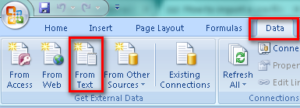
To enable the legacy text import wizard in the new Excel 2016 to Excel 365 refer to Enable Excel Legacy Text Import Wizard
From the Import Wizard on Step 1, ensure the “Delimited” option is selected and click Next.

On Step 2, select the option for Comma delimited and click Next.


Click Finish.
When done editing the file, Save the file as .csv type, before importing the file.