
Functionality available from CIL via API
- For more details on the job scheduler refer to Automated Jobs Scheduler.
- This functionality is not standard on all configurations and needs to be configured.
For the CIL API we have implemented the following:
- Retrieve trade confirmations from CIL: Trade Confirmation.
- Scheduled Job 1: CIL Realtime Import Job
- Scheduled Job 2: CIL Portfolio and Transactions Import Job (Importing of historical transactions) .
External Systems Configuration
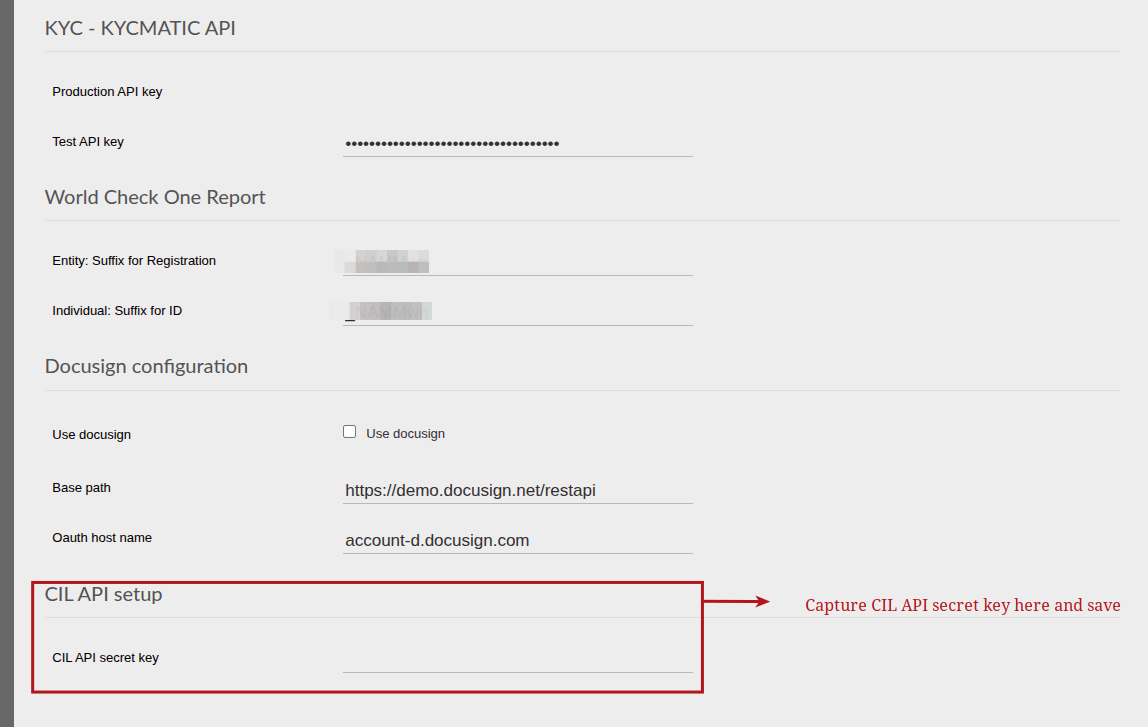
NB!!! The CIL Secret key needs to be added to System -> Configuration, more actions -> External Systems Configuration , field is right at the bottom of the page.
NOTE: For the setup, please provide the Host IP rather than the Public IP.
Trade Confirmation
Instrument instructions on the system can be confirmed with the imported data from CIL with the following manual steps.
Confirm instrument instructions
This functionality uses the API call to retrieve all confirmed trades from CIL and they can then be confirmed on the Finworks system.
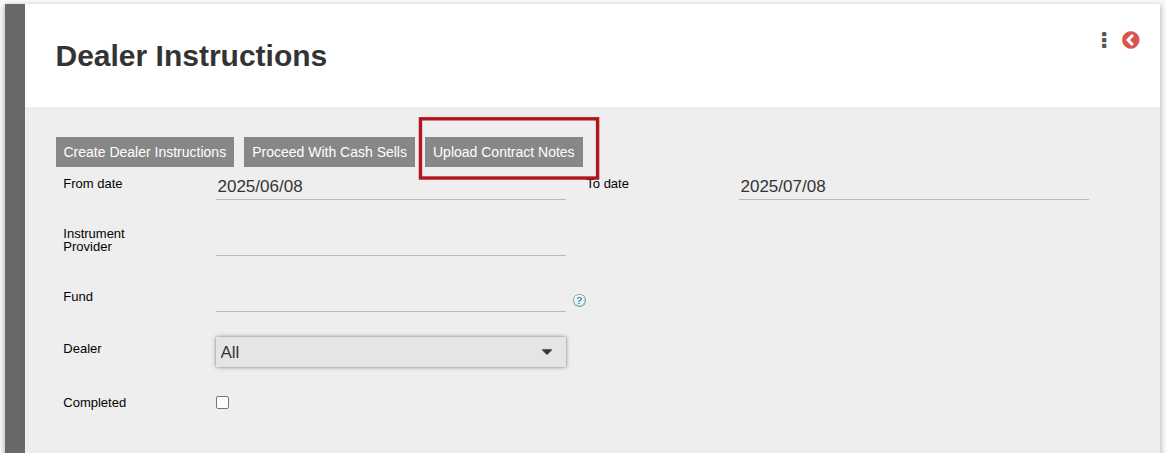
Navigate to: Bulk Processes -> Dealer Instructions -> Upload Contract Notes
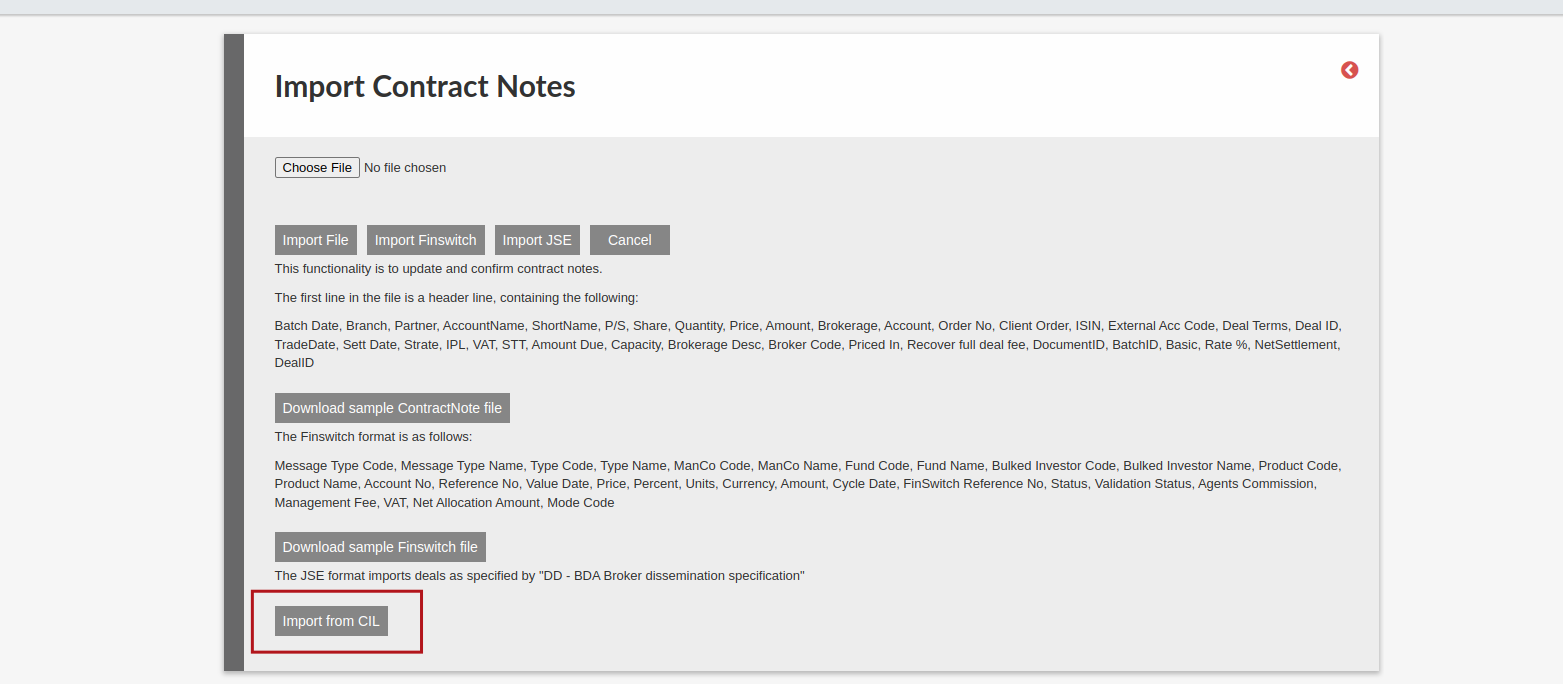
Select “Import from CIL” at bottom of page.
Select the date range you wish to import from CIL
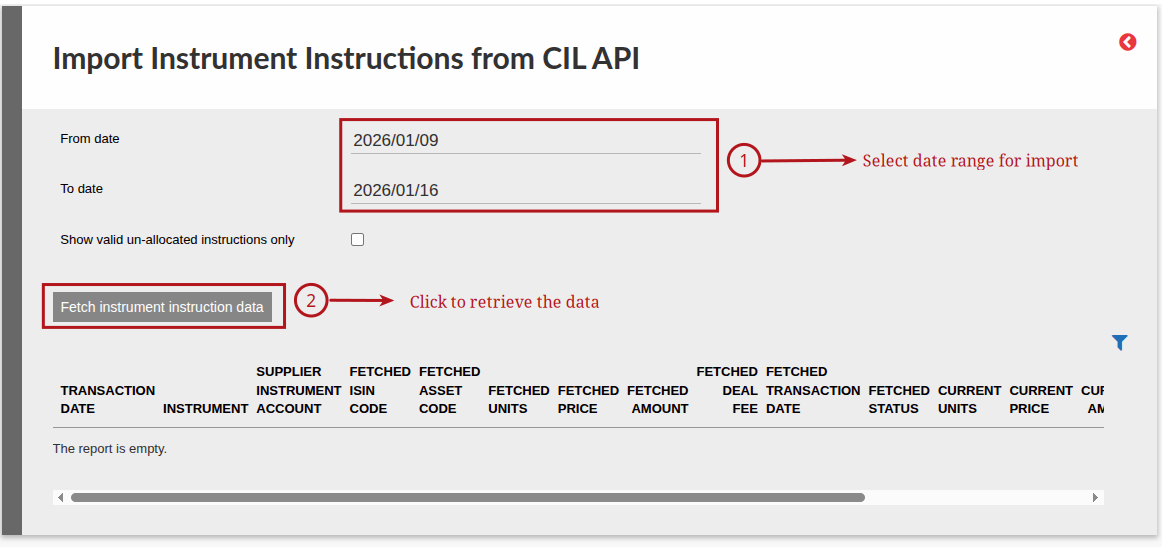
Once data is returned the transactions need to be selected that you wish to import and confirmed.
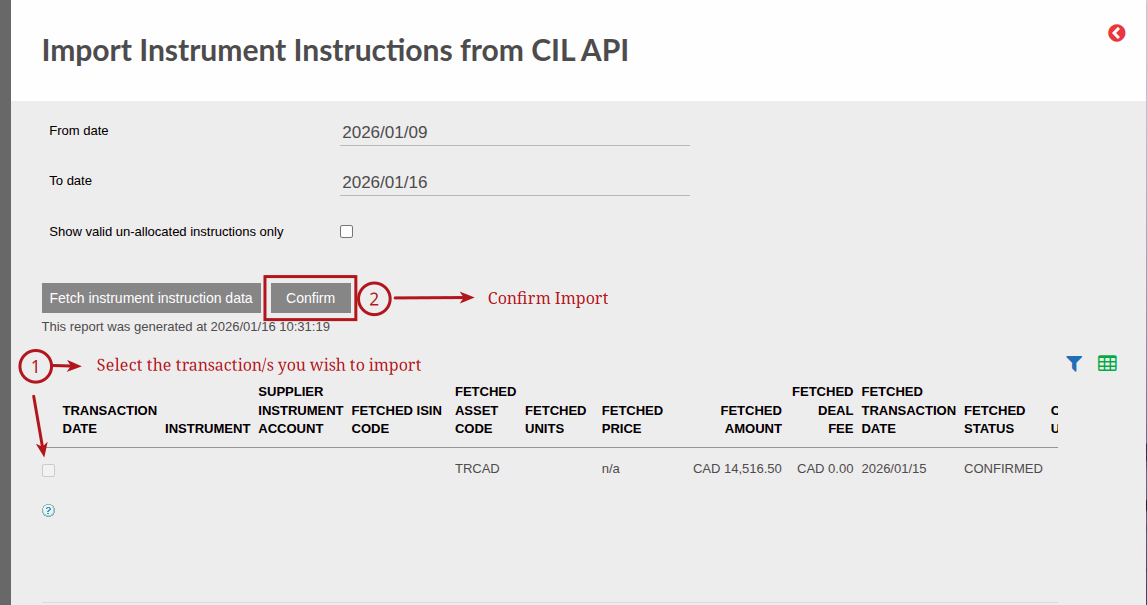
Include “commission” and “charge” when confirming trade from CIL API
To accomplish the pricing in of the deal fee , for this one needs to set up a transaction fee that can be used to recover the deal fees on the dealer.
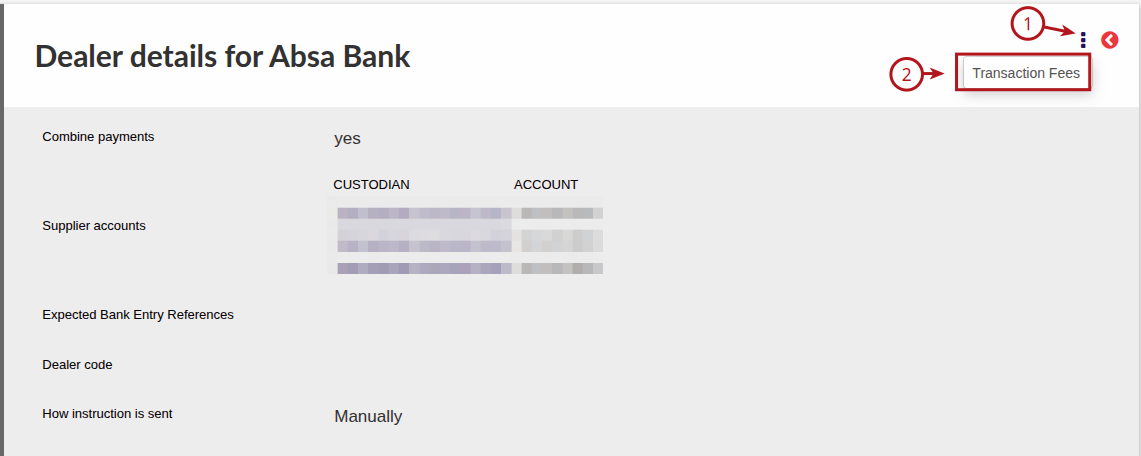
Navigate to the dealer -> view details on dealer card-> more actions -> transaction fees. Then either tick the “Is used to recover deal fees?” checkbox on the existing fee type if it’s shown in list, or add a new one and tick the box.
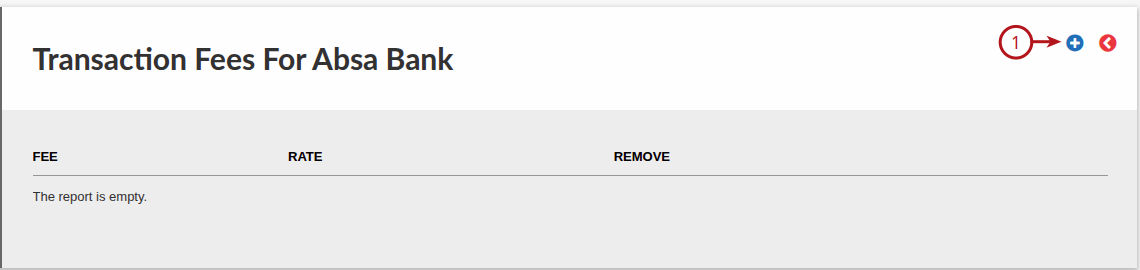
If no fee has been setup click on the plus icon to add a fee.
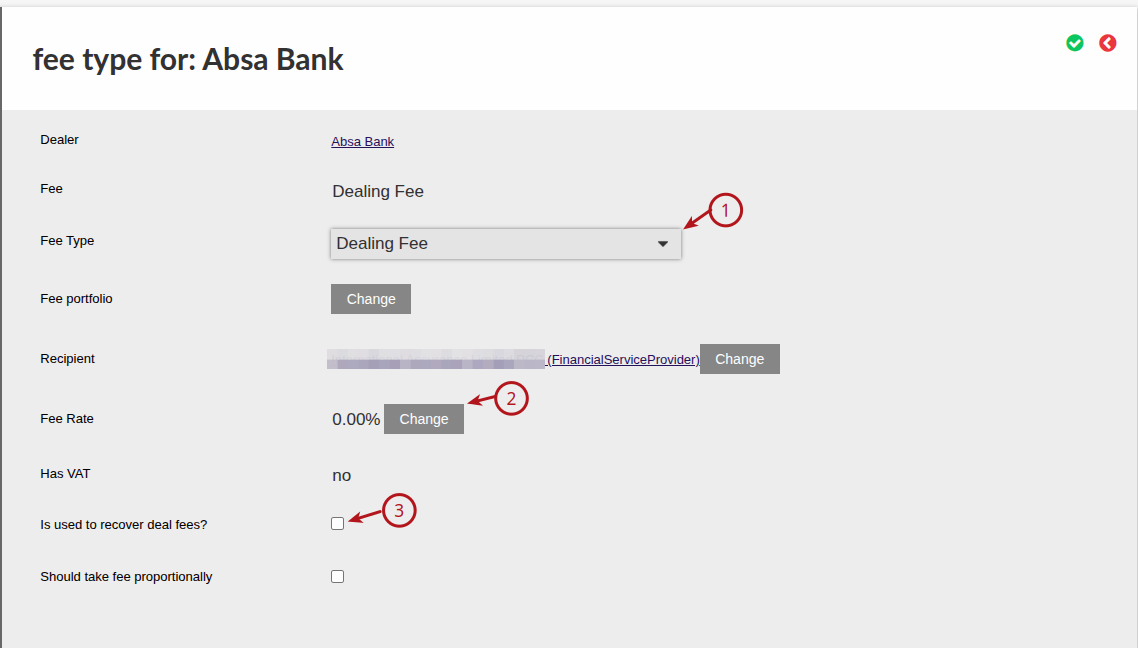
Select the “Fee Type” as dealing fee, then change the fee rate to the required value and there after tick the box to indicate the fee is used to recover deal fees.
Ensure to save the fee setup by clicking on the green tick, this will navigate you back to the fees page.
 .
.
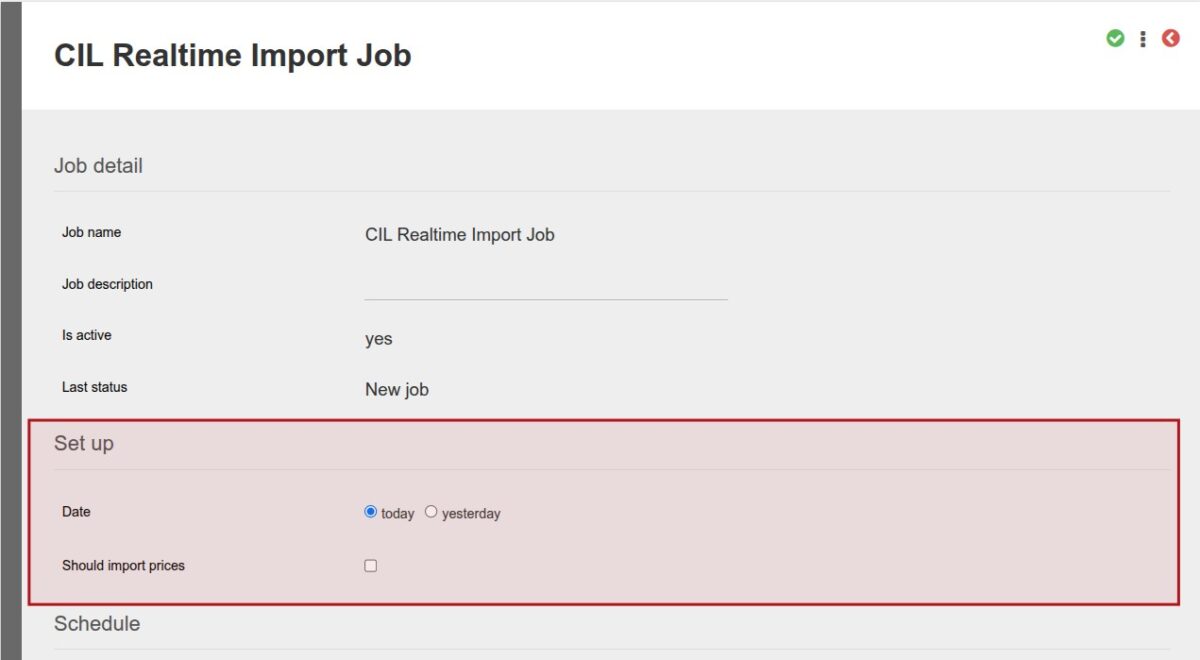
CIL Realtime Import Job
The CIL Realtime Import Job is used to update supplier balances and prices from CIL
For more details the job scheduler refer to Automated Jobs Scheduler
Settings specific to the CIL Realtime Import Job are:
- Date -> This is to specify if the balances and prices for today or yesterday should be used
- Create prices -> If create prices is set the system will also update the prices
CIL Portfolio and Transactions Import Job
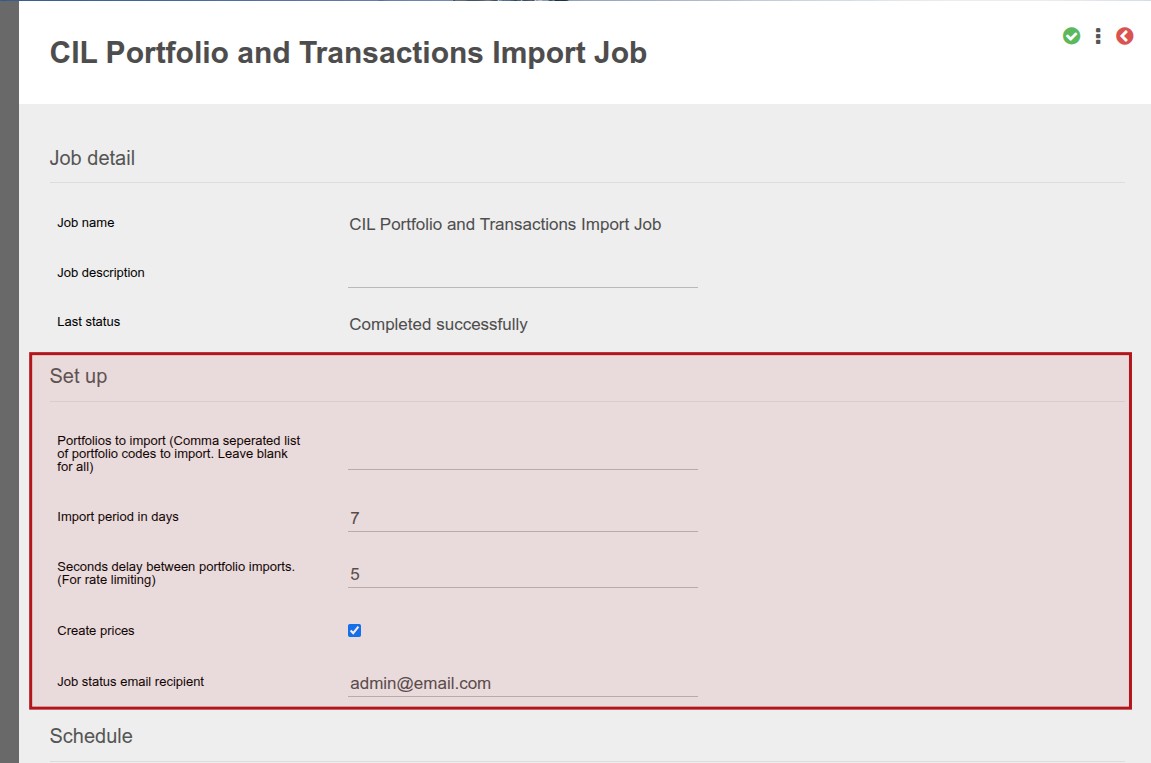
The CIL Portfolio and Transactions Import Job is used only to import historical transactions from CIL
For more details the job scheduler refer to Automated Jobs Scheduler
Settings specific to the CIL Portfolio and Transactions Import Job are:
- Portfolios to import (Comma separated list of portfolio codes to import. Leave blank for all)
- If not set “Blank” then all the portfolios will be imported
- If only one Portfolio Code is set only the transactions of this Portfolio will be imported
- Multiple Portfolio Codes can also be set, separated by a comma
- Import period in days -> This allows the user to set for how many days in the past the transactions should be imported. If set to 7 it will be for the past seven days
- Seconds delay between portfolio imports. (For rate limiting) -> This is a built in delay between portfolio imports if multiple portfolios are selected and only required if performance issues are experienced. Suggested delay is 5
- Create prices -> If create prices is set the system will also update the price on the instrument from the transaction that is imported
- Job status email recipient -> The user have the ability to specify the email address to whom the status of the email should be sent to
Last Updated on 4 months ago by Tinus Burger