
Automated Jobs Scheduler
- Jobs sub-menu can be found under the System main menu.
- The Jobs page is devided in three sections:
- Most Jobs have the following sub sections:
- In the sub section we also have the following under More Actions:
Available Jobs
-
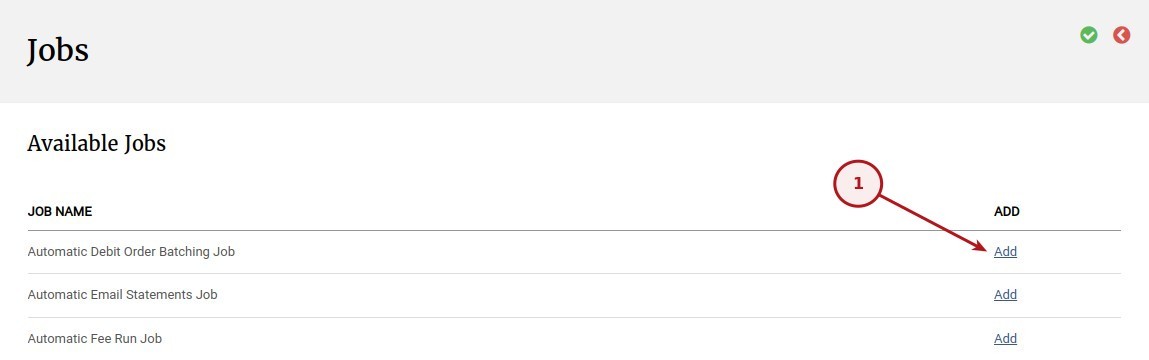
- In this section a list of the available Jobs will be shown.
- To add a job to the Scheduled Jobs section click on the Add button.
-
- Some jobs can be added more than once to the Scheduled Jobs section e.g. Automatic Email Statements Job.
- The Job Description, as defined in the Job Detail can be added to differentiate between the same type of jobs.

- With the Jobs that can only be scheduled once, the job will be removed from the Available Jobs list once added to the Scheduled Jobs.
Scheduled Jobs
-
- In this section a list of all the Active jobs will be shown.
- To Edit the job, check the Job runs or check the Upcoming run times click on the Job Name (1).
- To set the job as Inactive click on the Deactivate (2) link.

Inactive Jobs
-
- In this section a list of all the Inactive jobs will be shown.
- As with the Scheduled Jobs to Edit the job, check the Job runs or check the Upcoming run times are accessible by selecting the Job Name (1).
- To set the job as Active click on the Activate (2) link.

- NOTE: In the test environment all the Active Jobs will be shown in the Inactive Jobs section.
Job Detail
- The Job Details are the same in the majority of the job types and include the following:
- Job name: JOB NAME as listed in the Available Jobs section.
- Job Description: Description that can be added to a job to differentiate between the same type of jobs i.e. Automatic Email Statements Job.
- Is active: Shows if the current job is active or not
- Last Status: Display the last status of the current job, examples include: New job, Completed successfully, Import completed or Failed to send all emails.
Set Up
- Depending on the type of job the Set Up differs, refer to the following:
- Automatic Debit Order Batching Job
- Automatic Email Statements Job
- Automatic Fee Run Job
- Automatic Payment of Fees Job
- Incomplete Tasks Job
- Automatic Email Fee Statements Job
- The jobs not listed above do not require specific Set Up.
- For details for the CIL via API job refer to: Functionality available from CIL via API.
Automatic Debit Order Batching Job
- Purpose of the job: The job will run daily at the scheduled time and automatically create the Debit Order batches that can also be created manually under Banking -> Debit Order Batches.
- To date (number of working days in advance to run collection for).
- Product: Set the product that this job applies to.
An email regarding the result of the debit order job will be send to the email address as set up under System->Configuration ‘Admin email address’.
Automatic Email Statements Job
-
- Purpose of the job: To automate the process of sending investor statements, for details refer to Investor Statements
- Generate Combined Statements: If set combined statements will be generated
- Apply to all products: If set statements are to be generated linked to all products, if not, set the Products option will be available where one or multiple products can be specified.
- Products: As above if “Apply to all products” has not been set specific products can bet set.
- Include inactive accounts with positive balance: If set, inactive accounts with positive balance will form part of the job run.
- Include zero balance accounts with holdings during statement period (active or inactive): If set, zero balance accounts with holdings during statement period will form part of the job run.
- Include Fact Sheets: Should fact sheets be included as an attachment to the statement, this includes Instruments and Model Portfolio fact sheets
- Job status email recipient: Specify the email address to where job status email needs to be sent to.
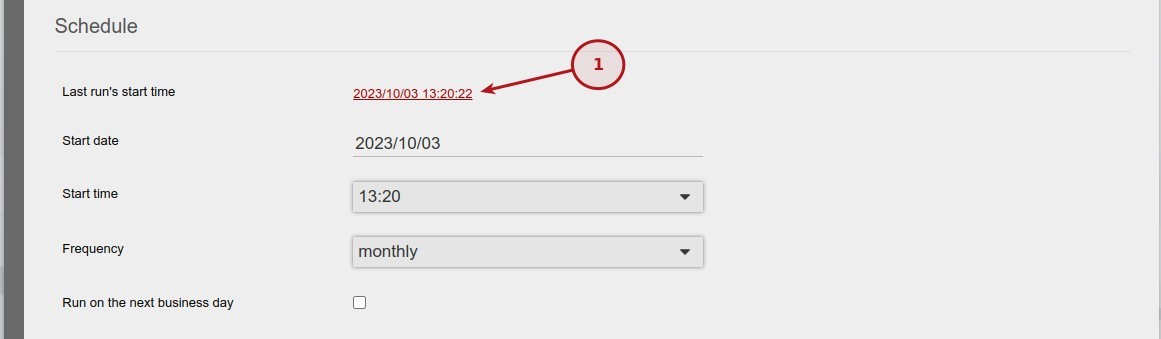
- If the job failed it can be Resumed by selecting the “Last run’s start time” or navigating to Job runs and selecting the last run and clicking on ‘Retry failures‘. Also see Retry Failures on Automatic Email Statements Job
Automatic Fee Run Job
- Purpose of the job:
- Job status email recipient: Specify the email address where to job status email needs to be sent to.
- Fee types: Select the fee type that the should apply to the fee run
Automatic Payment of Fees Job
- Purpose of the job:
- Minimum available amount:
- Product: Set the product that this job applies to.
- Job status email recipient: Specify the email address where to job status email needs to be sent to.
Incomplete Tasks Job
- Purpose of the job:
- Mail all incomplete tasks: Select one of the following options:
- Email All Incomplete Tasks
- Email Overdue Tasks
- Email Follow up tasks
- Send email if no tasks for users: An email will be send to the user even if not tasks are actioned.
- Send email to inactive users: Send email even if the user has ben set as being inactive.
Automatic Email Fee Statements Job
- Purpose of the job: To automate the process of sending commission/fee statements to brokerages on a monthly or quarterly basis. For details refer to Fee Statement.
- Override to day of month: If selected, the To day of month field will be available, allowing you to specify the day of the current month up to which transactions will be included in the fee statement.
- To day of month: Specifies the day of the month up to which transactions will be included when Override to day of month is selected.
- Only send if transactions in period: If selected, a commission statement will only be emailed to a brokerage if there were transactions in the statement period. Brokerages with no transactions in the period will be excluded from the job run and will not receive an email.
- Job status email recipient: Specify the email address to where the job status email needs to be sent to.
Attachments
- In the case of the Automatic Email Statements Job the use have the ability to add attachments to be emailed when executing the job. Refer to Automatic Email Statements Job.
Schedule
- Last run’s start time: Show the last run’s start date and time, for more details refer to Job runs
- Start date: Set the date on which the job should start.
- Start time: Set the time on which the job should start.
- Frequency: Select the frequency for the job to run, the following options are available:
- minutes
- hourly
- daily
- weekly
- monthly
- quarterly
- every number of hours: This option is only shown when the frequency has been set to hourly, daily or weekly and will change depending on the selection: “every number of hours“, days or weeks. For example if the job needs to run every week set the value to 1, if every second week set the value to 2.
- Must only run on working days: The job will not run on working days. NOTE: This option is not available for monthly and quarterly.
- To check the run time refer to Upcoming run times
- Run on the next business day: This option is only available for monthly and quarterly, and if set the job will run on the next business day.
Job runs
-
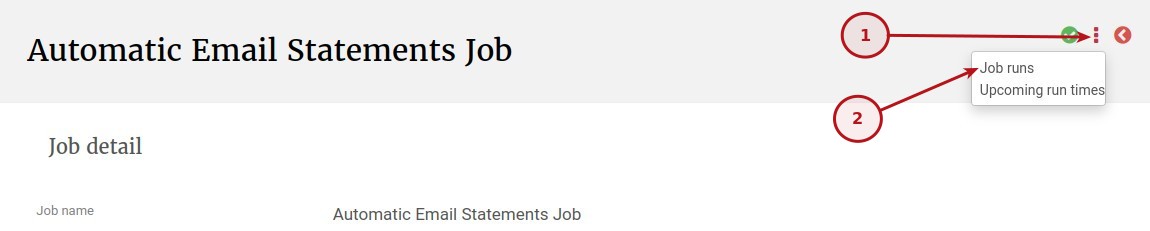
- Job runs can be found on the More Actions -> Job runs
-
- A list of the Job runs will be shown:

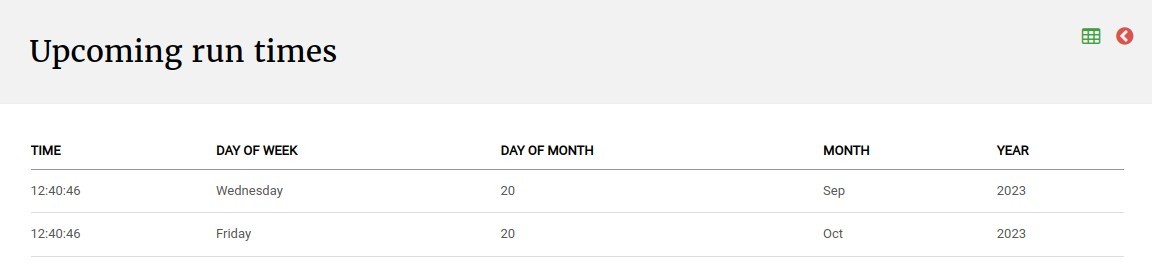
Upcoming run times
-
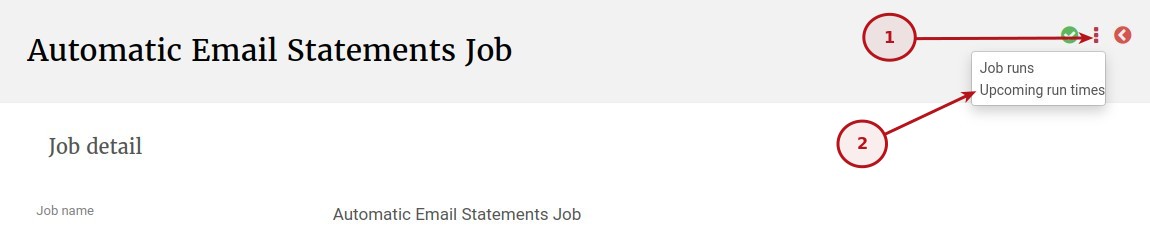
- Upcoming run times can be found on the More Actions -> Upcoming run times
-
- A list of the Upcoming run times will be shown:
Also see Retry Failures on External Processing Queue Job
and
Jobs that should be active where the related functionality is used
Last Updated on 4 months ago by Antoinette Van Meyeren