
Fee Statement
Also see Fee statement defaults
Introduction
- A fee statement can be generated from the fees card on a Brokerage. Or it can be scheduled to be emailed through a Job on a regular basis, see here for more detail on how this works.
- The statement contains account details, fees taken transactions per advisor per client, a summary section with opening balance, fees received, payments made, closing balance and a notes section.
Generating a fee statement on-demand
Go to the fees card on a brokerage:
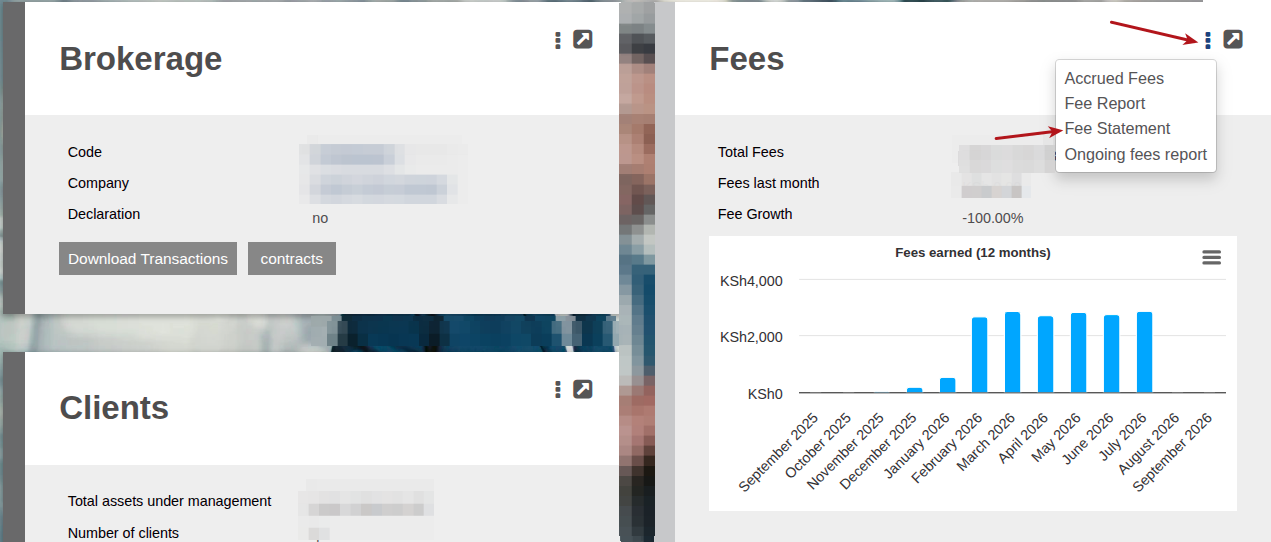
The Setup button takes you to the fee statement defaults, as explained here.

The Period of a Fee Statement
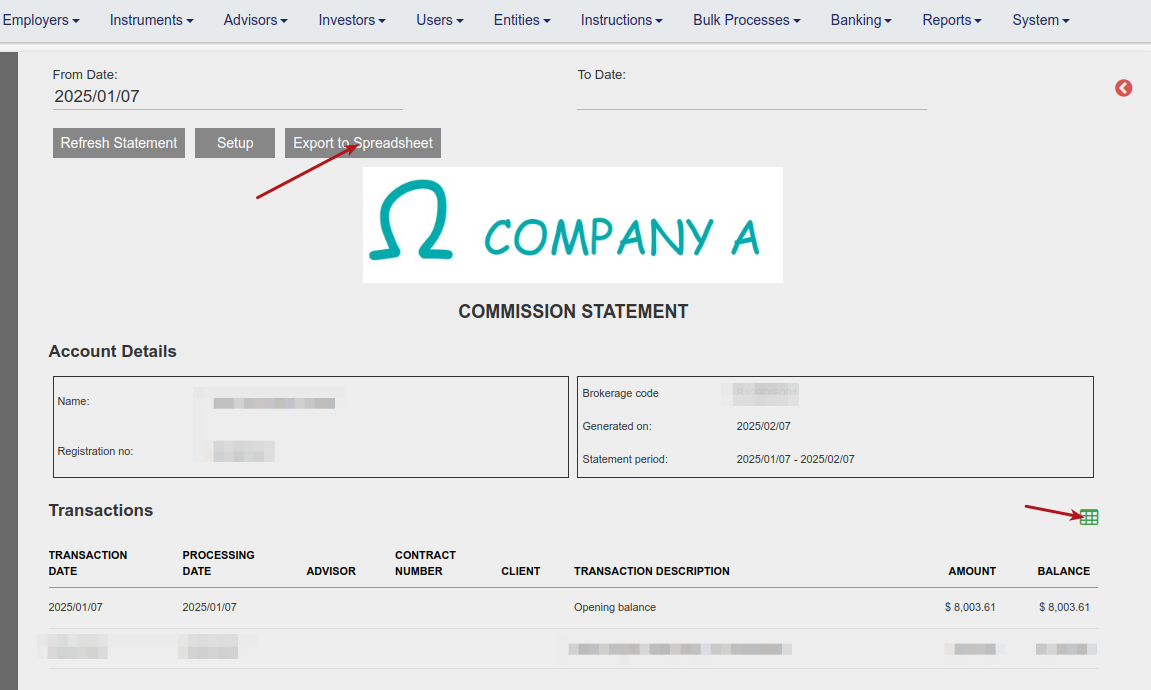
- Statements can be generated for a selected period and exported as a pdf document. The ‘From date’ and ‘To date’ selected will work on the ‘processing date’ of the fee transaction, which is the actual date when the fee amount has been added/allocated to the fee portfolio.
- For example, the transaction date for an initial fee is the deposit date on an investment, while the fee transaction will be allocated to the fee portfolio on the date the investment instruction is authorised, which can be at a later date than the bank deposit date.

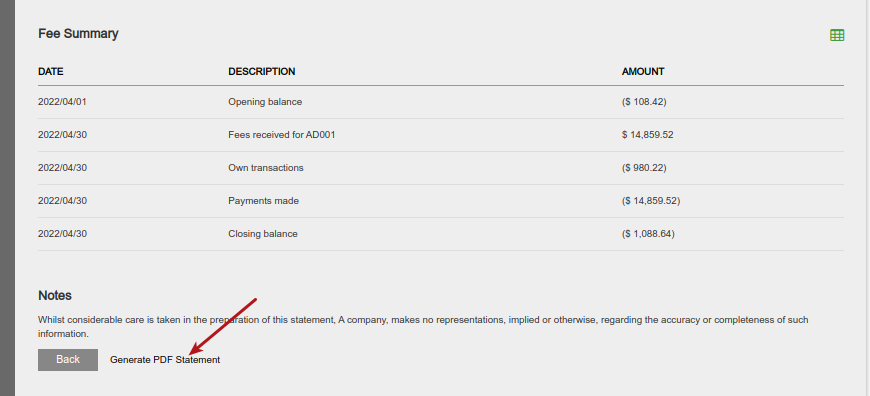
Exporting the fee statement
Also note that the whole Fee statement can be exported to a pdf or only individual sections of the statement:
Automatically send Fee Statements with a Job
You can schedule the emailing of fee statements to brokerages on a monthly or quarterly basis.
Fee Statement Setup
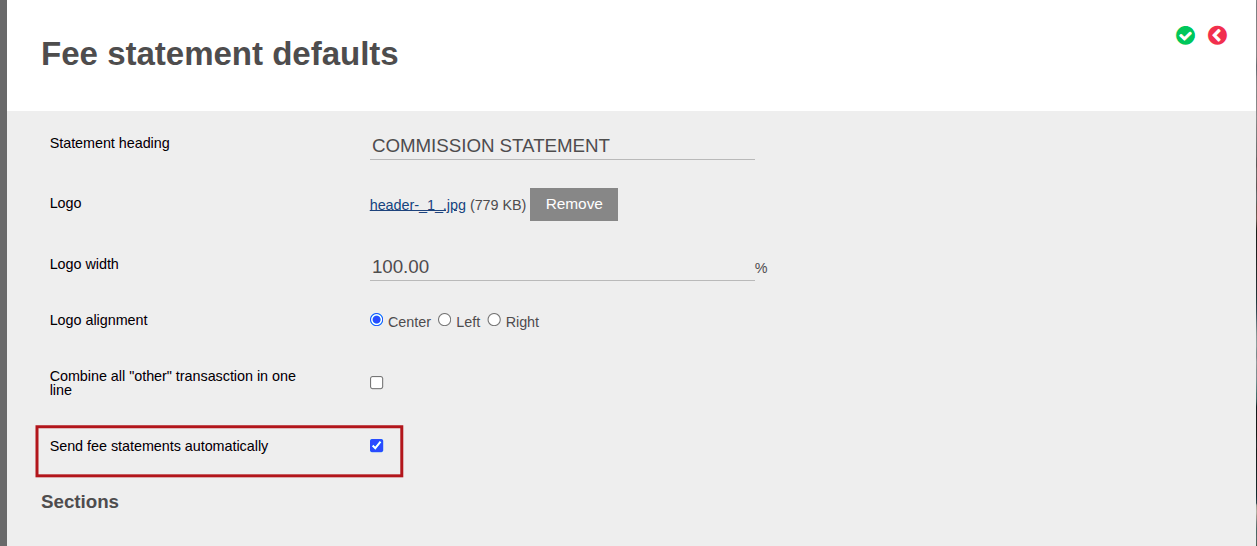
- On Fee Statement Defaults, the setup explained in this help file, you can check Send fee statements automatically, this will imply that once a job is scheduled for fee statements to be emailed automatically then any brokerages with this checked will be included in the distribution list.
- This can be setup at a system level (i.e. all brokerages will then receive the email during the scheduled job) or it can be overwritten on a specific brokerage as explained in the above-mentioned help file. Which means you can choose for specific brokerages to not receive the email. Note that there may be brokerages with fee statement defaults overwritten on the brokerage level, in this case if you select Send fee statements automatically on System level, they will not be included, and on their fee statement defaults it will have to be checked additionally.
Setup the Email Template
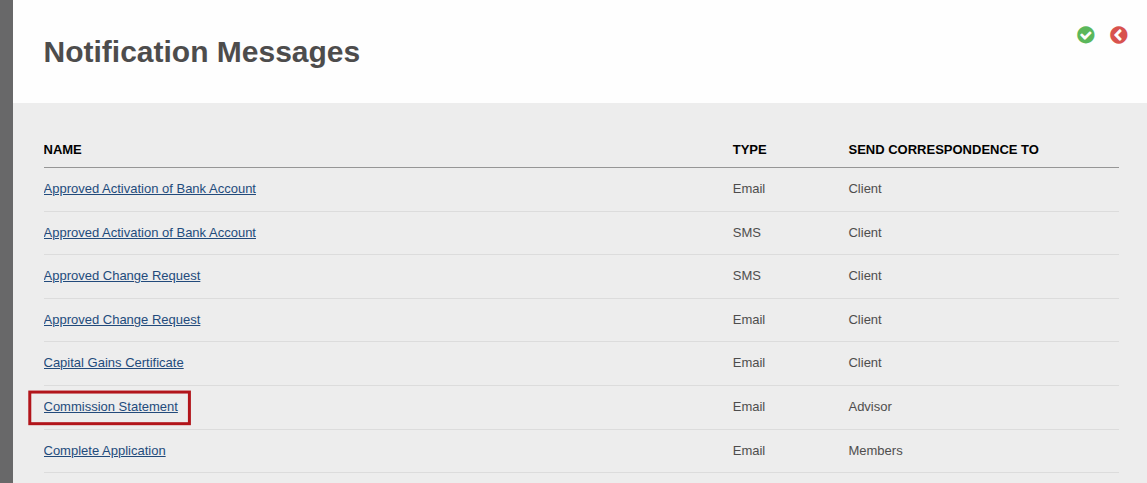
Navigate to System -> Notification Messages -> click on Commission Statement.
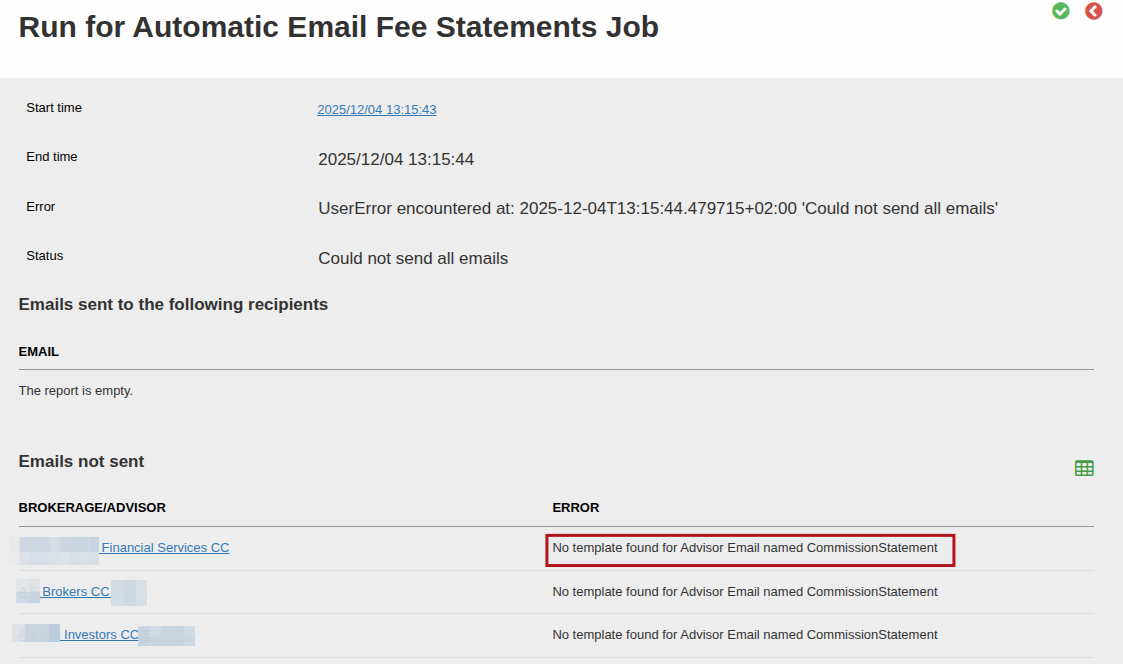
If a template is not setup for the notification message, no emails will be sent, and you will see a result similar to this in the Job run:
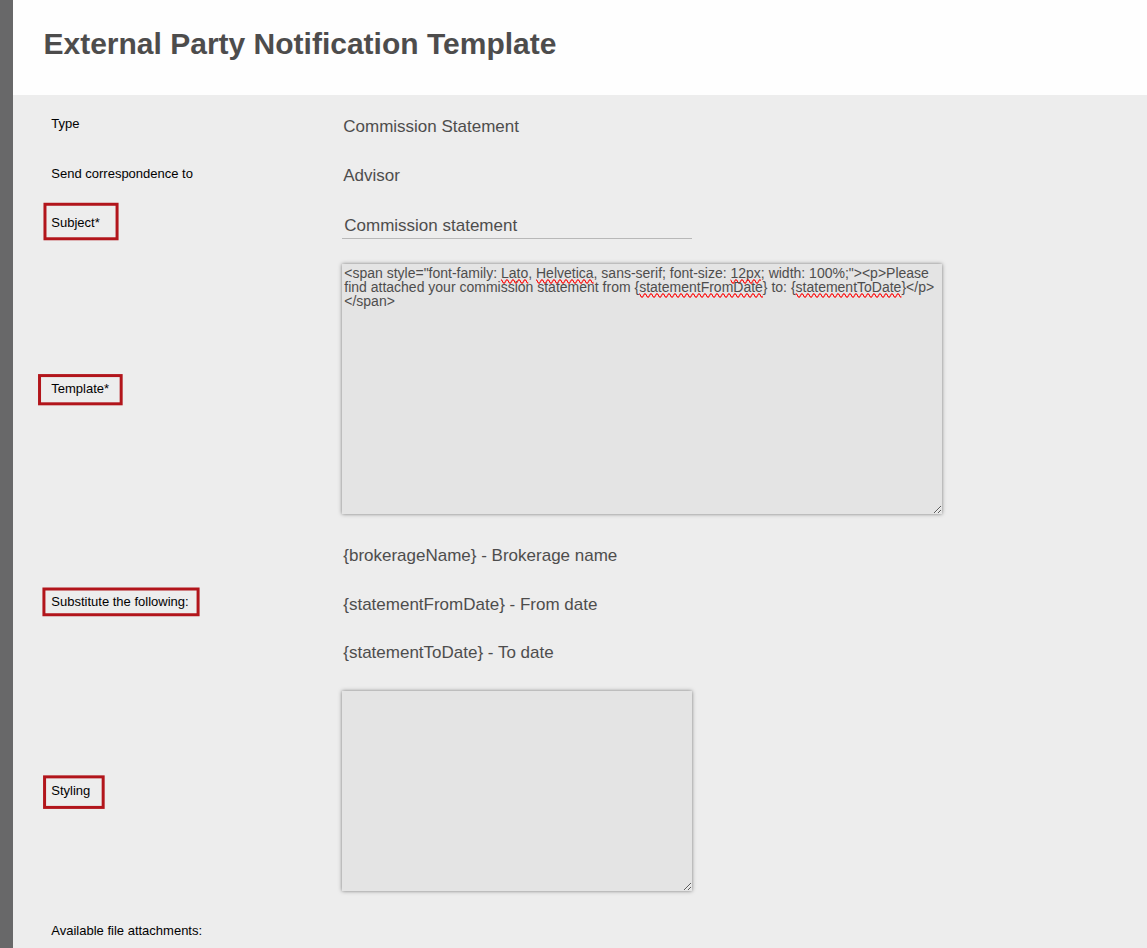
Here you can change the Subject, replace/change the template body using html, substitute any of the available variables in the template. And you can amend the Styling using css, click save when you’re done.
Activate the Job
This job is called ‘Automatic Email Fee Statements Job’ and can only be scheduled monthly or quarterly. The Job has to be activated for this feature to work.
See the this help file which explains how Jobs can be scheduled in general.
From and To Date in Generated Fee Statement
- By default, the job will run for the previous cycle, using the frequency provided.
- For example, if the job is set to run monthly, it will always run on the start date specified (and considering the Day of week setting) for the previous month. I.e. if setup to start on the 10th then it will run in January on the 10th with the fee statement containing data with Transaction date from 1 December till 31 December.
- In the job under the Set up section, you can choose “Override to day of month”. Once selected you can then populate “To day of month”. This implies that the job will run for Transaction date up until the 3rd of the month in which the job is run. So continuing with the above example, instead of populating the fee statement with data containing Transaction date 1 to 31 December, it will include data with Transaction date 1 December till 3 January.
- This is because fee runs (or commission runs) are normally done early in the new month, for the previous month. If you do your fee runs or commission runs on the 3rd of each new month for example for the previous month, then the fees earned transactions will have a transaction date of 3 February (for fees earned in January). Then you can set this To day of month to 3 and each month when the fee statements are generated they will contain data up until the 3rd of the current month, which will then include the relevant fee transactions for the previous period.
- If in a specific month your fees are only run on the 8th for example, then you can change this number to the 8th on the Job schedule, just remember to change this in consideration of the job run date to ensure your job runs after this day.
- Only include brokerages with transactions in period: If selected, a commission statement will only be emailed to a brokerage if there were transactions in the statement period. Brokerages with no transactions in the period will be excluded from the job run and will not receive an email.
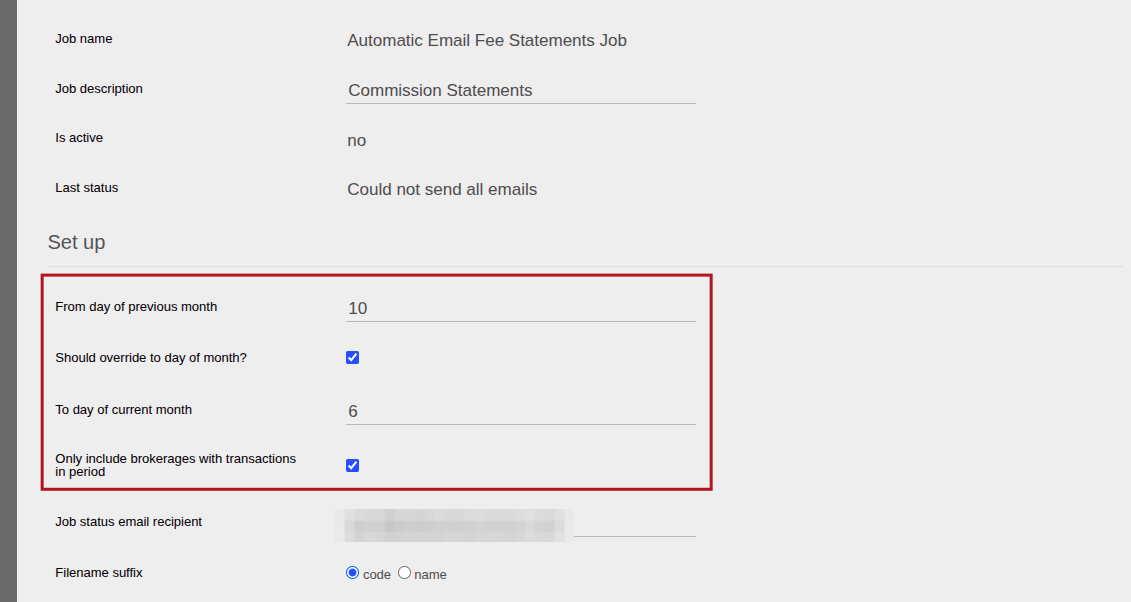
Flexibility in setting the From and To Date in generated Fee Statements
In addition to the functionality explained above (From and To Date in Generated Fee Statement), the from date for ‘Automatic Email Fee Statements Job’ can be set to be a different date than the first of the month prior to when the job is run, where the Frequency of the job run is set as ‘Monthly’.
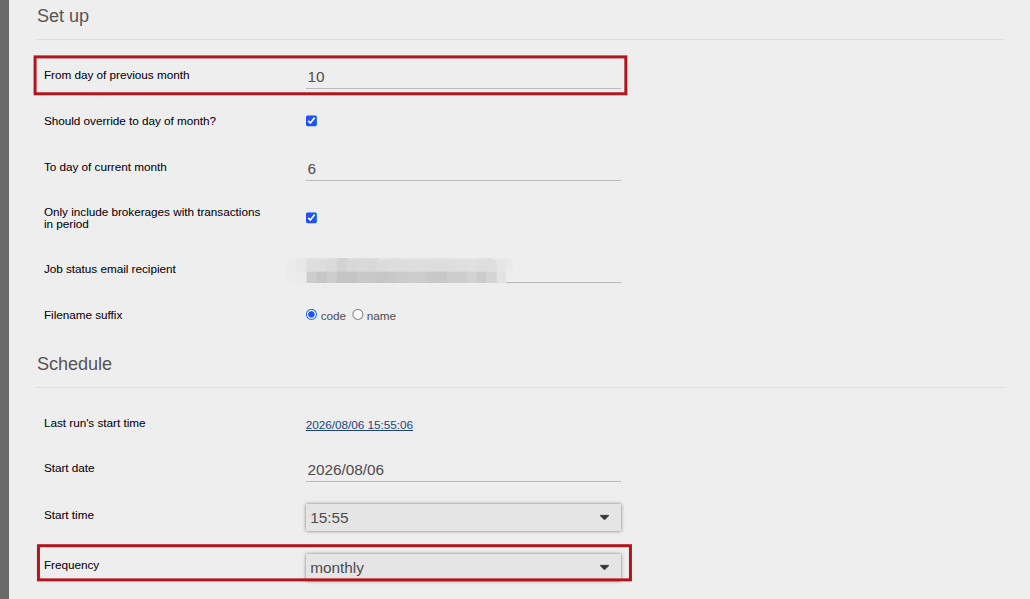
Set Up File name display when sending a Fee Statement to a Brokerage
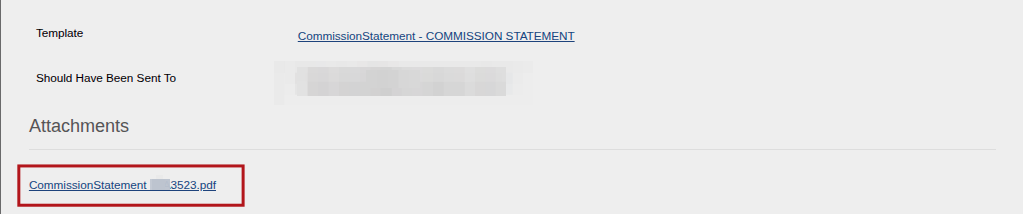
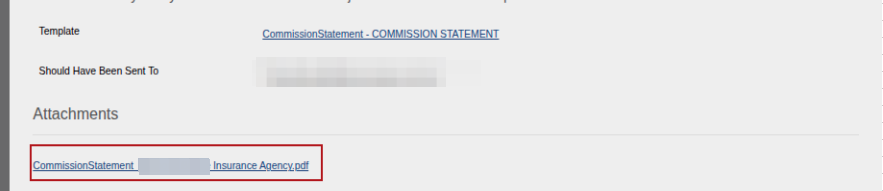
On the PDF generated fee statement, the ability to select either the Brokerage Code or the Brokerage name to be displayed on the file name.

Example of display on the file name:
Where the Code is selected
Where the Name is selected
Viewing the results of a job
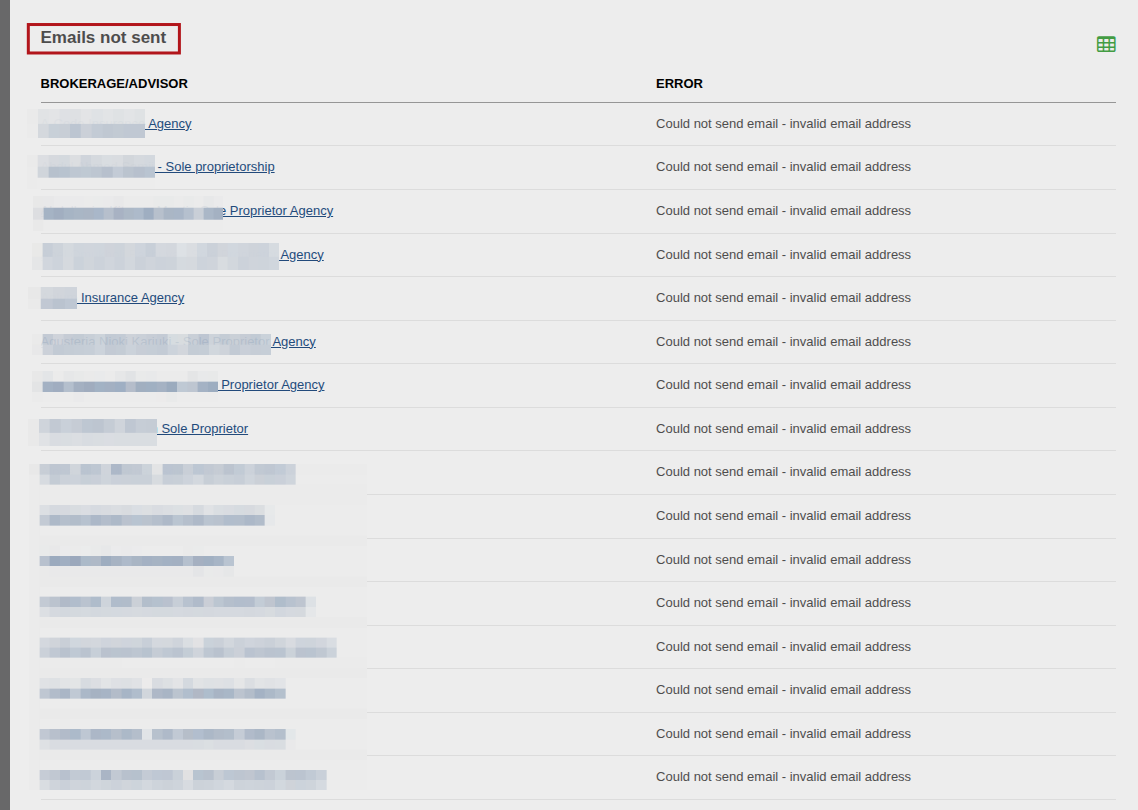
When a job has run, and you view a specific run (by navigating to Job Runs -> and clicking on a specific run) then you will see a list of email recipients to whom the fee statement was successfully sent. And another list showing a list of recipients to whom it was not sent.
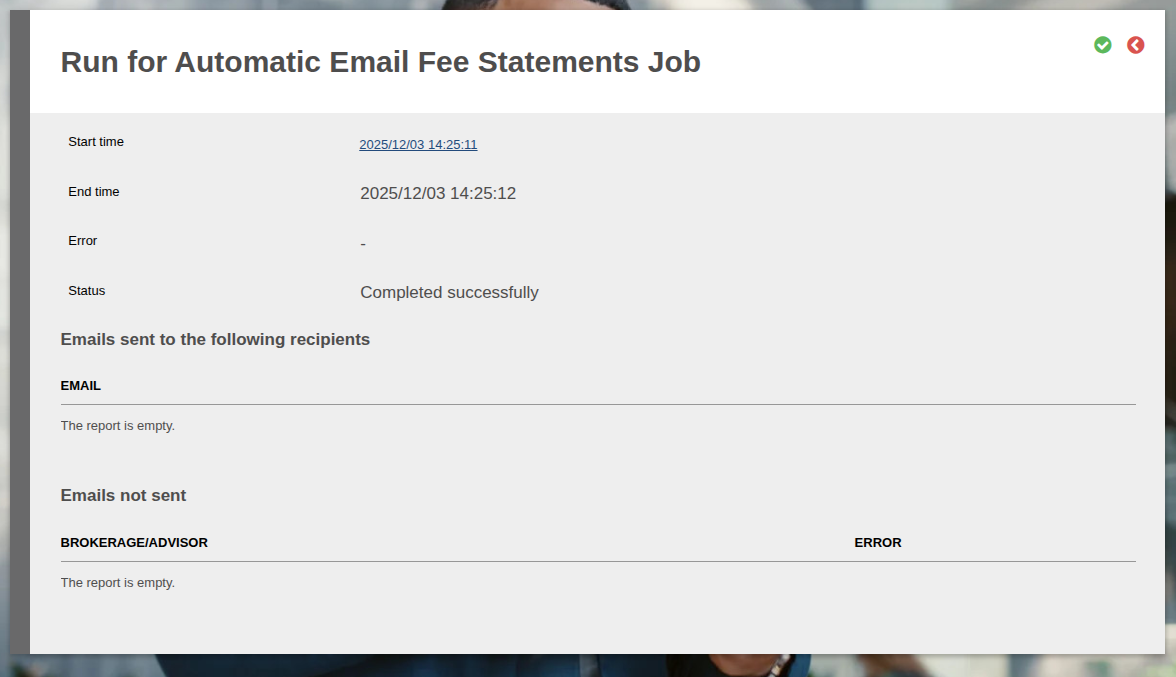
The email address used is the email address on record on the Brokerage (navigate to the Brokerage -> Contact Details card -> view details). If there is no email address on record for the brokerage, the brokerage will be listed in the Emails not sent section, with an error indicating that there is no valid email address, as shown below:
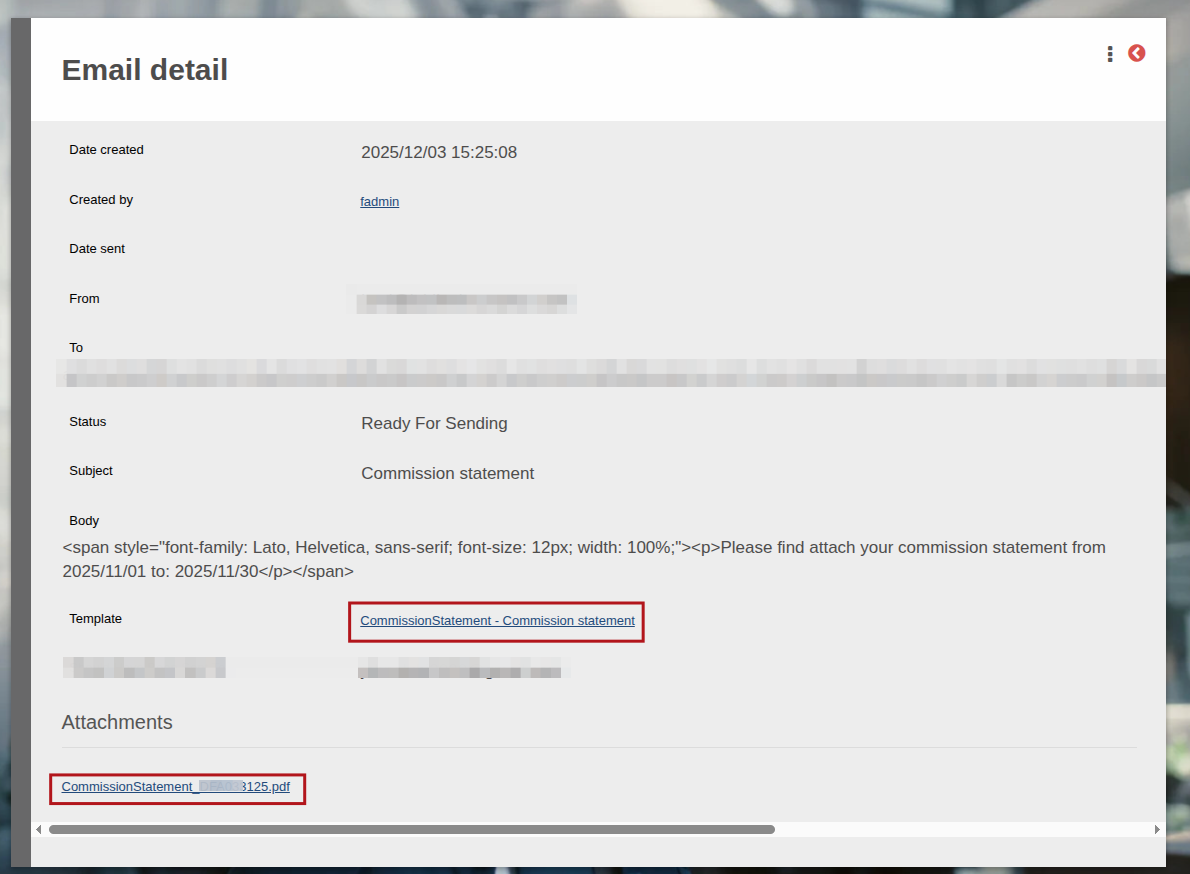
You can also navigate to System -> Emails and find the relevant email that was sent. From here you can also view the Fee Statement that was attached to the email, and navigate directly to the email template that is used:
Last Updated on 2 months ago by Debra Hart