
Import Contract Notes
This functionality is to update and confirm contract notes.
Navigate to: Bulk Processes -> Dealer Instructions -> Upload Contract Notes
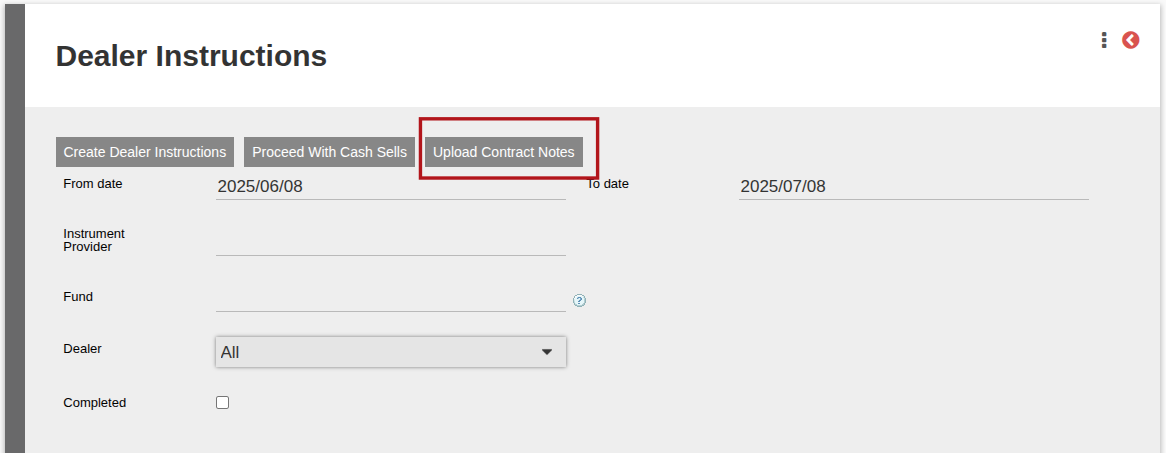
There are 3 options available:
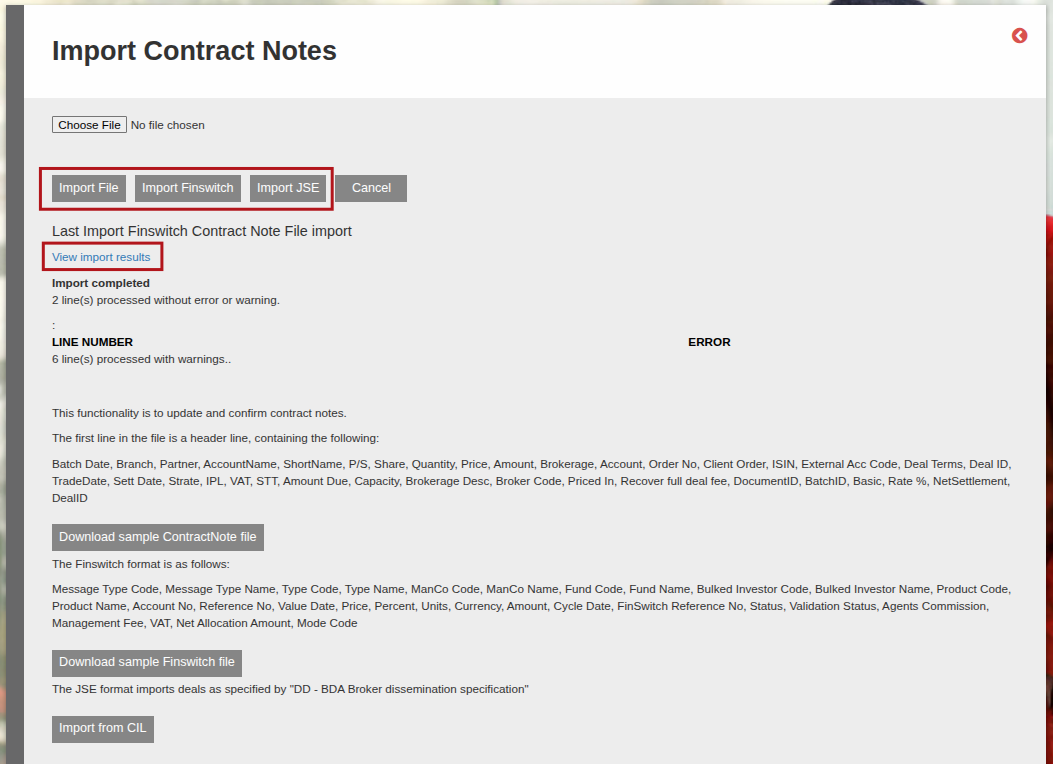
- Import File – For more details with regards to the columns, headings and additional information (see comments in the sheet) refer to Import Contract Notes Headings.
- Import Finswitch – this imports a Finswitch Confirmation Of Transaction Request file.
- Import JSE – for more information see the Import JSE Contract Note help file.
NOTE: Prices need to be indicated in cents in the import file. In other words the price on the system will be 0.8914018, it must however reflect as 89.14018 in the import file.
Click on Choose File to upload the relevant file, and then click on either of the button options listed above to upload the file using the required import format. This will immediately trigger the import to start where after you will see this screen:
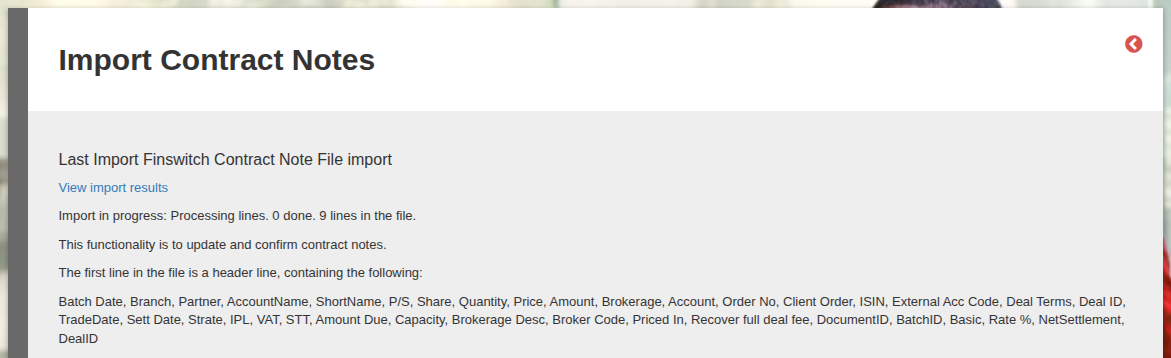
You can click on View import results to see the progress of the import. Once completed, this will show you all relevant warnings/errors and how many lines were successfully processed. Warnings are still imported (like a Rejection for example) but Errors are not imported (Supplier Instrument Account or Account Number or Instrument Instruction can’t be found).
The type of results shown will depend on the import used. See the Import JSE Contract Note help file which explains various results that will be returned when used.
Rejections and other Warnings from Finswitch Contract Note Import
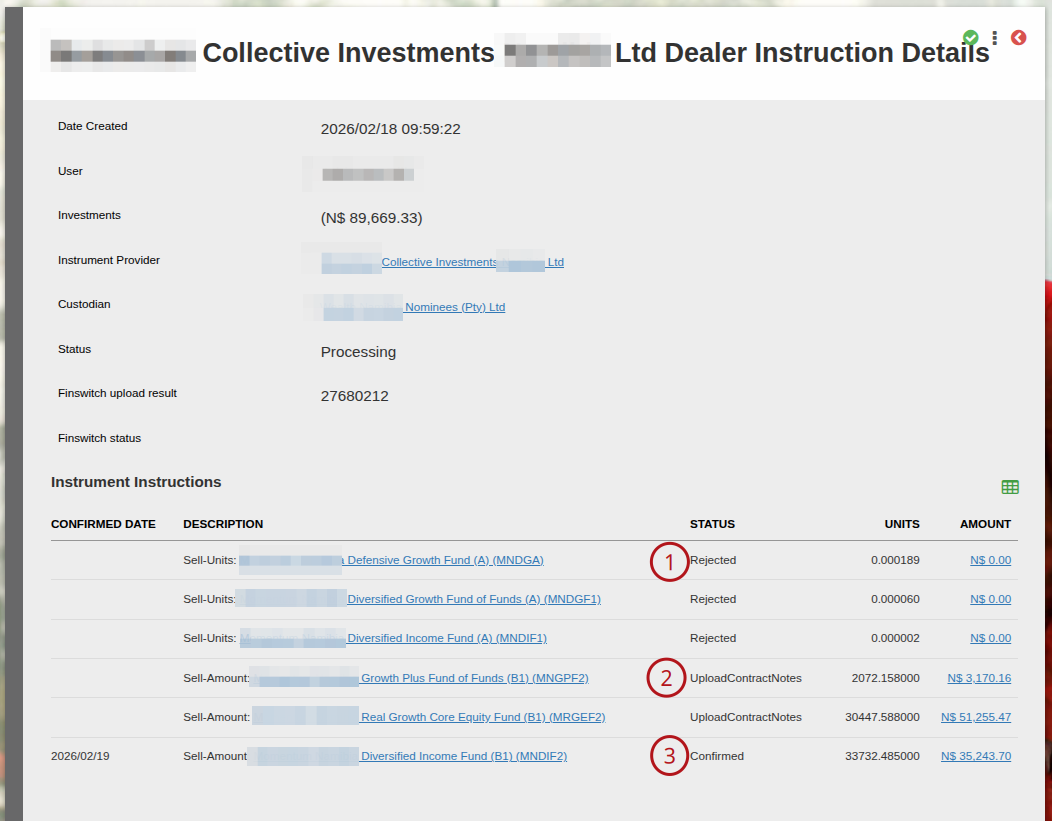
In the Import Finswitch file we will explicitly show if a contract note was rejected, see the warning in number 1 below.
Another example of a warning from the Finswitch Import could be where the bulk account doesn’t buy/sell using an overdraft facility, meaning the Fund Manager has to be paid before the Contract note can be confirmed. In this case, if the payment to the fund manager has already been made (the Payment/Deposit on the Instrument Instruction is already matched) then the imported contract note will update the Instrument Instruction to Confirmed (number 3 in the second screenshot below).
Or else if not matched yet, the following warning will appear on the upload results screen indicating that the matching/payment is still outstanding on the contract note (You must identify entries to match – units not allocated). On the instrument instruction this scenario will show with status Upload Contract Notes (number 2 in the second screenshot below).
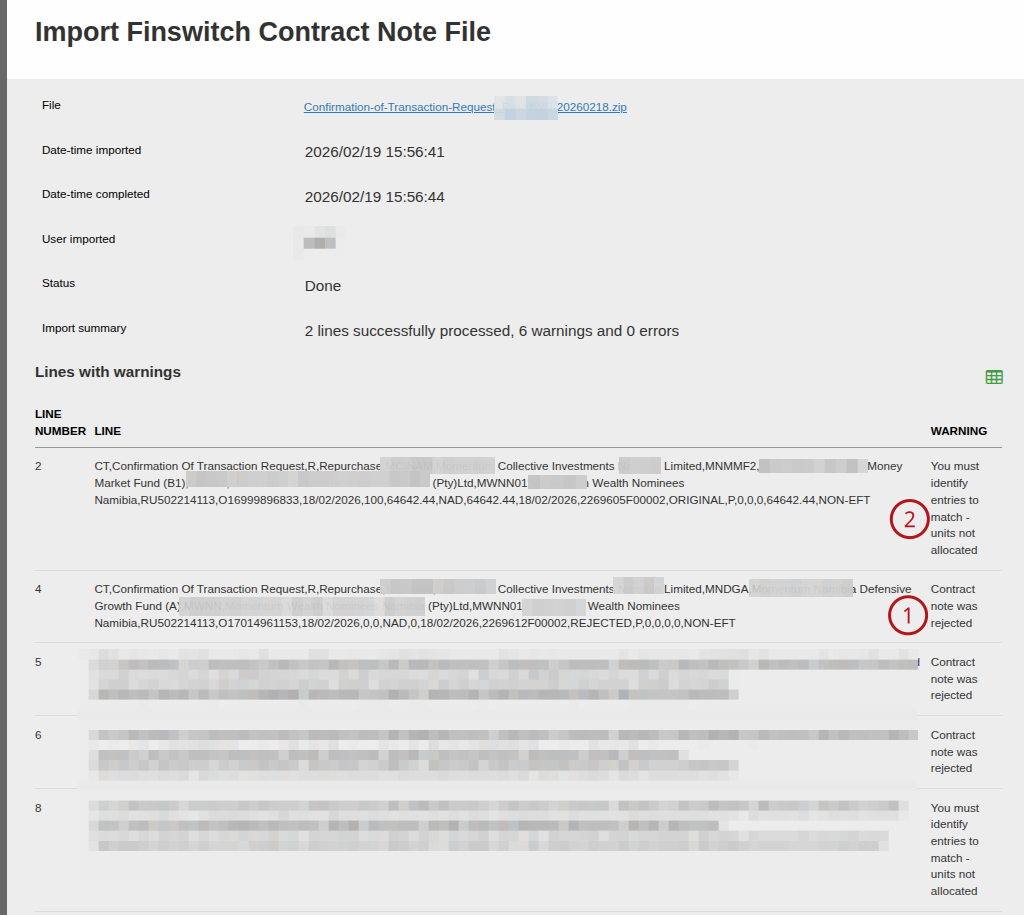
If the Finswitch Confirmation of Transaction Request has rejected a contract note, the corresponding Instrument Instruction will be updated with a Rejected Status. Once Rejected, the instrument instruction can either be canceled or confirmed manually, depending on the reason for the rejection.
Last Updated on 8 months ago by Adrienne Dill