
Interbank Transfer Bank Charges
Background
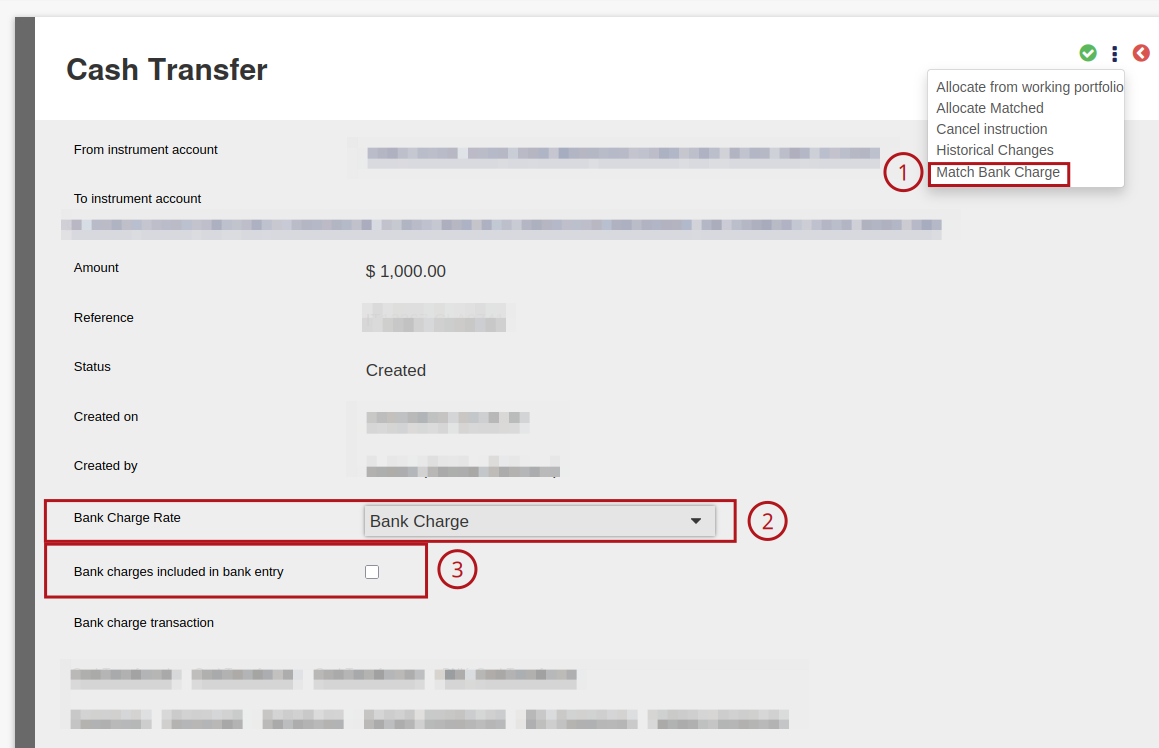
Bank charges may be matched using the ‘Bank charges included in bank entry’ checkbox on money transfer, manually matching bank charges (Image B – point 1) or by applying the default bank charge rate (Image A – point 1). See help file: Setting up Bank Charge Rates to apply the default bank charge rate.
The ‘bank charges included in bank entry’ checkbox caters for the automatic creation and deduction of bank fees from the incoming (receiving) or outgoing (sending) account by allowing a lesser amount within the incoming (receiving) account to be matched, than that of the outgoing account. The difference between the value of the instruction and the amount in the sending or receiving account is automatically calculated as the ‘Bank charge transaction’ amount if the feature has been enabled by using the checkbox on the money transfers screen, and the default bank charge setting has been activated accordingly.
Enabling ‘bank charges included in entry’ functionality on a money transfer
Once a money transfer has been created, click on the money transfer’s instruction date to navigate to the ‘cash transfer’ page. From the ‘cash transfer’ page, the ‘bank charges included in entry’ functionality can be toggled on or off using the appropriate checkbox (image A – point 2). If the checkbox is selected, options to select whether the bank charge has been applied in the ‘from’ or ‘to’ account appear (Image A – point 3).
If this checkbox is not selected, bank charges can be manually matched with existing bank charge rates by navigating to the menu on the cash transfer page -> ‘match bank charge’ (Image B – point 1). Default bank charge rates can also be applied by selecting the appropriate rate from the drop down menu ‘Bank Charge Rate’ (Image B – point 2).
Image A:

Image B:
Matching entries on a money transfer ‘bank charges included in entry’ functionality
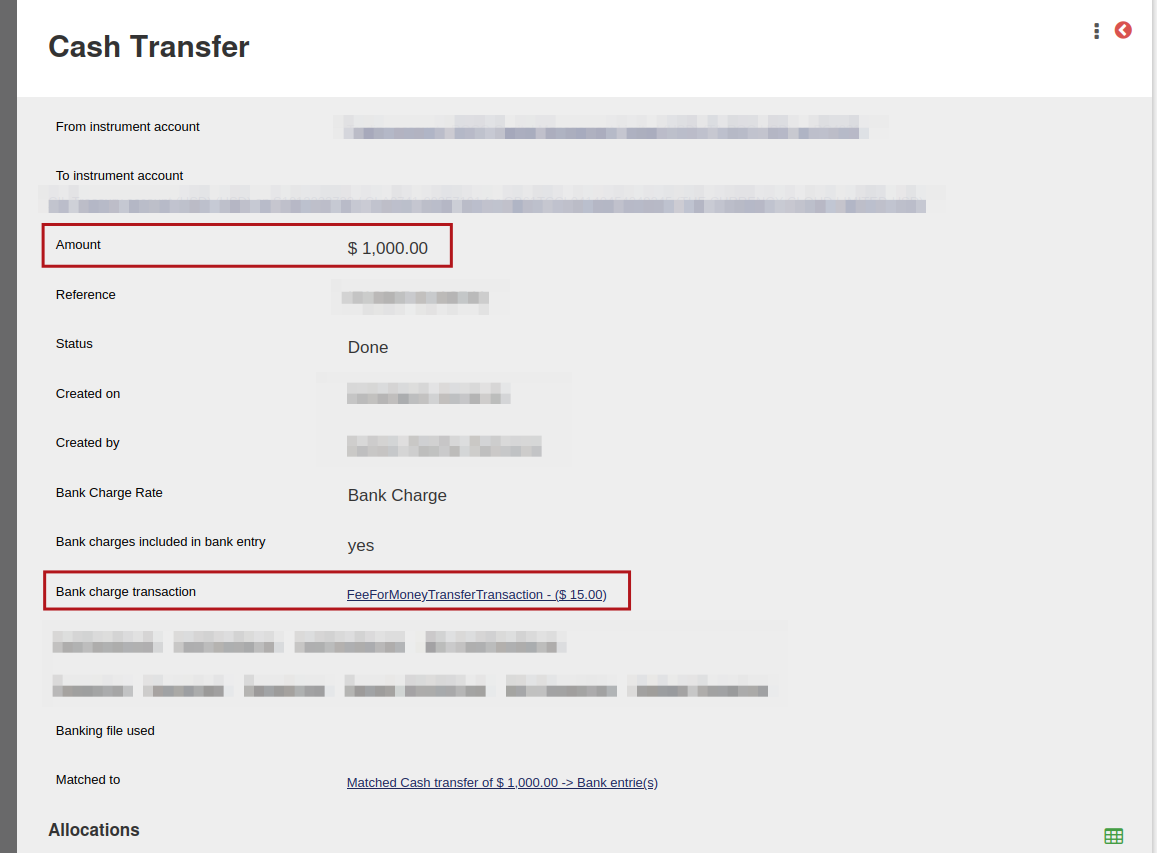
Both ‘from’ and ‘to’ legs of the money transfer may be matched as per normal. The system will automatically calculate the difference between the money transfer instruction amount, and matched ‘from’ or ‘to’ amount as the ‘bank charge transaction’. This can be viewed by navigating as follows: banking -> money transfers -> view the matched money transfer instruction by clicking on the date -> view ‘bank charge transaction’ line.
Following the above steps, the client’s contract will indicate two transactions: the initial money transfer amount, as well as a deduction matching the money transfer fee (this will be based on the default bank charge rate as per system settings). The deducted bank charge on the client’s contract will also reflect as a positive transaction on the working portfolio, along with a negative transaction reflecting the initial bank charge fee which was calculated on the money transfer screen using the ‘bank charges included in bank entry’ checkbox.
Image C:
Applying the ‘bank charges included in entry’ functionality on a Forex transfer
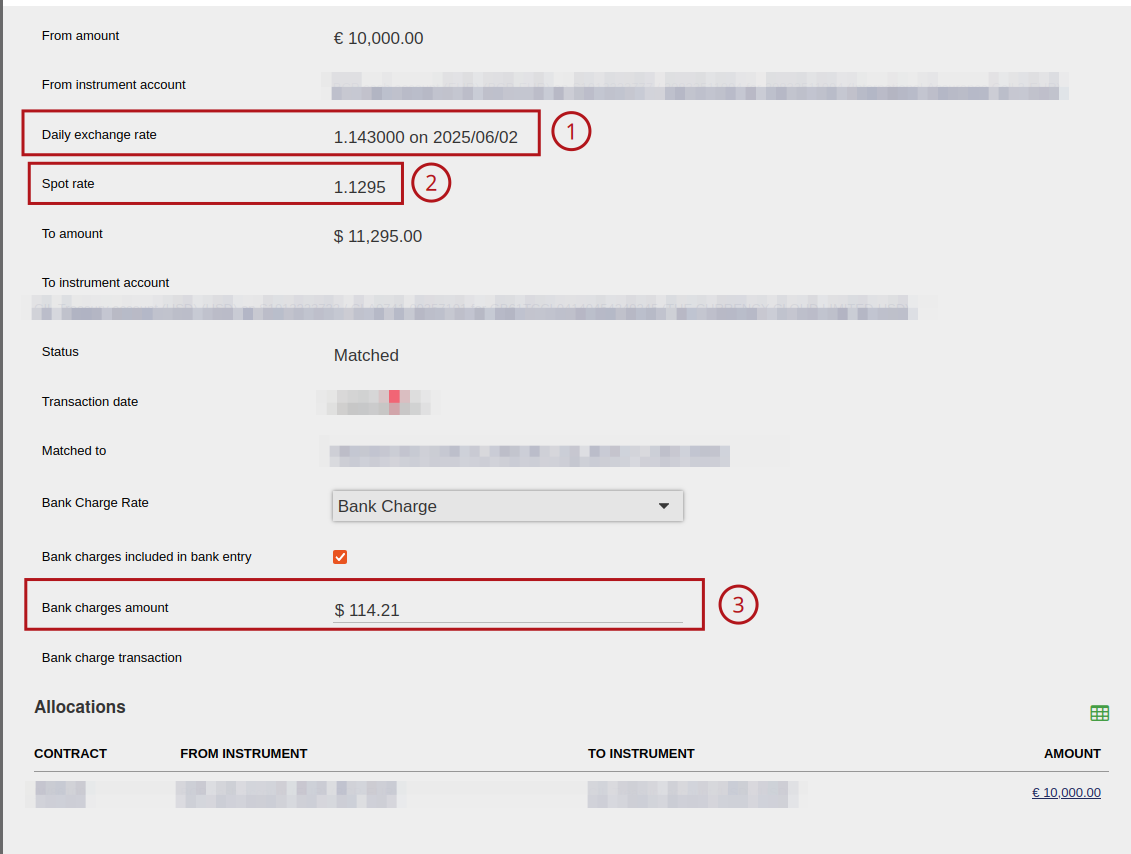
Once a money transfer has been created, click on the money transfer’s instruction date to navigate to the ‘Forex transfer’ page. The most recent exchange rate will be displayed in the ‘daily exchange rate’ field (image D – point 1), and the spot exchange range is automatically calculated based on the ‘from’ amount and the ‘received’ amount in the money transfer. The ‘bank charges included in entry’ functionality can be toggled on or off by using the checkbox, enabling the function on a Forex transfer results in the bank charge transaction field (image D – point 3) becoming editable, the transfer fee can then be inputted manually.
Image D:
Last Updated on 1 year ago by Hayley Jerram