
NamPay automatic debit order upload and confirmation download
You can automatically upload created Debit Order Collection files to NamPay and once the Confirmation files are available this can automatically be retrieved from NamPay and processed in Finworks.
Setup
There are two new jobs available on System -> Jobs called:
- NamPay ISO 20022 Debit Order Upload Job (to upload the debit order collection files to NamPay)
Note: Nampay will reject debit orders batches uploaded on non business days. It is therefore important to set the job to ‘Must only collect on working days’ and ensure public holidays have been updated under System->Countries->Namibia (see Add public holidays)
The NamPay cut-off for same-day collections (which is what will be used) is 13:00. The upload job runs every 30 minutes from 04:15 until 12:45 to make the cut-off. Debit order batches created after 12:45 are uploaded on the next working day’s first run (04:15) and collected that day.
Debit order with a future collection date than the date on which the debit order batch have been created will be declined.
Debit order with a collection day in the past will automatically be changed by the Finworks system to be the collection date on which the debit order collection file is created.
- Nampay ISO 20022 Debit Order Download Job (to download confirmation files from NamPay).
Both these jobs must be scheduled (Made active). We recommend you scheduled the download job to run hourly, so that response files will be checked hourly.
The following also needs to be in place for the automation to work:
A. The Bank account where money will go to when the debit order is collected (the deposit account for the relevant product) must have a SWIFT code populated
B. The bank accounts of the investors from which debit orders will be collected, must have a SWIFT code populated
NOTE: For A and B the system automatically complete the swift code in the upload file (if it has not been populated on the investor’s bank details). The swift code is populated from the ‘BIC’ code as set on the bank (System->Banks)
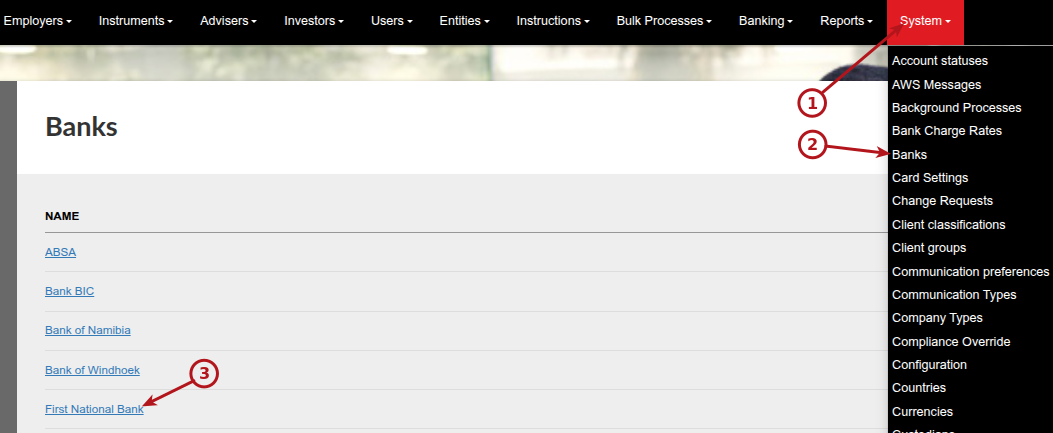
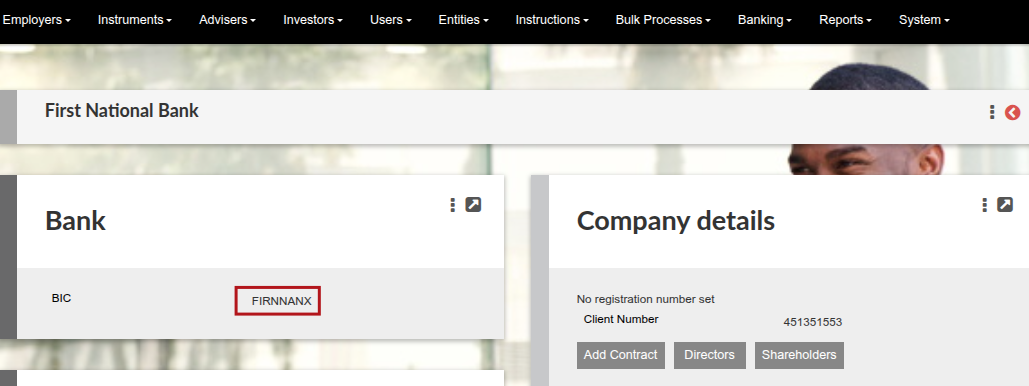
It is therefore important to update the BIC code when a new Bank is created and ensure that existing BIC codes are correct.
C. On System -> Configuration -> more actions -> External Systems the following fields in the Banking Integration – ISO20022 section must be populated:
-
- User ID
- Customer id
- Organisation id
Creating Debit Order batches and sending them to NamPay
Create a Debit Order batches as per normal, by navigating to Banking -> Debit Order Batches. Click on Create Debit Orders File. Select the instructions you want to include and under more actions select Create Batch. If you now return to the previous screen (Banking -> Debit Order Batches) you can search for the creation date of the debit order batch and the relevant batch will show with Status Created.
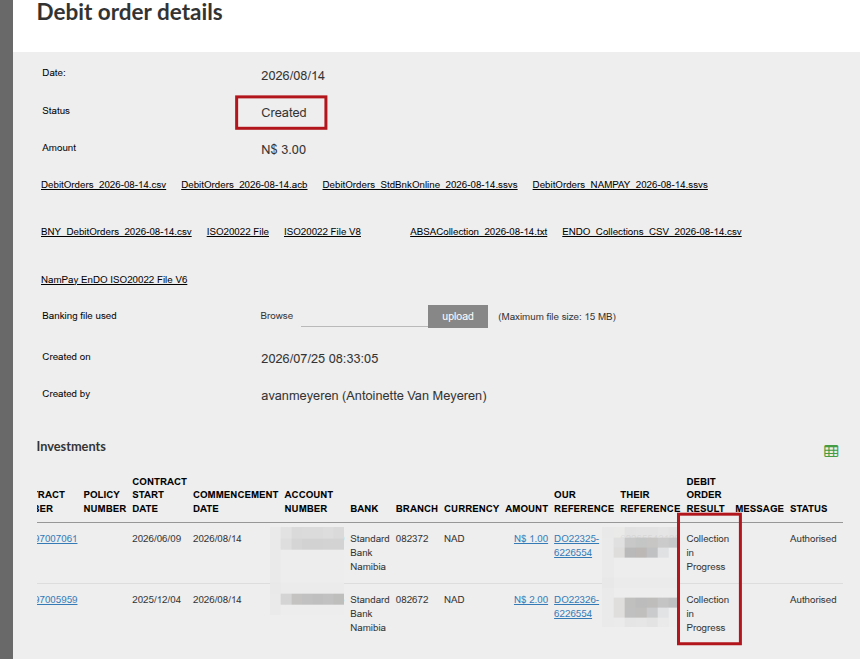
The scheduled Job will pickup any created Debit Order batches with status Created, and send it to NamPay automatically.
Once the Debit Order Collection File has been sent to NamPay via the NamPay ISO 20022 Debit Order Upload Job, the batch status will change to Upload in Progress.
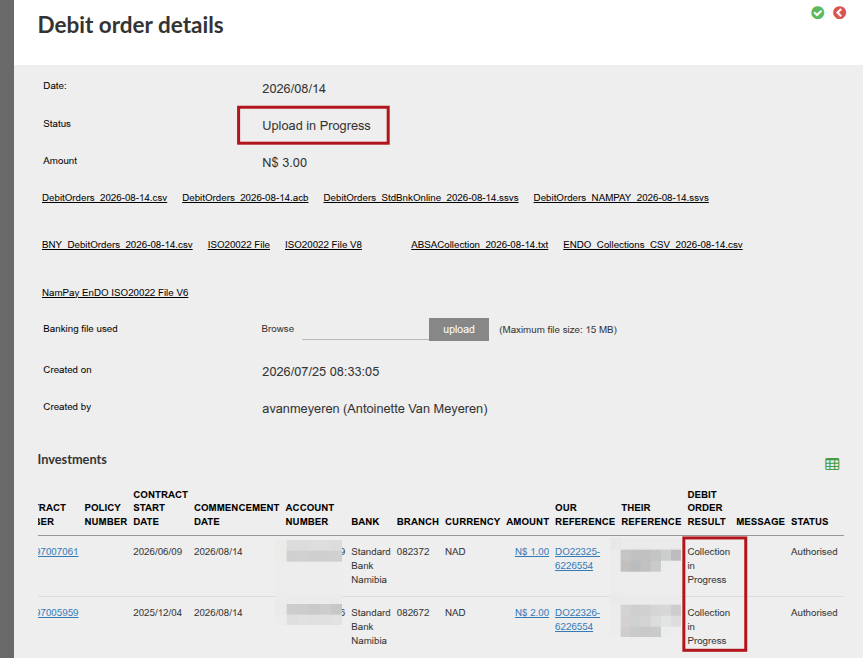
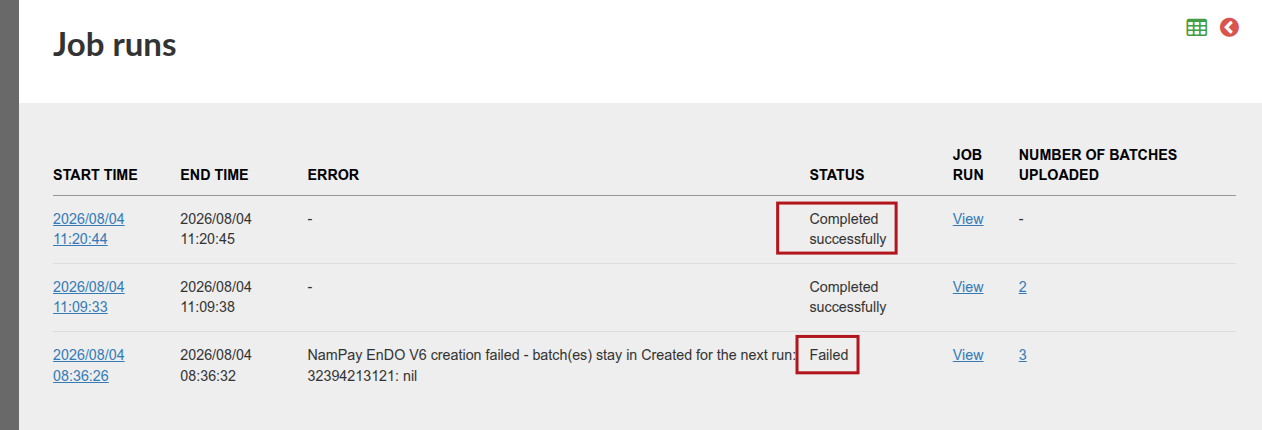
Where the debit order collection file has failed during upload, the status of the debit order will change to ‘Upload not received’

Clicking into the debit order collection file will provide the reason for the failure
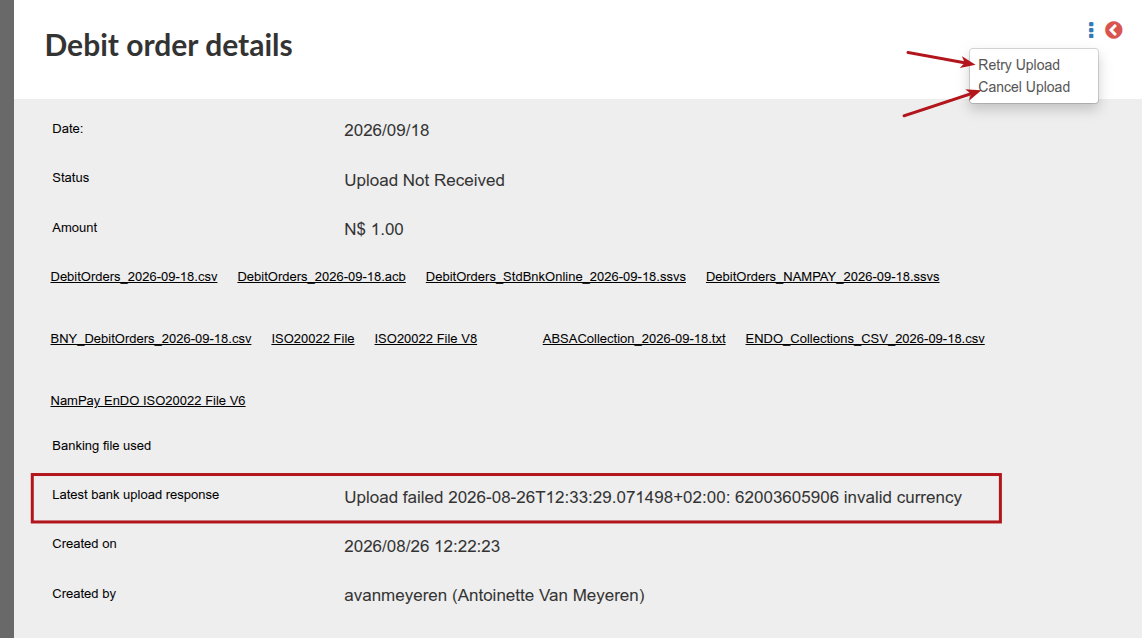
The reason for the failure can be corrected and the ‘Retry Upload’ button (currently only available to finworks users) can be used (after the correction). The status of the debit order batch will change back to Created and will be picked up by the Nampay upload job for re submission.
The ‘Cancel Upload’ button (currently only available to finworks users) can be used to cancel the debit order batch. Corrections can then be made and a new batch can be created and problematic individual debit orders in the original batch can be excluded.
Once NamPay provides confirmation that the file is received, the batch status will change to Upload Received.

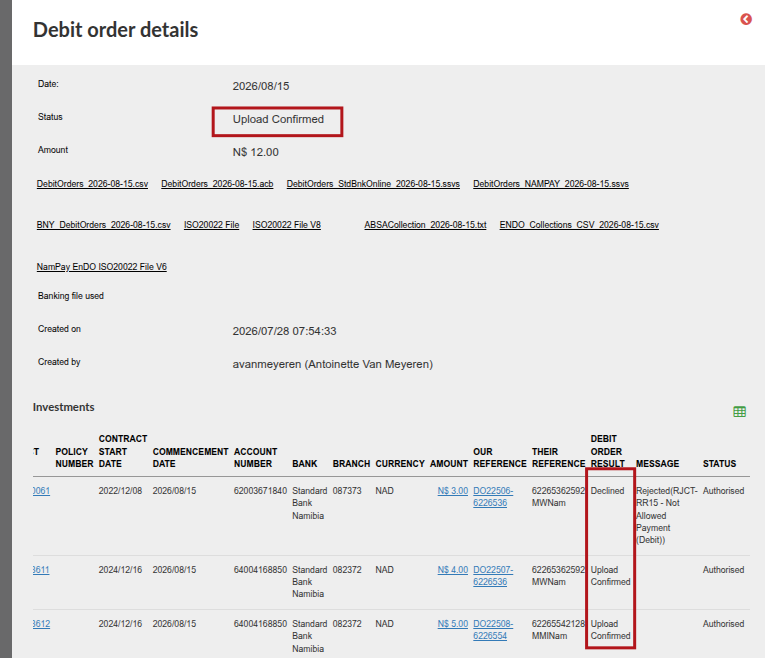
Once the download confirmation file has been received after NamPay submitted the collection batch to the investor’s bank the status of the batch will change to Upload confirmed.
A. Processing File Status Notification from NamPay
NamPay does an initial validation of the debit order batch file that was uploaded (NamPay EnDO ISO20022 File V6) and respond with a Immediate Status Report (ISR), that check that the format of the uploaded file is correct. We receive this confirmation via the NamPay ISO 20022 Debit Order Download Job. The Job will show a confirmation file, containing ISR in the file.
It is important that the message status be ACTC (AcceptedTechnicalValidation) which indicates that the file format passed the validation. If the Message status indicates RJCT (Rejected) , further investigation is required. 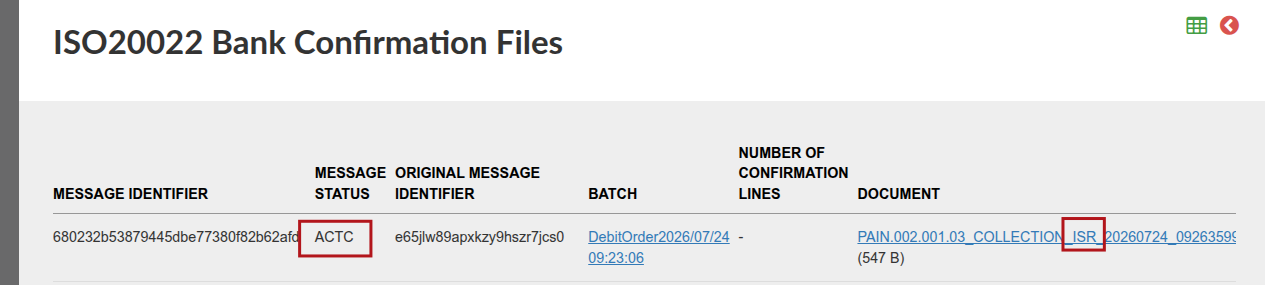
The debit order batch status will change to Upload Received
B. Processing Confirmations file from NamPay
NamPay will generate a Confirmations file once it have validated the individual debit order collections IN the batch before sending it to the client’s bank and some debit orders can be declined at this stage. The scheduled NamPay ISO 20022 Debit Order Download Job will check for confirmation files as per the Job Schedule. This file received from NamPay, will contain SBSR (Sponsoring bank status report) in the name.
NOTE, this check is performed by the collecting Bank (NamPay) and do not indicate that debit order which have not declined upfront will be collected successfully from the client’s bank account.
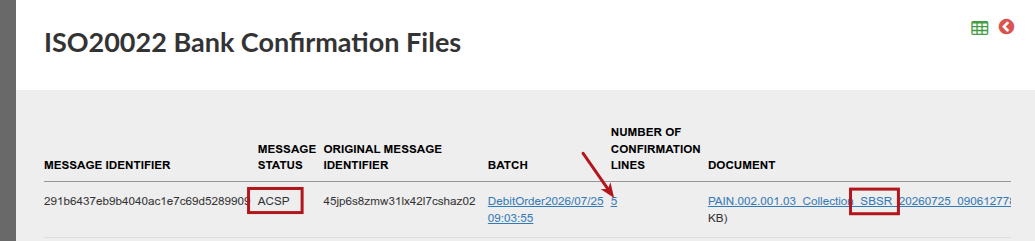
A Message status of ACSP (Accepted Settlement In Process), indicates that all preliminary checks—such as technical validation and customer profile reviews were successful and the payment is accepted and currently processing.
It is important that the message status be ACSP (Accepted Settlement In Process). If the Message status indicates RJCT (Rejected) , further investigation is required.
It is possible that one or more individual debit orders in the batch have been declined when NamPay did the validation on the individual debit orders in the collection batch and the declined debit order will not proceed to be submitted to the investor’s bank for collection.
Clicking into the Number confirmation lines will provide information regarding the individual debit orders in the batch and can be further drilled into by clicking on the Instruction Bank Transfer hyper links.
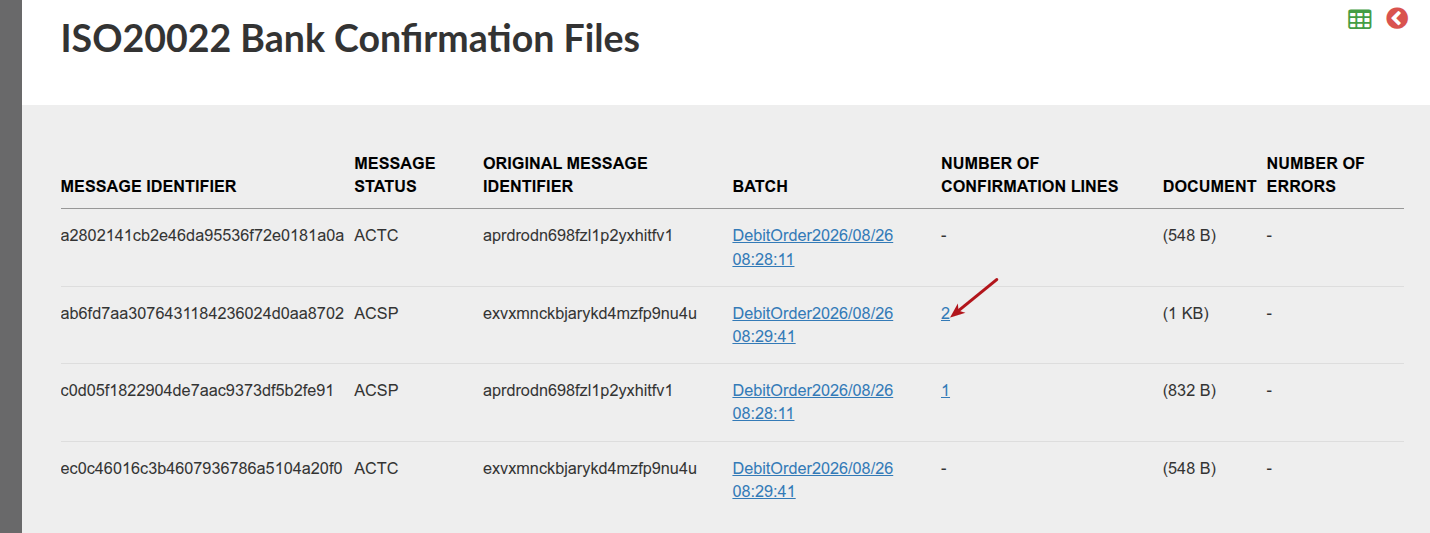
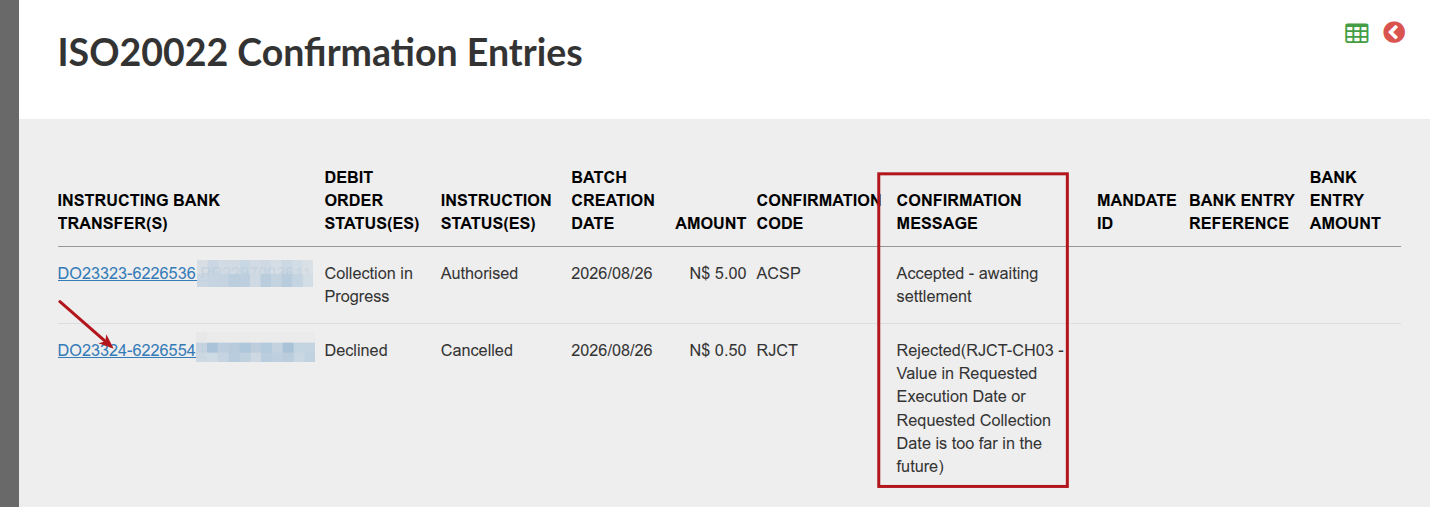

It is important to look at the reason why a debit order have been declined or not collected, to make corrections and decide whether the debit order must be collected again and if further collections need to continue or cancelled.
C. Processing Confirmations file from the Paying Bank provided to NamPay
NamPay will receive a Confirmations file from the different investor’s banks once the paying banks have validated the individual debit order collections IN the batch that have been send to investor’s banks and some debit orders can be declined at this stage (see B above for detail about declined individual debit orders). The scheduled NamPay ISO 20022 Debit Order Download Job will check for confirmation files as per the Job Schedule. This file received from NamPay, will contain PBSR (Paying bank status report) in the name.
NOTE: this check is performed by the Paying Bank (investor bank, for instance Standard bank, Ned bank) and do not indicate that debit order which have not declined yet will be collected successfully from the investor’s bank account.
Job Runs
Whether it is the File Status Notification file or Confirmation files, the results can be viewed by navigating to the NamPay ISO 20022 Debit Order Download Job (System -> Jobs) and under more actions click on Job Runs.
The Job runs will show each attempt of Finworks to fetch a confirmation file from NamPay, and since there won’t always be a new confirmation file to fetch, the results will sometimes show status Completed Successfully, with nothing showing under “Number of Confirmation Files”. When we did fetch a new Confirmation File from NamPay, “Number of Confirmation Files” will have a number with a hyperlink to the file received.
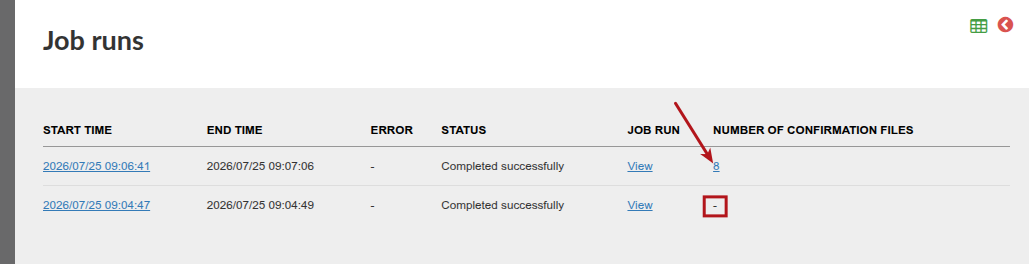
As soon as a confirmation file is available for an automatically uploaded Debit Order Collection file, we will automatically fetch the Confirmations file and update statuses for the debit order batch and the individual Debit Orders in the batch.
Note at this stage we cannot confirm that the money will successfully be received from the investor, we can confirm that NamPay has successfully initiated a debit order collection (at which stage the status of the individual Debit Order will be Collection in progress) or NamPay has already rejected the debit order collection (at which stage the status of the individual Debit Order will be Declined). If the Debit Order collection fails at a later stage because the investor does not have enough money in their bank account as an example, this will not be reflected yet at this stage.
You can view these results by navigating to Banking -> Debit Order History.
Possible statuses and their meanings are as follows:
- Created (the debit order has not been included in a debit order batch)
- Cancelled (the debit order has been cancelled)
- Collected (the debit order has been collected successfully)
- Declined (the Confirmations file has indicated the debit order has been declined)
- Reversed (the collection of the debit order has been reversed)
- Collection in progress (the debit order is busy going through the process to be collected)
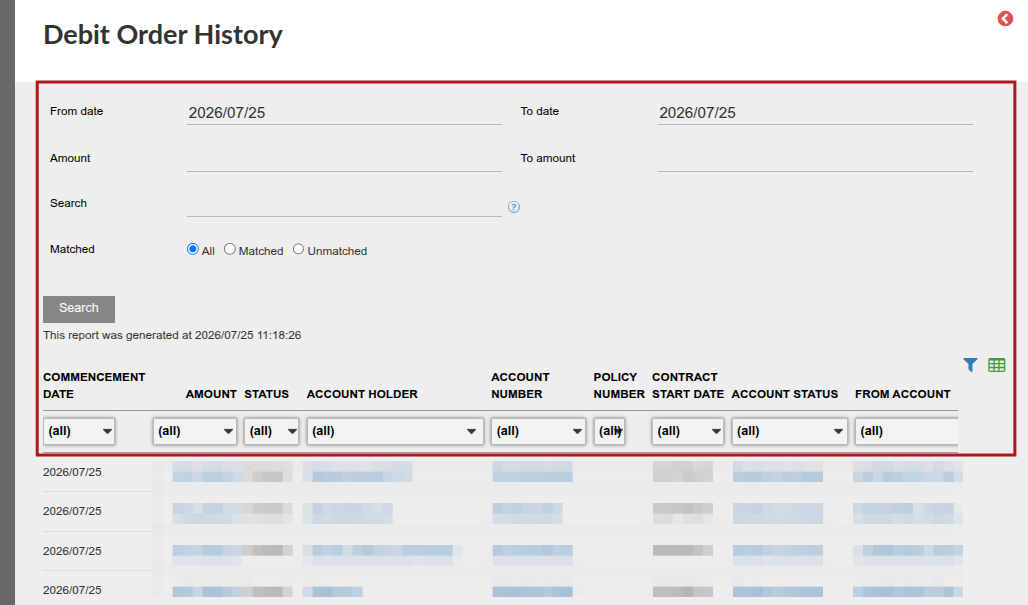
The different search options in the red square can be used to narrow down your search.
Importing Bank Statement
Only when a Bank Statement is imported into Finworks and the debit order matched, can we truly say that a Debit Order was successful. At this stage, the debit order status will change to Collected.
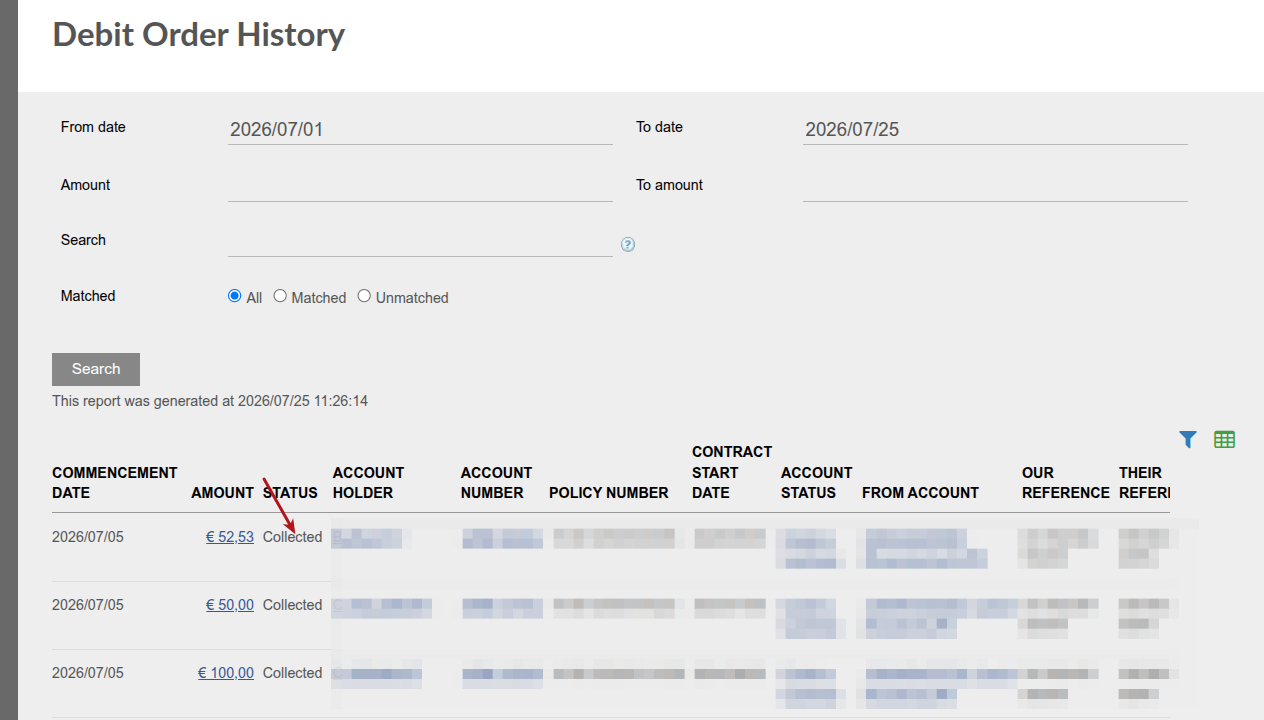
Further response files will be received via the NamPay ISO 20022 Debit Order Download Job that will provide information regarding collections, declines and debit orders that reversed.
The results of the NamPay ISO 20022 Debit Order Download Job (declines and reversals) can be managed using the Unsuccessful debit order bank responses report as a user friendly option to access the information provided in the NamPay ISO 20022 Debit Order Download Job.
Last Updated on 2 weeks ago by Antoinette Van Meyeren