
Natwest automatic debit order upload and confirmation download
You can now automatically upload created Debit Order Collection files to Natwest and once the Confirmation files are available this can automatically be retrieved from Natwest and processed on Finworks.
Setup
There are two new jobs available on System -> Jobs called:
- Natwest ISO 20022 Debit Order Upload Job (to upload the debit order collection files to Natwest)
- Natwest ISO 20022 Debit Order Download Job (to download confirmation files from Natwest).
Both these jobs must be scheduled. We recommend that they are scheduled to run hourly, so that if a new debit order batch is created, within the next hour it will then be sent to Natwest.
Note: If you want more control over the upload of debit order collections (in status Created) the ‘Natwest ISO 20022 Debit Order Upload Job’ can be setup and made inactive. You can then run the upload job manually as and when required with the ‘Run Now’ button on the job.

It is however important to schedule the download job as it will provide feedback on the bank response files for declines and reversals.
The following also needs to be in place for this to work:
- The Company on Finworks that owns the bank account where money will go to when the debit order is collected (the deposit account for the relevant product) must have the following data populated:
- Postal Address must have a City and two lines of the address must be populated.
- SEPA Creditor Identifier
- The same bank account must also have the following information captured on Finworks:
- International Bank Account Number
- SWIFT Code
- The investor whose bank account is debited, must have two Residential address lines populated.
- On System -> Configuration -> more actions -> External Systems the following fields in the Banking Integration – ISO20022 section must be populated:
- Customer id
- Organisation id
Creating Debit Order batches and sending to Natwest
You will create Debit Order batches as per normal, by navigating to Banking -> Debit Order Batches. Click on Create Debit Orders File. Select the instructions you want to include and under more actions select Create Batch. If you now return to the previous screen (Banking -> Debit Order Batches) you can search for the creation date of the debit order batch and the relevant batch will show with Status Created.
The scheduled Job will pickup any created Debit Order batches with status Created, and send it to Natwest automatically or by selecting the ‘Run now” button.
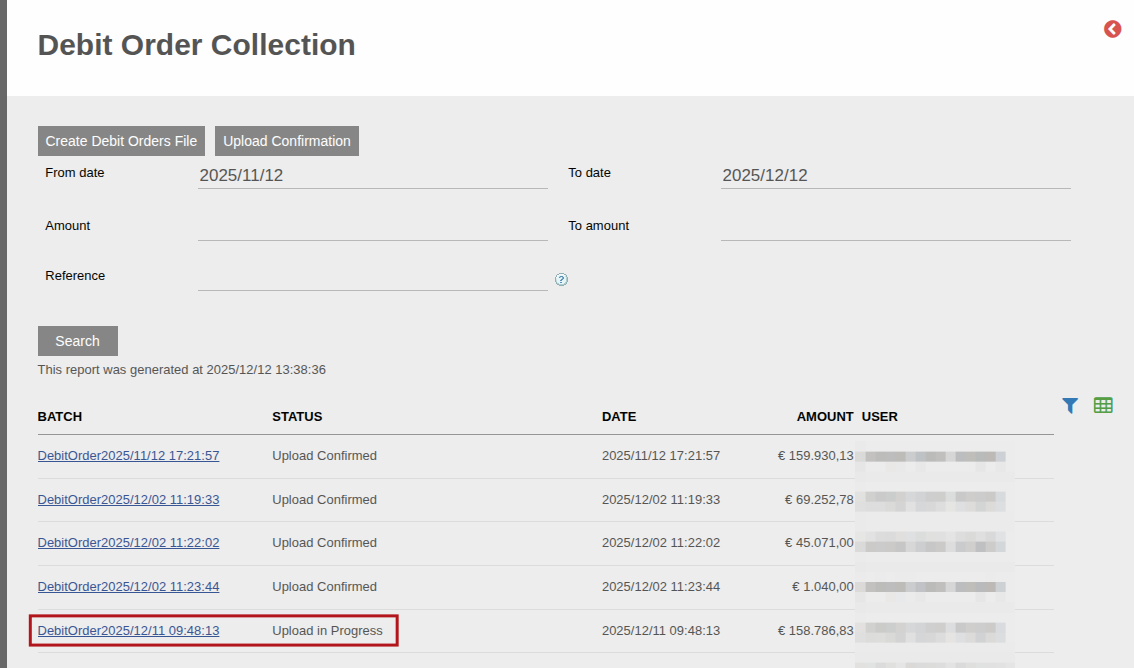
Once the Debit Order Collection File has been sent to Natwest, the batch status will change to Upload in Progress.
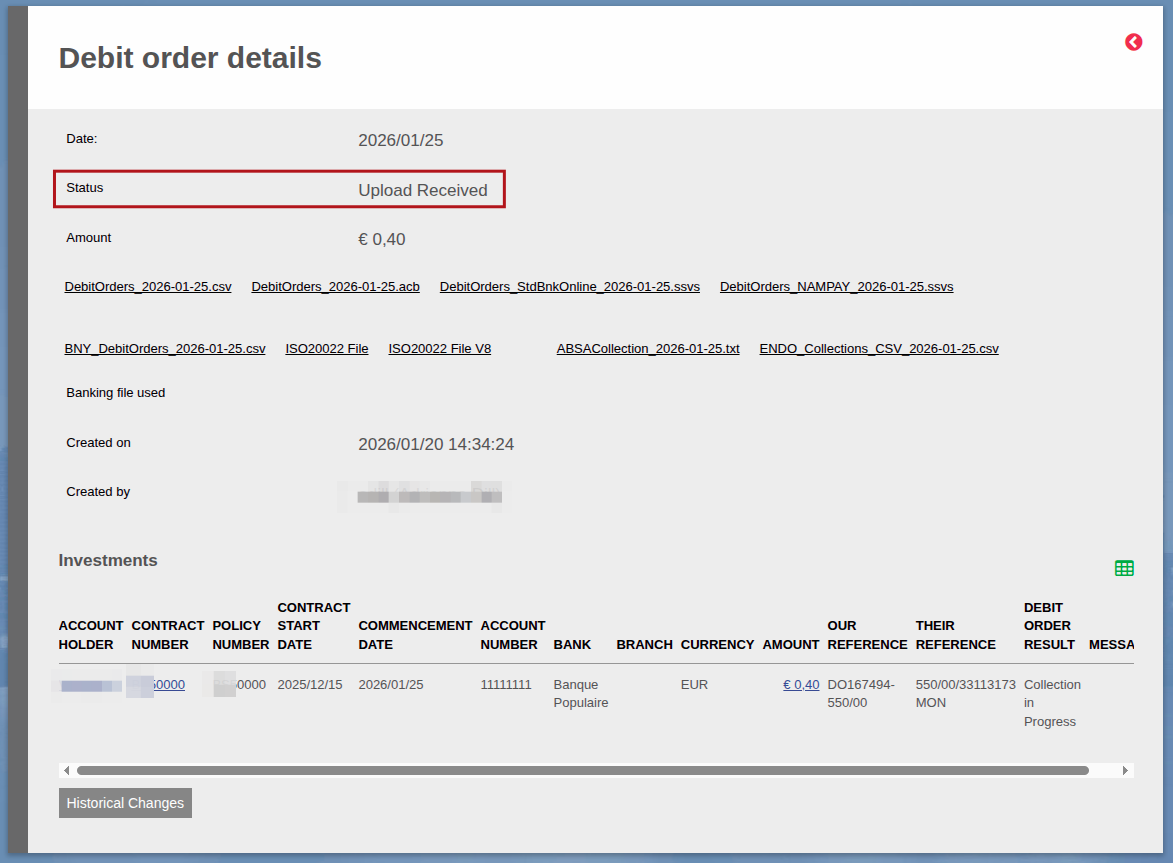
Once Natwest provides confirmation that the file is received, the status of the collection will change to Upload Received.
Processing File Status Notification from Natwest
Natwest does an initial validation of the debit order batch submitted, and then responds with a File Status Notification. We receive this confirmation using the Natwest ISO 20022 Debit Order Download Job. The Job will show a confirmation file, name ending with .FS.xml. It is important that the Message status of this file be ACCP (accepted) :

And the Debit order batch status will update to Upload Received:
Processing Payment Status Notification from Natwest
Natwest will generate a Confirmations file once it knows the outcome of the debit order collections in the batch, and the scheduled Natwest ISO 20022 Debit Order Download Job will check for confirmation files as per the Job Schedule. The file name will end with PS.xml (Payment Status notification)

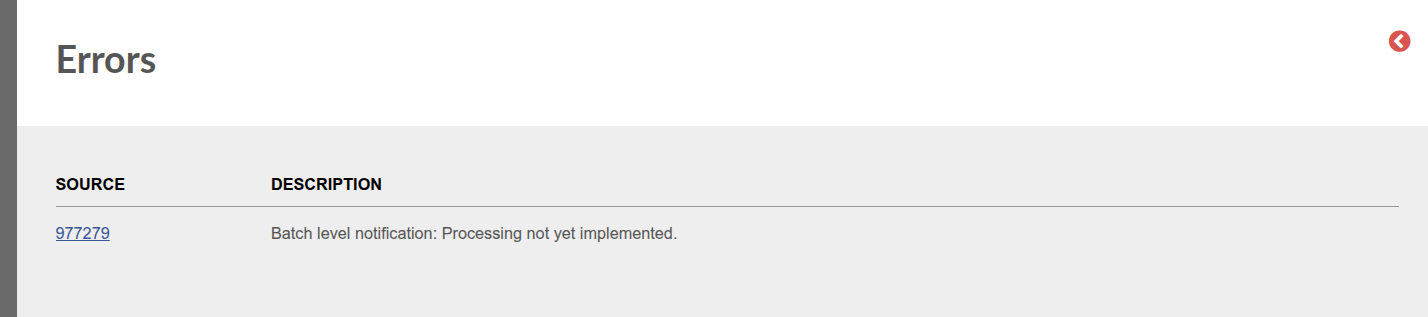
NOTE: The parsing of this file have not been implemented and will display an error as seen above
Clicking into the Number of confirmation lines will indicate an error

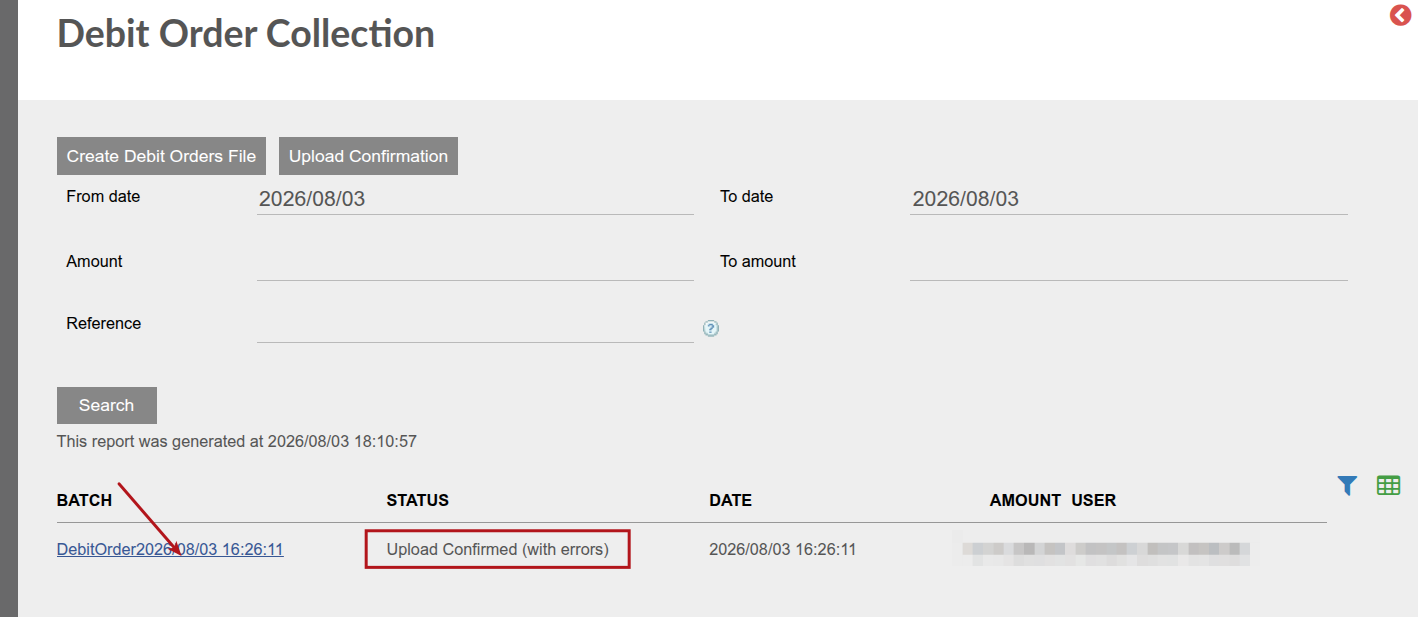
The debit order status will change to Upload Confirmed (with errors). The with errors indicate that the parsing of the PS.xml file has not been implemented

Whether it’s the Payment Status Notification or the File Status Notification, these results can be viewed by navigating to the Natwest ISO 20022 Debit Order Download Job (System -> Jobs) and under more actions click on Job Runs. The Job runs will show each attempt of Finworks to fetch a confirmation file from Natwest, and since there won’t always be a new confirmation file to fetch, the results will sometimes show status Completed Successfully, with nothing showing under “Number of Confirmation Files”.
When we did fetch a new Confirmation File from Natwest, “Number of Confirmation Files” will have a number with a hyperlink to the file received.
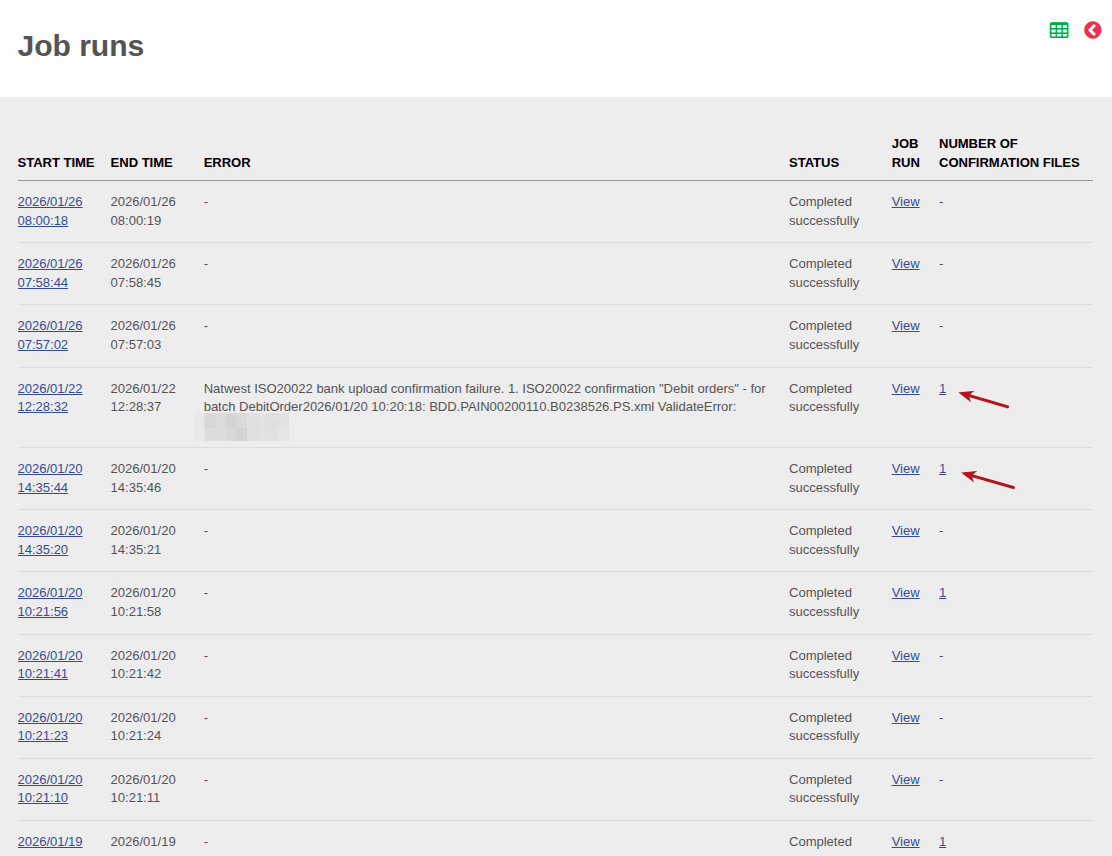
As soon as a confirmation file is available for an automatically uploaded Debit Order Collection file, we will automatically fetch the Confirmations file and update the Debit Orders in that batch.
Note at this stage we can’t confirm that the money will successfully be received from the investor, we can just confirm that Natwest has successfully initiated a debit order collection (at which stage the status of the Debit Order will be Upload Confirmed) or Natwest has already rejected the debit order collection (at which stage the status of the Debit Order will be Declined). If the Debit Order collection fails at a later stage because the investor doesn’t have enough money in their bank account for example, this won’t be reflected yet at this stage.
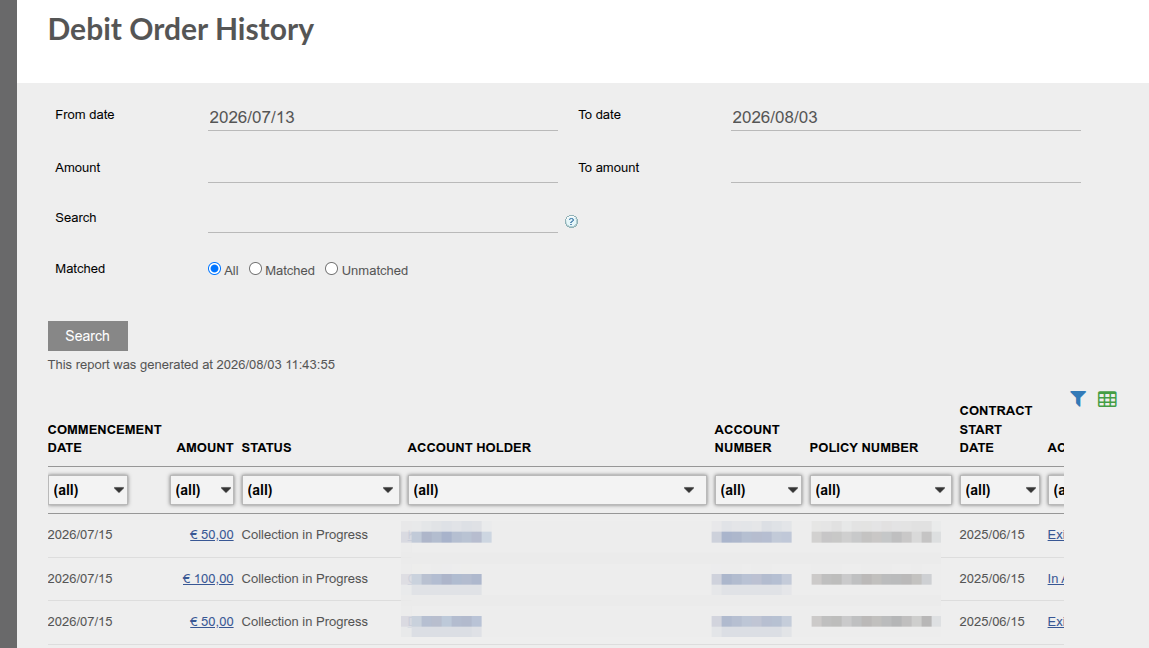
You can view these results by navigating to Banking -> Debit Order History.
Possible statuses and their meanings are as follows:
- Created (the debit order have not been included in a debit order batch)
- Cancelled (the debit order has been cancelled)
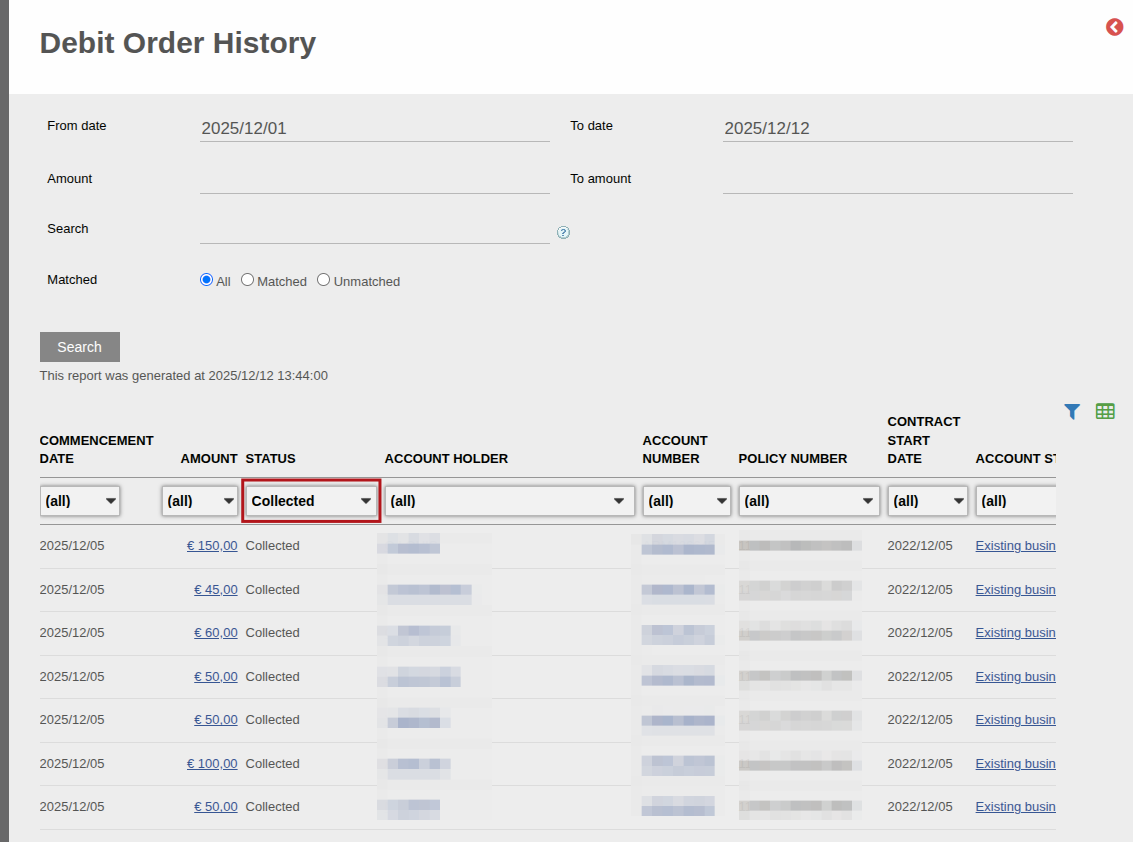
- Collected (the debit order has been collected successfully)
- Declined (the Confirmations file has indicated the debit order has been declined)
- Reversed (the collection of the debit order has been reversed)
- Collection in progress (the debit order is busy going through the process to be collected)
Importing Bank Statement
Only when a Bank Statement is imported into Finworks and the debit order matched, can we truly say that a Debit Order was successful. At this stage, the debit order status will change to Collected.
Further response files will be received via the Natwest ISO 20022 Debit Order Download Job that will provide information regarding collections and debit orders that reversed.
The results of the Natwest ISO 20022 Debit Order Download Job (declines and reversals) can be managed using the Unsuccessful debit order bank responses report as a user friendly option to access the information provided in the Natwest ISO 20022 Debit Order Download Job.
Last Updated on 1 month ago by Antoinette Van Meyeren