
Notification Message html
Outlined below is the process on generating html code from a word document and use it as a notification message
- Create and save message as .html
- Add or Edit Images/Logo’s
- Copy the .html content to the notification message template
- Linking the Images/Logo’s
Create and save message as .html
Create a notification message in i.e. Word

Save the file as .html (Option in word: “Web Page, Filtered (*.htm, *.html) i.e. Hallo World.html
- 1. Save As
- 2. Save as type

Add or Edit Images/Logo’s
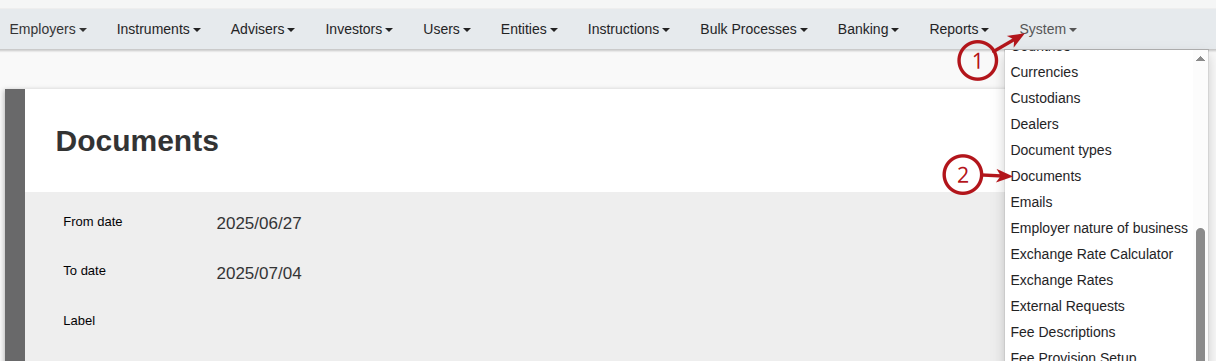
Images/Logo’s form part of the documents, navigate to System -> Documents
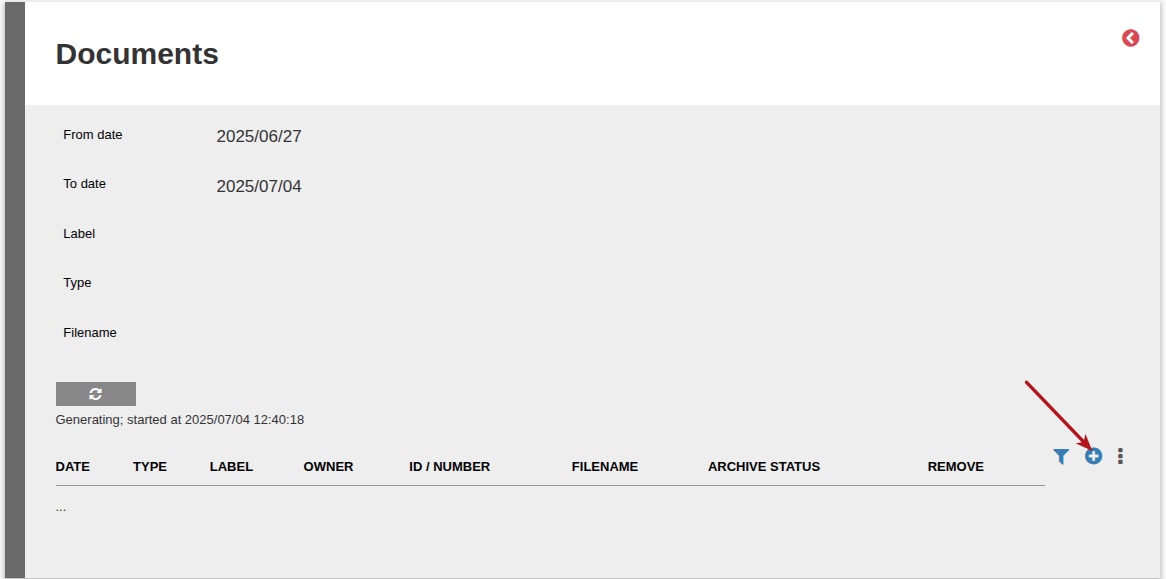
Select the Add button to add a new Image/Logo
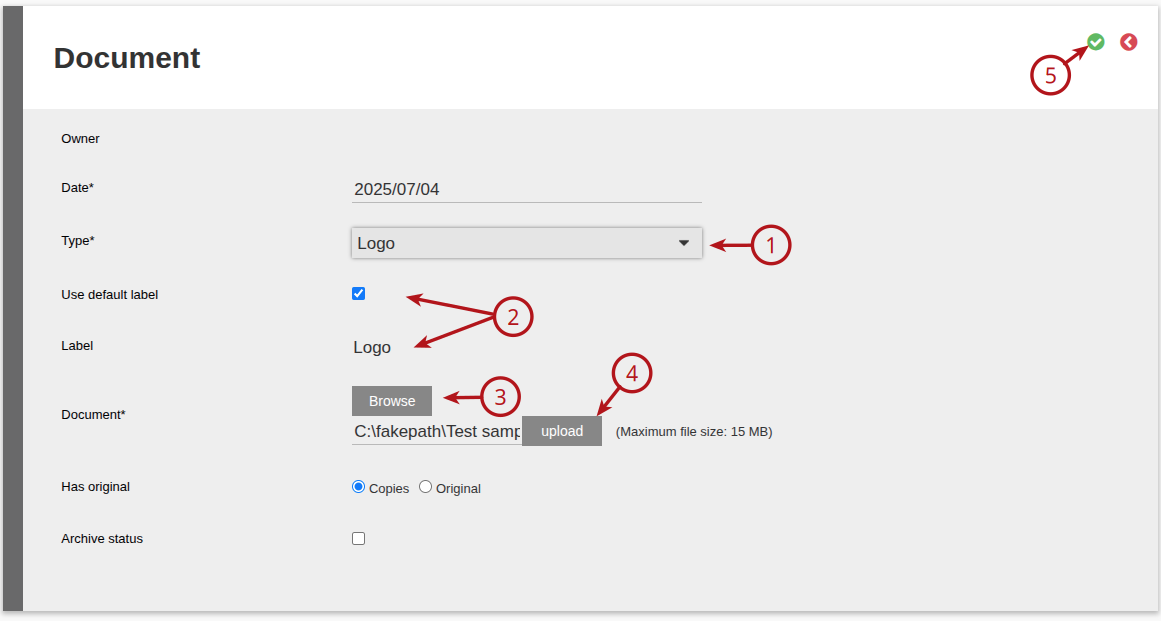
Enter the details
- 1. Select the Type* as Logo
- 2. To change the label untick “Use default label” and add a Label*
- 3. Browse for the Image/Logo
- 4. Select Upload
- 5. Select the Save button
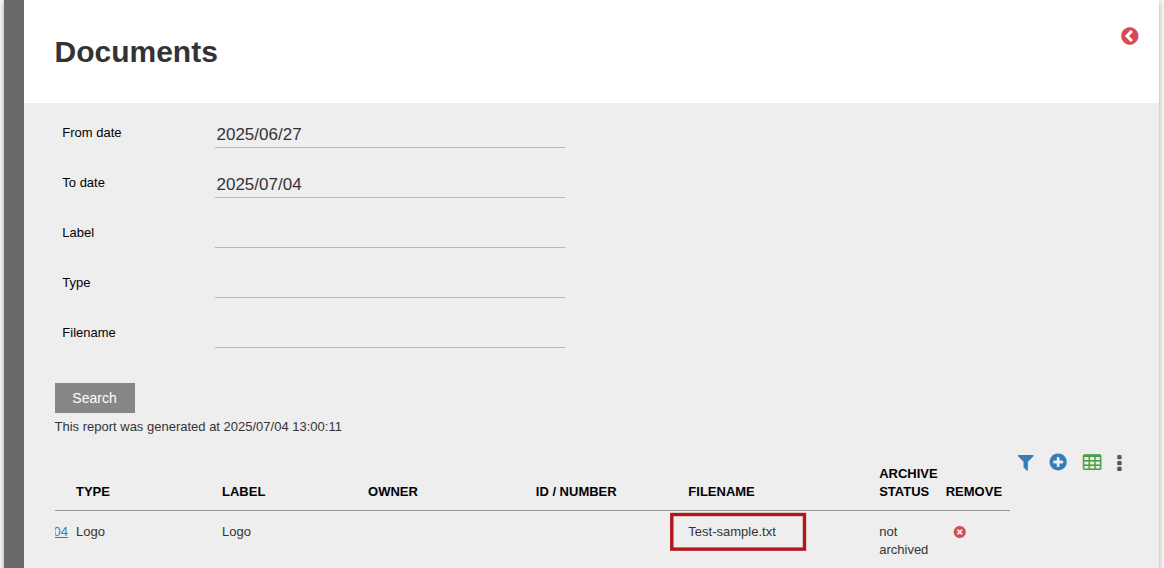
The Image/Logo that was added will now reflect in the list, take note of the Filename as this will be used in the notification message
Copy the .html content to the notification message template
Open the .html file (Hallo World.html) created above in i.e. Notepad
- 1. Right Click on the file
- 2. Select Open with
- 3. Select Notepad

Select all (Ctrl+A) in the the file and Copy (Ctrl+C) the content
Navigate to System -> Notification Messages and select a notification message i.e. Statement to Client, refer to Editing notification messages
Remove everything from the Template* – Select All (Ctrl+A) and Delete

Paste (Ctrl+P) the content that was copied from Notepad in the Template*
To increase the size of the Template* box select the bottom right corner and drag the box

Delete the CSS style section from the Template* box

Linking the Images/Logo’s
To add an image/logo navigate to where the logo needs to be inserted, in this example after “Hallo World”, and Add the following line:
<img width=”400″ src=”https://test.configuration.co.za/documents/Sample.jpeg”>

Sample.jpeg – Refer to the Image/Logo that was added above
Depending if you are working on test or production the word “test.configuration.co.za” need to be replaced accordingly
- i.e. Test: <img width=”400″ src=”https://test.configuration.co.za/documents/Sample.jpeg”>
- i.e. Production: <img width=”400″ src=”https://secure.configuration.co.za/documents/Sample.jpeg”>
The configuration “test.configuration.co.za” need to be replaced with the configuration
i.e. “test.finworks.biz”
The size of the image can be changed by setting the width “width=”400
Scroll down to the bottom of the screen and select the Test button to preview the message

Preview of the Message

Last Updated on 1 year ago by Debra Hart