
Quote Document on an Investor Account
To be able to generate Quote Document on an Investor Account the following needs to be done:
- Product setup
- Investor Account setup/requirements
- Generate a Quote Document
- Generate a Quote as Adviser
Product setup
- Navigate to a product
- From the main product view scroll down to the Settings section and set Can generate quote
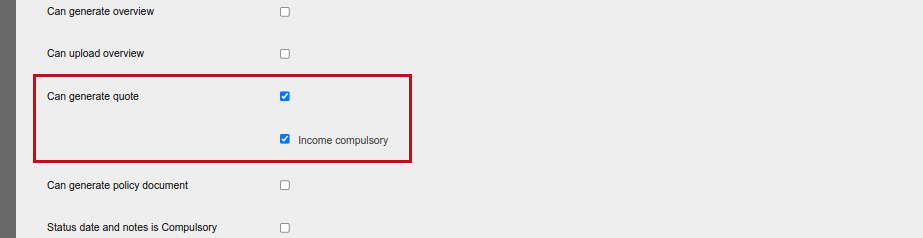
If it is required that an income must be paid on the product also select ‘Income compulsory’. In such instances a quote cannot be generated before the income section has been completed.
Note:
- On Products where ‘recurring withdrawal’ as an instruction type is not available, the income section will not be availability to be completed (Available Instruction Types can be viewed on a product->More Actions->Available Instruction Types).
- If the setting is not enabled on the Product, the ‘View Quote Document’ menu option will not be available on the Contract Details screen.
From the More Actions on the product select Document templates
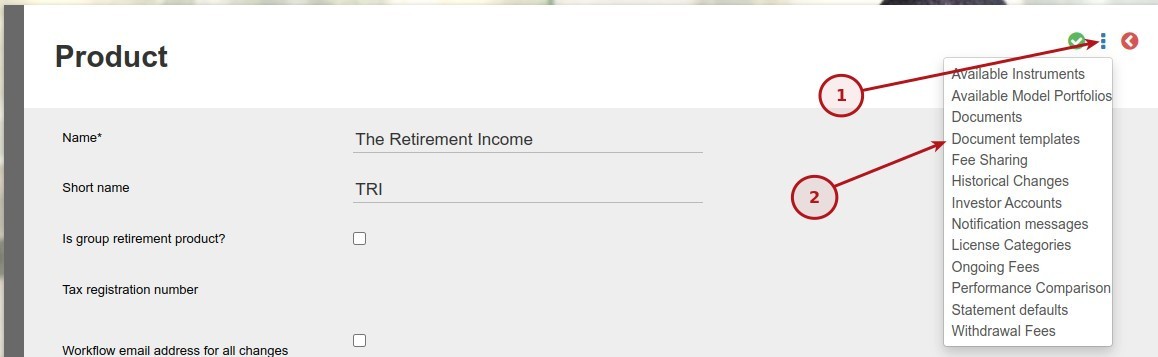
- From the list of Document templates select the Quote Document
- A logo can be added for the Quote Document
- The Main template can be customised and Sub sections can be added to the Main template
- The Sub sections can be customised and then linked to the Main template
- We also allow for a Signature and Watermark to be added
- The Styling can be edited in the Styling section and will then apply to all sections
Investor Account setup/requirements
- Investor details will be populated from the Investor Account and the Entity details on the account
- The Commencement date is used for the Proposal date & Investment start date
- If an Adviser is linked to the account the Financial adviser details will be populated
- The Lump sum investment will include Once off investments loaded on the account
- The Regular investment section will include recurring investments loaded on the account
Generate a Quote Document
-
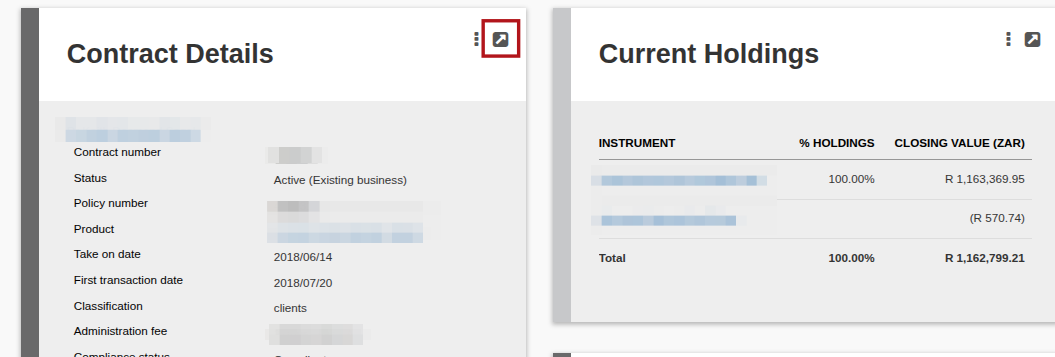
- Navigate to Contract
- From the Contract Details card select View Details
-
- Scroll down to the Documents section
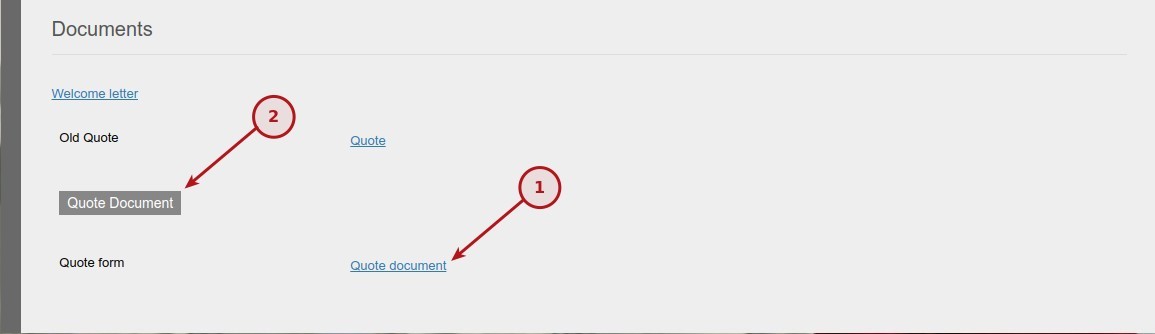
- The Quote document link (1) will show a preview of the document
- On the Quote document Button (2) the user can download the document
Note:
- If the ‘Can Generate Quote’ setting is not enabled on the Product, the ‘Quote Document’ button option will not be available on the Contract Details screen.
Generate a Quote as Adviser
- The Advisor needs the required permission to generate quotes and can contact their administrator to set the required permission. Permission required to generate a quote – Global permission ‘Quote -individual. To accept or decline a quote the global permission ‘Accept and decline quotes’
- Navigate to Investors -> Quote
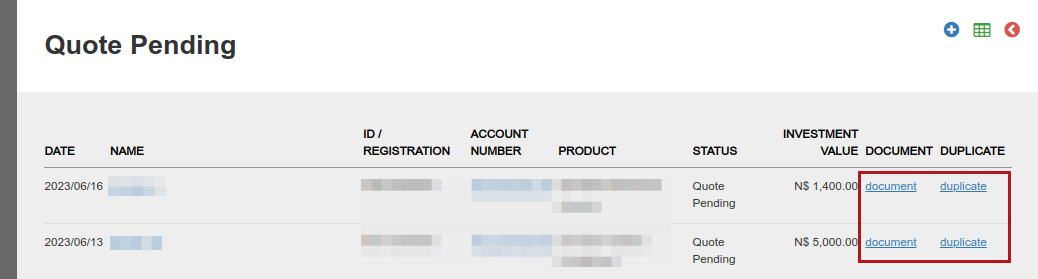
- If existing Quote Pending exist they will be listed in the table
- To add a new Quote click on the Add button to start the process
- Click on the document link to download the Quote
- To generate a new quote on a potential investor, the duplicate button can be used to prevent having to complete the details of the potential investor again
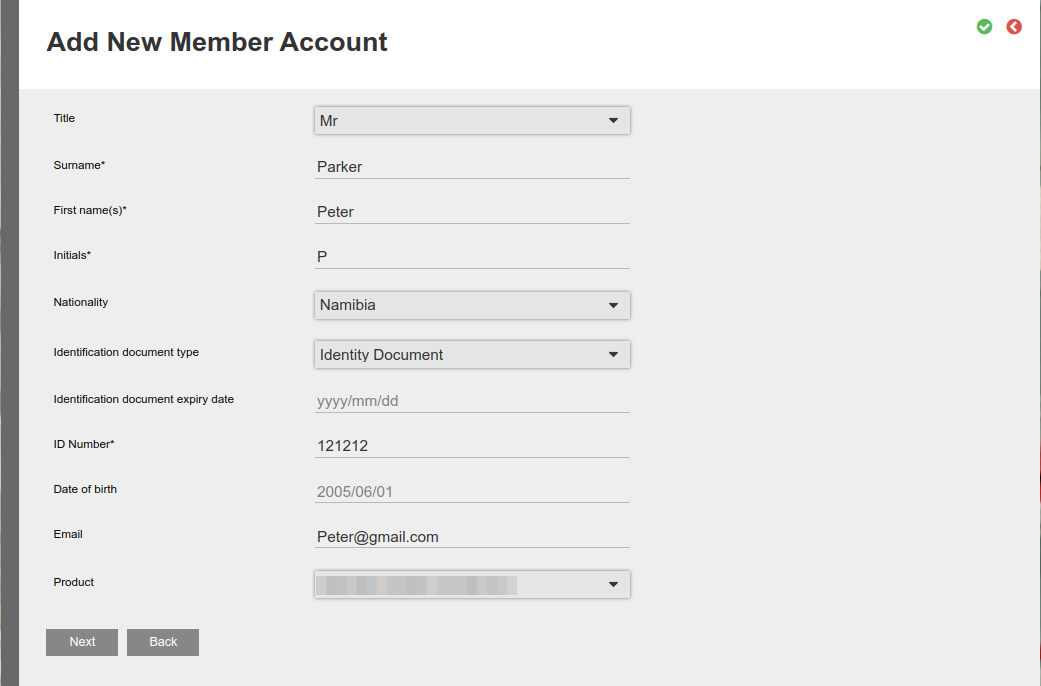
Add New Member Account
-
- Capture the personal details.
- Select the Product, take note of the following:
- The list of products will be dependant on the Product setup
- The list of products will also be dependant on the Available products set on the Adviser
- If logged in as the Adviser the above will apply and only the applicable products will be listed
- If logged in as a administrator a warning will be displayed if the selected adviser does not have the Product listed in the Available products on the adviser
- Once completed click on the Next button
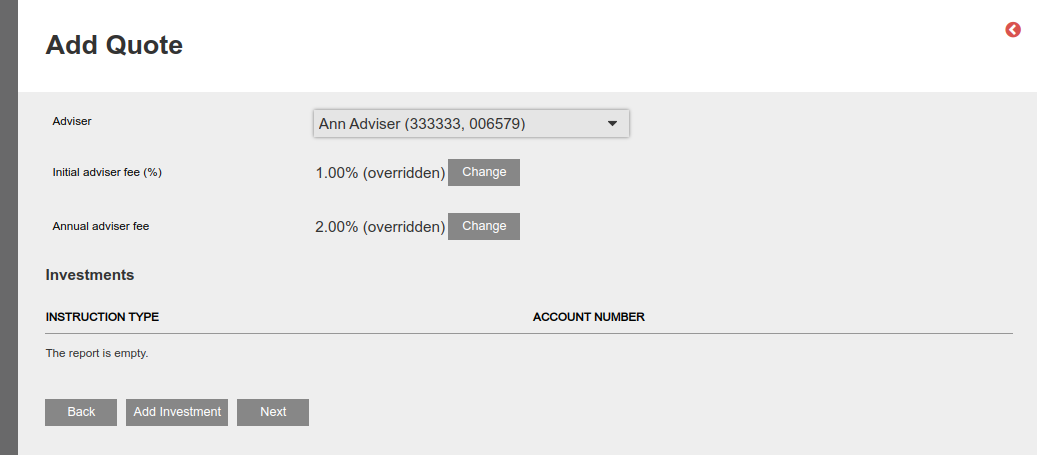
Select Adviser
- Select the relevant adviser from the drop-down list
- Add initial – and annual adviser fee (these fees will be updated on the adviser card of the potential investor)
- If the user has the global permission ‘Investor admin’ or ‘Change fees on quote’ other fee types as set on the product will appear and can also be changed by the user
- Select ‘Add investment’ or ‘Next’
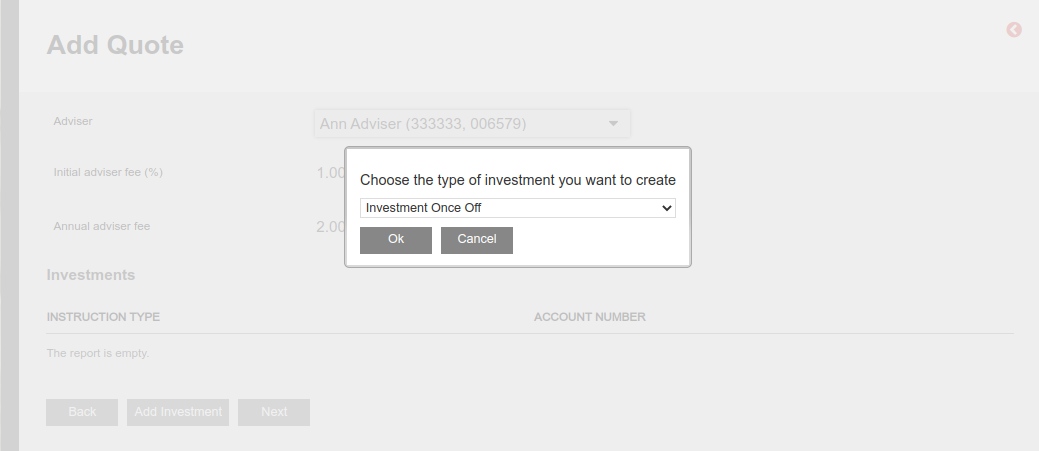
Select the relevant investment type from the drop-down list and click ‘OK’
Also see Available instruments setup for quote documents
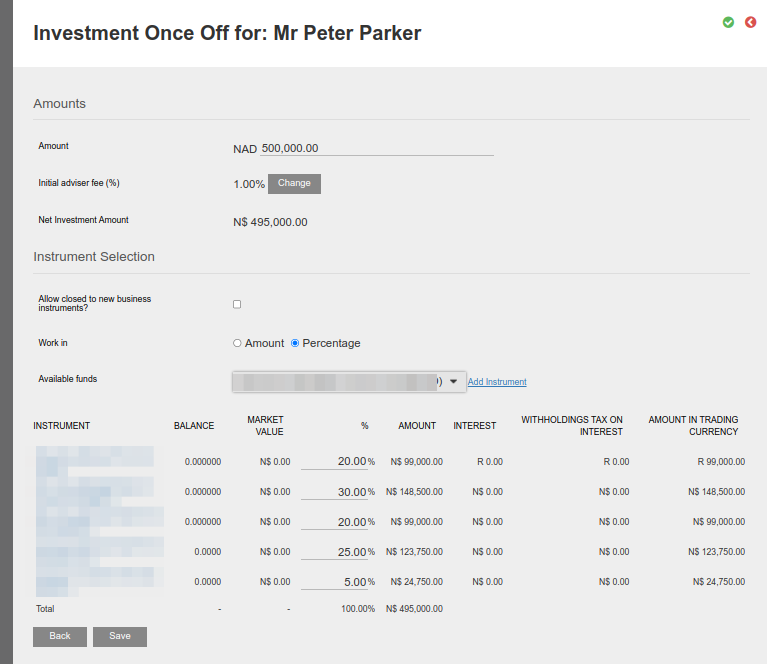
- In the Amount Section, the amount must be updated (this will be the amount for the “Lump sum” [once off investment] or the “Regular investment” [recurring investment])
- The initial adviser fee can be overridden for the relevant investment
- The administration fee etc. can be overridden for the relevant investment if the user has the required permission, “Investor admin” or “Change fees on quote”; refer to Global and Group Permissions
- It is important to note that unannualized investment and applicable fee values are displayed on quotations
- Instrument Selection Section in the “Work in” section select “Amount” or “Percentage”
- From the Available funds list select the fund and then select the Add Instrument to add the instrument to the list of instruments
- If Amount was selected in the “Work in” option enter the amount split per instrument
- If Percentage was selected in the “Work in” option enter the percentage split per instrument
- Complete the instruments to be invested in and select save
NOTE:
- If the Product selected require Regulation 28 validation and the investment instruction (Once off or Recurring) does not comply with the regulation 28 validation a screen error will be displayed to indicate that the investment is not compliant and the quote cannot proceed. The fund selection and/or percentages will have to be updated to be compliant before the quote can proceed.

- A summary of the investment loaded above will be displayed
- Select ‘Add investment’ if a “Regular investment” [recurring investment] also needs to be included in the quote and follow the same process as with the “Lump sum” [once off investment] above
- If all relevant information for the quote has been completed, select ‘Create Quote’
- If an income needs to be added to the quote, select ‘next’
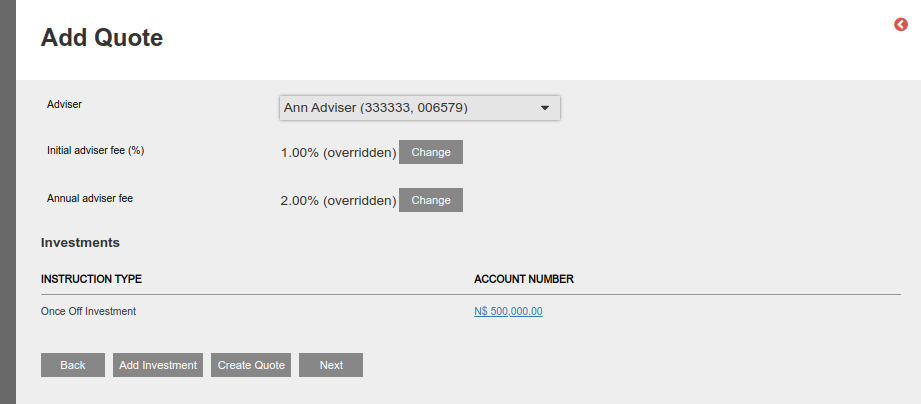
- A pop-up will appear on which ‘add income’ can be selected
- If no Income should be added to the quote, select ‘No’, which will create a pop-up to select if the quote should be created
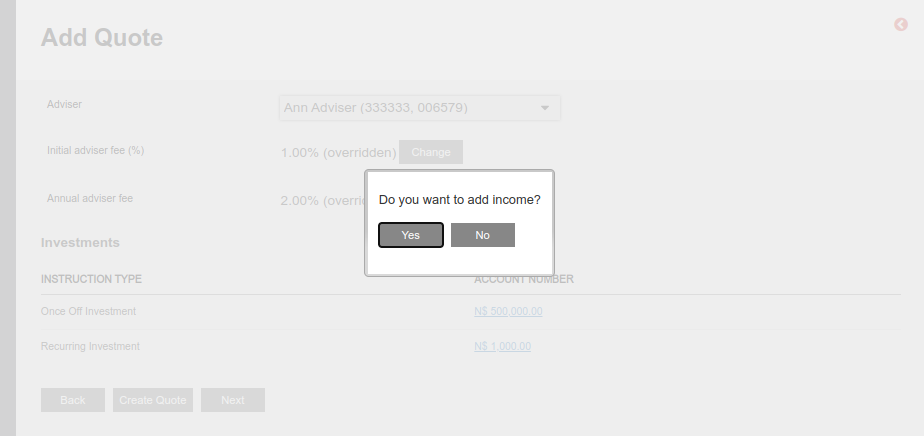
- Selecting ‘No’ will return the user to the ‘Add Quote page
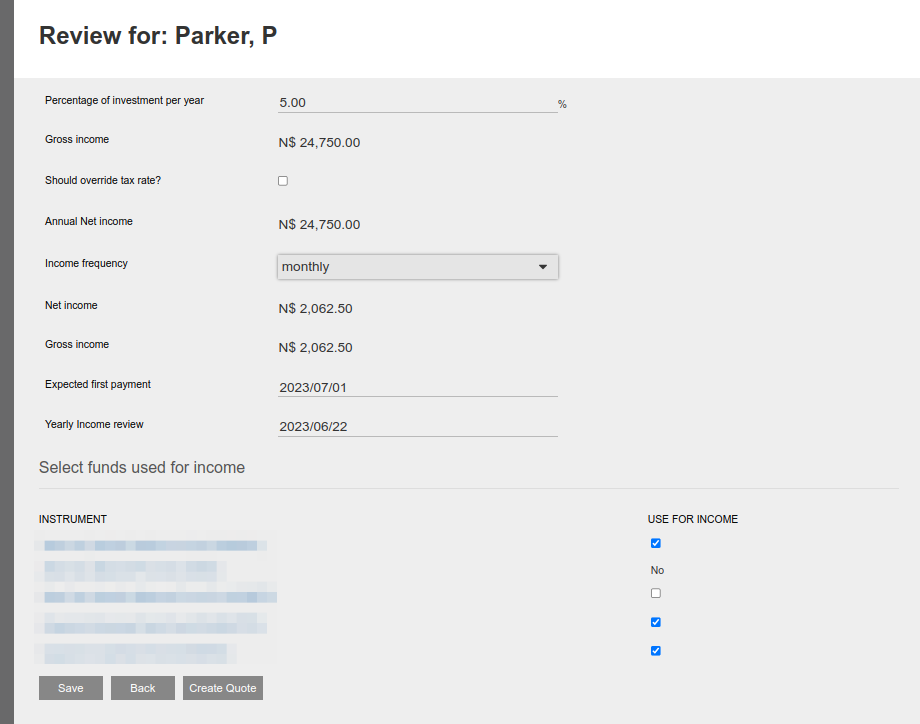
- Selecting ‘Yes’ will proceed to the Review, where details for income can be completed
- Instruments that is not available for income (recurring withdrawals) as indicated on the instrument->View Details (Can be used for recurring withdrawal not selected), will not be available to be selected to use for income. The relevant instruments to be used from the available instrument from which income is allowed can be selected
- Income frequency can be selected, which will display the Net income and Gross income as per the frequency selected
- A quote can now be created or the back button used to make changes to information already added
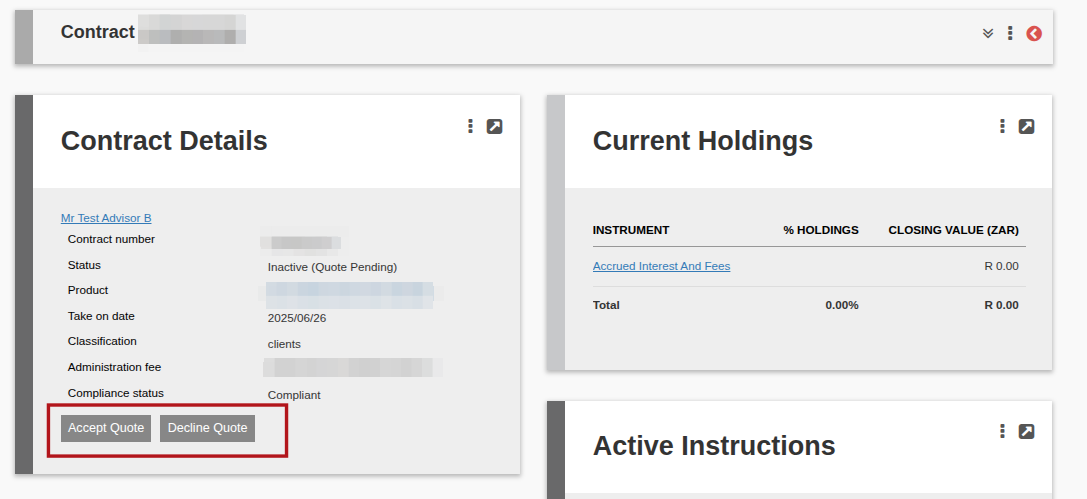
The quote can be accepted or declined on the account
Also see Fee Types displayed in individual quote document
Last Updated on 2 months ago by Jamie Chinsamy