
Recurring Switch
Overview
- A Recurring Switch can be created on an Once-off investment for a phase-in into instruments.
- The Once-off investment amount will be divided into a number of recurrences.
- For example 100,000.00 needs to be invested over the next 4 months.
- For the 1st recurring the 100,000.00 (less fees plus interest) will be devided by 4 and the first switch will be created.
- The 1st Recurring needs to be Authorise manually.
- For the 2nd recurring the remainder of the 100,000.00 less the 1st switch (less fees plus interest) will be divided into 3 and so on for the rest of the recurrences.
- As part of the daily jobs process, from the 2nd recurring onwards, the status will be changed from Ready to Recur (auto recur) to Authorised on the set commencement date.
General
-
- The option needs to be set on a Product level, navigate to the Product -> More Actions -> Available Instruction Types.

-
- If set on a product the “Should phase in?” option will be available on a “Once-off investment” Phase In section.

-
- The following option are available on the Phase In:
- Frequency: Can be set to Monthly, Quarterly, Bi-annually or Annually
- Day of month (0 if it is the end of the month)*: Set the day for the first recurrence to start.
- The following option are available on the Phase In:
Example 1
-
-
-
- Commencement date: 2023/10/04
- Day of month (0 if it is the end of the month)*: 1 (Day before Commencement date, the next month will be used).
- 1st recurrence will be: 2023/11/01
- 2nd recurrence will be: 2023/12/01
-
-
Example 2
-
-
-
- Commencement date: 2023/10/04
- Day of month (0 if it is the end of the month)*: 15 (Day after Commencement date, the current month will be used).
- 1st recurrence will be: 2023/10/15
- 2nd recurrence will be: 2023/11/15
-
-
Example 3
-
-
- Commencement date: 2023/10/04
- Day of month (0 if it is the end of the month)*: 0 (Last day of the month will be used).
- 1st recurrence will be: 2023/10/31
- 2nd recurrence will be: 2023/11/30
- Total number of successful recurrences required: Set the number of recurrences required
- Instrument to phase in from: Specify the instrument for the phase-in into the funds. NOTE: The funds will reflect on the instrument but will be blocked for other instructions (as it is earmarked for the remaining recurrences).
-
Adding a Recurring Switch
-
- Navigate to the Investor Account.
- Add an Once-off investment, for more details refer to Adding, Editing and Cancelling Instructions.
- Set the Should phase in? option in the Phase In section and enter the required parameters.

-
- Complete the remaining items on the Once-off investment and submit the instruction.
- On the Instrument Selection section: Work in: the Amount option is the only option allowed for Recurring Switches.

-
- If the Once-off investment is Submitted and Authorised (1) the DATE (2) link on the Recurring Switch will not be active and the Recurring Switch will be in the state New.

-
- Once the Once-off investment is Completed the status of the Recurring Switch will be Submitted and the DATE link on the Recurring Switch will be active to edit and manually Authorise the 1st Recurring Switch.

-
- Edit and Authorise the 1st Recurring Switch, the status will change to Authorised.
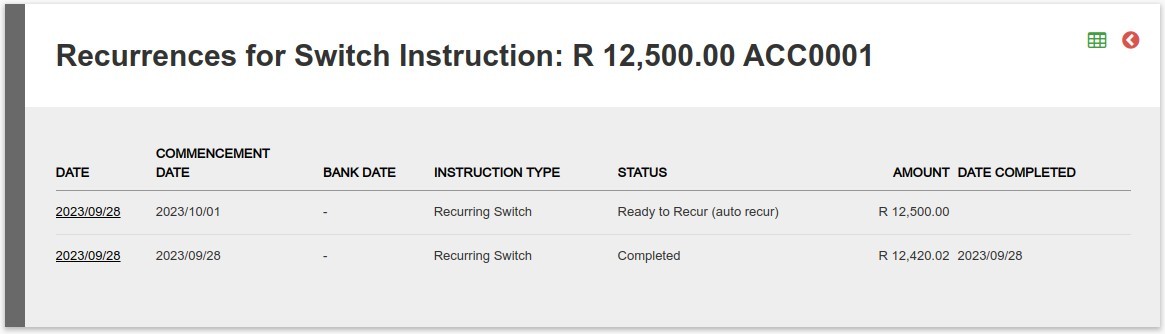
- Once the first recurring has been processed the following recurring will be created and the status will be Ready to Recur (auto recur).

-
- A list of recurrences can be shown as below, refer to View Recurring Investments In A List Of Recurrences.
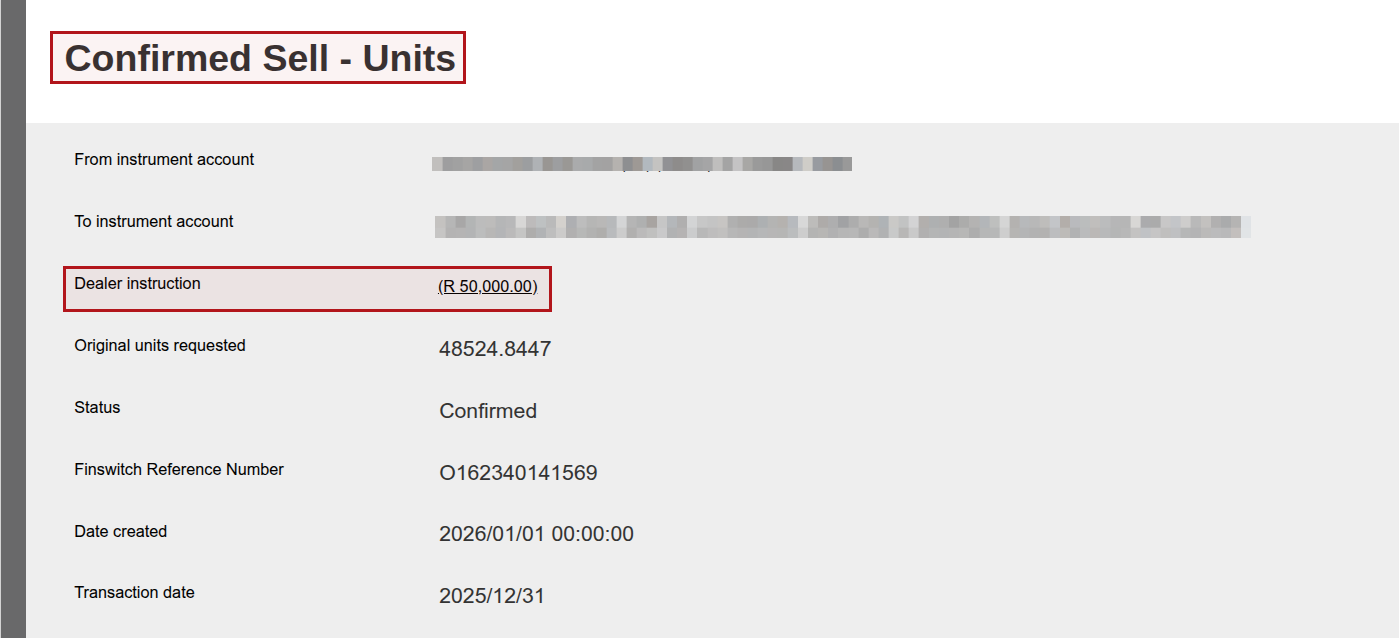
If instrument to phase in from is not a cash instrument
The final recurring switch’s sell leg will be changed in the system to a 100% unit sell to clear the instrument to phase in from.
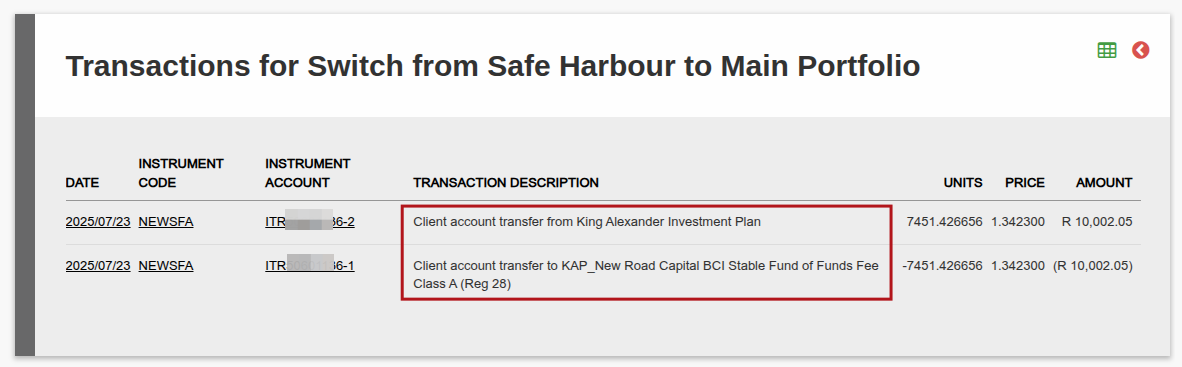
Recurring Switch into a Model Portfolio
If you create a recurring switch from one fund into a model portfolio where the same fund exists in the model than the one being sold, then that portion of the “sell” and “buy” will be executed as a client account transfer, instead of an execution in the market, since the investor already owns those units.
Last Updated on 11 months ago by Beryl Braak