
Automatic Distribution of Statements by Email
This article covers how to setup automated sending of statements via email to investors and advisors, and how to review the results after the batch has run.
Automatic statements cover a period up to the end of the month preceding the selected day of the month on which statements are generated and emailed (except in the instance as stated in C below).
At the same time an email will be sent to the workflow email address stating for which investors emails were sent, as well as a list of investors, who are setup to receive statements, but to whom emails could not be sent.The same will be done for advisors. In the case of the advisor, the advisor’s name will be shown if the email was sent successfully, and if not sent successfully (for whatever reason) then the investor’s name will be shown and the reason will say that the Advisor’s email has not been sent.
A. Activating Automatic Statements for Investors and Advisors
Please see this article which explains how to setup and change communication preferences for both an investor and an advisor. This will control who will receive a statement once the automated job is setup.
B. Creating the Scheduled Job
See the following article which explains how to setup an automated job and all the available detail regarding the configuration of an automated job. There you will see there is an existing Automatic Email Statements Job which is what you will use.
Go to System, Jobs, Automatic Email Statement Job to set the day of the month and time on which statements will be sent out:


C. Override to date of statements send out
As stated in the introduction ‘Automatic statements cover a period up to the end of the month preceding the selected day of the month on which statements are generated and emailed.’
In an instance where a once off email statement job run is needed where the statement end date should NOT be the end of the month preceding the selected day of the month on which the statements are generated and emailed, there is an option available on the job to facilitate this ‘Override to date’.
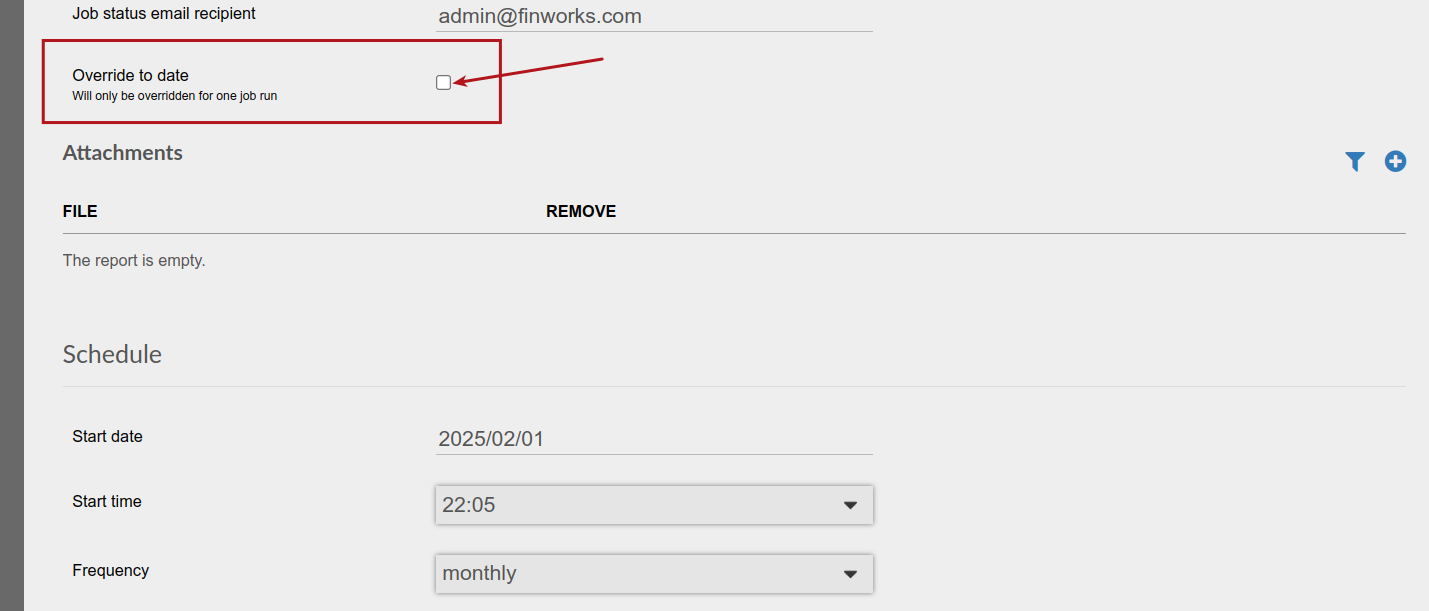
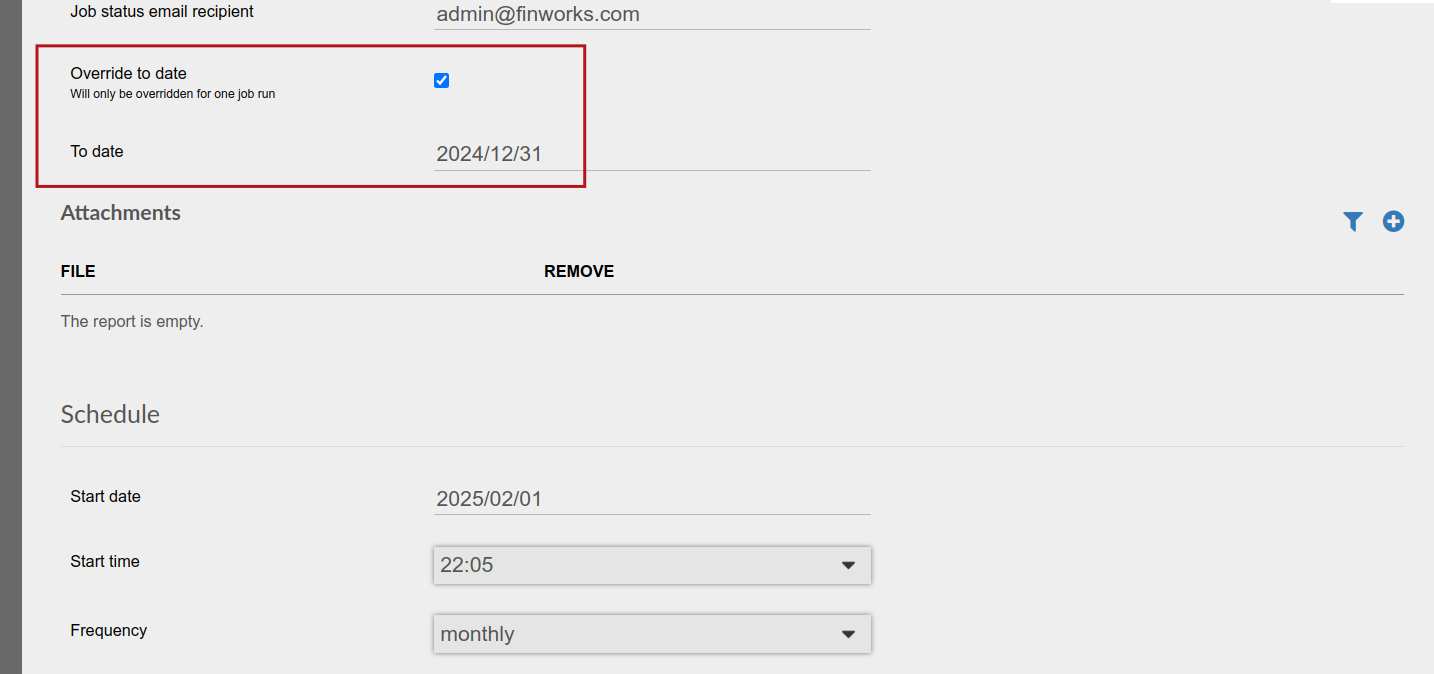
In the example in the pictures above the Start date of the email statement job is set as 2025/02/01. If the Automatically Email Statement Period on the client contracts have been setup to be for 12 months, the statements would be generated and send out for the period 1/02/2024 to 31/01/2025 if the ‘Override to date’ is not used on the email statement job.
By using the selection and setting the ‘To date’ to 2024/12/31, the statements will be generated and send out for the period 1/01/2024 to 31/12/2024.
TAKE NOTE, this functionality will only work on a new Automatic Email Statements Job that has been added, an not on an existing job where job runs have already been done.
Since this functionality will be used in exceptional instances it is suggested that a new Automatic Email Statements Job be added, the functionality activated and the job run done after which the relevant Automatic Email Statements Job be deactivated. A new Automatic Email Statements Job can be added when the functionality is required at a later stage.
Note: Statements for contracts with a company as account owner are send to the email address/s (more than one email address can be loaded, separated by a comma (,) without spaces) of the contact person on the company and not to the email addresses as loaded on the contact details card of a company.
D. Results following a completed run
Job Runs Results
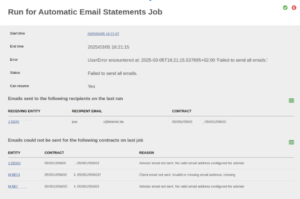
Following a completed run, you can navigate to System -> Jobs -> click on the appropriate Job -> More Actions -> Job Runs and click on the Start Time that you want to view the results for. Here you will see Emails sent to the following recipients on the last run , which will show Receiving Entity, Recipient Email and Contract. In the case of a Combined Statements job, the contracts will not by hyperlinks. However in the case of individual statements being sent, the contract numbers will be hyperlinks, and will take you to the relevant contract details page.
The receiving entity could either be an investor or an advisor.
There will also be a section named Emails could not be sent for the following contracts on last job.Here you will see Entity, Contract and Reason.In the case of a combined statement job run, the contract column will list all the contracts included in the statement, which if multiple will be a list of comma separated contract numbers.
The Reason would be either:
1. It’s an invalid or missing email, which would only show if the specific entity was meant to receive a statement based on communication preferences, this is relevant to both an investor and an advisor.
2. The Reason in the case of Combined Statements, could be that the investor has multiple contracts where one of the contracts are linked to a different broker than the others, and all advisors were setup to receive statements, then there will be an error stating Adviser email not sent. More than one advisor for combined statement.
Email Summary of Job Runs Results
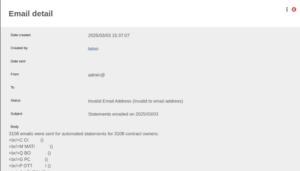
Following a completed run, the email address configured in System -> Configuration as Admin email address, will receive a summary email of all emails sent in an automated email statement job run. You can also view this email by navigating to System -> Emails and searching for subject line Statements emailed on yyyy/mm/dd.
Here you will see all names of investors and advisors who received an email. You will also see all emails that were not sent, and the configuration is such that one would expect them to be sent, i.e. communication preferences say that the investor and/or advisor should receive but they didn’t receive. Here you will see the investor name, and the reason why the email was not sent.
Last Updated on 2 years ago by Adrienne Dill