
Import bank statements and matching bank entries
Importing bank statements
If you create a new product and import the first bank statement:
a. Make sure you have ALL the bank account entries on the bank statement
OR
b. Manually add a first bank entry for the opening balance.
See this article on Bank Import formats catered for to see which formats we currently have available.
Once imported you cannot “update” the bank account by importing the same transactions again with different amounts. We do not allow you to import bank entries prior to already existing entries.
New entries must follow upon old entries. We identify duplicates by amount, description and date and will ignore these. We also do a check on the running balance to make sure this matches with the bank statement.
The import format is set on the instrument account of the bank account.


Matching bank entries
When a bank statement is imported, the entries can be matched to investor instructions automatically if the following conditions are met:
- ‘Automatically match investments on submit’ is enabled via system -> config, and
- The instructions are in a ‘submitted’ status
- The bank entry reference used matches the ID/Company Number or Surname of the contract owner, or the Contract Number, where the instruction exists.
If the set up, instruction status and bank entry reference conditions are met, deposits will automatically match upon importing the bank statement or by manually triggering the automatic matching process from the supplier instrument account card.
Please refer to the Automatic Matching of Deposits helpfile for more details on using the automatic matching functionality.
Bank entries may also be manually matched by following these steps:
- To view imported bank entries:
- Navigate to the supplier instrument account associated with the bank account (Banking -> import bank statements -> click into supplier instrument account)
- Select the ‘view details’ arrow on the ‘Transaction summary’ card
- Entries can be searched according to the date range, reference, amount or matched/unmatched/partially matched status:
- Use the ‘from’ and ‘to’ date, amount, reference and note fields to refine your search for specific bank entries
- Use the ‘Matched’ options to filter for
- ‘All’
- ‘Matched’ – a bank entry where the full amount has been matched to an instruction or identified to a contract
- ‘Partial’ – a bank entry where the full amount has not been matched, and only a portion of the bank entry’s amount has been matched to an instruction or identified to a contract
- Unmatched

- Bank entries which are unmatched can be:
- Matched to a specific instruction on a contract (contract -> click into the instruction -> Instruction screen menu: Match Bank Entry -> select entry and ‘Match’)
- Matched in bulk via the ‘Match deposits’ screen. See link for more information on the Match Deposits functionality (Banking -> Match Deposits)
- Manually identified to a contract by selecting the entry/entries and the ‘Identify As’ button:
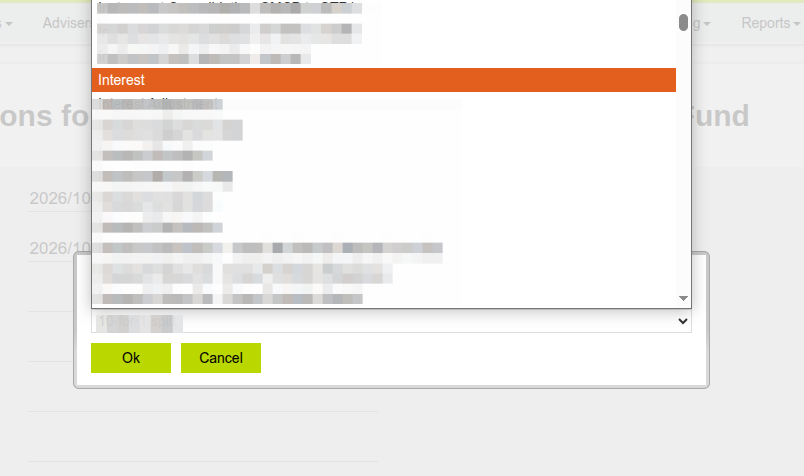
- Use the drop down on the ‘Choose the transaction type’ pop up to select the transaction type that is applicable to the bank entry (for example: interest earned in a bank account can be labelled as ‘Interest’)
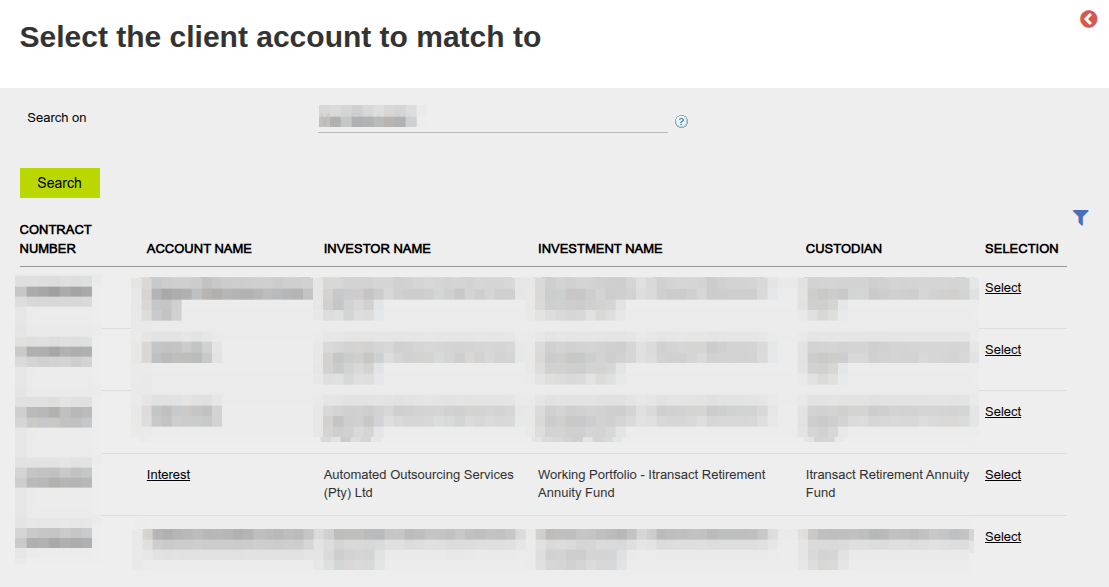
- Select the client account to match to on the next screen (for example: interest earned should be identified to the ‘Interest’ client account on the working portfolio where the custodian matches the Account Holder of the bank account where the positive interest entry was identified). See link for more information on interest transactions and the Interest Client Account on Working Portfolios.
Last Updated on 2 weeks ago by Hayley Jerram