
Performance Fee Setup
In order to use Performance fees, the following configuration needs to be done:
- Create a Benchmark with prices for the relevant period, refer to Creating a Benchmark.
- Load a Benchmark Composition on the Collective Investment Scheme.
- Define various Performance Fee variables on the instrument. See detail regarding a High Water Mark here.
- View Performance Fee calculated on the Fund.
- Add the Fee Type.
- See Setting up Fee Types, and add Performance Fees.
- Load the Fee Type as an Ongoing fee on the Product.
- See Adding Fee Types on a Product, and add Performance Fee type as an Ongoing fee on the relevant Product(s)
- Complete a Fee Run for the Performance Fee type.
- See Doing a Fee Run, and do a fee run for the Performance Fee type
- After completing a Fee Run for the Performance Fee type, the Performance Fee report (fund -> more actions -> performance fee) will reflect the fee collected in the ‘fees taken’ column, with the net accrual balance reducing accordingly with the amount of fees taken.
Create a Benchmark with Prices
A Benchmark is used when calculating performance fees, to determine whether the fund performance is better than the benchmark or not. In order for the Performance Fee calculation to be done, you need to have the relevant benchmark(s) uploaded to the system, with prices for the period in which the fees will be calculated.
- Under Instruments -> Benchmarks load the relevant Benchmark

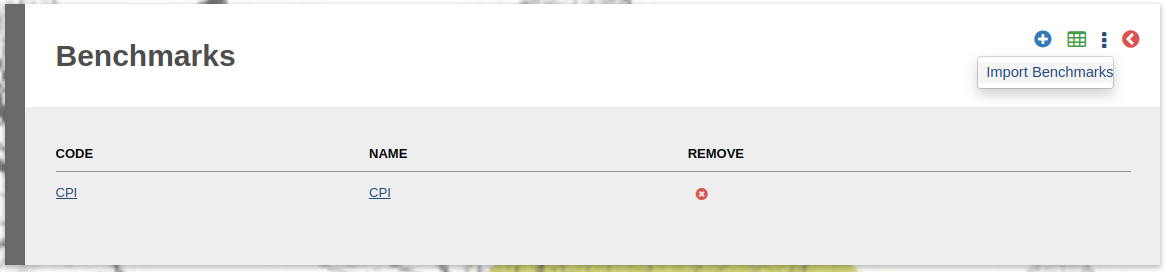
- Then import Benchmark prices if there aren’t any. On Instruments -> Benchmarks -> More Actions select Import Benchmarks:
- To import Benchmark prices create a spreadsheet with the following column headers as a minimum:
- Position Date
- The date of the relevant price
- Security Number (Full)
- The Benchmark code
- Price (Price File)
- The price of the benchmark for that date
- Position Date
Load a Benchmark Composition
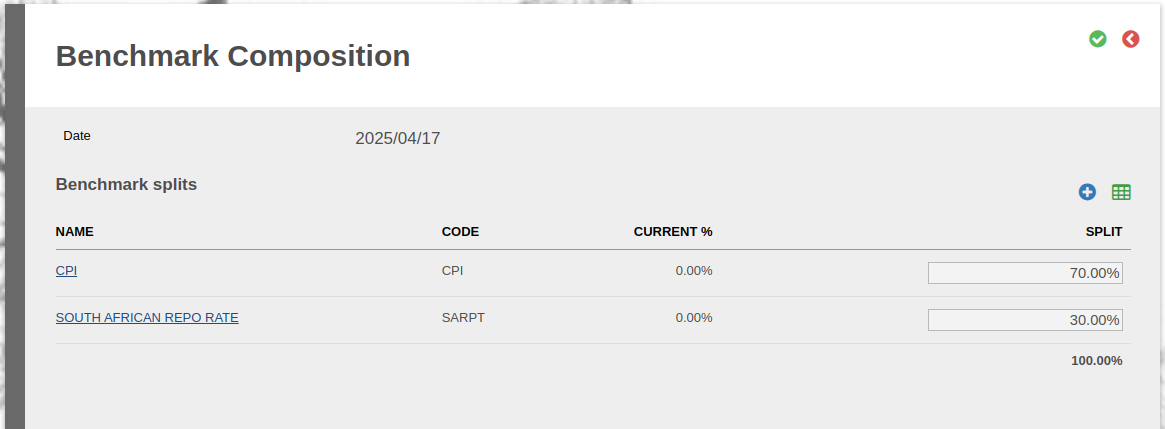
When calculating a Performance fee, we can reference multiple Benchmarks, and allocate different weights to each benchmark. I.e. the performance of the fund against benchmark A should contribute 30% and the performance of another benchmark should contribute 70%. This is called the Benchmark contribution. This gets loaded against the Collective Investment Scheme. This means that Performance fees can only be implemented on instruments that are associated with a Collective Investment Scheme.
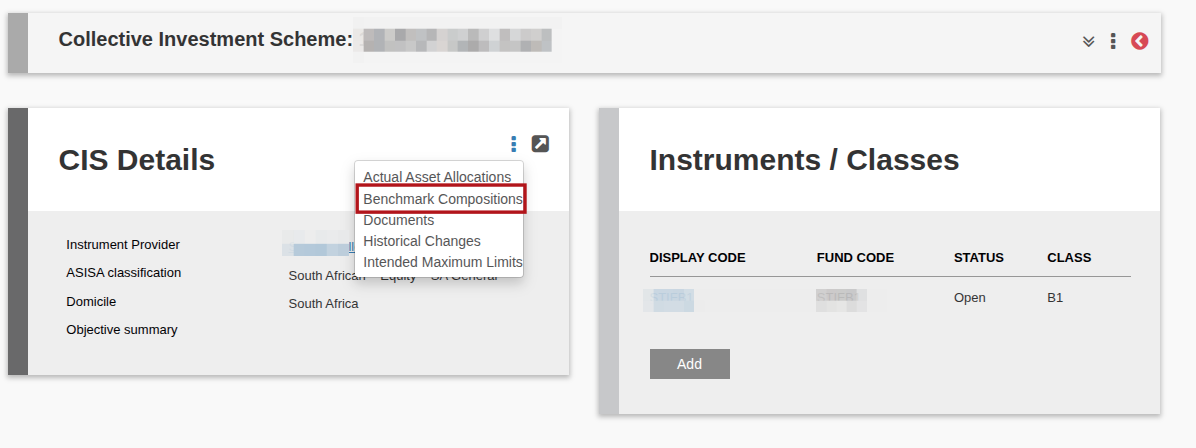
- On the Collective Investment scheme, under More Actions, select Benchmark Compositions.
- You’ll see all loaded Benchmarks, and will only be able to select “link” if the Benchmark has a price associated with it. Once you’ve linked all the benchmarks you want to include, you can return to this page, and enter the percentage contribution of each benchmark and save.
Performance Fee variables on an Instrument
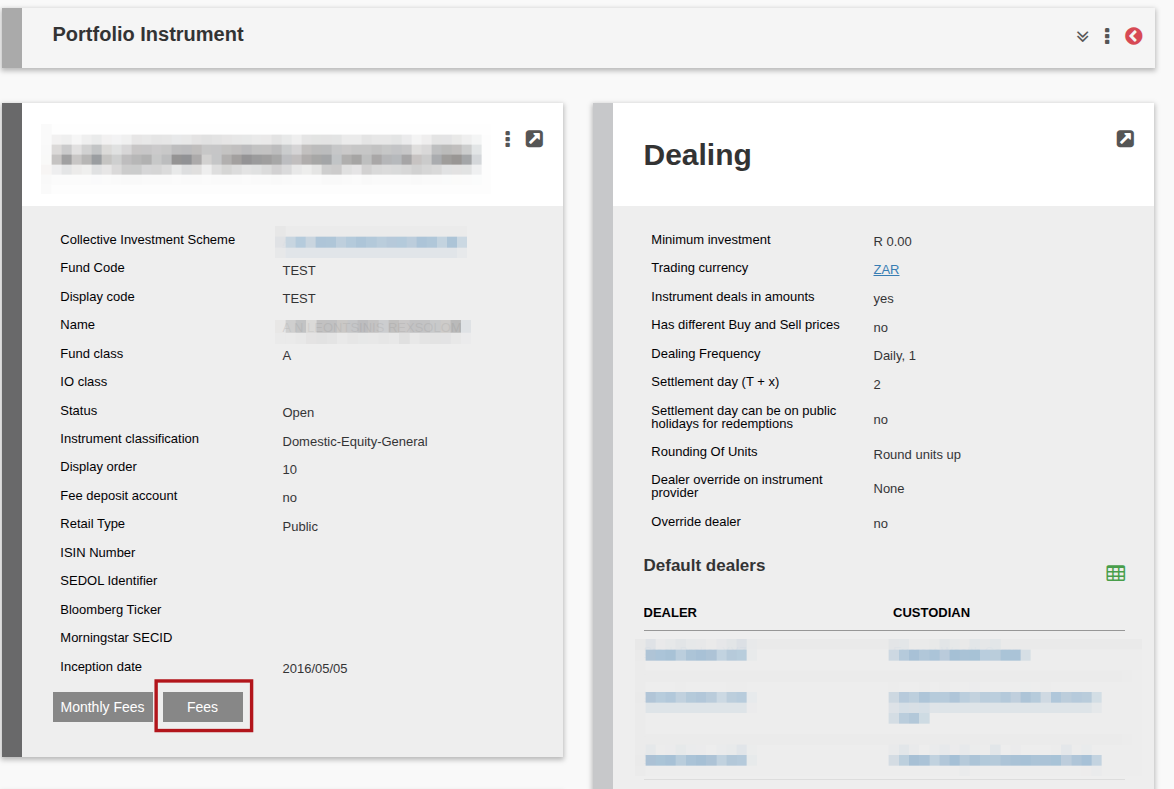
- Navigate to the fund where you want to earn Performance Fees and on the Fund card, select the Fees button:
- Navigate to the Performance Fees section, and populate the relevant variables that will determine how your performance fee will be calculated and save.
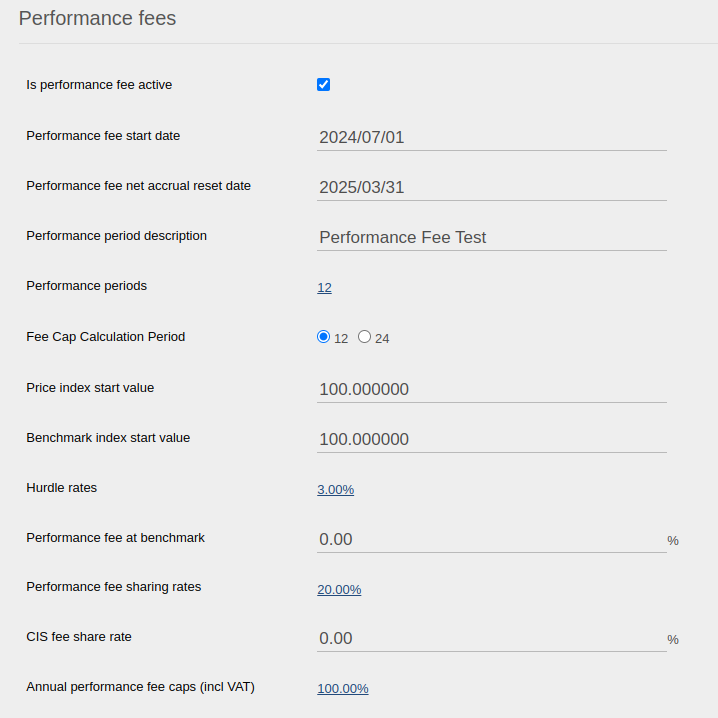
View Performance Fee Calculated
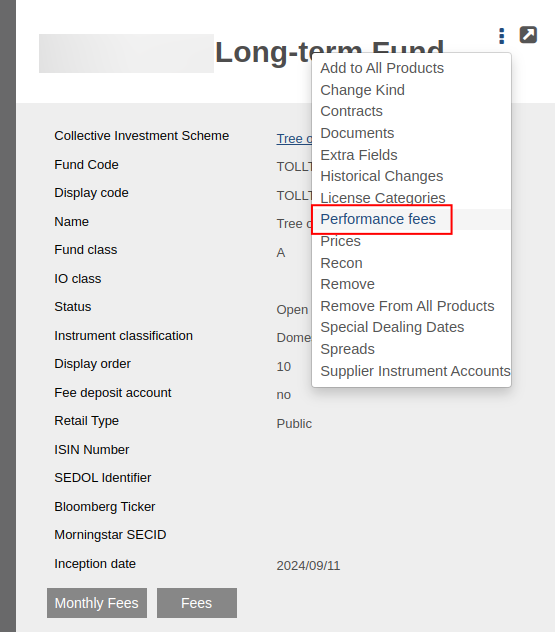
- Once the above setup is done, you can view the performance fee calculated per fund, by navigating to the Fund card and under More Actions select Performance Fees.
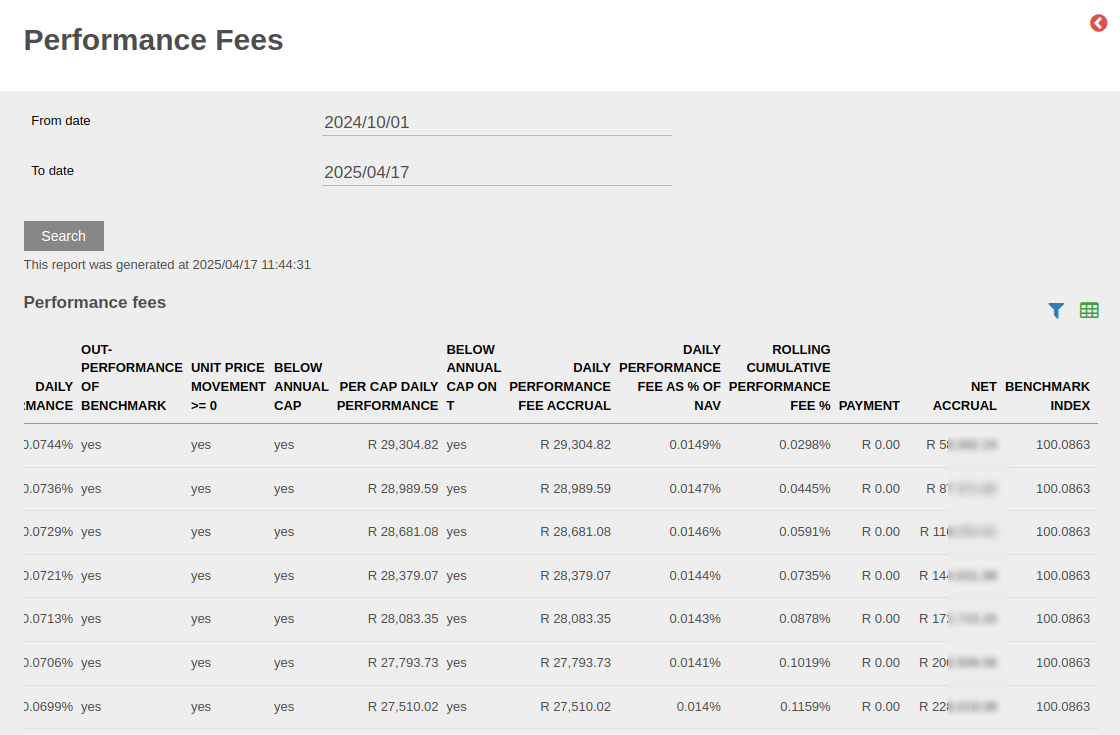
- Then you can see how all the variables contribute to a Net Accrual value which is the total Performance fee that will be earned on that fund.
High Water Mark
On the Performance fee settings (Instrument card -> Fees) you can select “Use High Water Mark” and provide a start date:

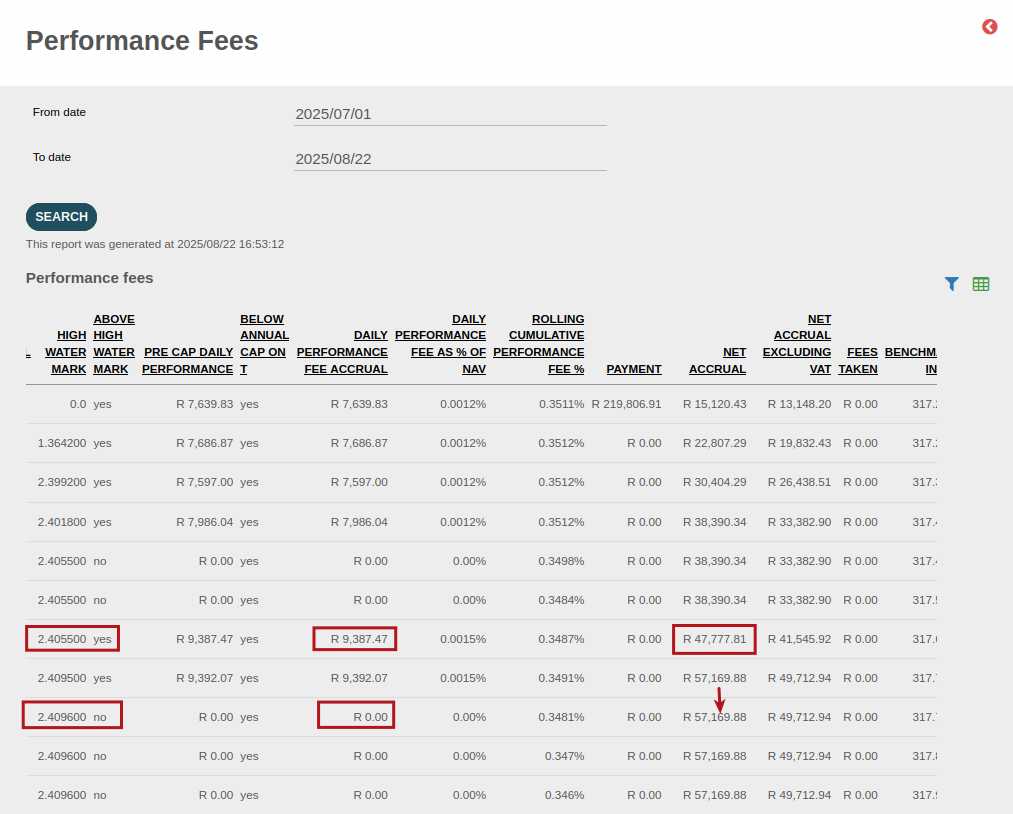
The system will then store the High Water Mark as the highest known price from the start date onward. Only when the day’s price is higher than the High Water Mark, will a daily fee accrual take place, and thus increase the Net Accrual value. If the price is <= the High Water Mark, then there will be no daily fee accrual and the Net Accrual value will stay the same.
The high water mark value will only be set, if there was a performance fee accrual the previous day, then the high water mark will become the previous day’s price. If there is a distribution on this “previous day” then the High Water Mark will be equal to the previous day’s price minus the distribution value.
You can see what the High Water Mark is, and whether today’s price is higher than the High Water Mark by navigating to a Fund -> more actions -> performance fees, and using the columns High Water Mark and Above High Water Mark.
Last Updated on 9 months ago by Tinus Burger