
Review Letter
As part of the Review Letter refer to the following:
- Product Setup
- Review Letter Template
- Review Notification Message
- Reviews Card Details
- Sending Review Letters
- Review Process
- Update Recurring Withdrawal while doing the review
- Including Review information in a client statement
Product Setup
Navigate to the Product and scroll to the Reviews section.
- Business days allowed for response: The Business days allowed for response is used to calculate the correspondence Due Date from the Review date and indicate the date by when the client needs to respond to amend their annual drawing.
- Minimum Annual Income Percentage: The Minimum Annual Income Percentage is used to calculate the minimum annual income for the review letter as reflected on the Income Parameters. This is also enforced when you save a review, based on the Gross income or Income % p.a. at review. The system will not allow you to save a Review if the income specified is not equal to or greater than this value.
- Maximum Annual Income Percentage: The Maximum Annual Income Percentage is used to calculate the maximum annual income for the review letter as reflected on the Income Parameters. his is also enforced when you save a review, based on the Gross income or Income % p.a. at review. The system will not allow you to save a Review if the income specified is not equal to or less than this value.

Review Letter Template
Navigate to the Product -> More Actions -> Document Templates -> Review Letter Template.
- A Review Letter template can be setup on a product for the generation of Review Letter for the accounts on the product.
- The template consists of various elements in the form of logo, signature, body, footer and tags which can be combined and added together with html styling to create the desired Review Letter.
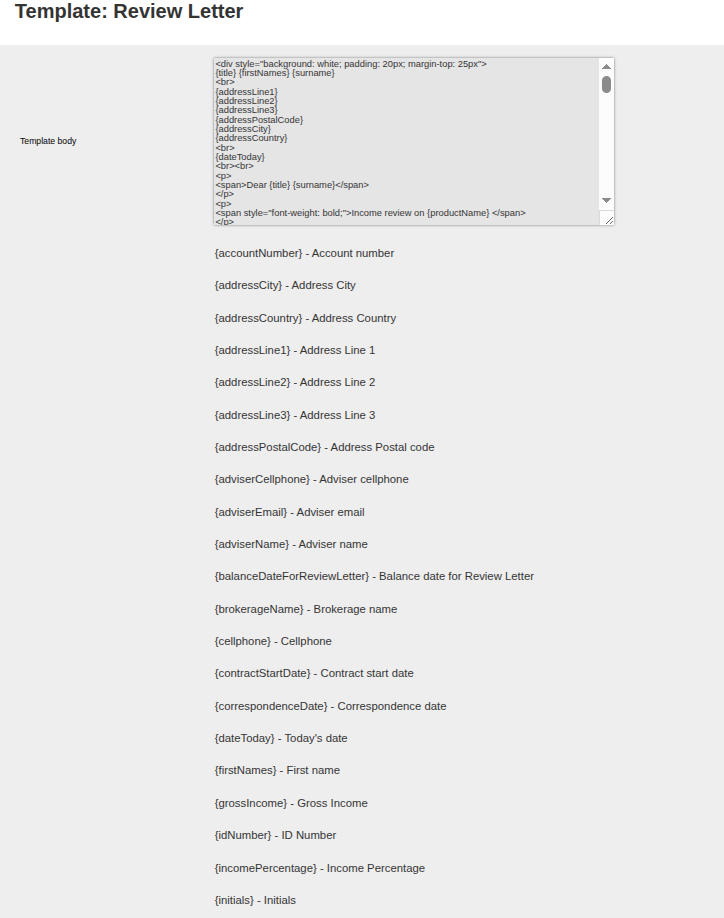
- If you click on Main template -> you can edit the content of the letter, and you will see all the various variables that are at your disposal to add to the letter.
- Variables include various static investor information such as name, address, ID number and advisor related data such as advisor name, cell, email and brokerage name. And also various income and review related data such as net income, gross income, tax method, tax rate, tax amount, income percentage etc.

The {xxx} variable can be inserted into the html template as follows, which will place that variable in the review letter:
Review Notification Message
We have 2 Notification Messages, one for the Client and one for the Adviser, refer to Editing notification messages for more details on setting up Notification Message

Reviews Card Details
Navigate to the account and on the Review Card select View Details.
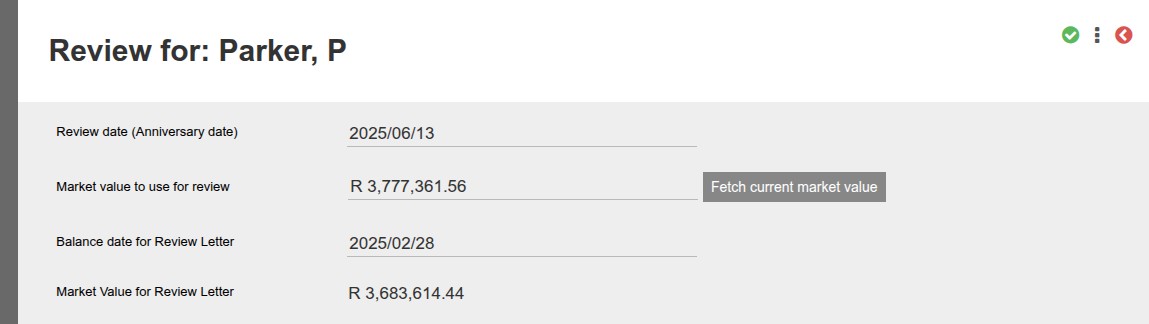
Review date (Anniversary date)
- Date when the review will be held.
- Review date is also seen as the anniversary date of the policy.
- Date by which the amended income will be applied/actioned.
- The “Business days allowed for response” (as set on the Product) is calculated backwards from this date, the Due Date by which the client needs to respond to amend their annual income.
Market value to use for review
- This is the market value that will be used on the review, and can be manually updated, or use the Fetch current market value button to systematically fetch the current market value.
- If this value is updated, the system will dynamically update the Gross income or Income % p.a. at review (depending on whether amount or percentage is selected).
- This is also the value that will be used in the next review letter as the “Market value at previous review”.
Balance date for Review Letter
- Balance date for Review Letter will update the “Market Value for Review Letter”.
- The Balance date for Review Letter will be used in the Review letter in the Income Parameters section for the Current Market Value date.
- The Balance date for Review Letter will be used for the statement end date to be attached to the Review letter.
Market Value for Review Letter
- This is the Market Value for Review Letter as on the Balance date for Review Letter.
- Minimum Annual Income Percentage -> Used to calculate the minimum income for the review letter Income Parameters.
- Minimum Annual Income Percentage -> Used to calculate the minimum income for the review letter Income Parameters.
Income Section
Amount or Percentage
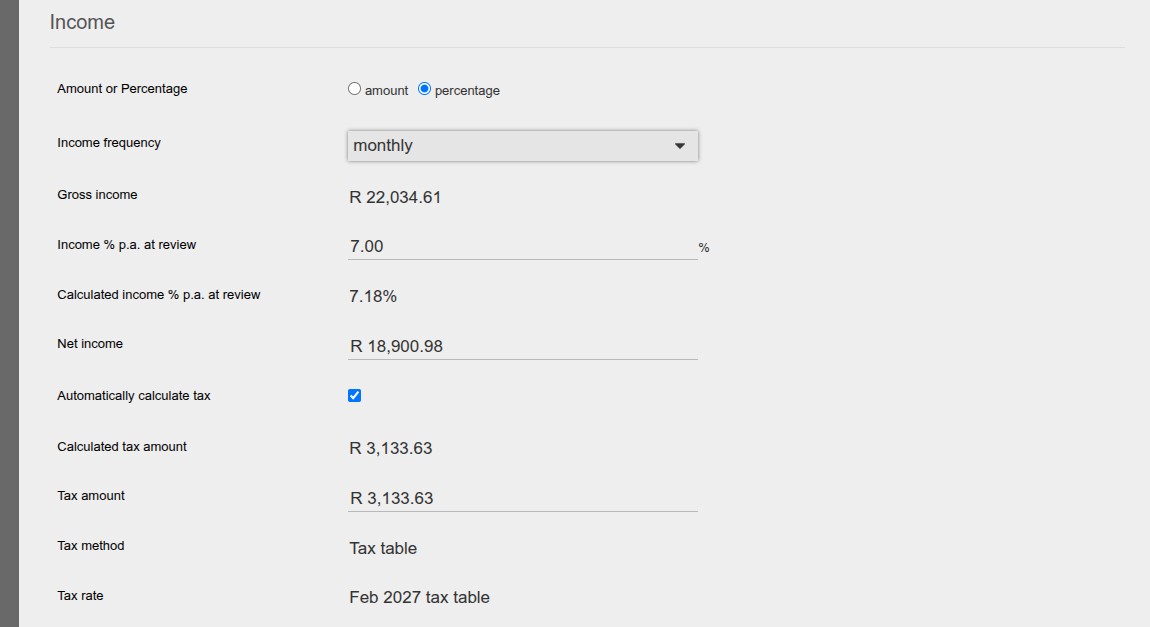
- If Amount is set, the “Gross income” needs to be captured and the “Calculated income % p.a. at review” will automatically be calculated. The Income % p.a. at review will also dynamically update when this value is changed, using the Market Value to use for review as reference of the investment value.
- If Percentage is set, the “Income % p.a. at review” needs to be captured and the “Calculated income amount p.a. at review” will be calculated. The Gross income will also dynamically update when this value is changed, using the Market Value to use for review as reference of the investment value.
- Calculated income % p.a. at review is dynamically calculated based on the values above, using Market Value for Review Letter as reference of the investment value.
- Enforcing Product Minimum and Maximum Annual Income Percentage: when the amount or percentage is updated as explained above, and you save the review, then the system won’t allow you to save an income amount that doesn’t fall within the minimum and maximum annual income percentage as setup on the product. The warning will provide the minimum or maximum value, depending on whether the amount is below the minimum or above the maximum.
Income frequency
- Can be set to: Monthly, Quarterly, Bi-annually or Annually.
Gross income
- Gross income is dynamically calculated based on Market value to use for review, Income % p.a. at review (if percentage is selected) and Income frequency.
Net income
- This value gets dynamically calculated based on the gross income amount minus the tax amount. If the Tax amount is updated, the Net income will also be updated. Similarly, if the gross income is updated, the net income will update in accordance.
- The net income can also be changed manually, but this isn’t advised as it’s a calculated value.
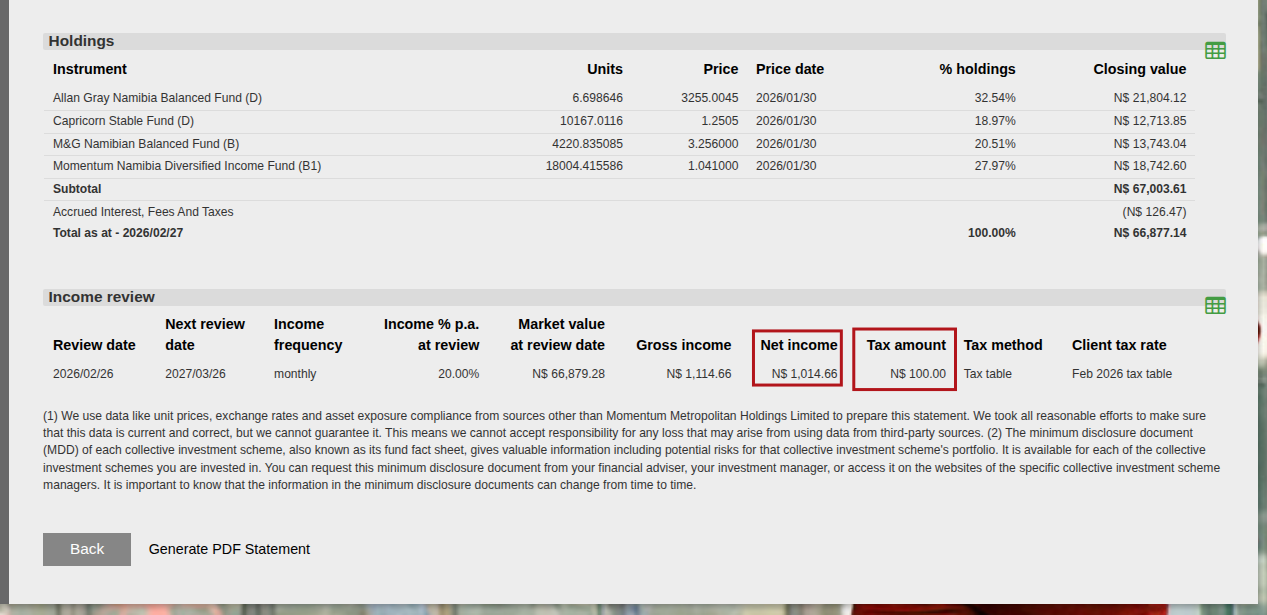
- The Net income will reflect on the statement in the Review Section if it’s selected to be included
- The Net income can also appear in the Review letter if the relevant variable is used in the document template.
Tax amount, Calculated Tax amount, Tax Method and Tax rate
- Automatically Calculate Tax
- During a review process, you can use the Automatically calculate tax checkbox to control how tax amounts are applied to the net income.
- Default Behavior.
- Default State: The checkbox is turned on or off by default based on the product’s specific settings. Refer to Tax on Withdrawal section for more details (System -> Product -> Tax section -> Tax on withdrawal).
- Follow-up: When you create a follow-up review, the checkbox will automatically remember and inherit the state (checked or unchecked) from the previous review.
- How the Checkbox Works.
- When Checked (Automatically calculate tax).
- The tax amount is automatically calculated based on the entity’s tax details (Personal Details card -> Tax Details).
- The Tax method and Tax rate fields will appear, showing exactly how the calculation was determined.
- The Net income field will automatically update to reflect the Gross income minus the calculated Tax amount.
- When Unchecked (Do not calculate Tax).
- The Tax method and Tax rate fields are hidden.
- The Tax amount field resets to zero but remains visible, allowing you to manually enter a custom tax amount if needed.
- By default, the Net income will equal the Gross income until a manual tax amount is captured.
- If you want to change the tax amount on the Review, which will then reflect in the Review letter and in the statement (if these fields are chosen to appear in either of these two documents) then you can edit the Tax Amount.
- The Calculated Tax amount won’t change when the Tax amount is updated, since this is a system calculated field.
- The Tax method and tax rate must be read in conjunction of one another. I.e. if tax method is Effective Tax rate (as defined on the investor details) then the tax rate will show what the effective rate is. If Tax method is Tax table, then the tax rate will be the tax table that’s currently active (see system -> tax tables).
- If an investor’s tax needs to be updated, it’s best to update the investor level information, which will then pull through to any active Reviews (i.e. current date is between Review date and next review date), instead of updating the tax amount on the review.
Sending Review Letters
- Navigate to: Investor -> Contracts -> More Actions -> Next Review Report.
- Set the From date and To date. NOTE: The report uses the Next Review Date.
- If the completed reviews also need to be included in the search tick the “Show completed”.
- Select the Search button.
- Exclude contracts with zero holdings will not show contracts with zero holdings.
- NOTE: Inactive contracts are excluded.
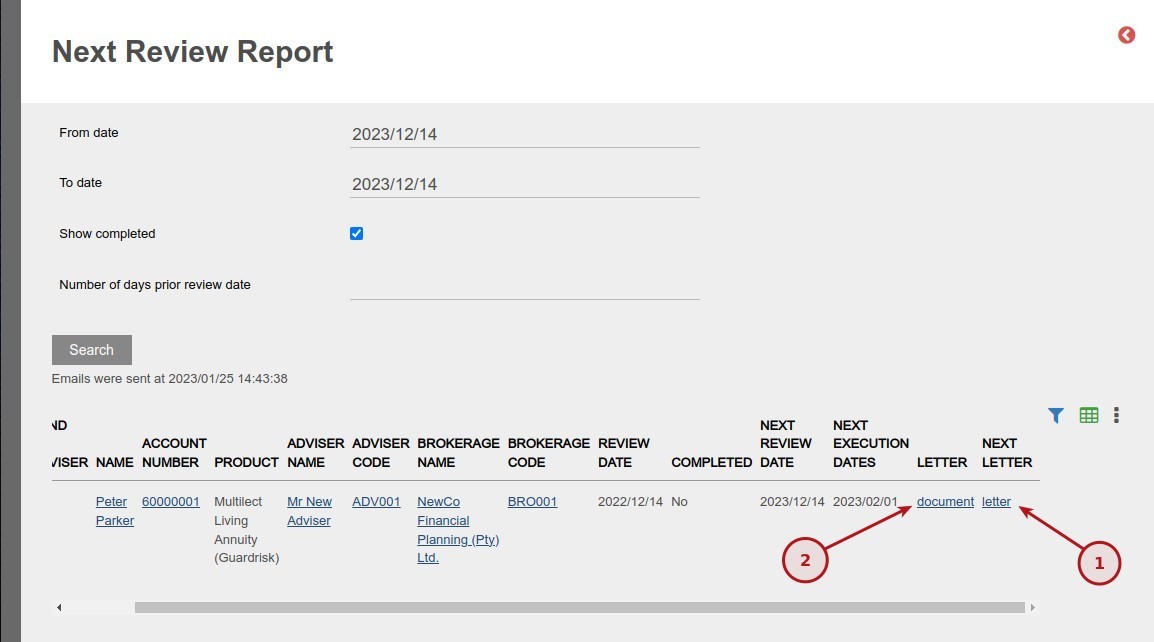
- In the NEXT LETTER (1) column a link will be available to preview the letter.
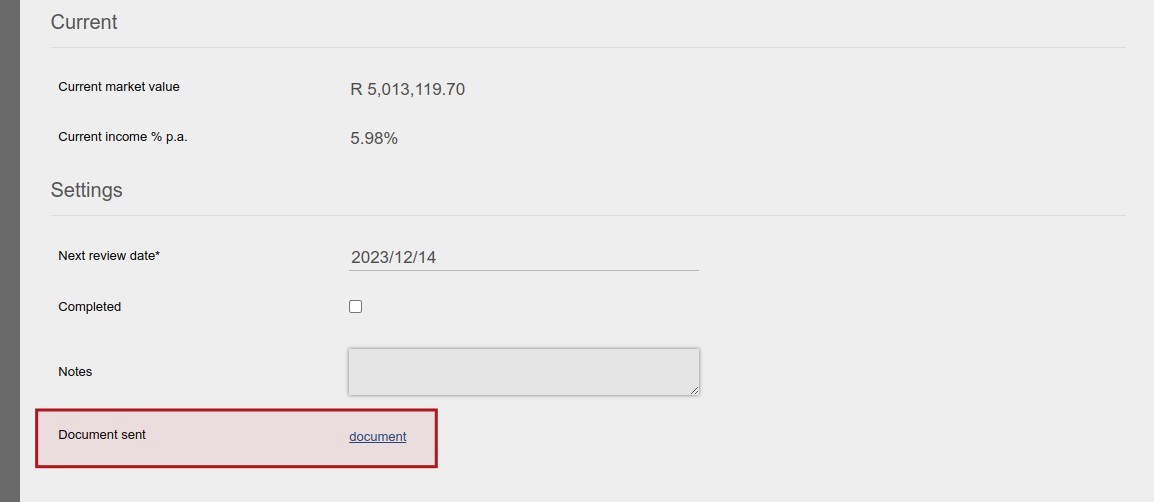
- In the LETTER (2) column a document link will be available if a letter has already been sent pertaining to the specific review. NOTE: If it is the first review or the letter has not been sent, “NOT SET” will reflect in the LETTER column.
- Set the SEND TO CLIENT (1) and/or SEND TO ADVISER (2) for the accounts/lines that the letter needs to be sent to, if only to be sent to the Client only set the SEND TO CLIENT and if only to be sent to the Adviser only set the SEND TO ADVISER.
- From the More Actions (3) select “Email letters” (4).

- The system will then send the letters and in parallel create the next Review on the Reviews Card and the letter will be available to view on the new Review.
Review Process
- For the first review, a new Review needs to be created as outlined above on the Reviews Card Details on the account and a next review date set.
- As and when required eg. Once a month, follow the process as outlined in the Sending Review Letters section above, where the next review will be created.
- On the review date on the account navigate to the Review card and update the “Market value to use for review” and “Review date” with the actual values. (for details refer to the Reviews Card Details above)
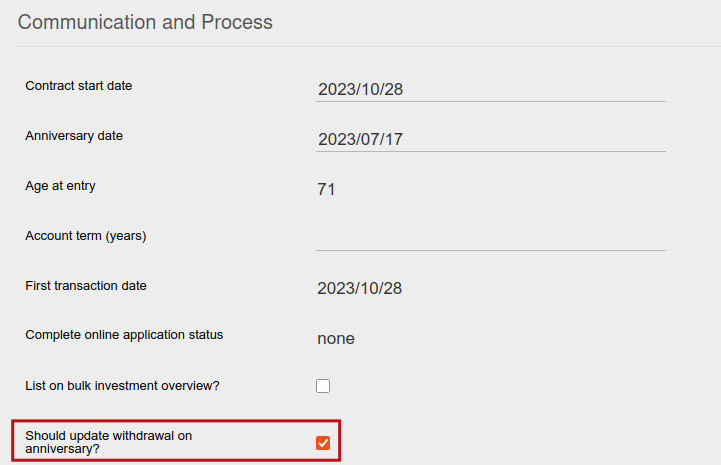
- On the contract, navigate to the Contract Details card and click on the arrow (view details).
- Then navigate to Should update withdrawal on anniversary? and check this box if appropriate. This will automatically update the recurring withdrawal instruction that occurs after the Anniversary date is reached, as per all the information on the latest Review, each year.
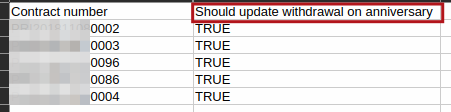
- You can use the Import Contract feature to update this value across investors in bulk, by specifying the contract number and Should update withdrawal on anniversary with a value of TRUE, in a csv file and importing it (as per second image shared).
-
- The recurring withdrawal will only update automatically if the following is true:
- The recurring withdrawal is the first recurring withdrawal on or after the Anniversary date
- The recurring withdrawal is in Ready to Recur
- There is a Review for that contract, where the Anniversary date falls between the Review Date and the Next Review Date
- The contract has Should update withdrawal on anniversary? selected
- The recurring withdrawal will NOT be automatically updated in the following scenarios:
- The recurring withdrawal was rejected
- The recurring withdrawal commencement date was changed by using Instructions ? recurring withdrawal ? change commencement date since the instruction is then automatically authorised and is no longer in ready to recur
- The first recurring withdrawal on or after the anniversary date is the first ever occurrence
- The recurring withdrawal will only update automatically if the following is true:
- Set the Review as Completed.
- If the Sending Review Letters process is not required, the next review can be created manually by selecting the Add button on the Reviews card.
Manually Update Recurring Withdrawal while doing the review
If you’ve selected Should update withdrawal on anniversary under Contract Details as explained above, then these steps aren’t necessary, as the system will do this automatically.
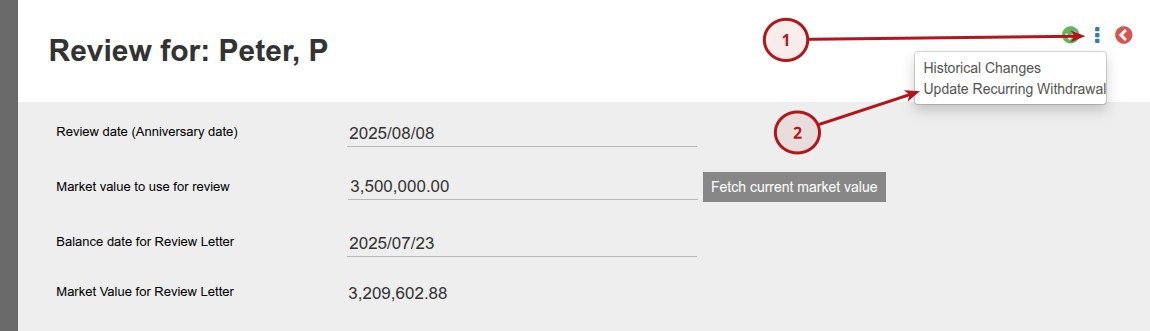
- After completion of the review process, from the More Actions select Update Recurring Withdrawal
- The instruction will be updated, conditional for the following:
-
- Instrument Selection on the instruction can only be:
- Work in amount or units -> Amount
- Capture amount -> for entire instruction
- Instrument Selection on the instruction can only be:

-
- Instrument status must be one of the following:
- New
- Submitted
- Ready to Recur (auto recur)
- Instrument status must be one of the following:
-
- Success message:

-
- Failed message:


Including Review information in a client statement
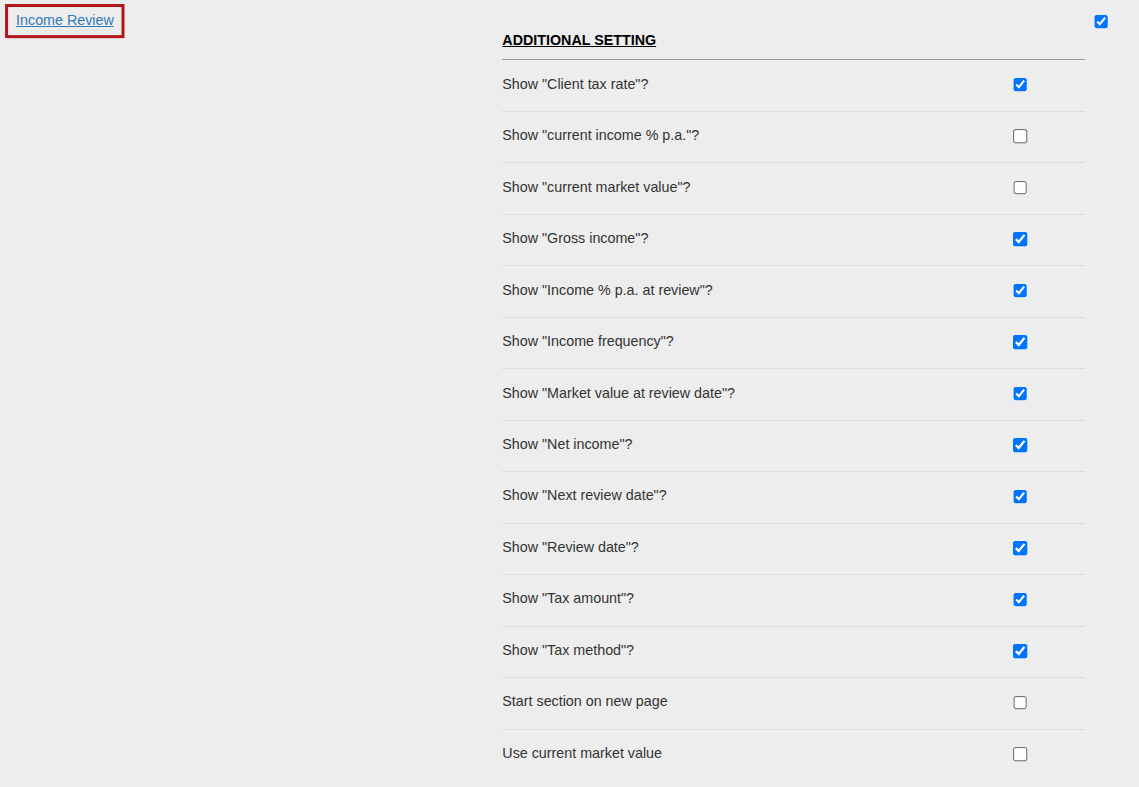
You can include Review information in a client statement, and choose each variable you want to include or not. Follow the steps in the Statement Defaults help file to see how to setup a statement.
You can include Tax information from the Review, Market Value at Review date, Gross Income, Net income etc.
Last Updated on 6 months ago by Tinus Burger