
Setting Permissions on a user
NOTE: After making any changes to a user account, the account will be deactivated and must be activated by another user for security purposes.
Any Person (Entity) on the system can be made a User, for more information refer to Adding and Editing a Person
From the Personal Details Card select More Actions -> Make User
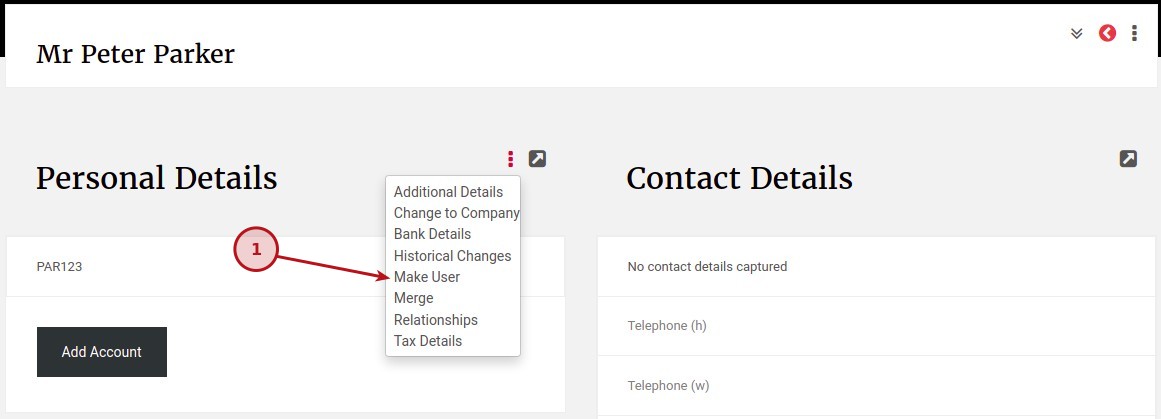
- The system will create a “User login name” by using the surname and name, note this can be changed if needed but duplicate usernames are not allowed
- An “Email address” will need to be captured, this email will be used to send messages i.e. a password reset
- On selecting the save button a pop-up will notify with the following message: “The new user was successfully created. Another user must activate it.”
- More details on Global and Group Permissions are available here Global and Group Permissions
After a user has been created a User Card will be shown, this card will be used to:
- Set Global and Group permission and Visible Accounts
- Activate the account
- Reset the user Password
- View Details (Details below)
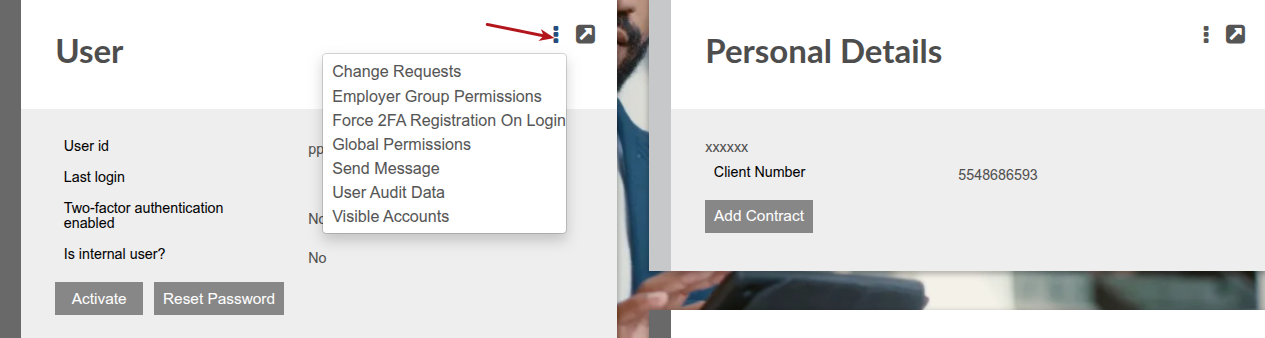
View Details
The View Details button on the User Card gives additional information i.e.:
- View and Edit the “User login name”
- View and Edit the “Email address”
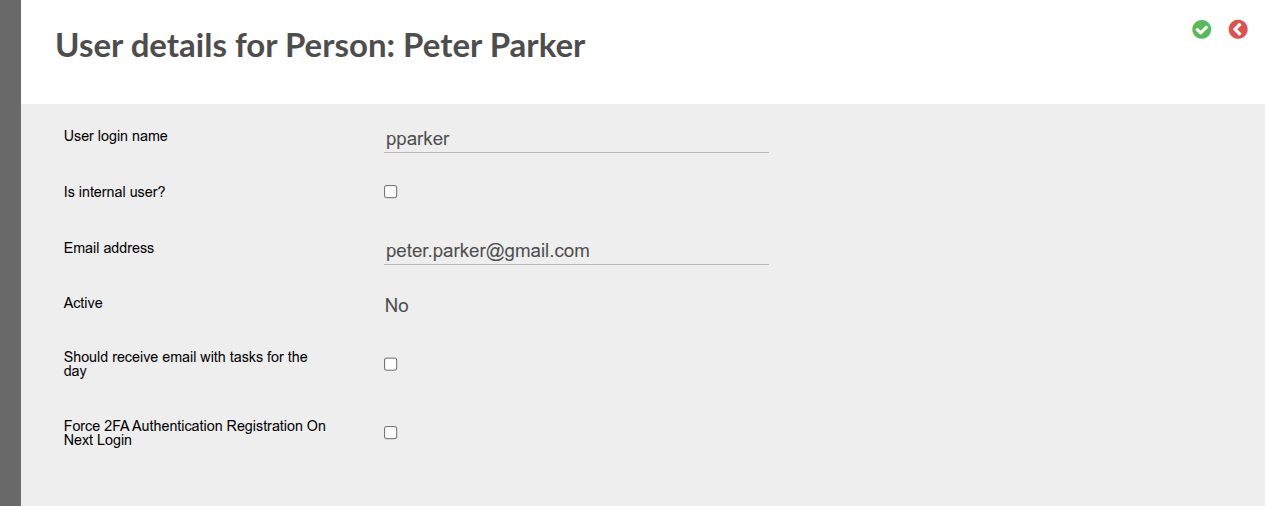
NOTE: After making any changes to a user account, the account will be deactivated and must be activated by another user for security purposes.
Also see User Permission Groups for Global Permissions
Last Updated on 4 months ago by Antoinette Van Meyeren