
User Permission Groups for Global Permissions
- User permission groups ensures consistency for users with the same function/role (for instance internal administrative users with the function Finance, Client Services, On-boarding etc.) and reduces manual permission updates on individual users.
- User permission groups can be setup once and then assigned to users dependent on the function/role of the user. The administrator can configure each permission group with the appropriate permissions once and then apply one or more permission groups to a user, instead of assigning permissions to each user separately.
- When a permission group is selected on a user, the user automatically inherits the permissions in the permission group.
- Permission groups can be updated by adding or removing permissions from a permission group. The changes made to the permission group will be updated on all users to which the updated permission group has been assigned.
Background on user permissions
- When a user is created, the user automatically have visibility pertaining to his/her role. For example a contract owner who is made a user will have visibility of his/her contract.
- It is therefore not recommend to give Contract owners , Advisers, Product viewers, Instrument Providers, Contact persons etc. any additional permissions (above the default permissions that the system add to new users), unless the administrator wants the user to see more detail.
- Adding additional permissions is mostly intended for internal administrators inline with their function as administrator, for instance, Finance, Client services etc.
Permission group setup
- Permission groups can be setup, changed and removed under Users->Permission groups.
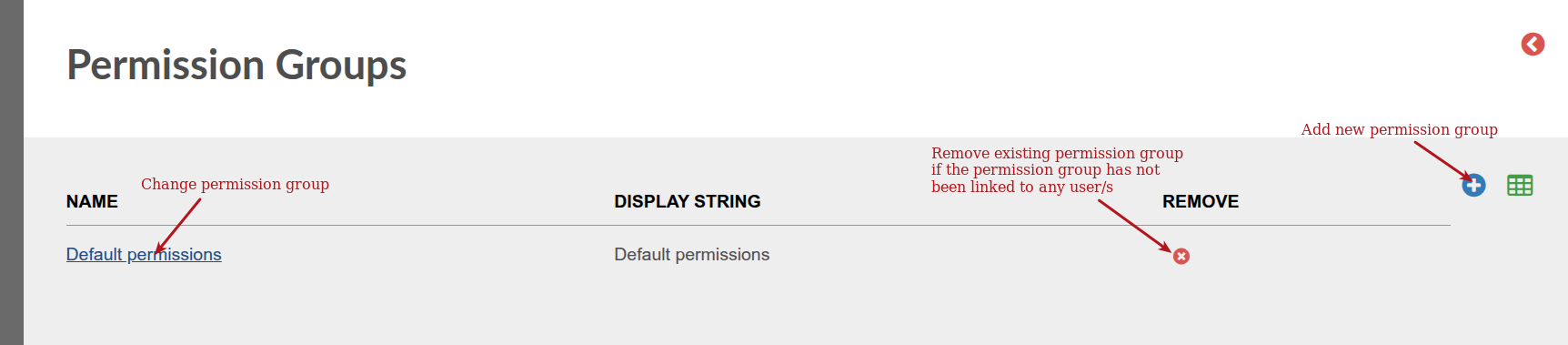
More about the default permissions group
- The ‘default permissions’ group represents the permissions that are, by default, given to all newly created users.
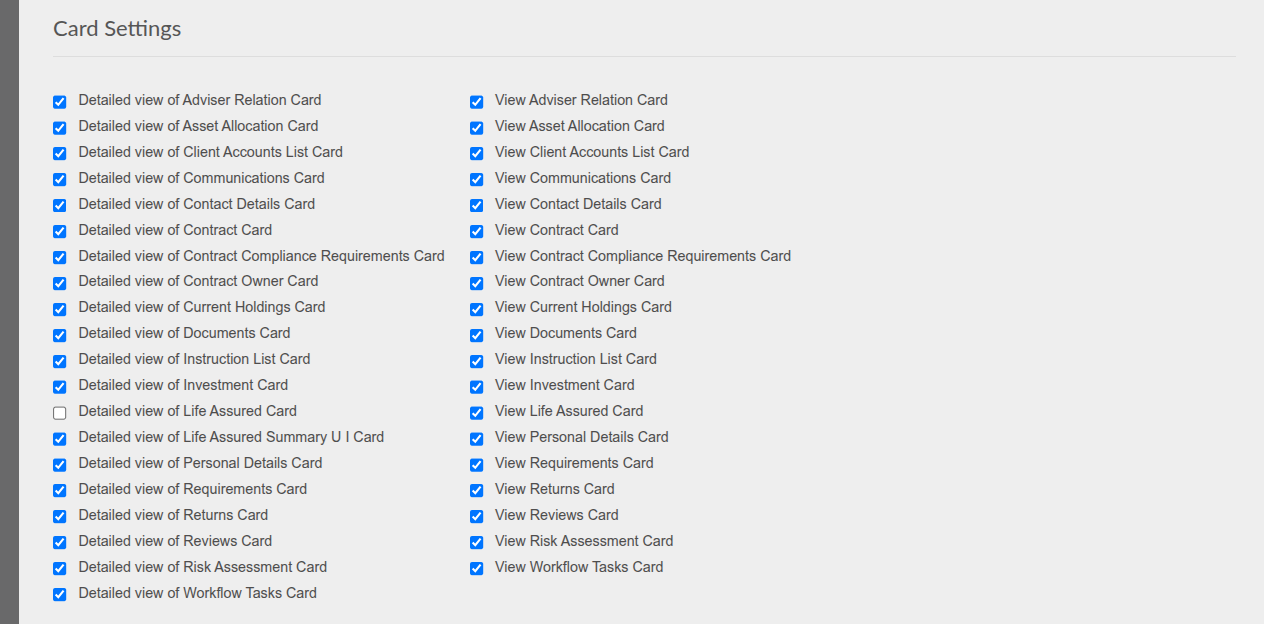
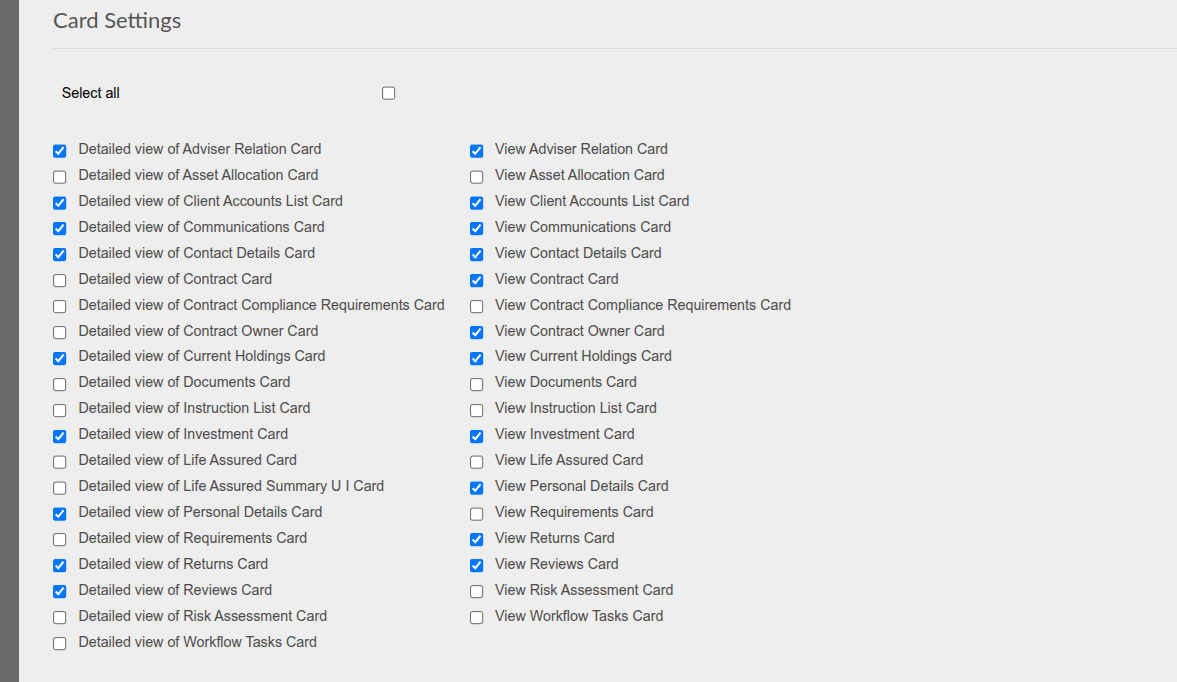
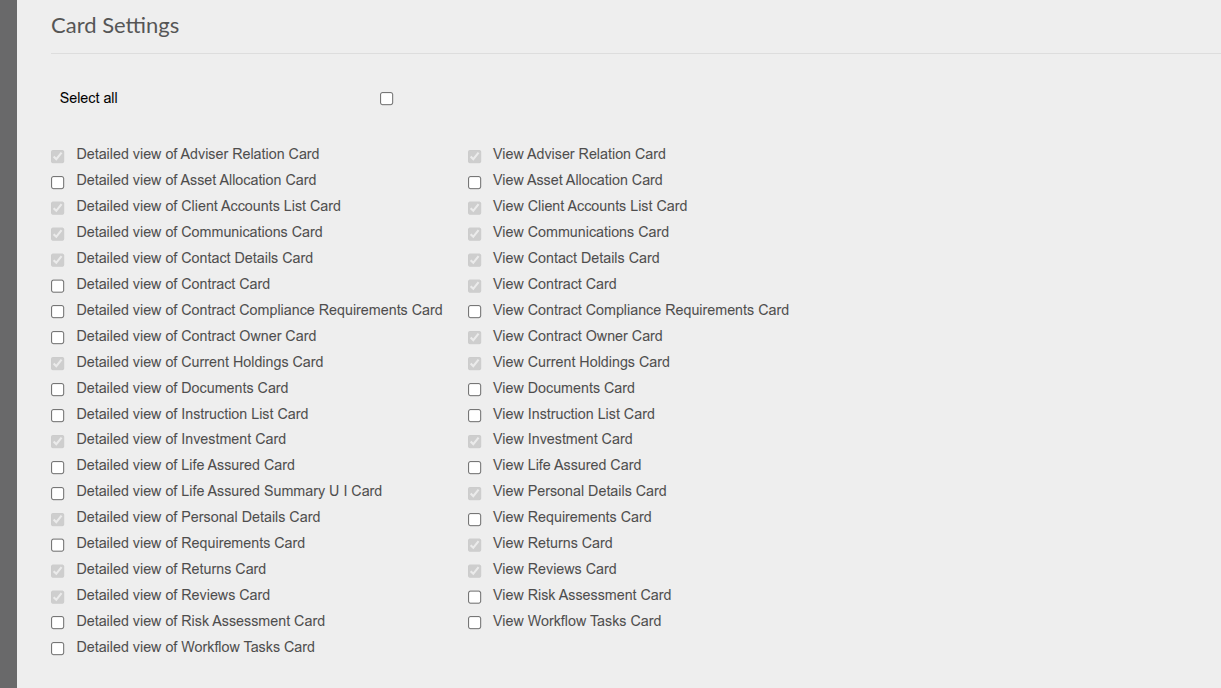
- This group consist of the permissions, ‘View advisor fee rates on advisor relations facade’ and the Card Settings as displayed in the picture below:
- The Default permission group contains a setting ‘Add to new users by default’, which is selected.
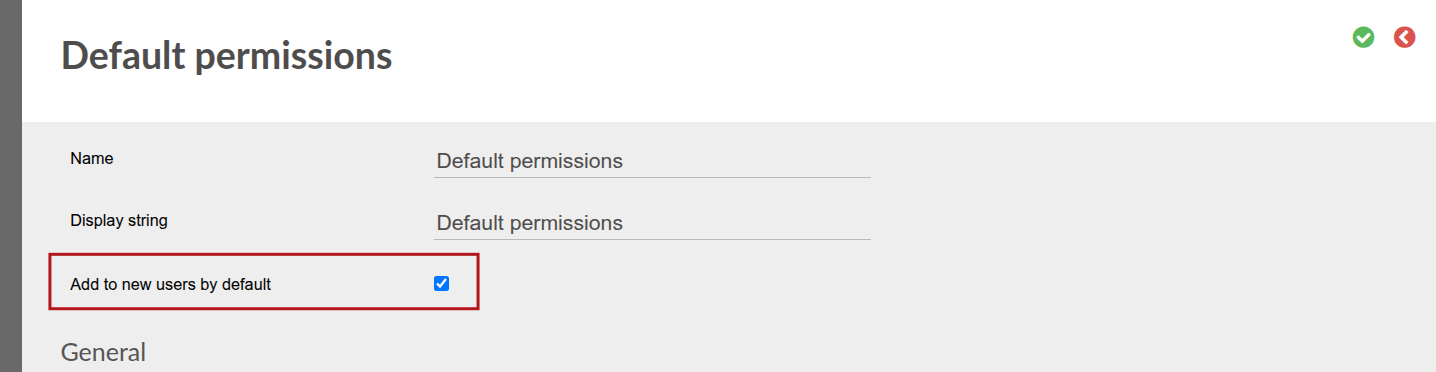
- The setting ‘Add to new users by default’ will be available on new permission groups when created (by default un-selected).
- As an example, if the administrator wants only certain card views to be available to new users, a new permission group can be created and the ‘Add to new users by default’ on the permission group ‘Default permissions’ can be un-ticked and ticked on the new permission group.
- The current ‘Default permissions’ group can also be updated instead of creating a new permission group.
- NOTE: Existing users, before the implementation of the permission group functionality, are not linked to the ‘Default permissions’ group and will therefore not be updated should the ‘Default permissions’ group be updated/changed.
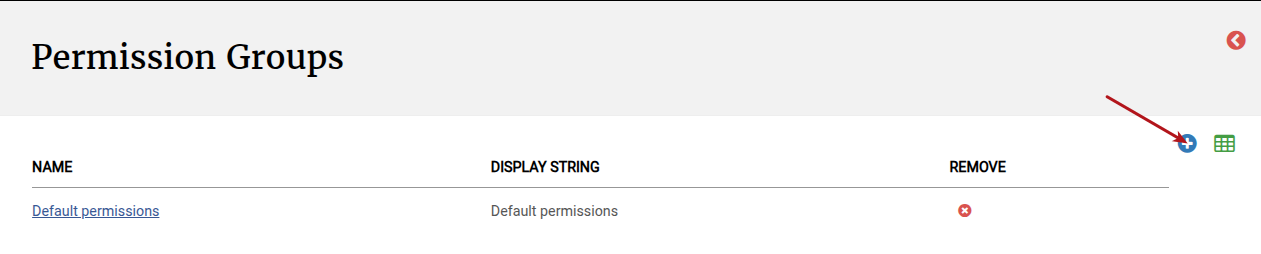
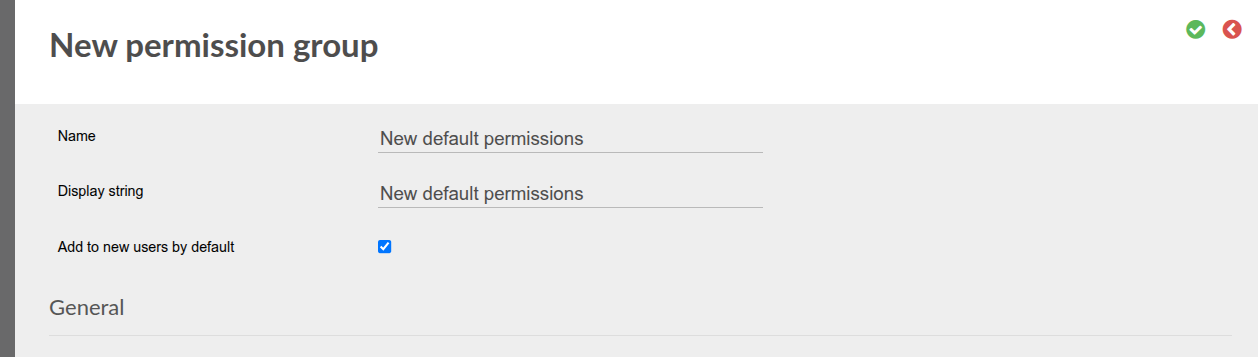
- Permissions selected on the new permission group:
Apply permission groups to a user
- To continue with the example above, create a new user
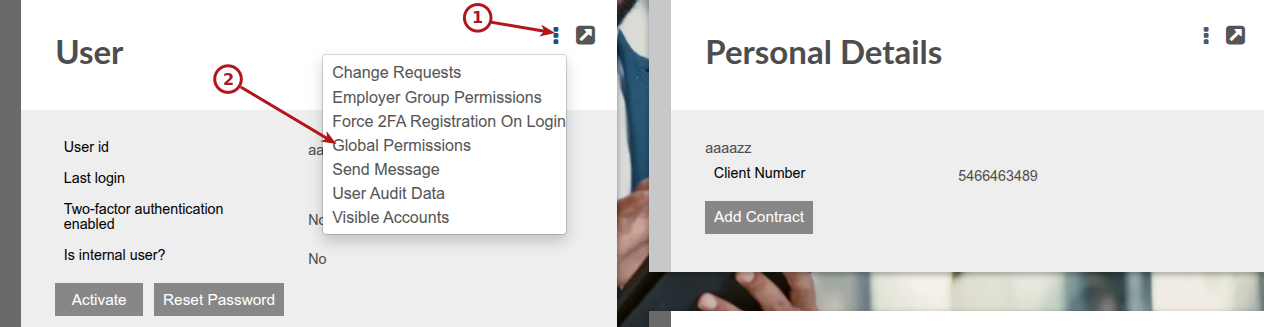
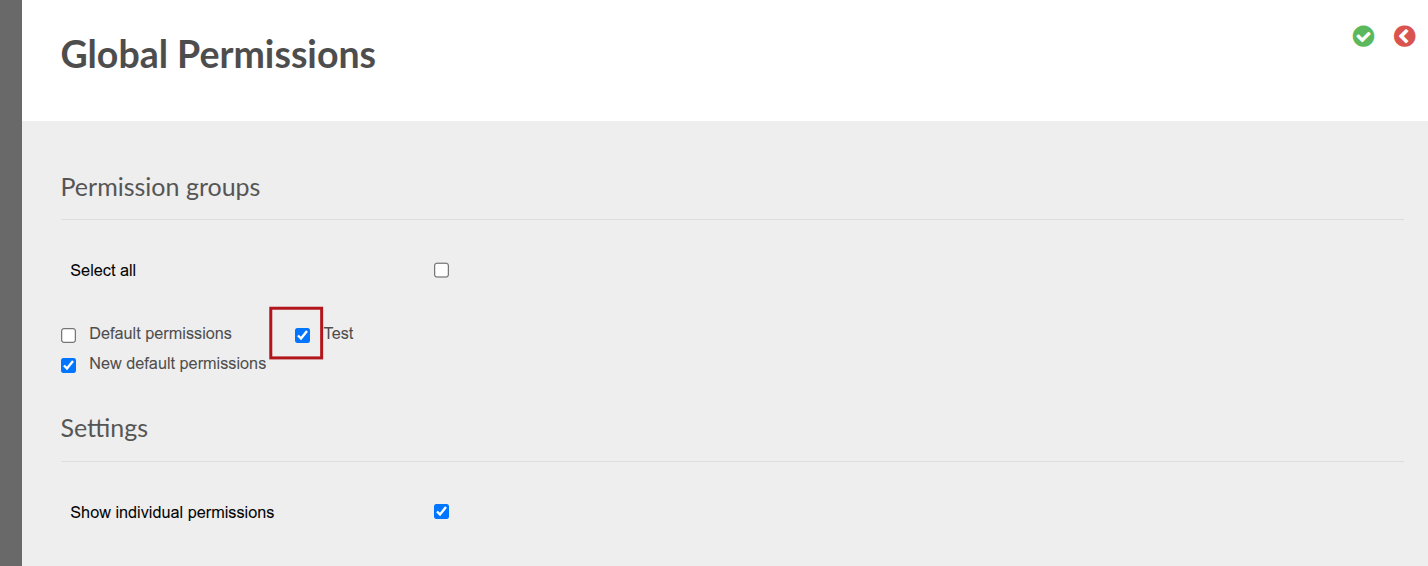
- The ‘New default permissions’ group is selected on the user and if ‘Show individual permissions’ is ticked the permissions inherited from the group can be viewed.
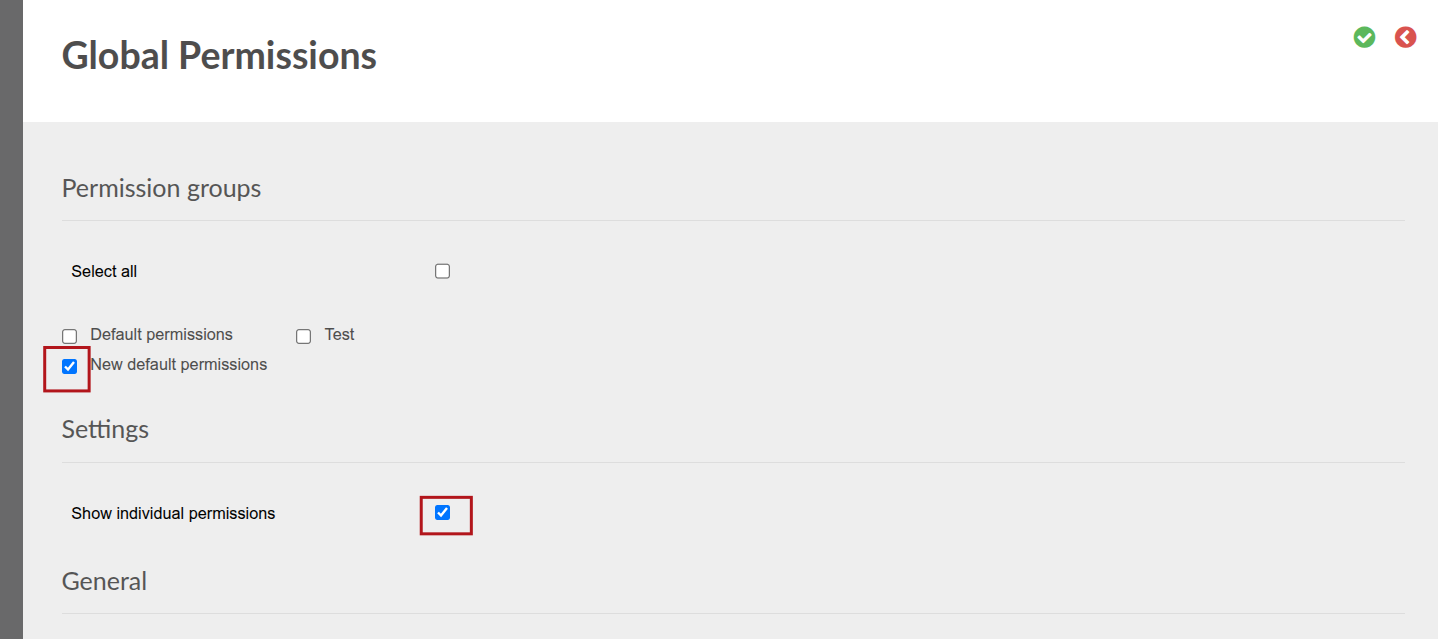
- Additional permission groups can be added to the user:
- Individual permissions can also be added to a user:
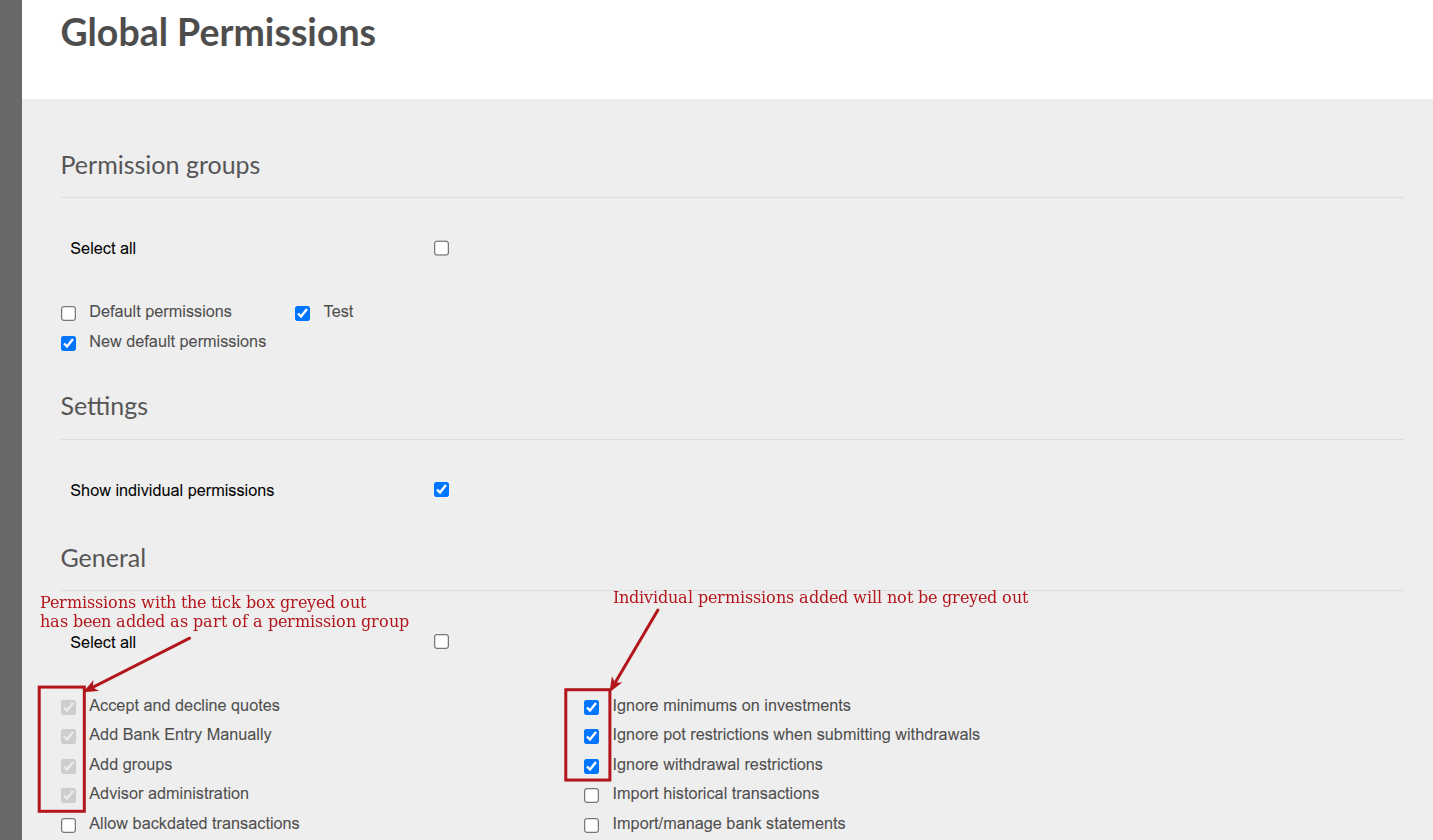
- An administrator can therefore clearly see which permission the user have as a result of a permission group selected on the user (tick greyed out) and which permissions have been added individually (tick not greyed out).
- Greyed out permissions cannot be removed from a user, the administrator need to remove the permission group from the user, if some permissions that is part of the permission group needs to be removed. The administrator can apply another permission group or add the required permissions manually to the user.
- Permissions added manually can be removed by un-ticking the permission.
- Where 2 permission groups (A and B) has been assigned to a user and permission group A contains permissions that is also part of permission group B and permission group B is removed from the user, the permissions for permission group A is still selected on the user.
NOTES
- Need ‘user administration’ permission to setup and assign permission groups
- A permission group cannot be removed if it is currently assigned to one or more users
- A user administrator cannot edit a permission group that is assigned to himself or herself
Also see Global and Group Permissions and Setting Permissions on a user
Last Updated on 4 months ago by Antoinette Van Meyeren